
If you are looking for a Chromecast extension for Chrome, you do not need to install the old Google Cast extension anymore.
Google built Cast directly into Chrome in 2016, so today you can send a browser tab, your computer screen, or supported local media to a Chromecast or Google Cast-enabled TV from Chrome itself.
The more useful question now is not “Which Chromecast extension should I install?” but “What exactly do I want to send to the TV?” A Chrome tab, your full computer screen, and a web video can each call for a slightly different approach.
Chromecast Extension for Chrome: Quick Answer
The old Google Cast extension is no longer required.
On a computer, open Chrome and go to More → Cast, save, and share → Cast...
Then choose the TV or Cast receiver you want to use. Chrome currently supports casting a browser tab, your computer screen, and supported media files opened in the browser.
If all you want is to put a Chrome tab on your TV, the built-in Cast feature is usually the simplest place to start.
What Happened to the Chromecast Extension?
The Chromecast extension was a real Chrome extension during the earlier years of Chromecast. It gave Chrome users a way to send supported web content to a TV.
That changed on August 29, 2016, when Google announced that Google Cast had been built directly into Chrome. From that point forward, users no longer needed to install and configure the separate extension for normal Chrome casting.
That is why searching the Chrome Web Store for the old official Chromecast extension today can be confusing. The functionality did not disappear; it moved into the browser.
So if an older guide tells you to install Google's Cast extension first, you can usually skip that step and use Chrome's built-in Cast menu instead.
How to Cast From Chrome Now
Chrome gives you several ways to send content to a TV. The best one depends on whether you want to share one tab, your whole computer screen, or a local media file.
Cast a Chrome Tab to TV
Use tab casting when the content you want to show already lives inside one Chrome tab.
Step 1. Make sure your computer and Chromecast, Google TV device, or Google Cast-enabled TV are connected to the same Wi-Fi network.
Step 2. Open Chrome and load the website, video, or page you want to show.
Step 3. Open More → Cast, save, and share → Cast...
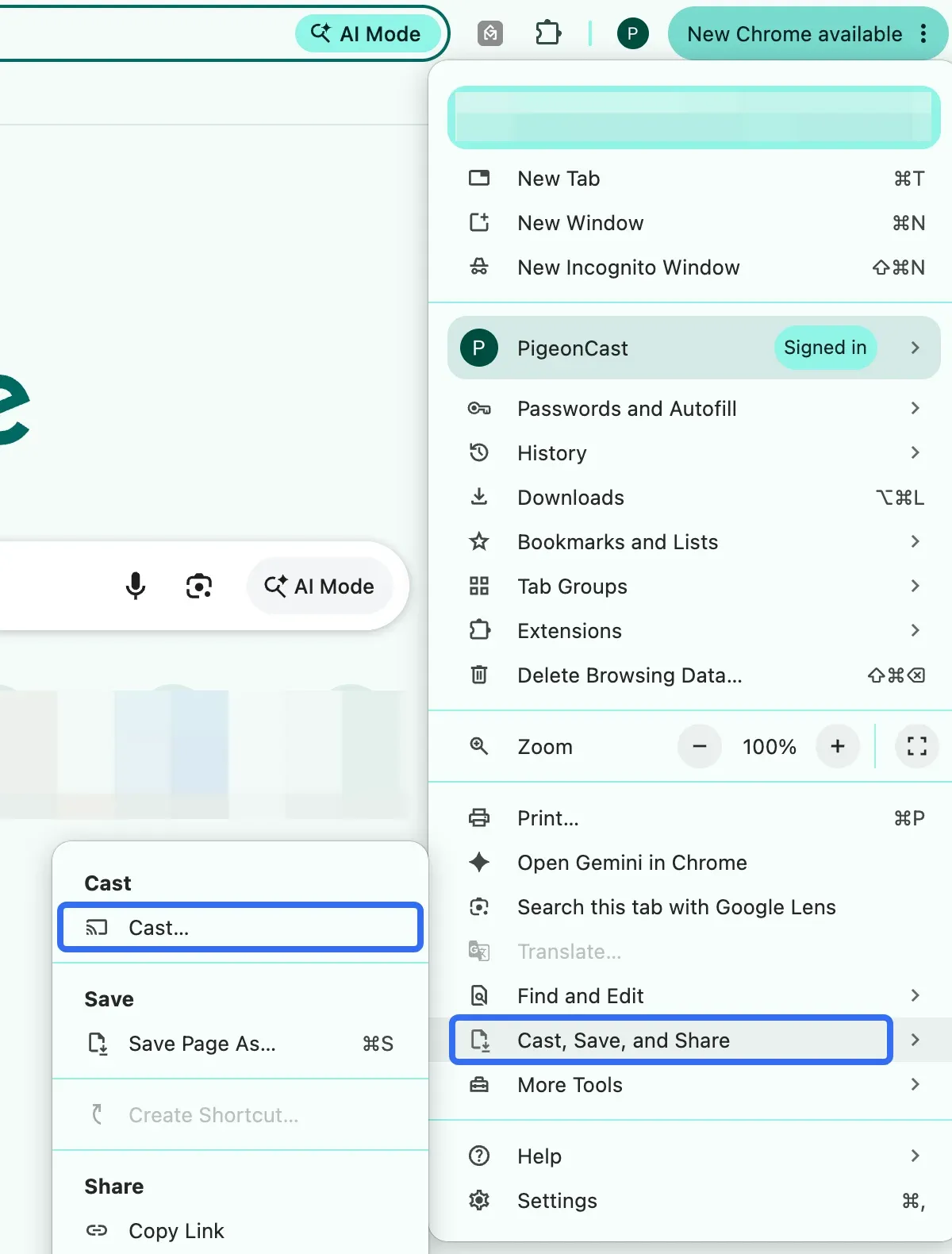
Step 4. Choose the TV or Cast receiver you want to use.
Step 5. Keep Cast tab selected if Chrome asks which source you want to share.
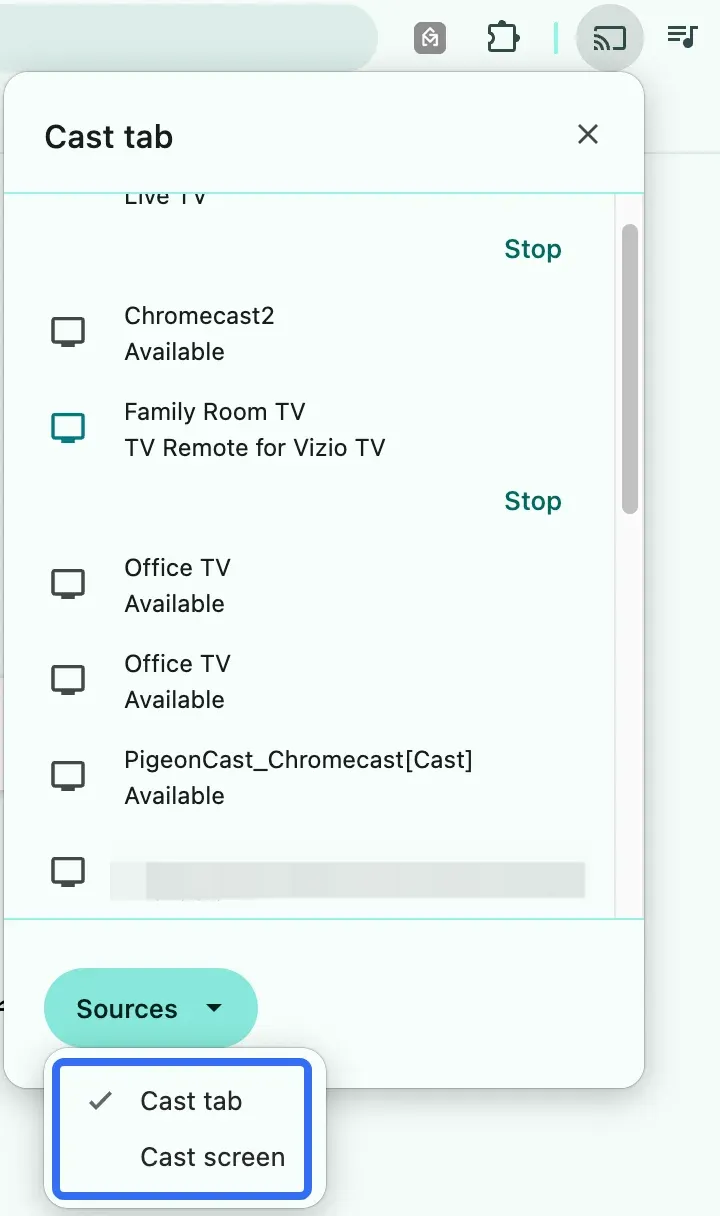
Google recommends tab casting for ordinary browser content, and audio from the selected tab normally plays on the TV rather than the computer.
Tab casting is usually the better option when everything you need is contained in one browser tab and you do not need to expose the rest of your desktop.
Cast Your Desktop From Chrome
If you need more than one browser tab, Chrome can also share your entire computer screen.
Step 1. Open Chrome and select More → Cast, save, and share → Cast...
Step 2. Open Sources.
Step 3. Choose Cast screen.
Step 4. Select the screen you want to share and then choose your Cast receiver.
Chrome supports full-screen casting from Windows, Mac, and Chromebook. One important difference is audio: when you cast your full screen, sound may continue playing through the computer, while tab casting is generally better when you want browser audio routed to the TV.
Desktop casting is useful for presentations, web apps, demonstrations, or workflows that move between several windows rather than staying inside one Chrome tab.
Cast a Local Video or Audio File From Chrome
Chrome can also cast supported local media files.
Open the video or audio file in a Chrome tab, then use the normal Cast menu and select your receiver. Google also documents dragging a file into Chrome or opening it with Ctrl + O on Windows or Command + O on Mac before starting the Cast session.
This works well for simple local media playback, although compatibility still depends on the file format and the receiving device.
Chrome Cast Not Working: Fix It by Symptom
If Chrome casting fails, start with what is actually happening rather than changing several settings at once.
Chromecast Does Not Appear in Chrome
If Chrome cannot find your Chromecast or Cast-enabled TV, first make sure both devices are connected to the same Wi-Fi network and that the receiving device is powered on and online.
Then update Chrome and restart the browser, computer, and Chromecast.
On Macs running macOS 15 or later, Chrome also needs Local Network access to discover Cast-enabled devices.
Chrome Connects but Video Does Not Play Properly
If Chrome finds the receiver but the webpage, player, or video behaves badly after casting, the problem may be the site rather than Chromecast itself.
Some sites support Google Cast directly and can hand the media stream over to the receiving device. Others rely on tab projection, which mirrors the browser content instead. Google notes that direct playback generally provides better video and audio quality when a site supports it.
Ads, embedded video players, unsupported formats, or content-protection systems can also affect what appears on the TV.
If one website repeatedly fails while other sites cast normally, testing a different casting method is usually more useful than resetting your Chromecast.
Desktop Casting Is Laggy or Unstable
Full-screen casting asks more from the computer and network than sharing a single browser tab.
If desktop casting feels delayed or unstable, try switching back to Cast tab whenever the content allows it. A smaller sharing scope generally gives Chrome less work to do and can produce a cleaner experience.
You should also check Wi-Fi strength at both the computer and TV, especially if the problem becomes worse when sharing video or moving quickly between windows.
If your real goal is regular full-screen mirroring rather than occasional browser sharing, Chrome may simply not be the best tool for that job.
Need More Than Chrome Casting? Try PigeonCast
Chrome's built-in Cast feature works well when the task starts and ends inside the browser. But it becomes less convenient when you want to mirror an entire Windows or Mac screen regularly, switch between computers and phones, or use the same screen-sharing workflow across different platforms.
PigeonCast is built around cross-platform screen mirroring rather than one browser-specific Cast menu. It lets you mirror from iPhone, Android, Windows, and Mac to supported larger screens, so the workflow stays more consistent when your devices change.
Mirror Your Full Screen With PigeonCast
If you want to show more than a Chrome tab, you can use PigeonCast to mirror the device itself.
Step 1. Open PigeonCast on your Windows PC, Mac, iPhone, or Android device.


Overall Rating:



Step 2. Open PigeonCast on the supported TV or receiving screen.
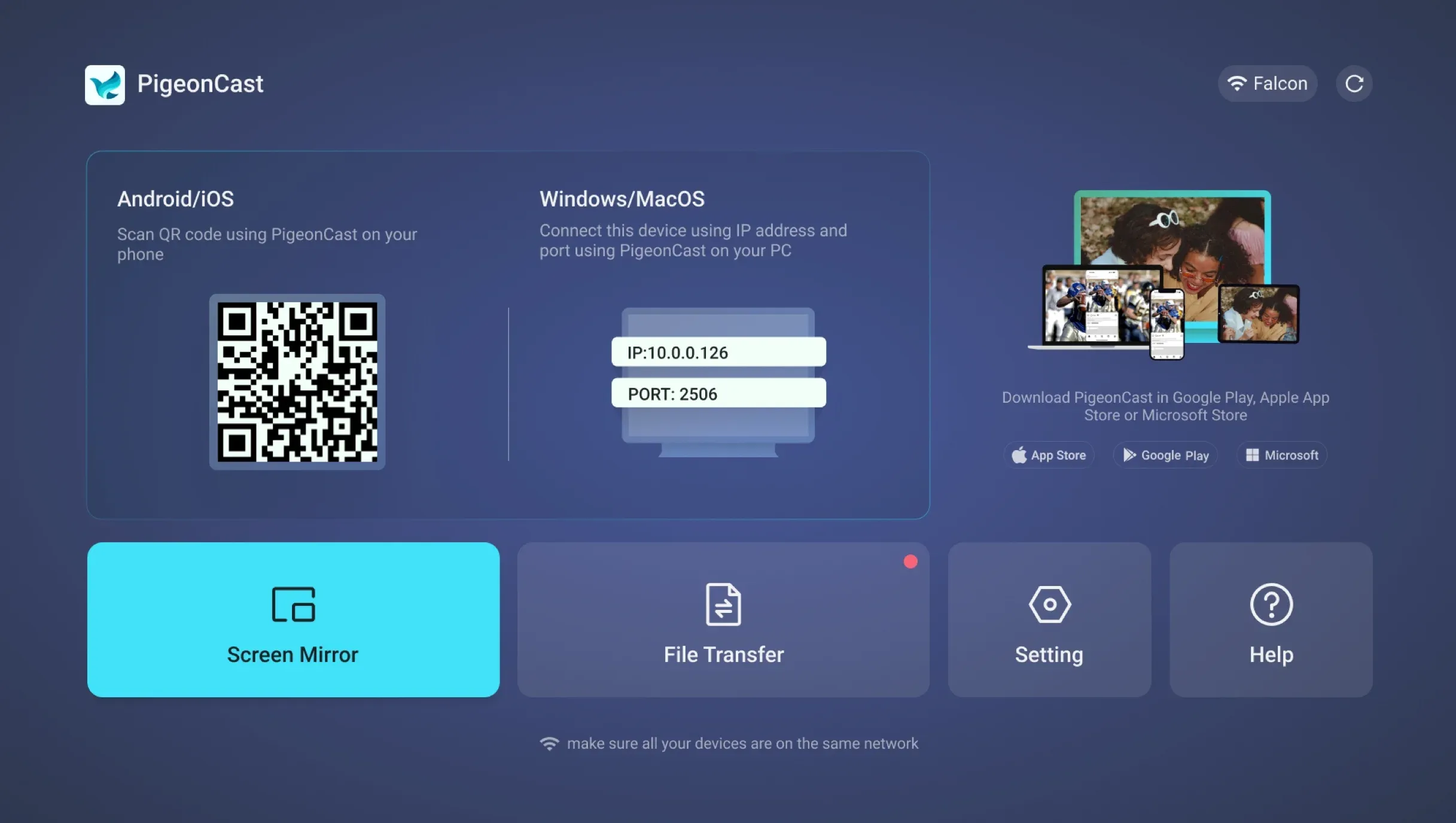
Step 3. Connect the devices by choosing your TV from the device list.
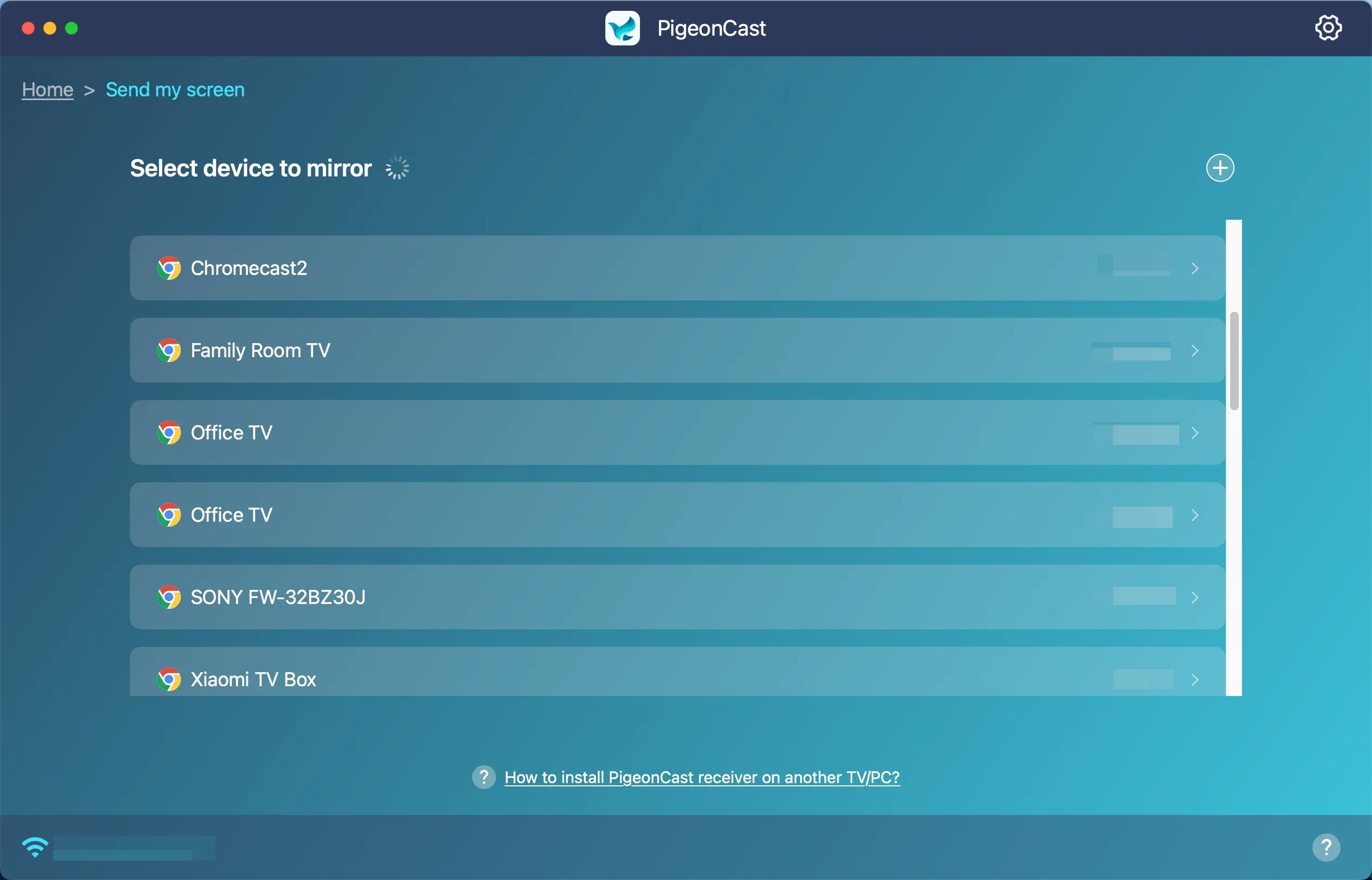
Step 4. Choose to mirror full screen or cast an app window and start streaming.
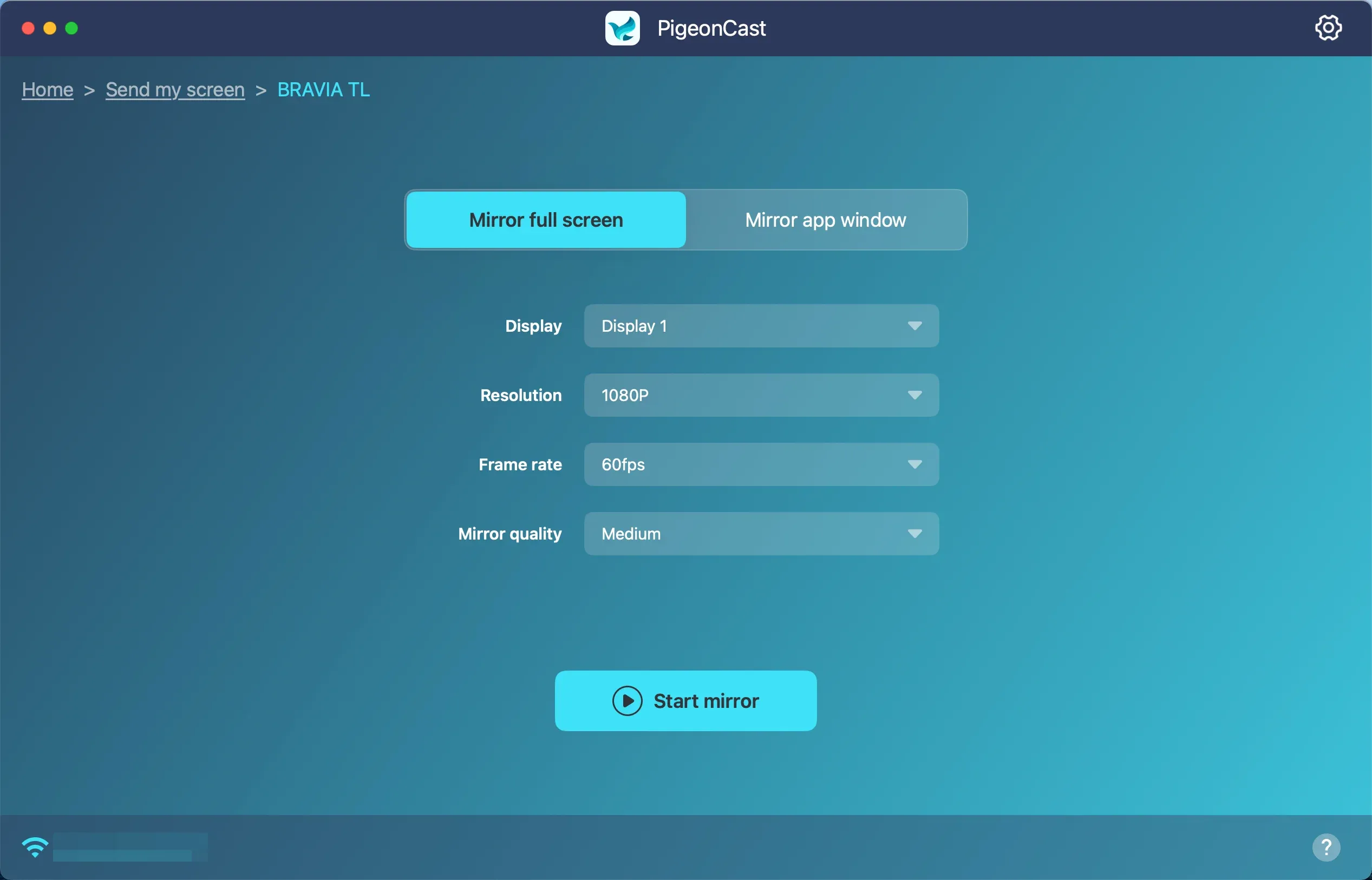
This is the better fit when your requirement is essentially “show what is on this device” rather than “cast this one Chrome source.”
Prefer Casting Web Videos? Try the PigeonCast Chrome Extension
There is also a middle ground between Chrome's built-in Cast menu and full-device mirroring.
The PigeonCast Chrome extension is designed specifically for web video. It scans the page you are viewing for playable video URLs and lets you send detected streams to Chromecast, Google TV, Android TV devices with Google Cast, or other compatible Cast receivers.
alt=PigeonCast extension available on Chrome
It also supports compatible local video files and includes playback controls for pause, seek, volume, and stopping playback.
That makes it useful when the built-in Chrome Cast workflow technically works but does not give you the browser-video-focused experience you want.
The distinction is simple:
- Chrome built-in Cast is the best first option for ordinary tab or screen casting.
- PigeonCast Extension is more focused on detecting and casting web video from Chrome.
- PigeonCast App is the broader option when you want cross-platform full-screen mirroring beyond the browser.
The extension is still subject to website and media restrictions. Its Chrome Web Store listing notes that some DRM-protected or encrypted streams may not be detected, and performance can vary with video format and network conditions.
Final Words
The old Chromecast extension may be gone, but Chrome casting itself is not. Google simply moved the core Cast functionality into the browser, which means most users can now send a tab, screen, or supported file to the TV without installing anything extra.
The more important distinction today is what kind of sharing you actually need. If the task stays inside one Chrome tab, built-in Cast is usually enough. If you mainly want to find and send web video, a video-focused extension can make that workflow more direct. And if you regularly need to mirror entire devices across Windows, Mac, iPhone, and Android, a cross-platform screen mirroring tool is a better match than trying to make Chrome handle every scenario.
In other words, the question is no longer really whether you can find a replacement for the old Chromecast extension. It is choosing the right level of casting or mirroring for the screen you want to share.
Chromecast Extension for Chrome FAQ
Can I pin the Cast button to the Chrome toolbar?
Yes. Start a Cast session from Chrome so that the Cast icon appears in the toolbar, then right-click the icon and choose the option to keep it visible. Google recommends pinning it if you use casting frequently.
Can I cast Chrome without a separate Chromecast dongle?
Yes, if your TV or streaming device already has Google Cast built in. Chrome can cast to compatible Google Cast-enabled TVs and devices such as Google TV Streamer, so a separate Chromecast dongle is not always necessary.
Does Chrome casting work with Google TV?
Yes. Google lists Chromecast with Google TV and Google TV Streamer among the devices that can receive Chrome casting, along with TVs that support Google Cast.
Can I close Chrome after I start casting?
That depends on how the content is being cast. If Chrome is actively projecting a browser tab or your screen, closing the relevant tab or Chrome itself can stop the session. Sites that use their own Cast-enabled playback may behave differently because the receiving device can handle more of the stream directly.
Does desktop casting send computer audio to the TV?
Not always. Google notes that when you cast your full computer screen, audio may continue playing on the computer. If TV audio is important and your content can stay inside Chrome, casting the tab is usually the better option.
Can I cast from Chrome on my phone?
Chrome's browser casting workflow is primarily a desktop feature. Google's documentation for Chrome browser casting covers computers, while mobile casting is generally handled through Cast-enabled apps or system-level screen sharing rather than the Chrome mobile browser itself.
Why does a web video show a black screen when I cast or mirror it?
A black screen can be caused by the website's video player, unsupported media formats, or DRM and other content-protection systems. If ordinary pages cast correctly but a protected video does not, the restriction may come from the content rather than your Chromecast or mirroring setup.
Mia Clarke is a technology editor specializing in screen mirroring and casting solutions across multiple platforms. Mia provides clear, practical guides and in-depth insights to help users seamlessly connect their devices. Passionate about enhancing digital experiences, Mia is dedicated to keeping readers updated on the latest trends and tools in cross-platform screen sharing. Whether you’re looking to mirror your smartphone, laptop, or smart TV, Mia’s content delivers reliable, user-friendly advice to simplify your tech setup.