

You can connect tablet to computer screen wirelessly or with a USB cable, whether you use an Android tablet or iPad with a Windows PC or Mac. The right option depends on your devices and whether you prefer quick wireless mirroring or a more stable wired connection. This guide covers five practical methods to display your tablet screen on your computer for presentations, videos, app demonstrations, and more.
Can You Connect a Tablet to a Computer Screen
Yes, you can display an Android tablet or iPad on a Windows PC or Mac through wireless screen mirroring or a USB connection. The computer must have a built-in receiving feature or compatible software that supports the protocol used by the tablet.
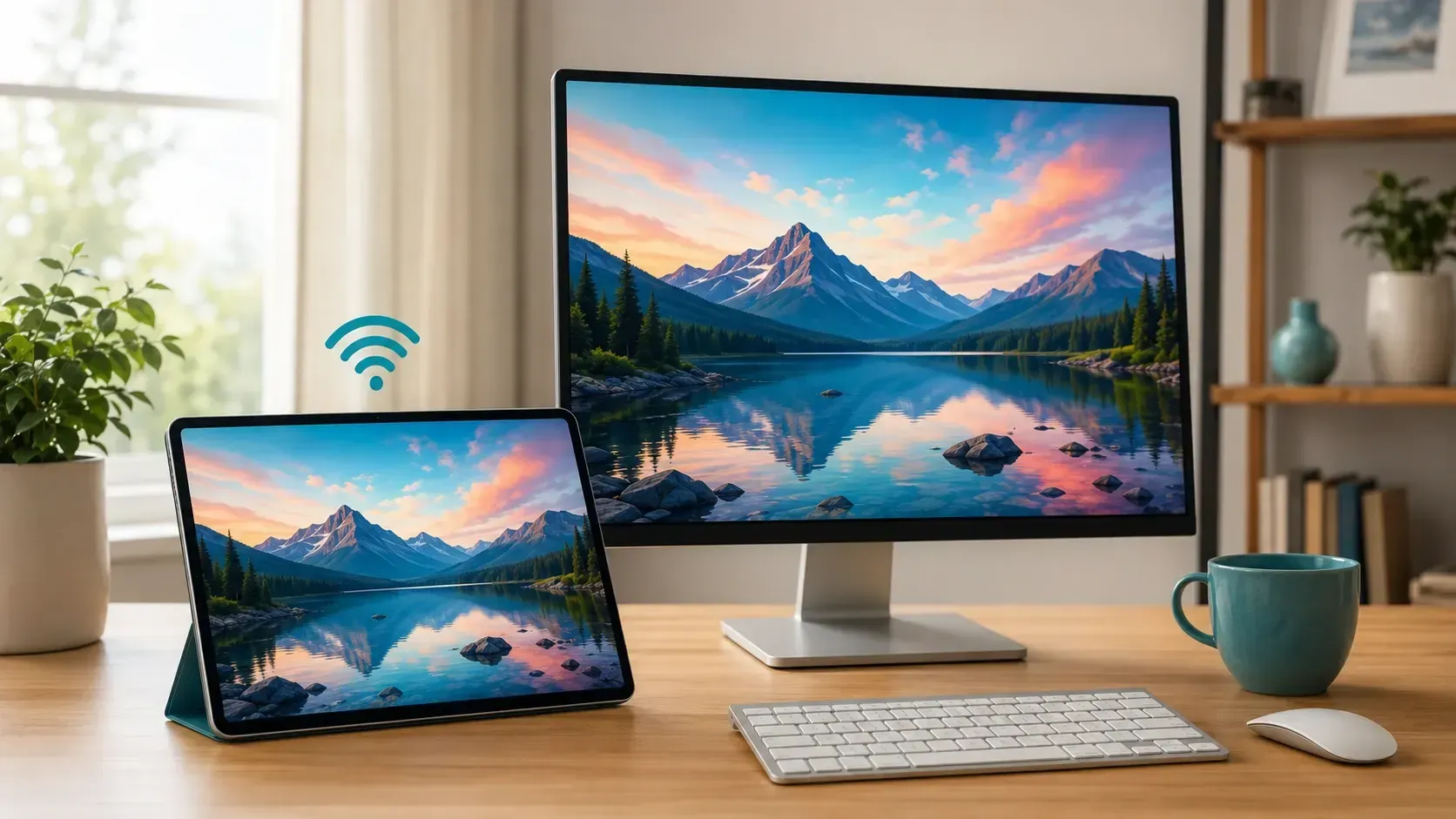
This creates a mirrored view, so the computer shows the same content as the tablet rather than using the tablet as an additional computer monitor. The available connection depends on your devices:
| Tablet | Windows PC | Mac |
|---|---|---|
| iPad | AirPlay with compatible receiver software or a supported USB tool | AirPlay or USB through QuickTime Player |
| Android tablet | Miracast through Wireless Display, Google Cast through receiver software, or USB | Google Cast through receiver software or USB |
How to Connect a Tablet to a Computer Screen
The following methods cover Android tablets and iPads connecting to Windows PCs and Macs. You can choose a wireless option for easier setup or a USB method when you need a more stable connection.
Method 1. Mirror Android Tablet or iPad with PigeonCast
PigeonCast lets you mirror an Android tablet or iPad wirelessly to a Windows PC or Mac. It supports AirPlay, Google Cast, and direct device-to-device mirroring, so you can use the same app across different systems without an HDMI cable, adapter, Apple TV, or Chromecast device.
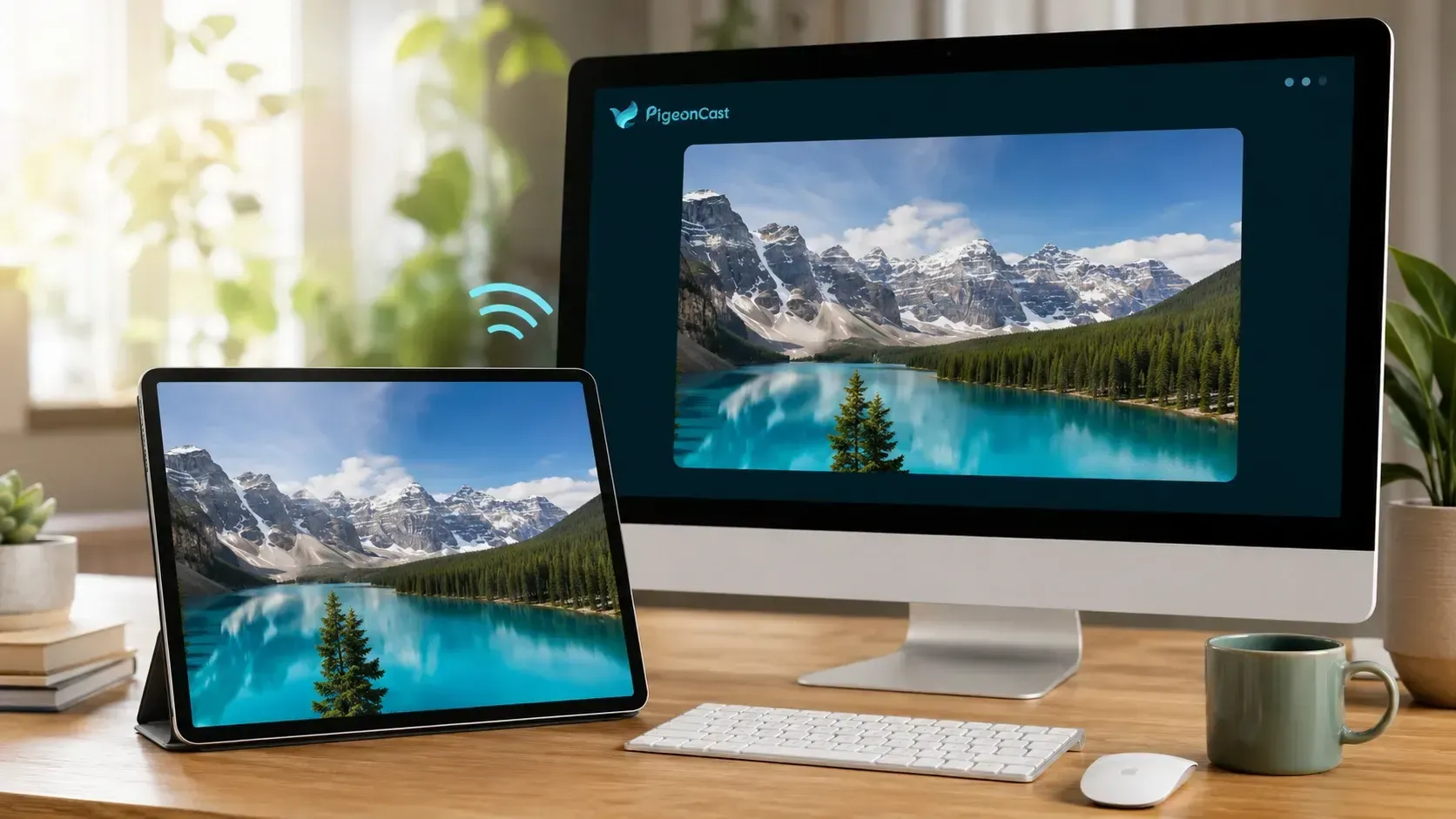
Step 1. Download PigeonCast on your devices (iPad, Mac, Android tablet, or Windows) from the corresponding app store.


Overall Rating:



Step 2. Connect the tablet and computer to the same Wi-Fi network.
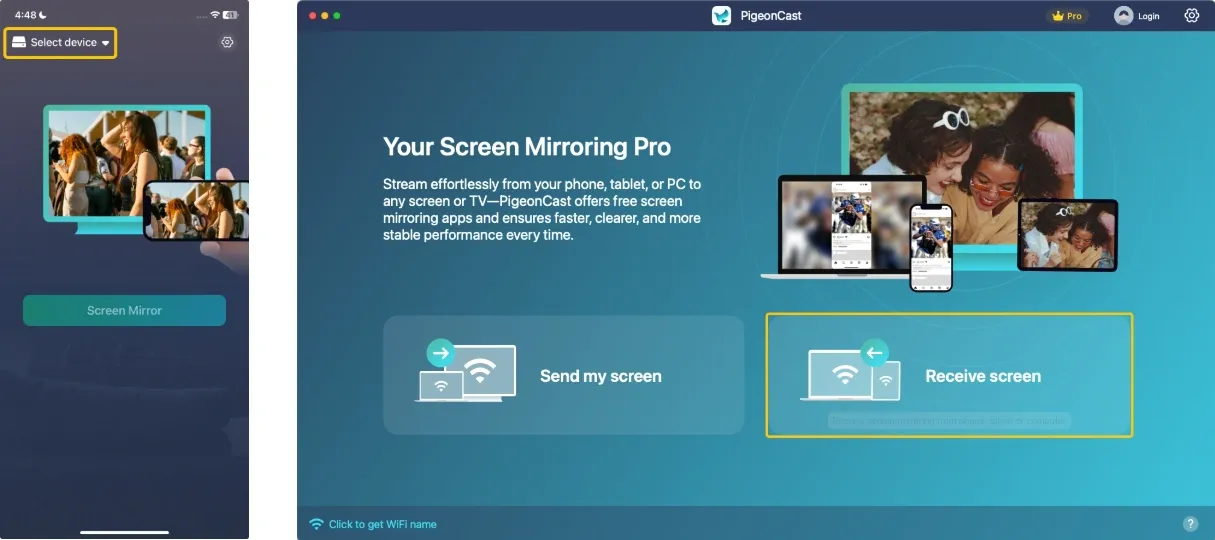
Step 3. Open PigeonCast. On tablet, tap Select device to choose your computer from the device list. Or on computer, you can click Receive screen to wait your tablet to pair.
Step 4. Enter the onscreen Pin code to confrim the pairing request.
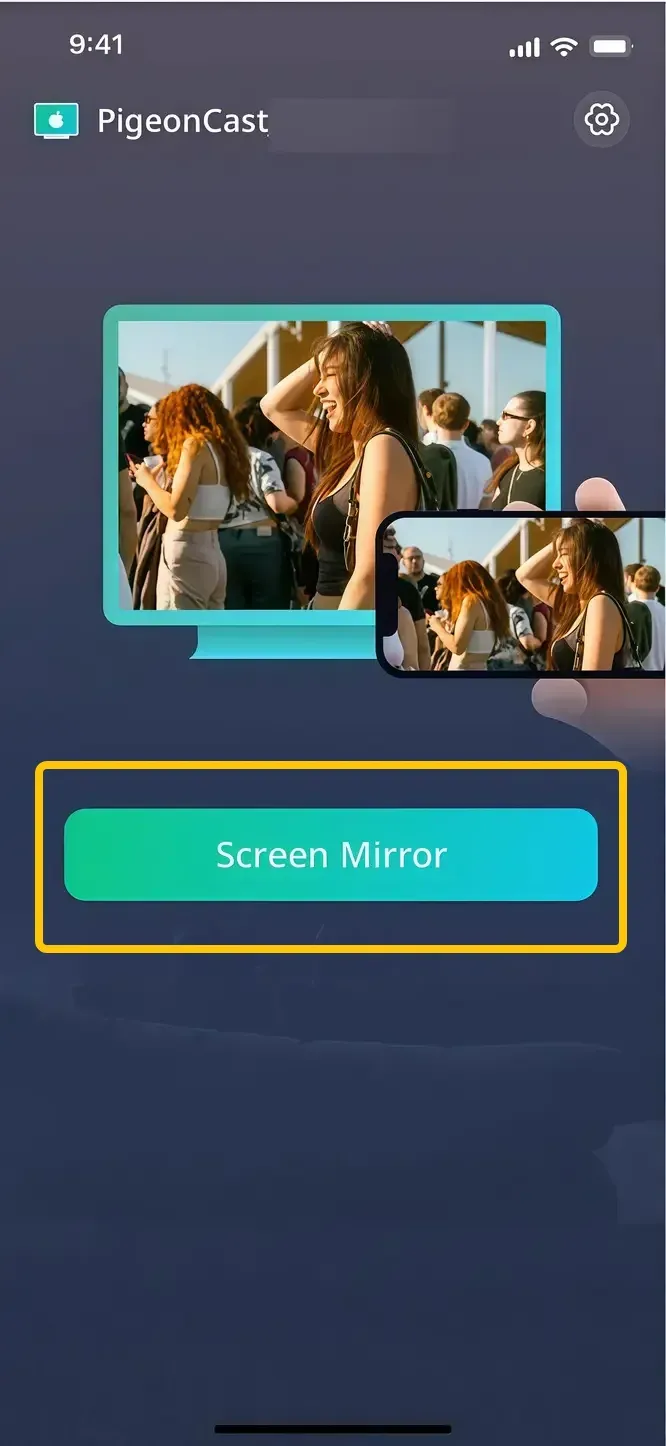
Step 5. When you finish the connection, tap Start mirror or Screen mirror to begin mirroring activities.
Method 2. Mirror iPad to Mac with AirPlay
If you have an iPad and a supported iMac, AirPlay is the first option to consider. Apple’s AirPlay to Mac feature allows the Mac to work as a wireless receiver and display the iPad screen directly. It is available on supported iPads running iPadOS 14 or later and supported Macs running macOS Monterey 12 or later.
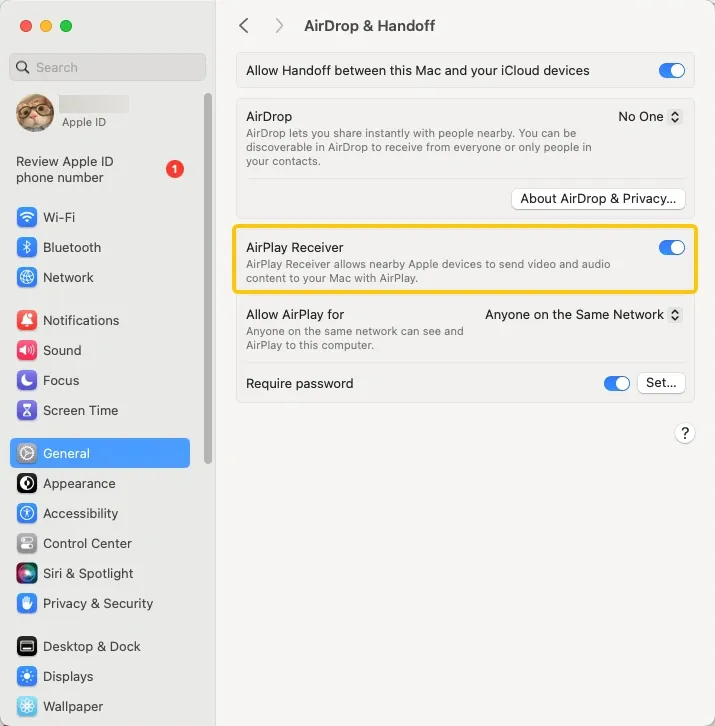
Step 1. Enable AirPlay Receiver on the Mac.
- On macOS Ventura 13 or later, open System Settings > General > AirDrop & Continuity or AirDrop & Handoff, then turn on AirPlay Receiver.
- On macOS Monterey 12, open System Preferences > Sharing and select AirPlay Receiver.
Step 2. Connect the iPad and Mac to the same Wi-Fi network.
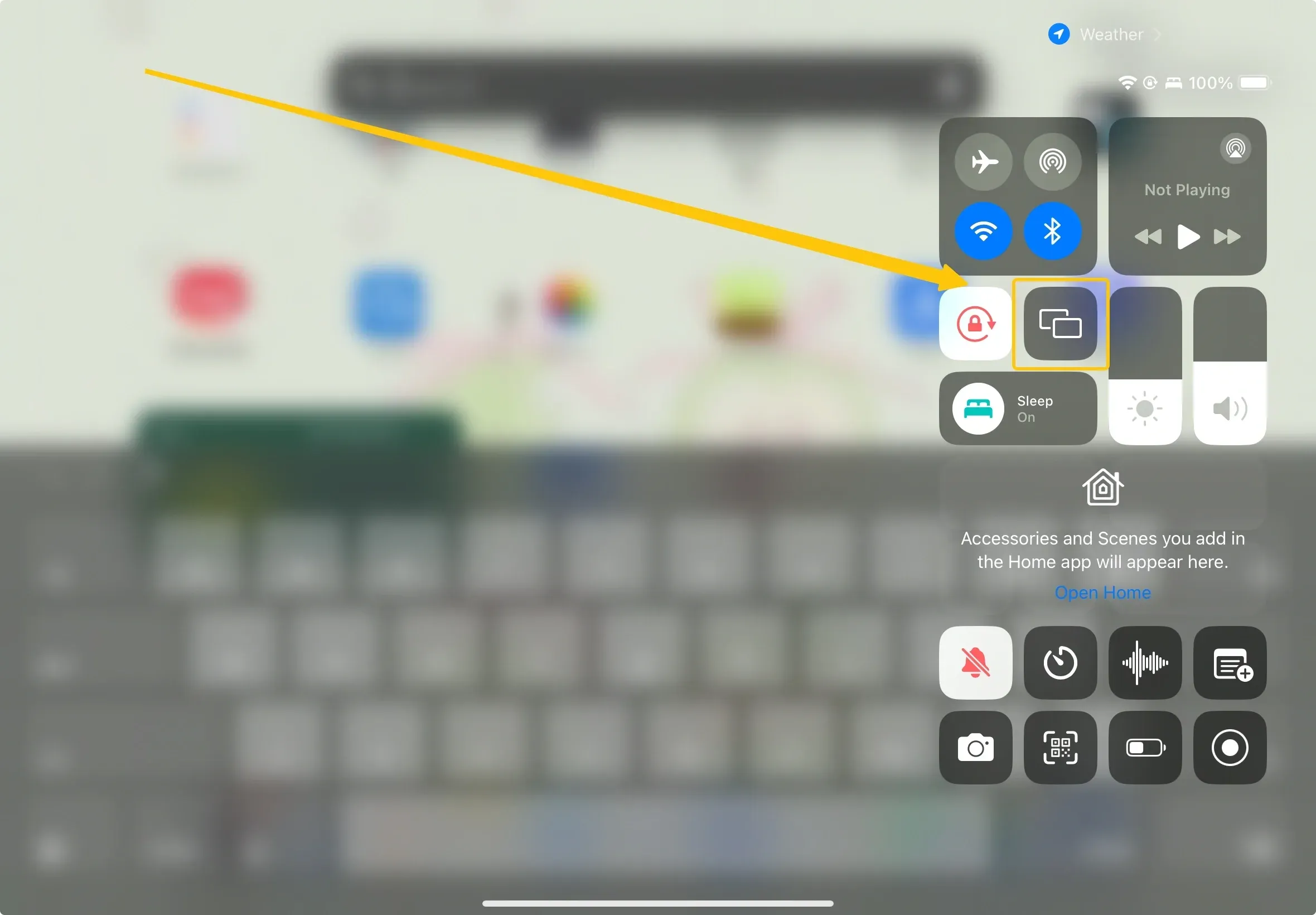
Step 3. Swipe down from the top-right corner of the iPad to open Control Center, then tap Screen Mirroring.
Step 4. Select the Mac from the available devices. If an AirPlay code appears on the Mac, enter it on the iPad to start mirroring.
To stop, open Control Center > Screen Mirroring on the iPad and tap Stop Mirroring.
Method 3. Mirror Android Tablet to Windows with Wireless Display
Windows Wireless Display uses Miracast to receive the screen from a compatible Android tablet. This method works only when both devices support Miracast. Tablets that only use Google Cast, such as Pixel Tablet, cannot connect this way.
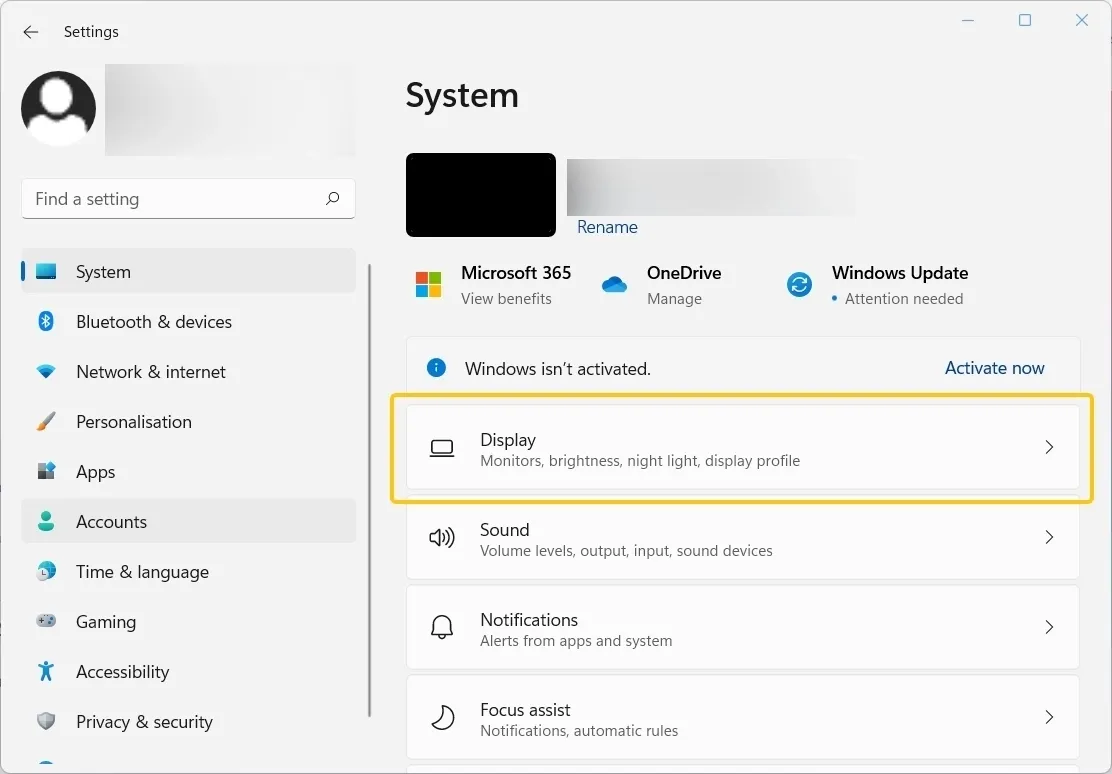
Step 1. Search for and open the Wireless Display app on the Windows PC. Keep the app open so the computer is ready to receive the tablet screen.
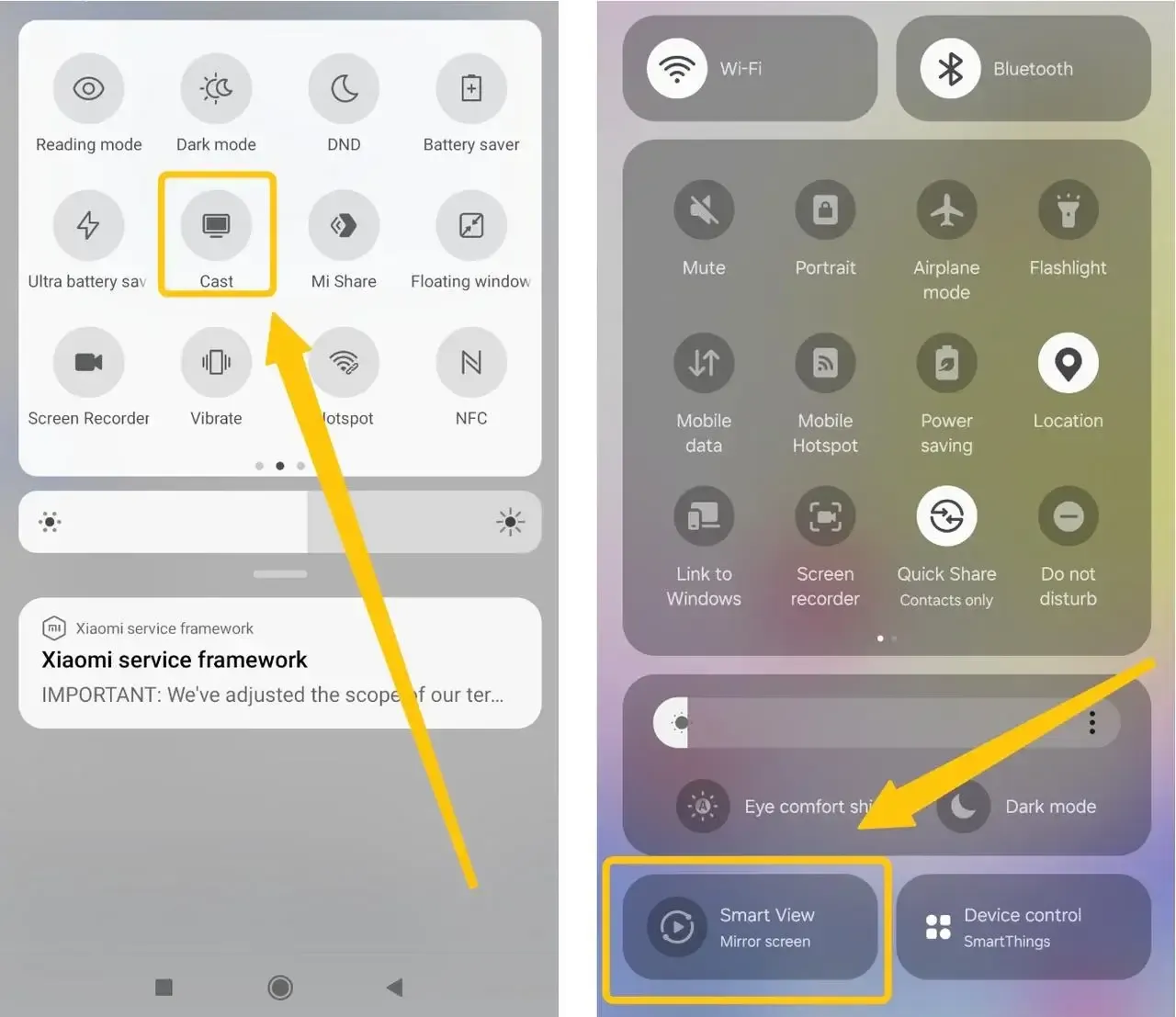
Step 2. Open Quick Settings on the Android tablet and tap Wireless Display, Screen Mirroring, or Smart View, depending on the device.
Step 3. Select the Windows PC from the available devices and approve the connection request. The tablet screen will then appear in the Wireless Display app.
Method 4. Connect iPad to Mac with QuickTime Player
QuickTime Player can display the screen of an iPad connected to a Mac and record it when needed. This wired method does not depend on Wi-Fi, making it useful when AirPlay is unavailable or unstable.
Step 1. Connect the iPad to the Mac with a cable that supports data transfer:
- Use USB-C to USB-C for newer iPads and Macs
- USB-C to Lightning for a Lightning iPad and USB-C Mac
- or the USB-A equivalent when using an older Mac
Step 2. Unlock the iPad and approve any connection request. Tap Trust and enter the iPad passcode if Trust This Computer appears.
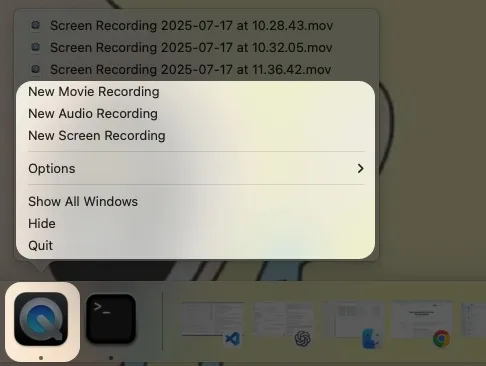
Step 3. Open QuickTime Player, then right-click its icon in the Dock and select New Movie Recording.
Step 4. Click the selection menu next to the Record button. Under Camera, select the connected iPad. The iPad screen will appear in the QuickTime Player window.
You do not need to press Record unless you want to save the screen activity as a video.
Method 5. Connect Android Tablet to PC or Mac with scrcpy
scrcpy is an open-source tool that displays and controls an Android tablet through USB. It works on Windows and macOS with Android 5.0 or later. You do not need to install an app on the tablet, but USB debugging must be enabled.
Step 1. Install scrcpy by following the official instructions for your computer:
The project warns that its GitHub repository is the only official source. Do not download scrcpy from third-party websites.
Step 2. On the Android tablet, open Settings > About tablet and tap Build number seven times. On Samsung tablets, open Software information first. Enter the tablet PIN if requested.
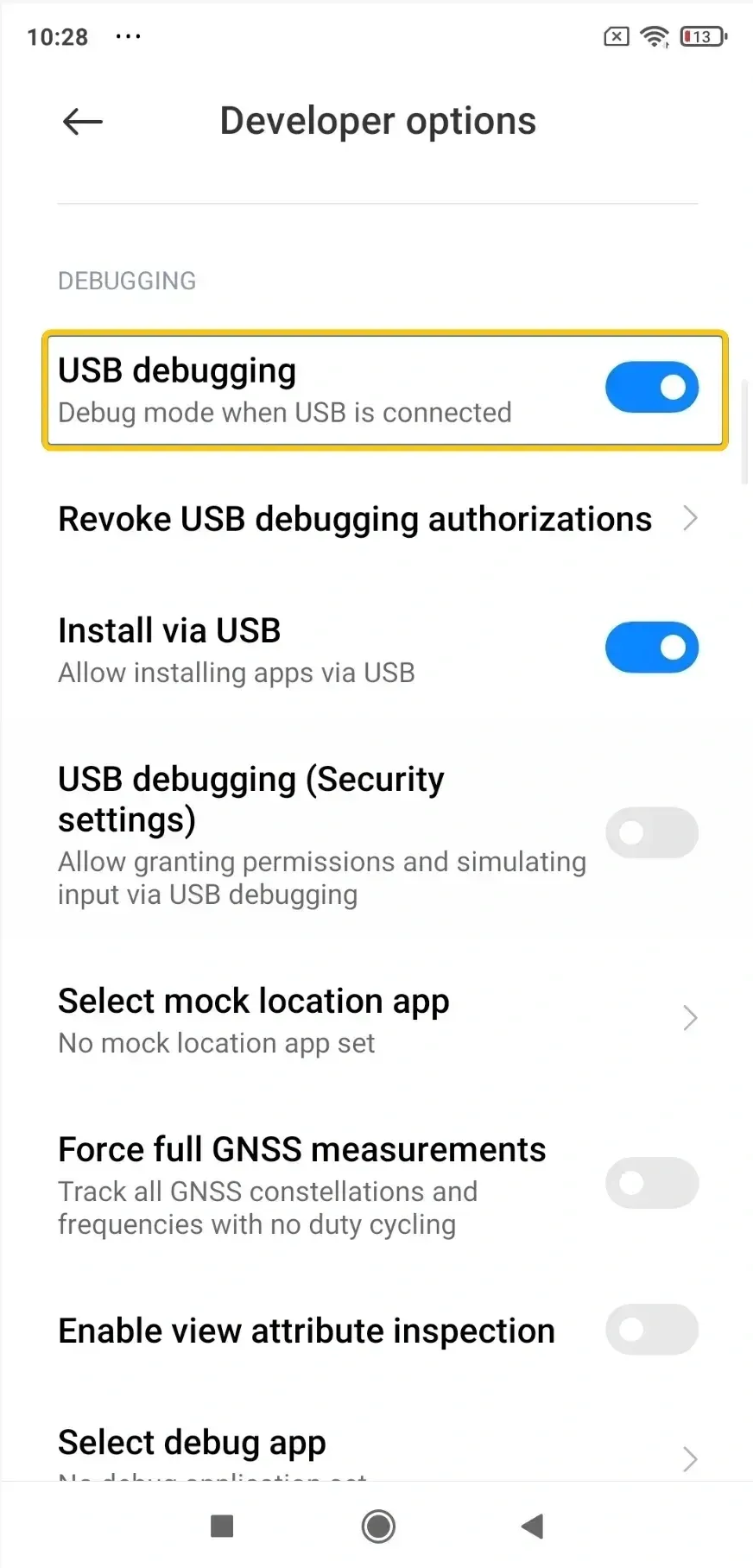
Step 3. Return to Settings, open Developer options, and turn on USB debugging.
Step 4. Connect the tablet to the computer with a USB cable that supports data transfer.
Step 5. Open Terminal on the computer:
- On Windows, press the Windows key, type Terminal, and open Windows Terminal.
- On Mac, press Command + Space, type Terminal, and press Return.
Enter scrcpy and press Enter or Return. When Allow USB debugging? appears on the tablet, tap Allow. The tablet screen will then open in a separate window and can be controlled with the computer’s mouse and keyboard.
Why Is Your Tablet Not Showing on the Computer
If the computer does not appear on your tablet or the connection fails, check the connection type and required permissions first.
-
Confirm the mirroring protocol: An iPad uses AirPlay, while Android tablets may use Miracast or Google Cast. A Google Cast-only tablet cannot connect to Windows Wireless Display, which uses Miracast.
-
Prepare the computer to receive the screen: Open Wireless Display on Windows, enable AirPlay Receiver on Mac, or launch the receiving software required by your chosen method.
-
Check the network: AirPlay and app-based wireless methods generally require both devices to be on the same Wi-Fi network. Guest networks, VPNs, or router client isolation may prevent the devices from finding each other.
-
Check the USB connection: Use a cable that supports data transfer, not a charge-only cable. Reconnect the tablet, keep it unlocked, and approve Trust This Computer or Allow USB debugging when prompted.
-
Restart and update the devices: Restart the tablet and computer, then install available system or mirroring app updates before trying again.
Conclusion
Use AirPlay for an iPad and Mac, or Windows Wireless Display for a Miracast-enabled Android tablet and PC. When the tablet and computer use different built-in protocols, PigeonCast provides a cross-platform wireless option. For a more stable wired connection, use QuickTime Player with an iPad and Mac or scrcpy with an Android tablet and Windows PC or Mac.
Connect Tablet to Computer Screen FAQ
Can You Mirror Only One App from a Tablet?
Standard screen mirroring displays the entire tablet screen. To show only one app’s content, look for an in-app Cast or AirPlay button. This sends supported media without exposing the home screen or other apps.
Will Notifications Appear on the Computer While Mirroring?
Yes. Full-screen mirroring can show incoming messages, call alerts, and other notifications. Turn on Do Not Disturb or a suitable Focus mode before presenting or sharing the computer screen with others.
Does Screen Mirroring Copy Files to the Computer?
No. Mirroring sends a live view of the tablet screen and does not automatically transfer its photos, documents, or apps. Content is saved on the computer only if you record the mirrored window, take a screenshot, or transfer a file separately.
Does Mirroring Continue When the Tablet Is Locked?
Full-screen mirroring usually pauses or disconnects after the tablet is locked. Media sent through an app’s Cast or AirPlay control may continue playing, since the receiving device handles the stream separately from the tablet screen.
Can You Mirror a Tablet in Landscape Mode?
Yes. Disable orientation lock and rotate the tablet after mirroring begins. The computer window should adjust to the new orientation, although apps designed only for portrait mode will remain vertical.
Why Does a Streaming Video Show a Black Screen When Mirrored?
Some streaming services use DRM protection that prevents movies and shows from being captured through full-screen mirroring. Use the app’s built-in Cast or AirPlay feature, or open the streaming service directly on the computer. Changing the mirroring app usually does not remove this restriction.
Clara Rossi is an experienced technology editor and a seasoned expert in screen mirroring and casting technologies. With a keen eye for detail and a deep understanding of how to seamlessly connect devices, Clara excels at optimizing user experiences for effortless sharing and streaming. Whether you're seeking quick fixes or advanced tips, her expertise and responsiveness ensure that every query is met with a well-informed and efficient solution.