
Miracast on Linux is possible, but it is not a universal built-in feature like it is on Windows. Whether it works depends on your Linux distribution, desktop environment, Wi-Fi hardware, and the device you want to connect to.
For most users, the main challenge is not finding a Miracast button, but making sure the Linux system, wireless adapter, and receiver all support the same wireless display workflow.
Does Miracast Work on Linux?
Yes, Linux can support Miracast, but the experience is still less straightforward than on Windows.
Unlike Windows, Linux does not have one standard Miracast feature available across all distributions. A setup that works well on Ubuntu with GNOME may not work the same way on Linux Mint, KDE Plasma, or another desktop environment.
Currently, the most practical option for many Linux users is GNOME Network Displays, especially on GNOME-based systems. It provides a graphical way to connect Linux to Miracast-compatible receivers such as smart TVs, wireless display adapters, and projectors.
Another option is MiracleCast, a community project that provides lower-level Miracast support. However, it usually requires more manual configuration and is better suited for advanced users.
In short:
- Linux supports Miracast, but compatibility varies.
- GNOME-based systems usually have the clearest path.
- Other distributions may require additional setup or troubleshooting.
What You Need Before Using Miracast on Linux
Before trying Miracast on Linux, make sure your system meets the basic requirements. Most connection problems happen because one part of the wireless display chain is not fully compatible.
A Wi-Fi Adapter with Wi-Fi Direct Support
Miracast uses Wi-Fi Direct instead of relying only on your normal internet connection.
Your Linux computer may connect to Wi-Fi normally but still fail to use Miracast if the wireless adapter or driver does not properly support Wi-Fi Direct features.
A Compatible Linux Desktop Environment
The desktop environment plays an important role in Linux screen mirroring.
GNOME-based systems usually have better support through GNOME Network Displays. Other environments, such as KDE Plasma or lightweight Linux desktops, may require different tools or additional configuration.
A Miracast-Compatible Receiver
The receiving device also matters.
Your TV, projector, monitor, or wireless display adapter needs to support Miracast or Wi-Fi Display mode. Some receivers work well with Windows but may behave differently when connected from Linux.
If your Linux computer cannot find the display, the issue may not always be your computer. The receiver compatibility can also affect the result.
How to Use Miracast on Linux
The easiest way to try Miracast on Linux is to use a tool that already provides a graphical connection workflow.
Method 1. Use GNOME Network Displays
GNOME Network Displays is currently one of the simplest ways to test Miracast on Linux.
Follow these general steps:
Step 1. Install GNOME Network Displays on your Linux system.
Step 2. Turn on Miracast or wireless display mode on your TV or receiver.
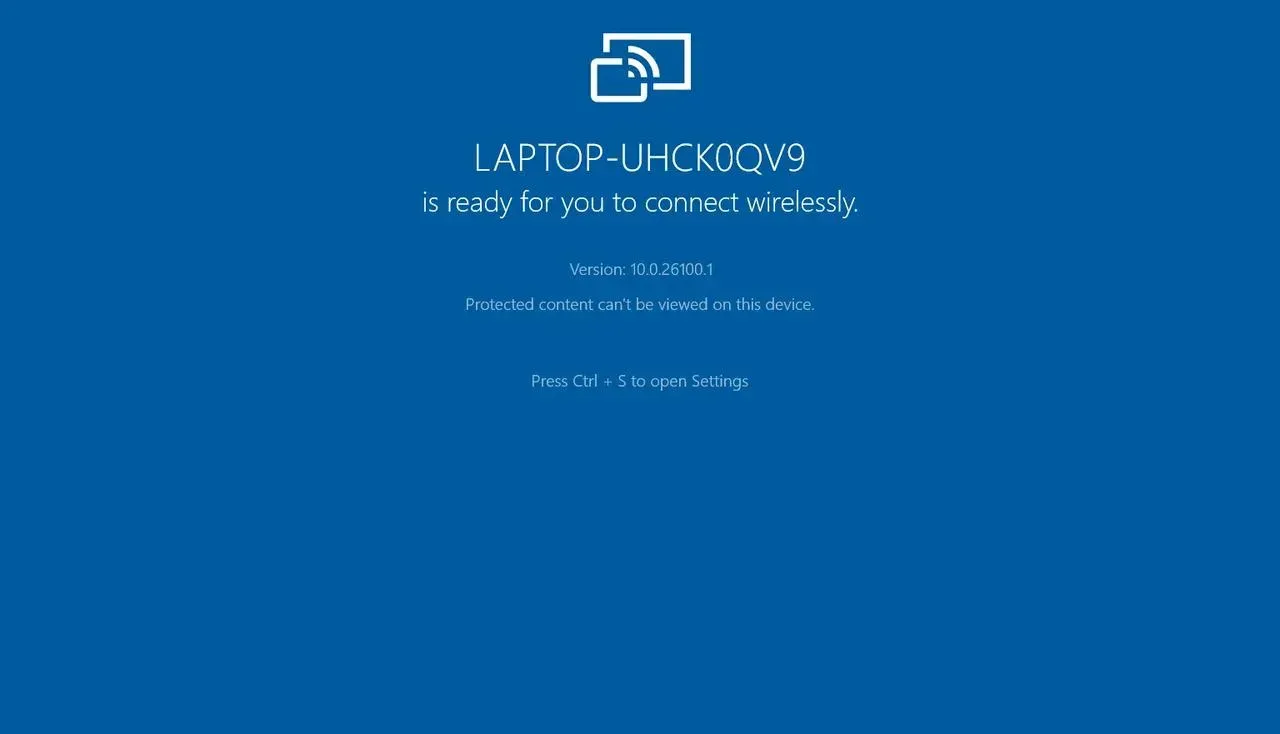
Step 3. Open GNOME Network Displays.
Step 4. Wait for available wireless displays to appear.
Step 5. Select your receiver and start the connection.
This method works best on GNOME-based distributions such as Ubuntu or Fedora Workstation.
However, keep in mind that Miracast support on Linux is still developing. Even with the correct setup, results can vary depending on your hardware and receiver.
Method 2. Use MiracleCast
MiracleCast is another way to experiment with Miracast on Linux.
Compared with GNOME Network Displays, it provides more direct control over the Miracast connection process. However, it usually requires more technical steps and is not the best choice for users who simply want a quick wireless display connection.
For most people, GNOME Network Displays is the better first option.
Why Is Miracast Not Working on Linux?
When Miracast fails on Linux, the problem usually appears in one of several situations.
Linux Cannot Find the TV or Display
If your receiver never appears, check:
- whether the TV is actually in Miracast mode
- whether your Wi-Fi adapter supports Wi-Fi Direct
- whether your Linux system has the required wireless support
A working Wi-Fi connection does not always mean your computer can use Miracast.
Miracast Connects but Shows a Black Screen
Sometimes Linux can discover the receiver and start the connection, but the display does not appear correctly.
Possible reasons include incompatible video codecs, receiver compatibility issues, desktop capture limitations, and incomplete Miracast support in your Linux setup.
The Connection Drops Frequently
Unstable connections are often related to weak wireless hardware support, receiver firmware problems, or inconsistent Miracast implementations between devices.
If Miracast works occasionally but fails randomly, testing another receiver or connection method can help identify the cause.
Your Linux Setup Is Not the Best Match for Miracast
Not every Linux computer is a good candidate for Miracast. If you need reliable screen sharing for meetings, presentations, or daily use, another method may provide a smoother experience.
Try Other Ways to Mirror a Screen on Linux
Miracast is a good option when your Linux PC can connect successfully to a compatible receiver. However, it is not always the easiest solution for every situation.
Here are some Miracast alternatives to mirror a screen on Linux. The best method depends on what you want to mirror and which device you are using as the sender or receiver.
Use HDMI for Reliable Linux-to-TV Screen Mirroring
If you need a stable connection without worrying about wireless compatibility, screen mirroring through HDMI is usually the simplest option.
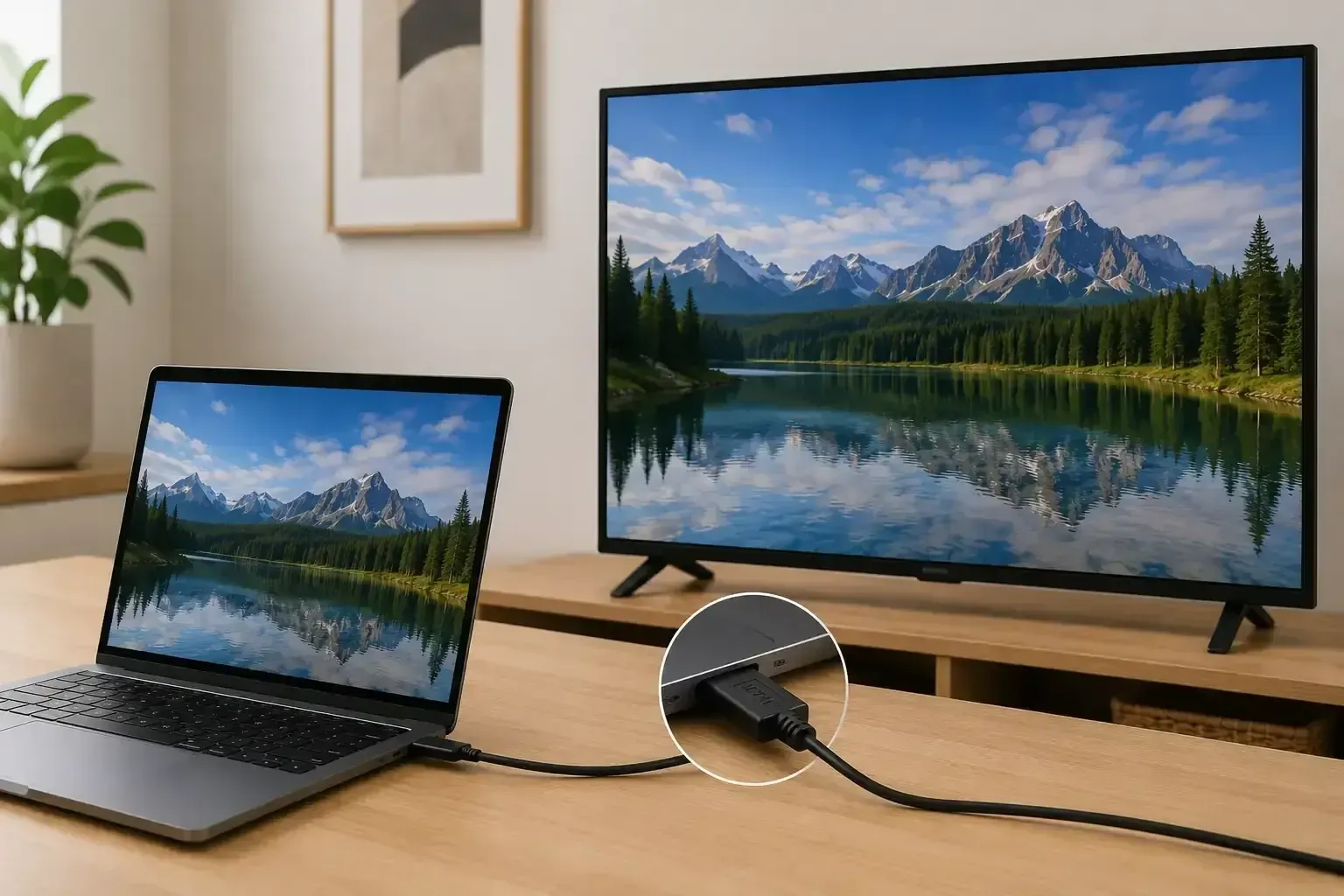
Unlike wireless methods, HDMI does not depend on your Linux distribution, Wi-Fi adapter, or receiver support. It works well for meetings, presentations, gaming, and situations where connection stability matters.
To start:
Step 1. Connect your Linux computer to your TV or monitor using an HDMI cable.
Step 2. Switch your display input to the correct HDMI port.
Step 3. Adjust your Linux display settings to duplicate or extend your screen.
The main limitation is that HDMI requires a physical cable, so it is less convenient than wireless screen mirroring.
Use Chromecast for Videos and Browser Content
If your goal is mainly watching videos, sharing websites, or streaming online content, Chromecast or Google Cast may be a better fit than full desktop mirroring.
Instead of duplicating everything on your Linux screen, Google Cast focuses on sending supported content from apps and browsers.
To start:
Step 1. Connect your Linux computer and Chromecast device to the same Wi-Fi network.
Step 2. Open a supported app or Chrome browser.
Step 3. Select the Cast option and choose your TV or receiver.
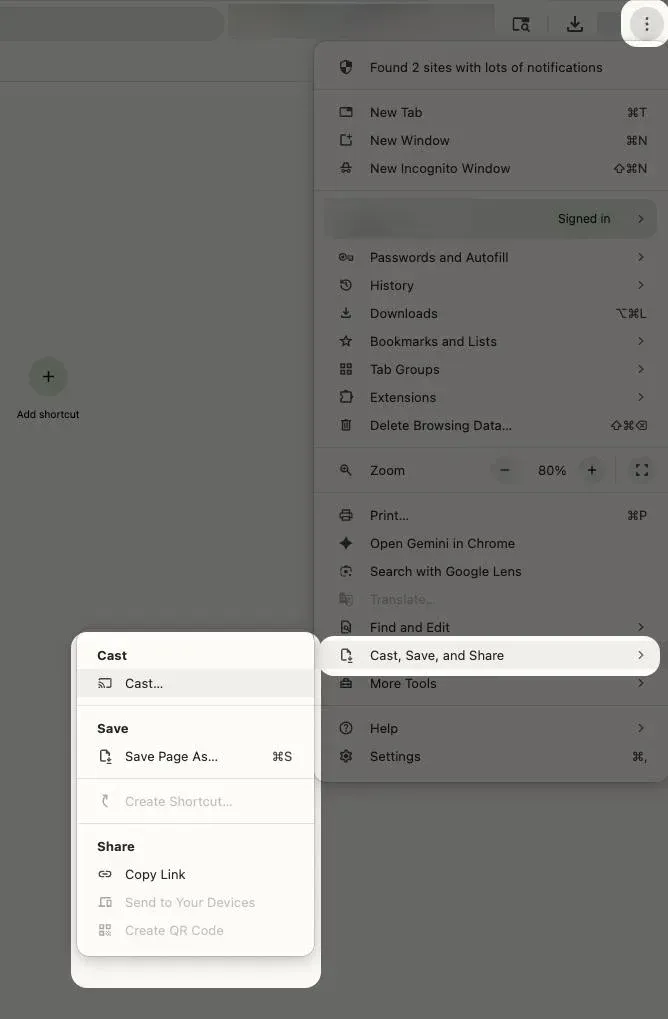
Chromecast works best for media playback, but it is not designed to replace full Linux desktop mirroring in every situation.
Mirror Android or iPhone to Linux PC with PigeonCast Web Mirror
If you want to display your phone screen on a Linux computer, the setup is different from traditional Miracast.
Instead of turning your Linux PC into a Miracast receiver, a browser-based receiver can provide a simpler way to show mobile content on your computer.
PigeonCast allows you to mirror an Android phone or iPhone to a Linux PC through a browser.
To start:
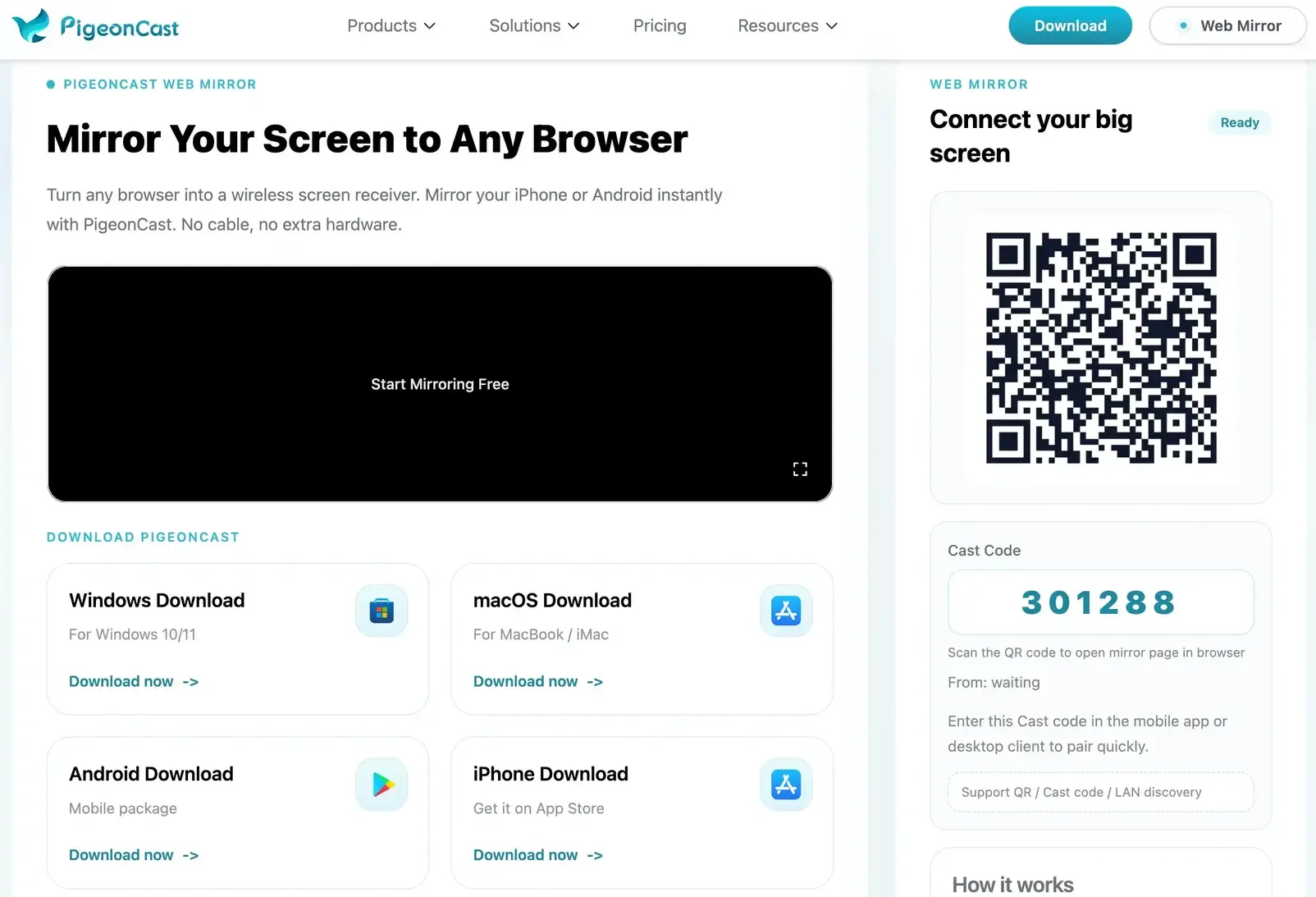
Step 1. Open PigeonCast Web Mirror on your Linux PC browser.
Step 2. Install PigeonCast on your Android device or iPhone.


Overall Rating:



Step 3. Open the app, switch to the Web Mirror tab.
Step 4. Scan the QR code or enter the connection code from your phone and tap Start mirror.
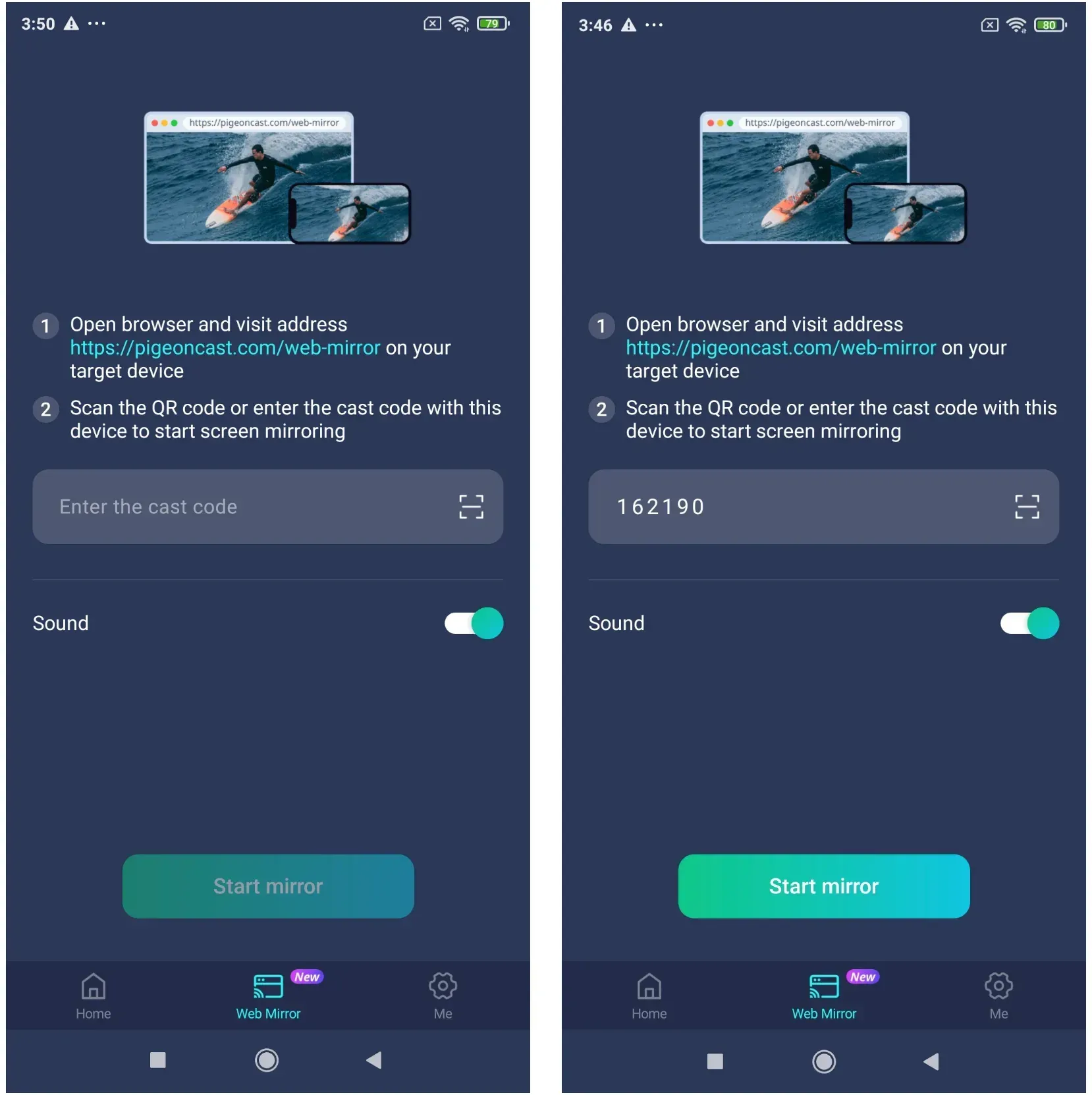
Step 3. Start mirroring your phone screen on the Linux computer.
This is useful for showing a mobile app demo, sharing photos or videos from your phone, or presenting phone content on a larger computer screen.
Conclusion
Miracast on Linux works, but it is not yet a universal plug-and-play feature.
For GNOME-based systems, GNOME Network Displays is the easiest place to start. Other Linux setups may require more testing because wireless drivers, desktop environments, and receivers all affect compatibility.
If your goal is full desktop mirroring, Miracast is worth trying. If you need a faster and more reliable connection, alternatives such as HDMI or other casting methods may be a better fit.
Miracast Linux FAQ
Does Ubuntu support Miracast?
Ubuntu can support Miracast, especially on GNOME-based setups. However, support depends on your Wi-Fi adapter, desktop environment, and receiver compatibility.
Can Linux receive Miracast?
Linux can work as a Miracast receiver with some tools, but receiving Miracast is generally less straightforward than sending a Linux screen to another display.
Does Miracast need internet on Linux?
No. Miracast does not require internet access because it uses Wi-Fi Direct for wireless display connections.
However, your Linux computer still needs compatible wireless hardware and software support.
Does Miracast work on Linux Mint or KDE?
It may work, but the experience depends on the desktop environment and available tools. GNOME-based systems usually have a clearer Miracast workflow.
Is HDMI better than Miracast on Linux?
For reliability, HDMI is usually the safer option. Miracast provides wireless convenience, but Linux compatibility can vary between devices.
Mia Clarke is a technology editor specializing in screen mirroring and casting solutions across multiple platforms. Mia provides clear, practical guides and in-depth insights to help users seamlessly connect their devices. Passionate about enhancing digital experiences, Mia is dedicated to keeping readers updated on the latest trends and tools in cross-platform screen sharing. Whether you’re looking to mirror your smartphone, laptop, or smart TV, Mia’s content delivers reliable, user-friendly advice to simplify your tech setup.