
Want to AirPlay your laptop to a TV? The right method depends mainly on whether you use a Mac, Windows laptop, or Chromebook.
MacBooks support AirPlay natively, while Windows laptops and Chromebooks do not. That does not mean they cannot connect wirelessly to a TV. Windows can use Miracast, while Chromebooks are generally better suited to Google Cast. If the built-in protocols do not match your TV, a cross-platform screen mirroring app can provide another option.
Can You AirPlay a Laptop to a TV?
Yes, if you are using a MacBook. AirPlay is built into macOS, so you can connect directly to an AirPlay-compatible TV or Apple TV without installing extra software.
Windows laptops work differently. Windows does not include native AirPlay sending, so you will not find an AirPlay option in Windows Settings.
Instead, Windows uses Miracast for its built-in wireless display feature.
Chromebooks also do not support AirPlay natively. ChromeOS is more closely integrated with Google Cast, which allows you to cast a browser tab, supported media, or in some cases your desktop to a Chromecast or Google Cast-enabled TV.
If AirPlay itself is not essential, there are several other ways to connect a laptop to a TV, either wirelessly or with a cable.
| Laptop | Native AirPlay | Common Wireless Option |
|---|---|---|
| MacBook | Yes | AirPlay |
| Windows laptop | No | Miracast |
| Chromebook | No | Google Cast |
| Mixed or incompatible devices | Depends | Cross-platform mirroring app |
How to AirPlay a MacBook to a TV
If your MacBook and TV both support AirPlay, AirPlay from MacBook to TV is usually straightforward.
Step 1. Connect your MacBook and TV to the same Wi-Fi network.
Step 2. Make sure AirPlay is enabled on your TV.
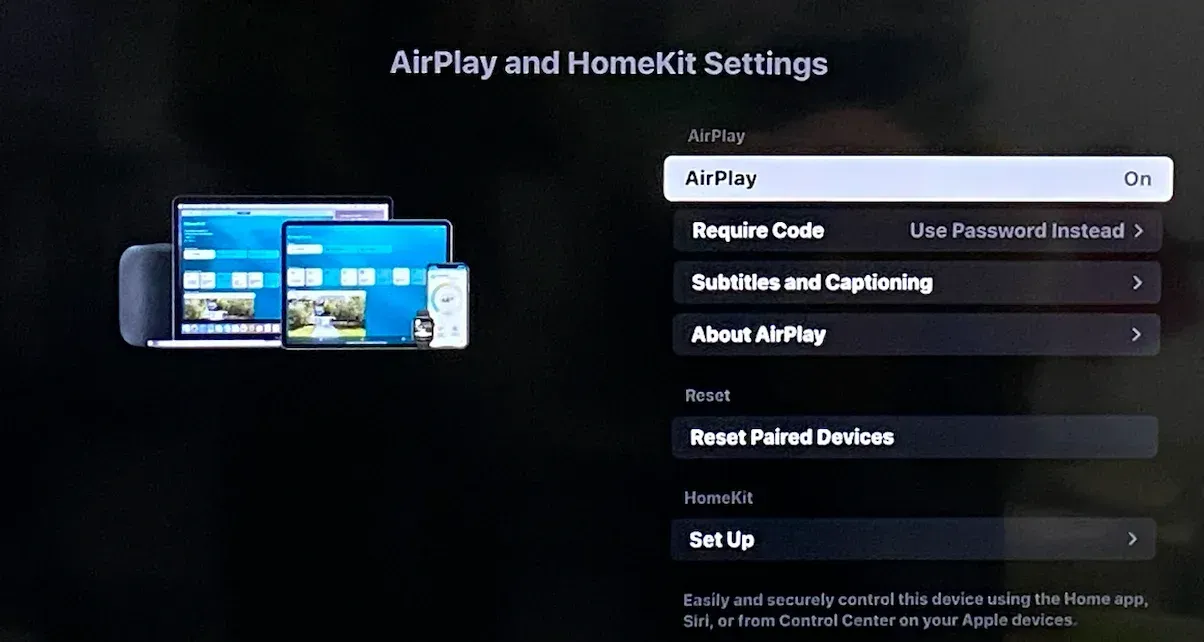
Step 3. Open Control Center on your MacBook and select Screen Mirroring.
Step 4. Choose your TV or Apple TV from the device list.
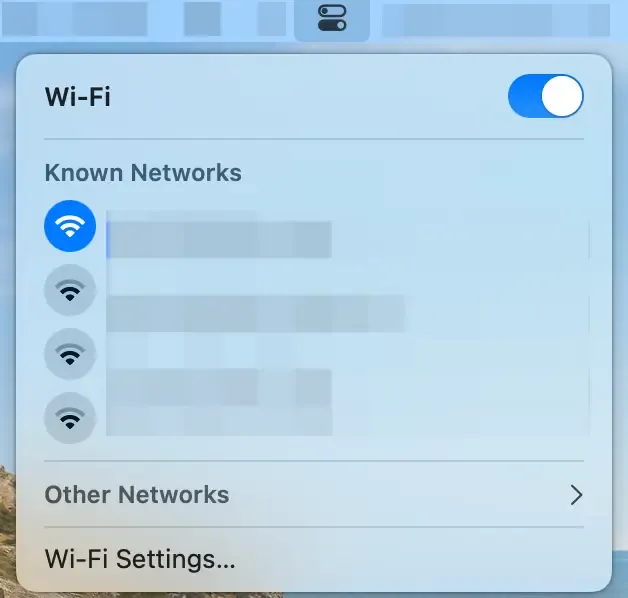
Step 5. Enter the code shown on your TV if prompted.
Your Mac screen should then appear on the TV.
AirPlay support varies by TV model, so if your TV does not appear, check whether AirPlay is available and enabled in its settings. An Apple TV can also act as the receiver when the TV itself does not support AirPlay.
What If You Have a Windows Laptop?
A Windows laptop cannot use AirPlay natively, but that does not prevent you from putting its screen on a TV.
Windows includes wireless display support through Miracast.
Press Windows + K to open the Cast panel, then select your TV if it appears in the available devices.
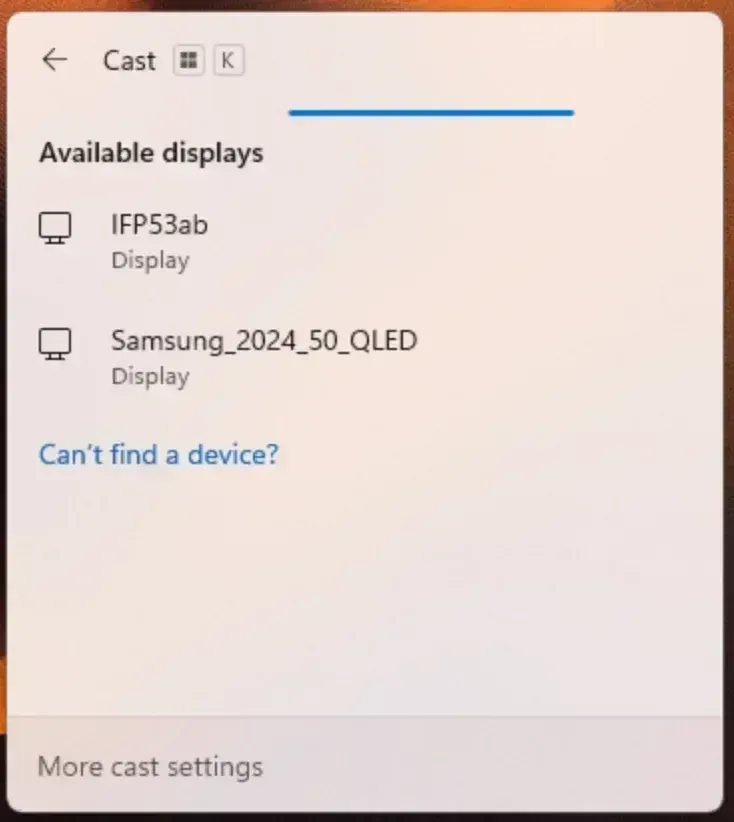
This works when both your laptop and TV support Miracast. It is often the simplest option because no additional app is required.
If your TV does not appear, the issue may simply be that it does not support Miracast or that wireless display mode is not enabled.
What If You Have a Chromebook?
Chromebooks do not include AirPlay sending either. Instead, ChromeOS works naturally with Google Cast.
This makes a Chromebook particularly easy to connect to a Chromecast, Google TV, Android TV, or another TV with Google Cast built in.
If your TV supports Google Cast, you can usually start directly from Chrome.
Step 1. Connect your Chromebook and TV to the same Wi-Fi network.
Step 2. Open Chrome and select the three-dot menu.
Step 3. Choose Cast, save, and share, then Cast.
Step 4. Select your TV or Chromecast device.
Depending on the content and ChromeOS version, you may be able to cast a browser tab or another supported source.
Casting a tab is often the better option for web video because the browser only sends the content you want to show instead of continuously mirroring everything on the Chromebook.
Why Can't My Laptop Find the TV?
If your laptop cannot see the TV, start by identifying which connection method you are actually using. AirPlay, Miracast, and Google Cast rely on different technologies, so the troubleshooting steps are not identical.
On a Mac
Make sure AirPlay is enabled on the TV and both devices are connected to the same local network.
If the TV still does not appear, disconnect and reconnect Wi-Fi, restart AirPlay on the TV, and check that neither device is connected through an isolated guest network.
On Windows
Press Windows + K and check whether the TV appears in the Cast panel.
If it does not, confirm that the laptop supports Miracast and that the TV has a compatible wireless display or screen mirroring mode enabled.
A Windows laptop will not discover an AirPlay-only TV through the built-in Cast panel because Windows wireless display and AirPlay use different protocols.
On a Chromebook
First check whether the TV supports Google Cast.
If it does, make sure the Chromebook and TV are on the same network and try opening the Cast menu again from Chrome.
If the TV supports only AirPlay or Miracast, it may not appear as a Google Cast receiver at all.
Check the Receiver Side
Sometimes the laptop is working correctly and the real limitation is the TV.
Older TVs, streaming devices, and different TV operating systems may support only one wireless protocol. For example, a TV may support AirPlay but not Miracast, or Google Cast but not AirPlay.
Changing settings on the laptop will not make the TV support a protocol that is missing from the receiver.
That is why checking the TV's supported casting technologies is often more useful than repeatedly troubleshooting the laptop.
When AirPlay Isn't the Best Option, Try PigeonCast
AirPlay is usually the easiest choice when you already have a Mac and an AirPlay-compatible TV.
It becomes less convenient when you use Windows or ChromeOS, regularly switch between different devices, or have a TV that does not reliably support the same wireless protocol as your laptop.
In those situations, PigeonCast provides another way to approach screen mirroring without making AirPlay, Miracast, or Google Cast the center of the setup.
PigeonCast is designed for cross-platform screen mirroring, so it can be useful when:
- you regularly switch between Windows and Mac devices
- your laptop and TV rely on different native casting technologies
- your TV's built-in wireless mirroring is inconsistent
- you want a more consistent connection method across different device combinations
- AirPlay, Miracast, or Google Cast is unavailable on one side of the connection


Overall Rating:



How to Screen Mirror Your Laptop to a TV with PigeonCast
Step 1. Install and open PigeonCast on your supported laptop device.
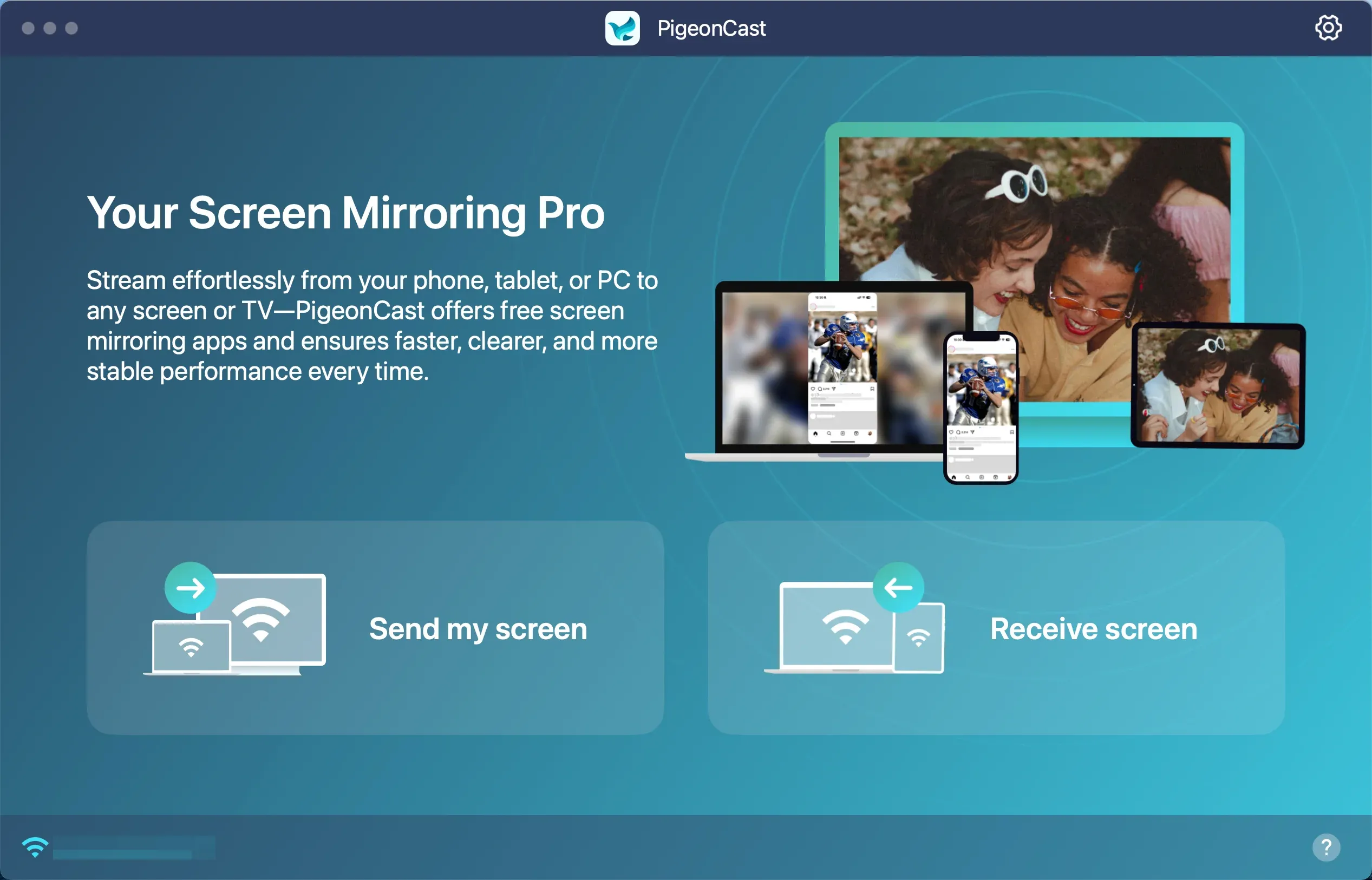
Step 2. Install and open the PigeonCast receiver on your TV.
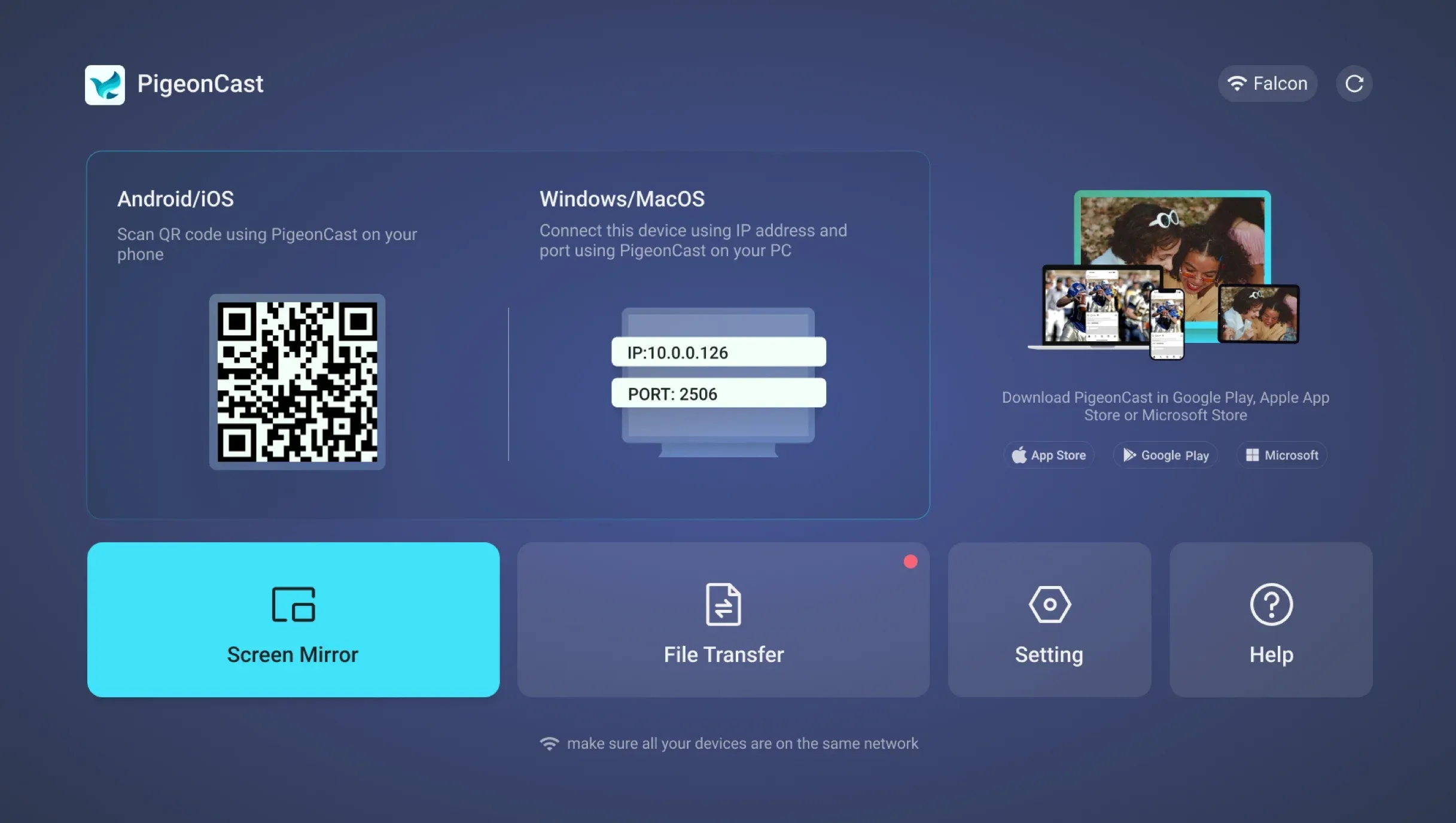
Step 3. Make sure the laptop and TV are connected to the same Wi-Fi network.
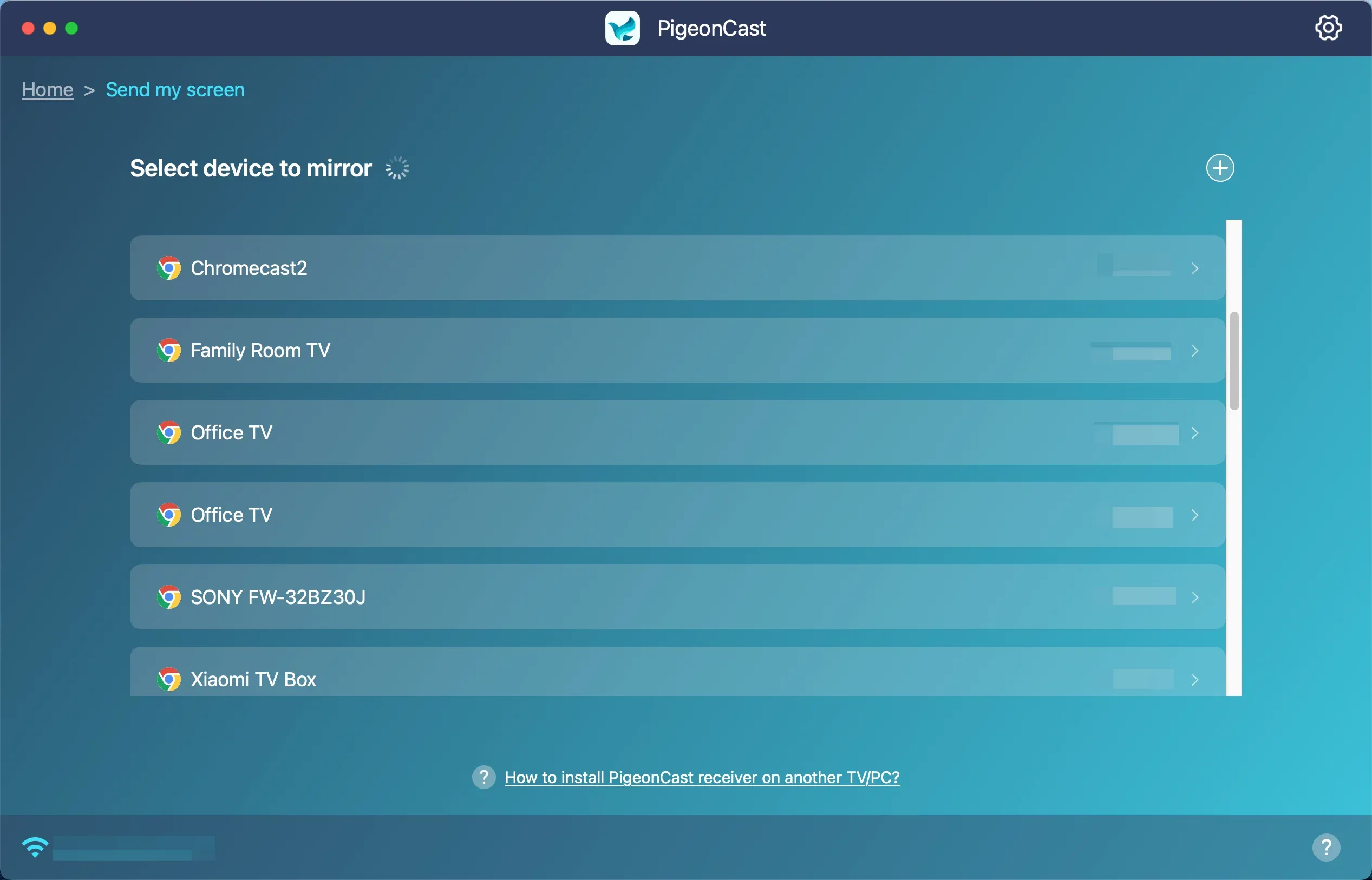
Step 4. On your laptop, choose Send my screen and select your TV from the device list.
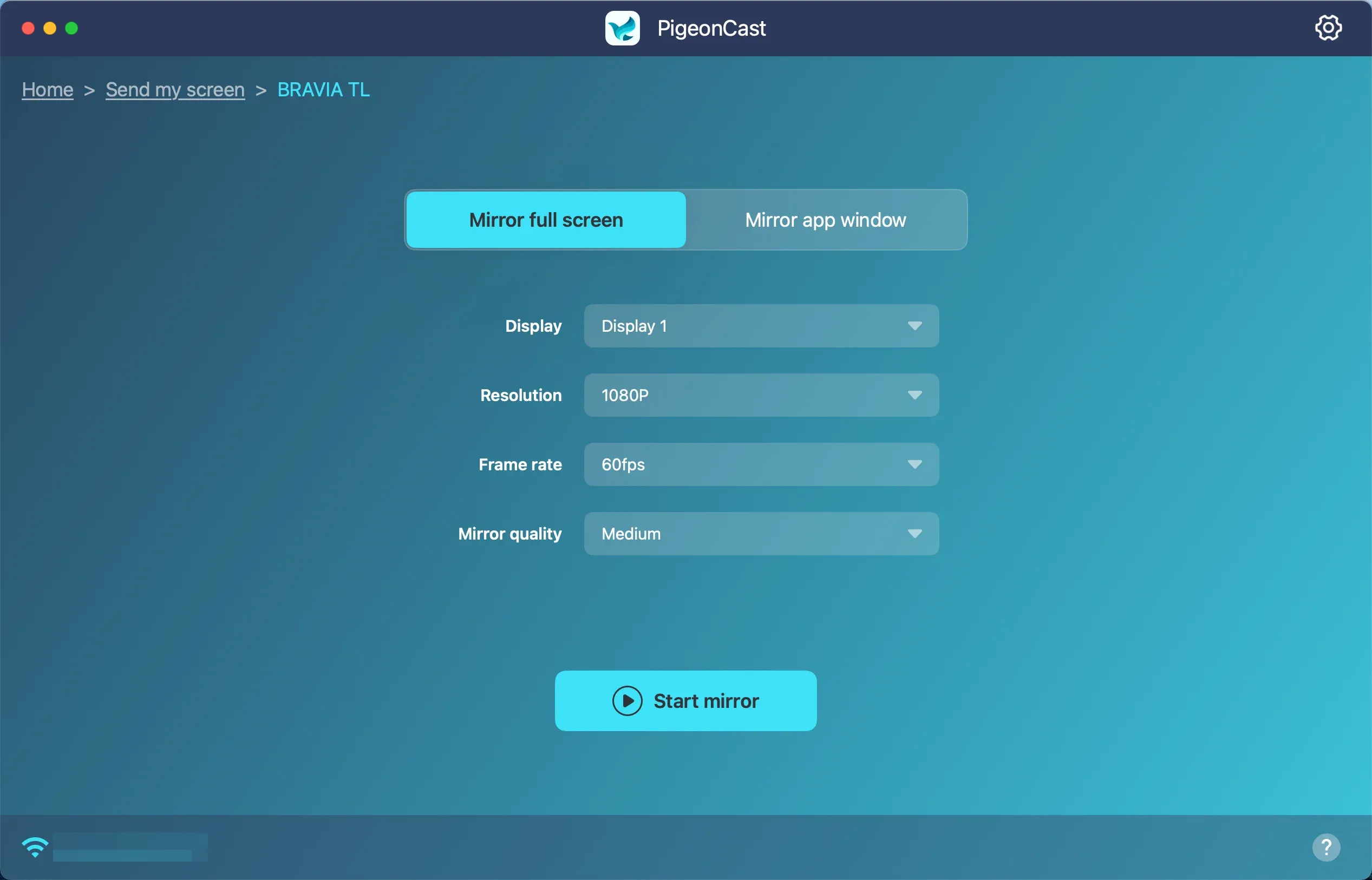
Step 5. Select what you want to mirror and click Start mirror.
The advantage of a cross-platform approach is not that it turns Windows or ChromeOS into AirPlay devices. Instead, it gives the laptop and TV another compatible sender-to-receiver path when their native protocols do not line up.
Final Words
Getting a laptop onto a TV is less about using AirPlay specifically and more about matching the right wireless technology to the devices you already own.
For a MacBook and AirPlay-compatible TV, native AirPlay is usually the simplest route. Windows users can often rely on Miracast, while Chromebook users will generally have the easiest experience with Google Cast.
Problems tend to appear when the laptop and TV belong to different ecosystems. An AirPlay-only receiver will not automatically work with Windows Cast, just as a Miracast TV will not necessarily appear to a Chromebook.
When those built-in technologies do not line up, switching to a cross-platform solution such as PigeonCast can remove the protocol mismatch rather than forcing one device to behave like another.
AirPlay Laptop to TV FAQ
Can I AirPlay from a laptop without Apple TV?
Yes. If your smart TV has built-in AirPlay support, a MacBook can connect to it directly without an Apple TV box. If the TV does not support AirPlay, you will need another compatible receiver or a different mirroring method.
Can Windows 11 AirPlay to a TV?
Windows 11 does not include native AirPlay sending. Its built-in wireless display feature uses Miracast instead. Press Windows + K to check for compatible wireless displays. Third-party software like PigeonCast can turn your Windows PC into an AirPlay sender and connect to Apple TV or AirPlay-enabled TV wirelessly.
Can I AirPlay a laptop to Roku?
Some Roku TVs and Roku streaming devices support AirPlay. If AirPlay is enabled in the Roku settings, a MacBook can normally use the Roku device as an AirPlay receiver. Support depends on the specific Roku device and software version. Windows laptops and Chromebooks cannot use native AirPlay simply because the Roku receiver supports it. They still need a compatible sending method.
Can I mirror a laptop to a TV without Wi-Fi?
Yes, but it depends on the connection method. HDMI works without Wi-Fi, while wireless methods may rely on either a local network or a direct wireless connection between the devices. Miracast, for example, can establish a direct wireless connection, while AirPlay and Google Cast commonly rely on devices being available on the same local network.
Can I mirror only one browser tab instead of my whole laptop screen?
Yes, with some casting methods. AirPlay Screen Mirroring generally mirrors the display, while Google Cast from Chrome is particularly useful when you only want to send a browser tab or supported web content. This can be useful on a Chromebook because you can keep other windows private while showing only the content you want on the TV.
Is Google Cast better than AirPlay for a Chromebook?
Usually, yes. ChromeOS is built around Google's ecosystem and does not provide native AirPlay sending. If your TV supports Google Cast, it is generally the most straightforward wireless option for a Chromebook.
Mia Clarke is a technology editor specializing in screen mirroring and casting solutions across multiple platforms. Mia provides clear, practical guides and in-depth insights to help users seamlessly connect their devices. Passionate about enhancing digital experiences, Mia is dedicated to keeping readers updated on the latest trends and tools in cross-platform screen sharing. Whether you’re looking to mirror your smartphone, laptop, or smart TV, Mia’s content delivers reliable, user-friendly advice to simplify your tech setup.