
AirPlay can fail in several different ways. Your TV may not appear at all, it may connect and then disconnect, or AirPlay may work perfectly with Photos but fail as soon as you open a particular streaming app.
Those symptoms usually point to different causes. Instead of changing every setting at once, start with the quick checks below, then follow the section that matches what you are actually seeing.
Start With These 5 Quick Checks
Before changing router settings or assuming your TV is incompatible, rule out the most common problems first.
Step 1. Check that both devices are available on the same network.
For the standard AirPlay setup, your iPhone, iPad, or Mac and the TV should be connected to the same Wi-Fi network. Pay attention to guest Wi-Fi: two devices can use the same router but still be isolated from each other.
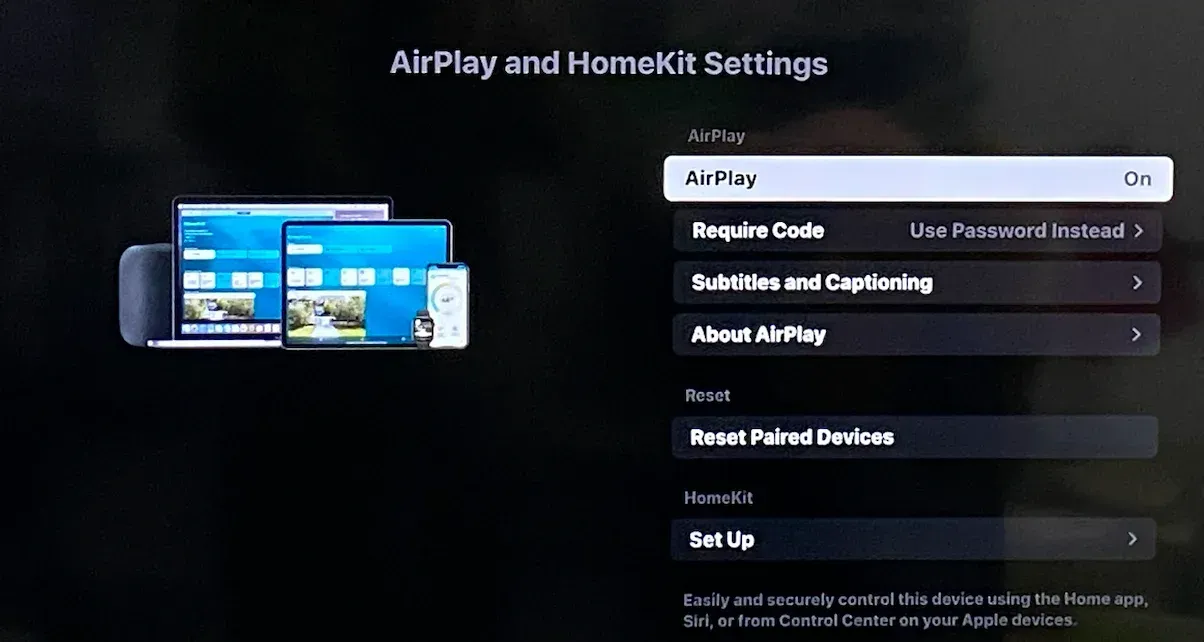
Step 2. Make sure AirPlay is enabled on the TV.
Open your TV settings and look for AirPlay, Apple AirPlay, or AirPlay and HomeKit. The exact menu name varies between TV brands.
Step 3. Restart the sender and receiver.
Restart the iPhone, iPad, or Mac as well as the TV. If you use an Apple TV box, restart that too rather than only turning the television screen off and on.
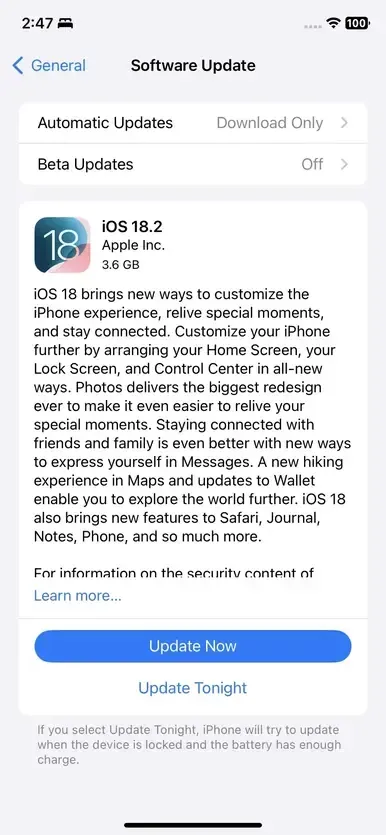
Step 4. Check for software updates.
An outdated version of iOS, iPadOS, macOS, tvOS, or your TV firmware can cause compatibility problems, especially if the issue appeared after another device was updated.
Step 5. Test AirPlay with something simple.
Try mirroring your home screen or sending a photo to TV before testing Netflix, a live stream, or another protected video service.
That last test is useful because it separates a general AirPlay failure from a problem limited to one app. If Photos works but one streaming service does not, repeatedly restarting your router is unlikely to solve it.
If Your TV Doesn't Show Up in AirPlay
If you open Screen Mirroring on your iPhone or MacBook and your TV is completely missing, focus on device discovery first.
Start with the TV itself. Confirm that it is powered on, connected to the network, and has AirPlay enabled. Some TVs retain their internet connection while AirPlay has been disabled separately in the settings.
On an iPhone or iPad, open Control Center and tap Screen Mirroring. On a Mac, AirPlay controls are normally available through Control Center or display controls, although where you find AirPlay on a Mac can vary slightly with the macOS version.
If the TV still does not appear, check these points.
Make Sure You're Not Using an Isolated Network
A common example is a guest Wi-Fi network.
Guest networks are often designed to let devices reach the internet while preventing them from communicating directly with each other. Your iPhone may therefore have a perfectly good internet connection but still be unable to discover the TV.
The same issue can occur on workplace, school, apartment, and hotel networks that restrict communication between connected devices.
Try placing both devices on your normal home network before changing other settings.
Check the TV's AirPlay Permissions
Some AirPlay receivers restrict who can connect.
For example, a TV or Apple TV may ask for an on-screen code, allow only devices associated with a particular home, or require approval when a new device connects.
If the TV used to appear but stopped after someone changed its settings, review its AirPlay access or Home settings rather than resetting the entire network.
Test With Another Apple Device
If you have another iPhone, iPad, or Mac available, check whether it can see the same TV.
This is a useful diagnostic shortcut:
- No Apple device can see the TV: focus on the TV, receiver, or network.
- Another device sees the TV normally: focus on the Apple device that is failing.
That distinction can save a lot of unnecessary router troubleshooting.
If AirPlay Connects but Keeps Disconnecting
A TV that appears normally and accepts the connection has already passed the basic discovery test.
If AirPlay starts and then freezes, drops, or repeatedly reconnects, the more likely problem is the quality of the connection.
Check Wi-Fi Strength Where You're Actually Using AirPlay
A phone can browse the web comfortably on a weak connection because a webpage only needs short bursts of data. Continuous screen mirroring is less forgiving.
If AirPlay becomes unstable when you move farther from the router, try the same connection close to it.
If the problem disappears, you have identified a coverage issue rather than an AirPlay compatibility problem.
Check Whether the Network Is Under Heavy Load
AirPlay can also become unstable when the local network is busy.
This is more likely when several TVs are streaming at once, large downloads or cloud backups are running, or many connected devices share an older router.
You do not need to disconnect every smart device in the house. Instead, temporarily pause obvious high-bandwidth activity and test the same AirPlay session again.
If the connection immediately becomes more stable, network load is worth investigating further.
Restart the Router Only When the Symptoms Point to It
Restarting the router is often presented as the first AirPlay fix, but it is more useful when there is evidence of a network problem.
For example:
- several devices are having connectivity issues
- the TV repeatedly drops off Wi-Fi
- AirPlay works after reconnecting to the network but fails again later
If only one particular app fails while everything else works, restarting the router is unlikely to address the real cause.
If AirPlay Works on Some Devices or Apps but Not Others
Partial failure gives you useful information.
If the same TV works from one Apple device but not another, or works with one type of content but not another, AirPlay itself is probably not completely broken.
AirPlay Works on iPhone but Not on Mac
If your iPhone can mirror to the TV but your Mac cannot, the TV has already demonstrated that it can receive AirPlay.
Focus on the Mac. Make sure it is connected to the same local network, then restart it and check System Settings > General > Software Update.
Also check whether a VPN or security configuration is changing how the Mac handles local network traffic. A VPN that allows normal internet browsing can still interfere with local device discovery depending on its configuration.
If the Mac previously worked with the same TV, consider what changed recently: a macOS update, new VPN software, a network change, or a reset of the TV's AirPlay permissions can be more informative than starting troubleshooting from zero.
AirPlay Works With Photos but Not a Streaming App
This is an important distinction.
Some video apps do not support AirPlay for particular content or may place restrictions on external playback. Apple itself notes that some video apps may not support AirPlay.
Test the same TV with Photos, a local video, or basic Screen Mirroring.
If those work while one specific service fails, the TV and AirPlay connection are probably functioning normally. The next step is to check that service's playback options rather than continue changing network settings.
Similarly, if you can hear audio but see a black screen with one protected video, test another source before assuming the AirPlay receiver is defective.
AirPlay Works on One TV but Not Another
This usually moves the problem toward the receiving side.
The second TV may have AirPlay disabled, may use a different implementation, or may not support AirPlay at all. Compare the settings and compatibility of the two TVs before changing anything on the sending device.
Check Whether Your TV Actually Supports AirPlay
If none of the discovery fixes help, confirm that the TV is capable of receiving AirPlay in the first place.
Do not rely only on the brand name. AirPlay support can vary by model, model year, region, and TV operating system.
The most reliable signs are:
- an Apple AirPlay or AirPlay and HomeKit option in the TV settings
- AirPlay support listed in the specifications for your exact model
- an Apple TV or another compatible AirPlay receiver connected to the screen
If you are unsure, check your exact model against the manufacturer's specifications or an AirPlay-compatible TV list rather than assuming that every Samsung, LG, Sony, or Roku TV behaves the same way.
An unsupported TV will not become discoverable because you restart your iPhone or change Wi-Fi settings.
In that situation, the next step is not more troubleshooting. You need a receiver or a different way to send the screen.
When AirPlay Still Won't Work
If you have confirmed the network, AirPlay settings, device software, and TV compatibility but the setup is still unreliable, it is worth asking a different question:
Do you actually need AirPlay, or do you simply need your screen on the TV?
Those are not always the same problem.
AirPlay is a good fit when both sides already support it reliably. If they do not, continuing to force the same protocol can create more work than switching to a connection method that matches your devices.
Use the TV's Other Native Casting Option
Your TV may support another wireless technology even if AirPlay is unavailable or unreliable.
For example, Google TV and Chromecast-based setups are naturally suited to Google Cast, while some Windows-to-TV combinations can use Miracast.
If your devices already share another compatible protocol, using it is usually preferable to adding another layer of software.
A Chromecast setup, for instance, can provide a different route for content that does not depend on AirPlay working with Chromecast as though the two protocols were interchangeable.
Use HDMI When Stability Matters More Than Wireless Convenience
HDMI is still useful when you need predictable performance for a presentation, long movie, game, or situation where Wi-Fi is unreliable.
It removes wireless discovery and local network quality from the connection entirely.
The tradeoff is obvious: you need the right cable or adapter, and your laptop or phone remains physically connected to the TV.
Use PigeonCast When Native Protocols Don't Line Up
The more complicated situation is when you regularly move between different ecosystems.
You may have an iPhone today, a Windows laptop tomorrow, and TVs in different rooms that do not all support the same casting technology. In that environment, troubleshooting AirPlay solves only one combination of devices.
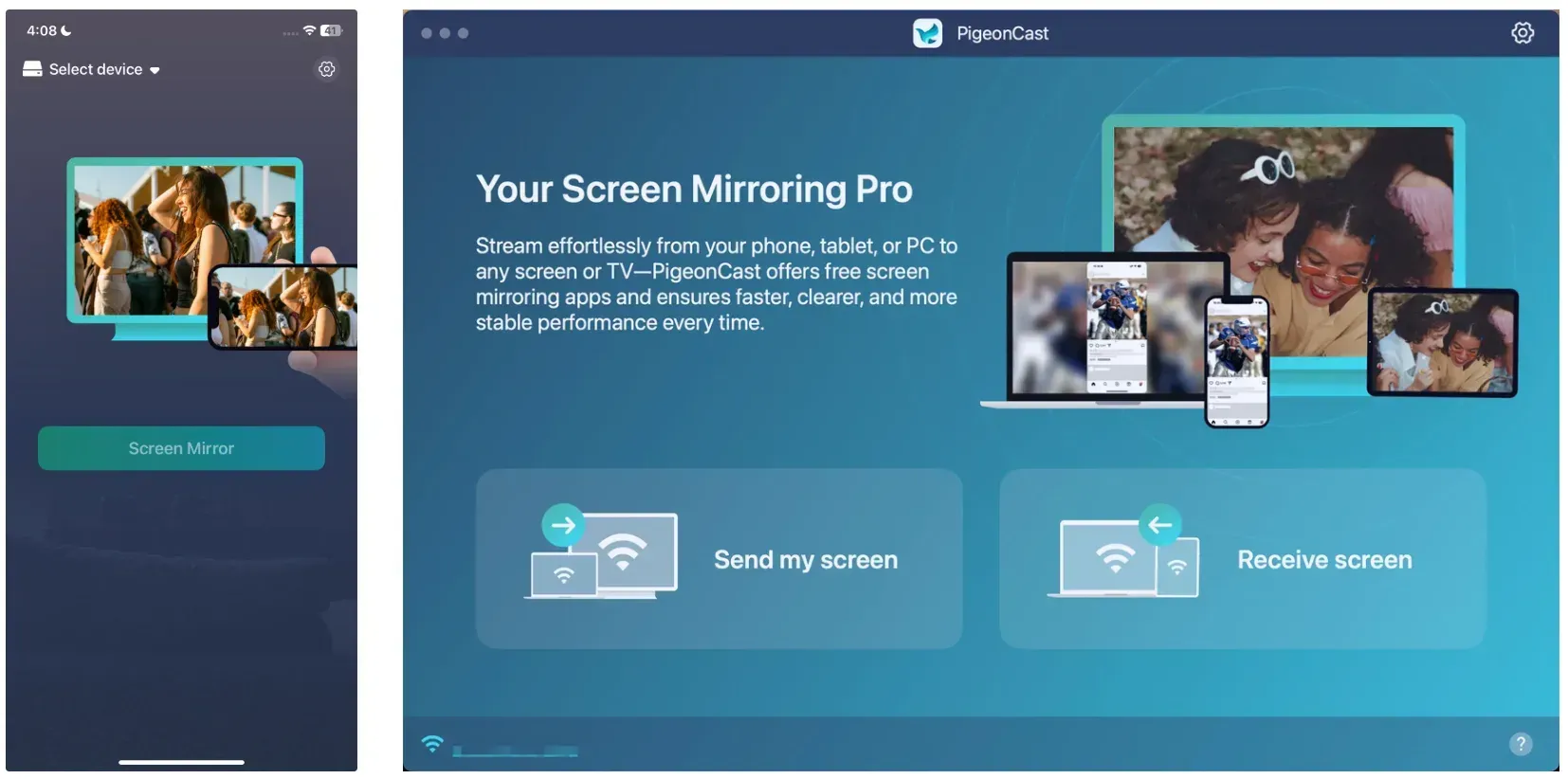
PigeonCast takes a cross-platform approach instead. Rather than requiring every sender and TV to share the same native casting protocol, it creates its own sender-to-receiver connection between supported devices.


Overall Rating:


That makes it particularly relevant when:
- your TV's native AirPlay implementation is unreliable
- you also need to mirror Windows or Android devices
- different TVs in your setup support different casting technologies
- you want a more consistent workflow instead of switching between AirPlay, Miracast, and Google Cast
To mirror with PigeonCast:
Step 1. Open PigeonCast on your iPhone, iPad, or Mac.
Step 2. Open the PigeonCast receiver on the TV.
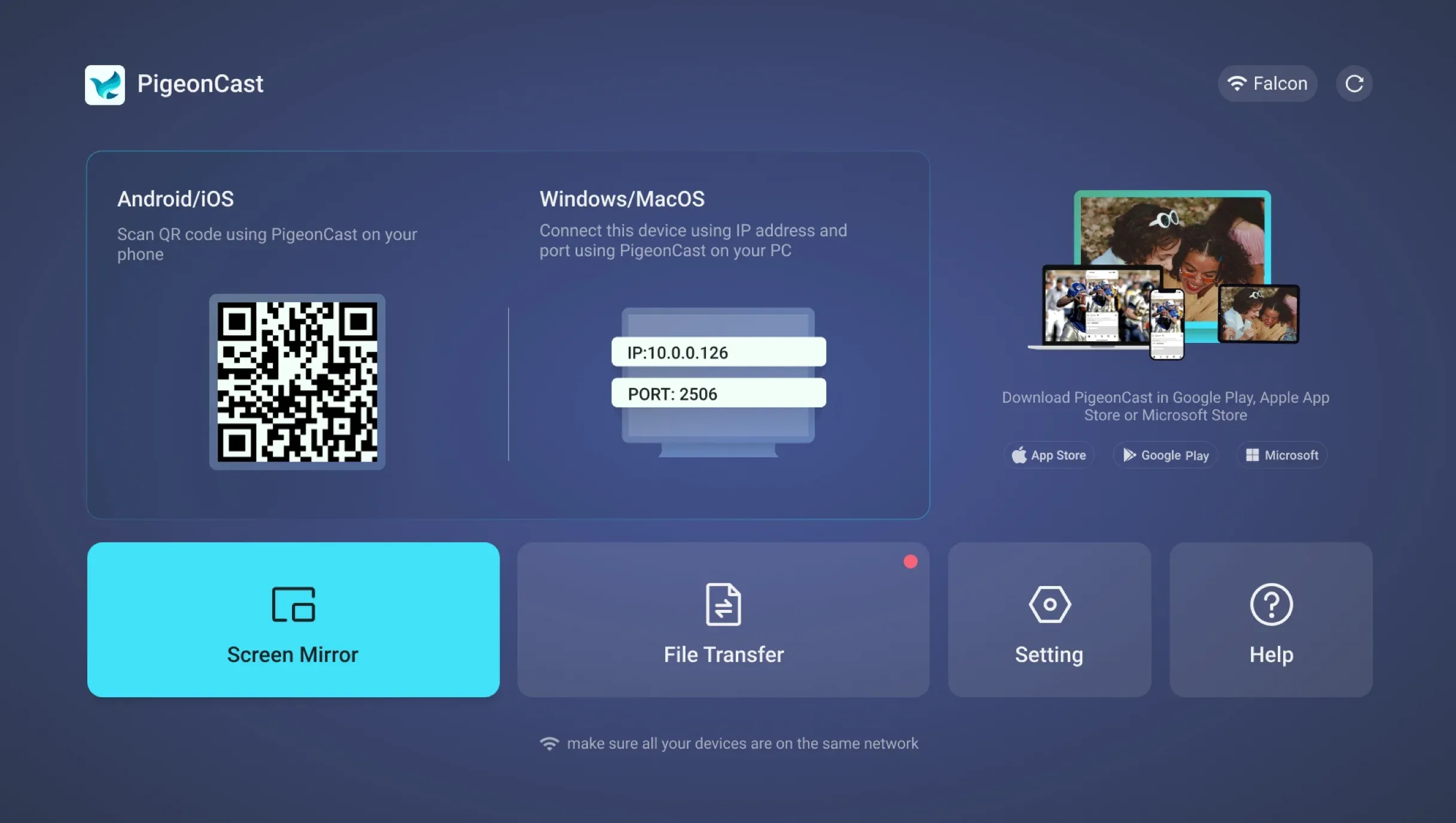
Step 3. Make sure both devices are available on the same local network.
Step 4. Select the receiving TV and start screen mirroring.
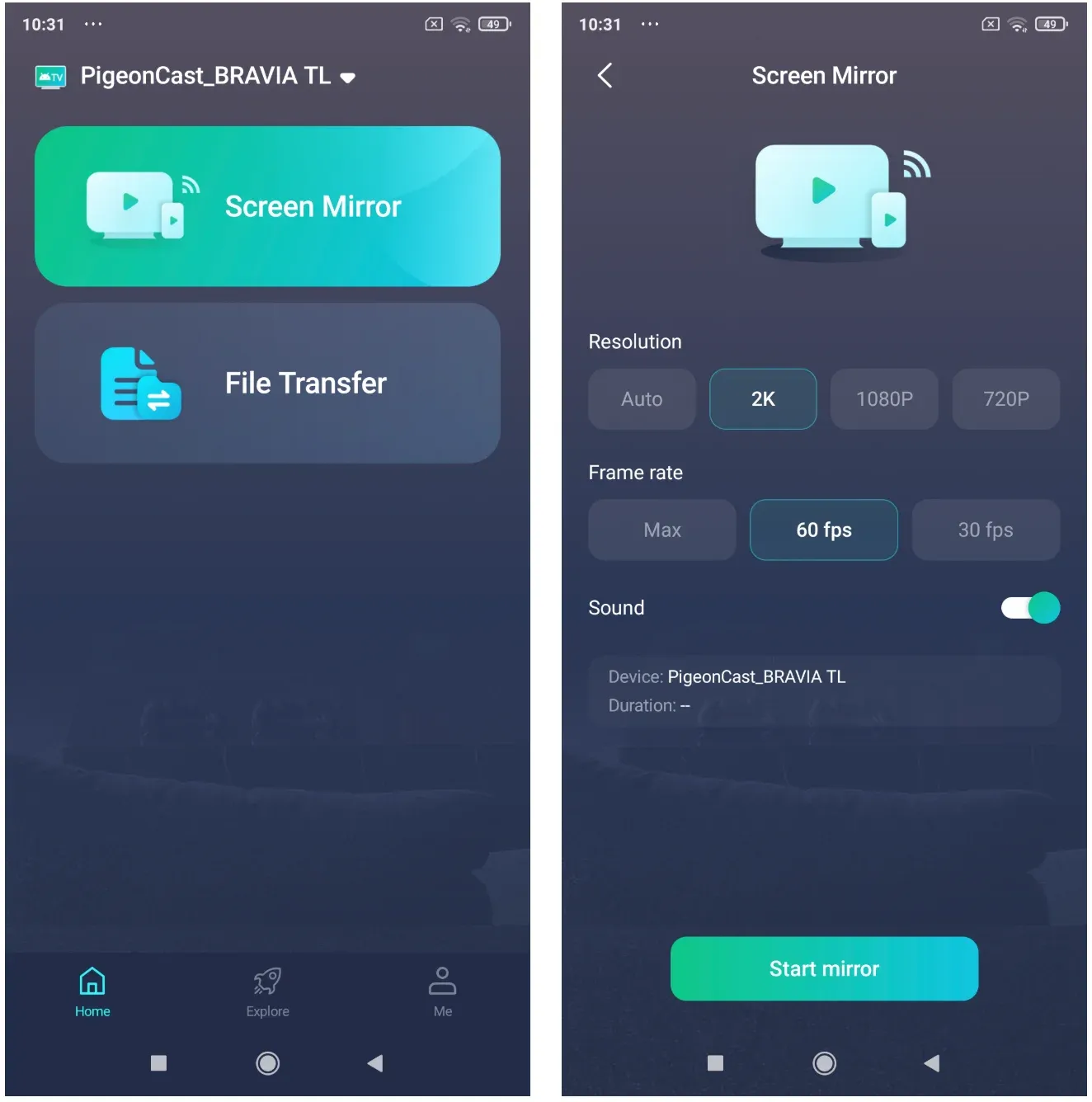
This does not repair or enable AirPlay on an unsupported TV. It gives you a separate connection path when AirPlay itself is the part of the setup that does not fit.
Conclusion
AirPlay troubleshooting becomes much easier once you use the symptom to narrow down where the failure occurs.
If the TV never appears, focus on discovery, network access, AirPlay settings, and compatibility. If it connects but repeatedly drops, investigate connection quality. If only one device or app fails, the problem is probably more specific than AirPlay itself.
And if the real issue is that your devices simply do not share a reliable wireless standard, there is little value in troubleshooting AirPlay indefinitely.
Use native AirPlay when it fits the devices you already have. When it does not, switching to another native protocol, HDMI, or a cross-platform option such as PigeonCast can be the more practical fix.
AirPlay Not Working on TV FAQ
Can a VPN stop AirPlay from working?
Yes. Some VPNs restrict local network traffic, which can prevent your iPhone, iPad, or Mac from discovering an AirPlay receiver even when internet access works normally. Temporarily disconnect the VPN and test AirPlay again. If the TV reappears, check whether your VPN has a setting that allows access to devices on your local network.
Why is AirPlay not working on hotel Wi-Fi?
Hotel Wi-Fi often isolates connected devices for security, so your iPhone and TV may both have internet access without being able to communicate with each other. Some hotels provide dedicated AirPlay-compatible TV systems, but joining both devices to the same public Wi-Fi network does not guarantee that normal AirPlay discovery will work.
Why does AirPlay have sound but no video?
If AirPlay sends audio but shows a black screen, test another video or app first. When Photos and local videos work normally but one streaming service does not, the app or protected content may restrict video output. If every source has the same problem, restart the TV or Apple TV and check for software updates.
Can I use AirPlay without Wi-Fi?
Sometimes. Compatible Apple TV setups can support peer-to-peer AirPlay without both devices joining the same existing Wi-Fi network, but this behavior should not be assumed for every smart TV. Whether you can use AirPlay without Wi-Fi therefore depends mainly on the receiver and devices in your setup.
Why did AirPlay suddenly stop working after a TV update?
A TV firmware update can sometimes change or reset network settings, AirPlay permissions, or related preferences. If AirPlay worked before the update, first confirm that AirPlay is still enabled, the TV is connected to the correct network, and connection permissions have not changed. Check these settings before trying a full TV reset.
Mia Clarke is a technology editor specializing in screen mirroring and casting solutions across multiple platforms. Mia provides clear, practical guides and in-depth insights to help users seamlessly connect their devices. Passionate about enhancing digital experiences, Mia is dedicated to keeping readers updated on the latest trends and tools in cross-platform screen sharing. Whether you’re looking to mirror your smartphone, laptop, or smart TV, Mia’s content delivers reliable, user-friendly advice to simplify your tech setup.