
Showing the same screen on two or more TVs can be useful in many situations. You might want the same presentation on several displays in a meeting room, the same video playing across multiple TVs at home, or content shown on screens placed around a store or event space.
There is no single way to do it. The best setup depends mainly on whether every TV needs to show the same content at the same time, how far apart the TVs are, and whether you prefer a wired or wireless connection.
Can You Screen Mirror to Multiple TVs at Once?
Yes, but most phones and computers do not simply give you a list of TVs and let you select all of them for screen mirroring at once. In many cases, you need either hardware that copies one video signal to several displays or separate casting connections for each TV.
The easiest way to choose is to start with what you actually want the TVs to display.
| What You Want to Do | Better Option |
|---|---|
| Show the same screen on two nearby TVs | HDMI splitter |
| Use one Chromecast to show the same content on several TVs | Chromecast + HDMI splitter |
| Send separate content to different TVs | Multiple Chromecast devices |
| Show the same content on TVs farther apart | Wireless HDMI with multiple receivers |
| Move between different phones, computers, and supported receiving screens | Cross-platform screen mirroring |
Before setting anything up, it is also worth checking what TVs you can screen mirror on. Different TVs may support AirPlay, Google Cast, Miracast, or other receiving methods, so the options available to you can vary from one screen to another.
Method 1: Use an HDMI Splitter to Mirror One Screen to Multiple TVs
An HDMI splitter is usually the simplest option when you want two or more TVs to show exactly the same thing. It takes one HDMI signal and copies it to several HDMI outputs.
For example, you can connect a laptop to a 1-in-2-out splitter, then run one HDMI cable from the splitter to each TV. Both TVs will receive the same picture and sound from the laptop.
A basic setup normally includes:
- A source device, such as a PC, media player, or game console
- An HDMI output or compatible HDMI adapter
- A powered HDMI splitter
- One HDMI cable for each TV
- Two or more TVs or monitors
Pay attention to the number of outputs when buying the splitter. A 1×2 model feeds two displays, while a 1×4 model can send the same signal to four.
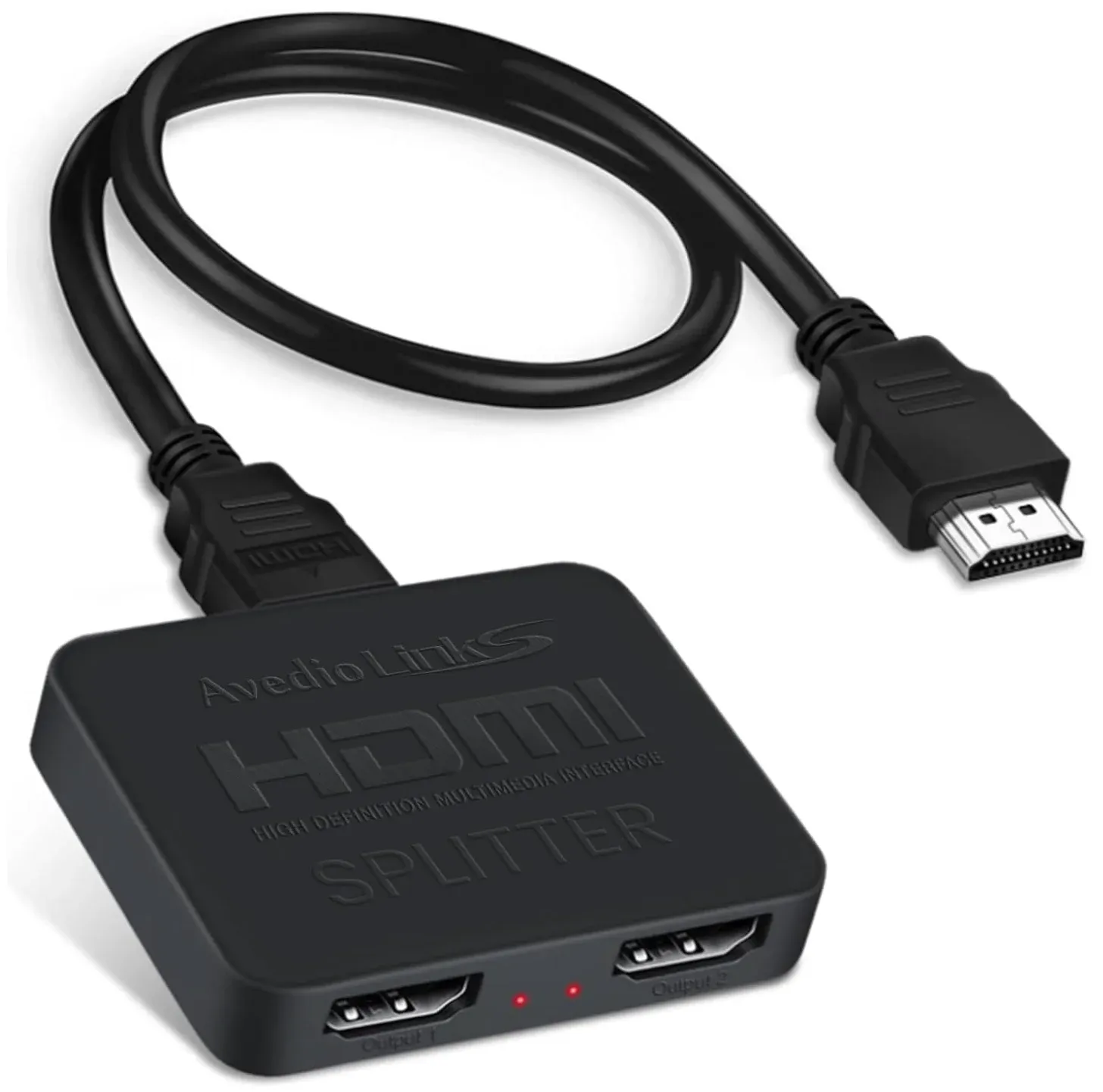
How to Connect One Device to Multiple TVs
Step 1. Connect your source device to the input port on the HDMI splitter.
Step 2. Connect each TV to one of the splitter's HDMI output ports.
Step 4. Switch each TV to the correct HDMI input.
Step 5. Start playing or displaying content from your source device.
Once everything is connected, all TVs should show the same output without requiring a separate connection for each screen. An HDMI splitter duplicates the source display rather than turning several TVs into separate extended monitors.
That means TV 1 and TV 2 will both show the same presentation, movie, browser window, or desktop. If you want each TV to display something different, you need a setup that treats the screens as separate outputs instead.
This method works best when the TVs are relatively close together. If the screens are spread across a large room, running several long HDMI cables can quickly become inconvenient.
Method 2: Use One Chromecast with an HDMI Splitter
If you already use Chromecast, you can combine it with an HDMI splitter instead of buying a separate Chromecast for every TV. The idea is simple: you cast to one Chromecast, and the splitter then copies its HDMI output to multiple screens.
The setup looks like this: Phone or computer → Chromecast → HDMI splitter → TV 1 + TV 2.
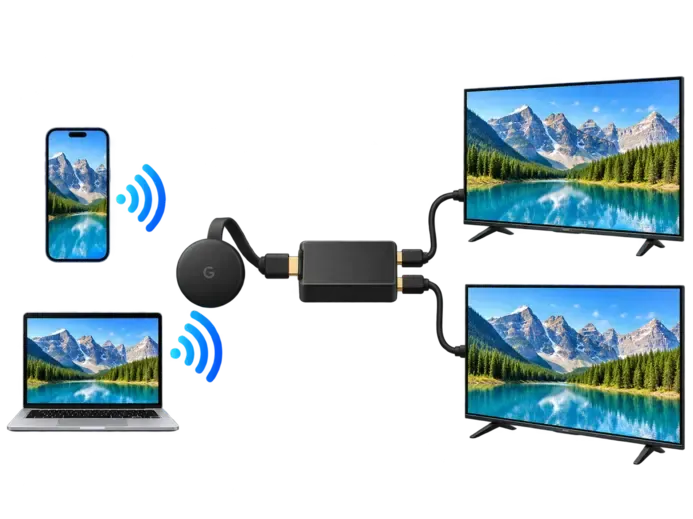
Because the splitter is copying one HDMI signal, every connected TV displays the same content. This is different from creating several independent Chromecast sessions.
How to Connect One Chromecast to Two TVs
Step 1. Connect the Chromecast to power as usual.
Step 2. Plug the Chromecast HDMI output into the input side of the HDMI splitter.
Step 3. Connect one HDMI cable from the splitter to the first TV.
Step 4. Connect another HDMI cable from the splitter to the second TV.
Step 5. Select the correct HDMI input on both TVs.
Step 6. Cast to the Chromecast as you normally would.
Once the Chromecast starts playing, the splitter sends the same picture and audio to both screens. The same setup can also work with three or four TVs as long as the splitter has enough outputs—for example, a 1×4 splitter can send one Chromecast signal to four displays.
Keep in mind that every connected TV still receives the same Chromecast output. You cannot pause a video on one TV while leaving it playing on another because all of the screens are simply showing copies of the same source.
Method 3: Use Multiple Chromecast Devices for Multiple TVs
Multiple Chromecast devices make more sense when each TV needs its own connection. Instead of splitting one signal, every TV has its own Chromecast or built-in Google Cast receiver.
Google's normal Cast flow asks you to select the device you want to cast to. It does not work like a checkbox list where you simply select several TVs for one standard video Cast session.
Using several receivers does, however, give you more flexibility. One TV could display a browser page while another plays different content from a separate Cast session.
How to Cast to Two TVs from Separate Chrome Profiles
On a computer, one way to send different content to two Chromecast-enabled TVs is to use separate Chrome profiles.
Step 1. Open Chrome on your computer.
Step 2. Create or open a second Chrome profile.
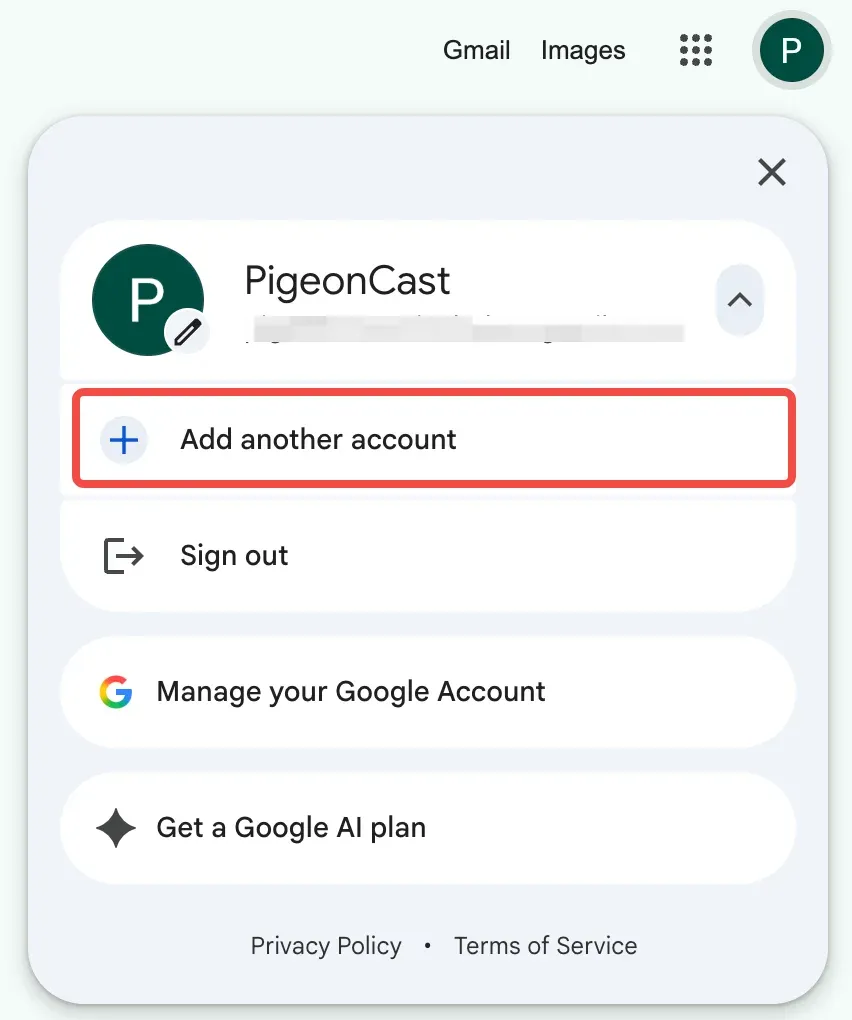
Step 3. Open a separate browser window under each profile.
Step 4. Cast the first Chrome window to the first Chromecast-enabled TV.
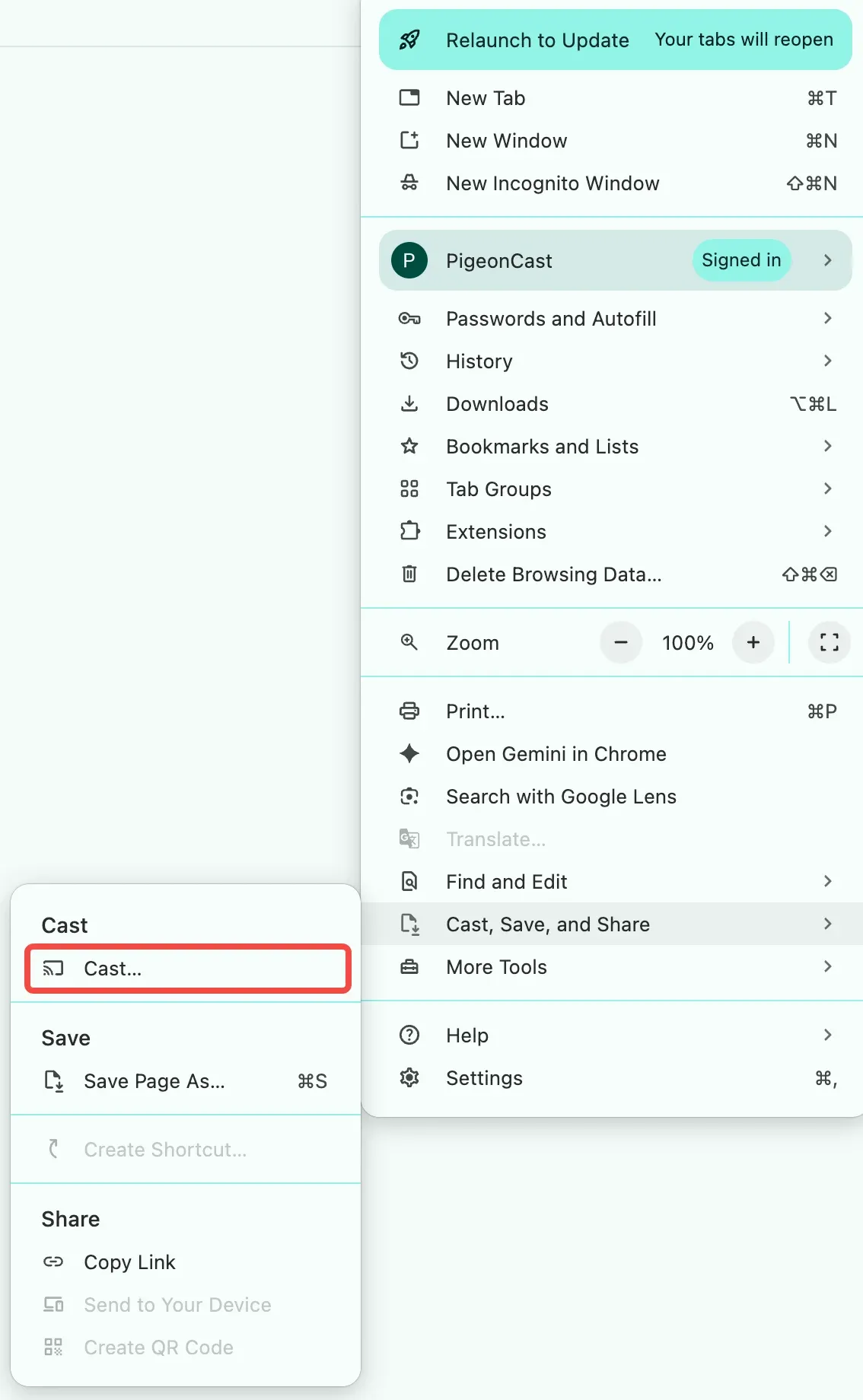
Step 5. Cast the second Chrome window to the second TV.
This setup lets the two TVs display different content. For example, one screen could show a presentation while the other displays a webpage or dashboard.
The main limitation is synchronization. Because each TV is receiving content separately, playback may not start at exactly the same time, and small timing differences can appear.
This setup works well for two screens, but it becomes harder to manage as you add more TVs. If several displays need to show the same content together, an HDMI splitter or another shared-output setup is usually simpler.
Method 4: Use Wireless HDMI for TVs That Are Far Apart
HDMI splitters work well until the TVs are far enough apart that cable routing becomes a problem. In that situation, a wireless HDMI system with multiple receivers can be a cleaner option.
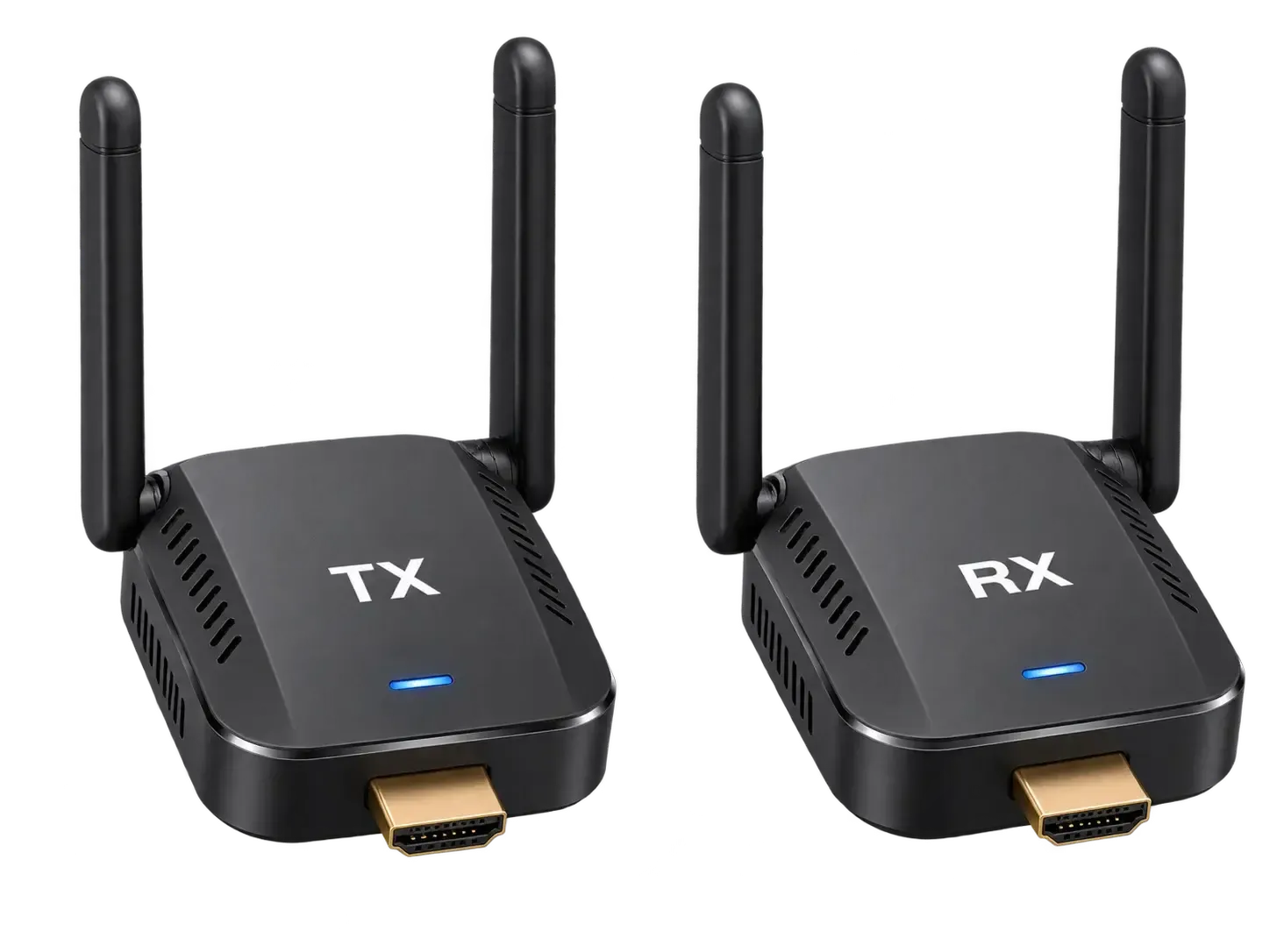
Wireless HDMI replaces some of the physical HDMI cable with a transmitter and receiver setup. The transmitter connects to your source device, while each TV connects to its own receiver.
A typical setup looks like this: Laptop or HDMI source → wireless HDMI transmitter. Then the signal is sent to:
- Receiver 1 → TV 1
- Receiver 2 → TV 2
- Receiver 3 → TV 3
The exact number of TVs you can connect depends on the system. Some wireless HDMI kits support only one receiver, so check that the model supports multiple receivers before buying.
This setup works well when TVs are spread across a meeting room, classroom, showroom, or other space where long HDMI cables would be awkward. Because the system carries an HDMI signal, the TVs also do not need to support the same built-in casting feature.
Some wireless HDMI systems can work without using your normal Wi-Fi network, which can be useful in places with weak or crowded Wi-Fi. However, wireless does not mean unlimited range—walls, furniture, distance, and the hardware itself can all affect performance.
Resolution and refresh rate support also vary between products. If you need 4K output or want to connect several receivers, check those specifications before choosing a system.
Same Content vs. Different Content on Multiple TVs
The easiest way to narrow down your choice is to decide whether the televisions should behave like copies of one another or as separate screens.
| Setup | Same Content | Different Content | Wi-Fi Needed | Best Use |
|---|---|---|---|---|
| HDMI splitter | Yes | No | No | Nearby TVs |
| Chromecast + HDMI splitter | Yes | No | Yes for casting | Same streamed content on several nearby TVs |
| Multiple Chromecast devices | Possible | Yes | Yes | Separate wireless Cast sessions |
| Wireless HDMI with multiple receivers | Yes | Usually no | Usually no home Wi-Fi required | TVs spread farther apart |
If every TV needs to show the same thing, a distribution method such as an HDMI splitter or multi-receiver wireless HDMI system is usually easier than creating several separate casting sessions.
If each screen needs its own content, however, you need separate receivers or display connections rather than simply copying one signal.
What If You Need to Mirror to Different Types of Screens?
Not every multi-screen setup is really about showing the same picture on several TVs at once. Sometimes the bigger problem is being able to move between different devices and screens—for example, using an iPhone one day, a Windows laptop the next, and TVs or computers running different systems.
This is where a cross-platform screen mirroring app such as PigeonCast can be useful. PigeonCast does not mirror one source to multiple TVs simultaneously, but it can make it easier to connect a source device to different supported receiving screens without building your entire setup around one brand or casting ecosystem.
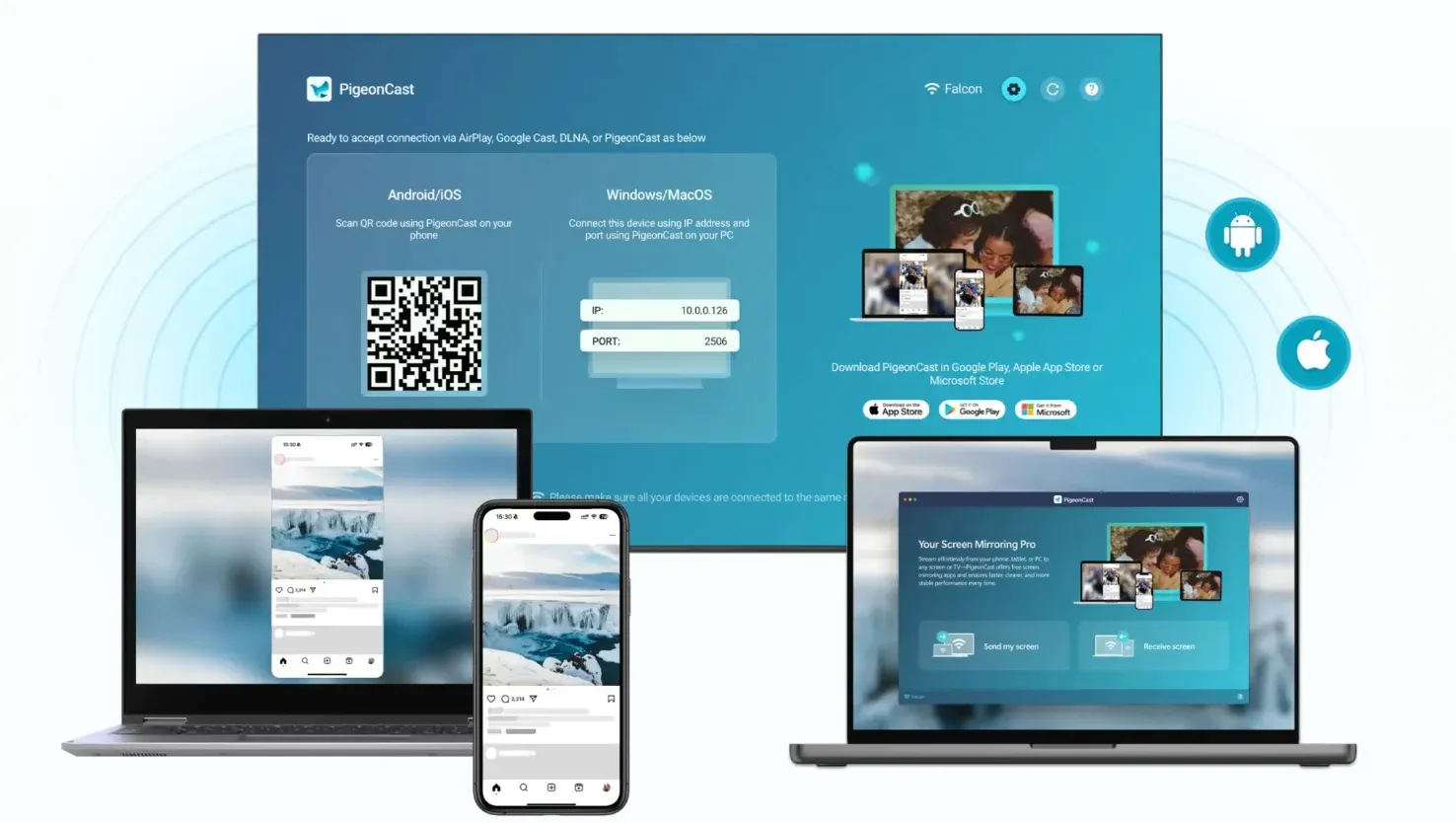
For example, you might mirror your phone to a TV at home, use your laptop with another receiving screen at work, or switch between iPhone, Android, Windows, and Mac depending on the situation. Instead of solving the “one screen on five TVs at once” problem, PigeonCast is better suited to the “I use different devices and need an easier way to get them onto a bigger screen” problem.


Overall Rating:



If your main goal is synchronized playback across several TVs, use one of the distribution methods above. If flexibility between different source devices and receiving screens matters more, a cross-platform setup may be more practical.
Final Words
The right way to mirror to multiple TVs depends less on the number of screens and more on what you want those screens to do. If they all need the same picture, an HDMI splitter or multi-receiver wireless HDMI system keeps the setup relatively simple.
If the TVs need separate content, individual receivers such as multiple Chromecast devices give you more control. And if your real challenge is moving between different phones, computers, TVs, and other receiving screens rather than displaying one source everywhere at once, a cross-platform solution such as PigeonCast fits that use case better.
Screen Mirroring to Multiple TVs FAQ
Can You Screen Mirror One Phone to Two TVs?
Usually not by simply selecting two TVs from your phone’s mirroring menu. Most screen mirroring connections are designed for one receiving display at a time. If both TVs need to show the same phone screen, a hardware setup such as an HDMI splitter or multi-receiver wireless HDMI system is usually more reliable.
Can One Chromecast Connect to Two TVs?
Not directly, because one Chromecast has only one HDMI output. However, you can connect it to an HDMI splitter and send the same Chromecast output to two or more TVs. If each TV needs different content, use separate Chromecast-enabled receivers instead of splitting one signal.
Can You AirPlay to Two TVs at the Same Time?
AirPlay can work with multiple devices in some situations, especially for audio, but full-screen mirroring to several TVs is more limited. How AirPlay works with multiple devices depends on whether you are sharing audio, streaming media, or mirroring an entire screen.
Can You Cast to Multiple TVs Without Wi-Fi?
Yes, depending on the method. An HDMI splitter does not require Wi-Fi, and many wireless HDMI systems use their own direct connection between the transmitter and receivers. Chromecast and other network-based casting methods, however, normally need the source device and receiver to be connected to the same Wi-Fi network.
How Many TVs Can You Mirror at Once?
There is no fixed number. It depends on the method and hardware you use. HDMI splitters may support two, four, eight, or more outputs, while wireless HDMI systems often have a set receiver limit. With separate casting devices, each TV needs its own receiver and connection.
Why Are Multiple TVs Out of Sync?
Small delays can happen when each TV receives or processes the signal differently. Separate wireless receivers, different TV models, and individual Cast connections can all introduce timing differences. If close synchronization matters, sending one HDMI signal through a splitter is usually easier to manage than using several separate wireless connections.
Can Multiple TVs Show Different Content from One Computer?
Yes, but not with a standard HDMI splitter because it only copies the same output. To show different content, the computer must treat each TV separately, using multiple display outputs, separate casting connections, or different Chrome profiles connected to different Chromecast-enabled TVs.
Can an HDMI Splitter Extend the Screen?
No. A standard HDMI splitter duplicates one signal, so every connected TV shows the same content. To extend your desktop and place different windows on different screens, your computer needs separate video outputs, a docking station, or another setup that lets the system recognize each display individually.
Mia Clarke is a technology editor specializing in screen mirroring and casting solutions across multiple platforms. Mia provides clear, practical guides and in-depth insights to help users seamlessly connect their devices. Passionate about enhancing digital experiences, Mia is dedicated to keeping readers updated on the latest trends and tools in cross-platform screen sharing. Whether you’re looking to mirror your smartphone, laptop, or smart TV, Mia’s content delivers reliable, user-friendly advice to simplify your tech setup.