
Google Slides is great for creating presentations, but showing them on a laptop or phone isn't always ideal, especially during meetings, classroom lessons, or family gatherings. Casting your slides to a TV gives everyone a better view without crowding around a small screen.
How to cast Google Slides to TV? Whether you're presenting from a Windows PC, Mac, Android phone, or iPhone, there are several ways to get Google Slides on your TV. You can use Chromecast, AirPlay, screen mirroring apps like PigeonCast, or a simple HDMI cable. Here's how each method works.
Can You Cast Google Slides to a TV?
Yes, you can cast Google Slides to a TV, either through a supported casting feature or by mirroring your device's screen. The best method depends on what device you're presenting from and what your TV supports.
For example, Google Slides on Android and iPhone supports presenting to compatible Chromecast devices, while Chrome on a laptop can cast browser content to a Google Cast receiver. You can also mirror your screen using AirPlay, Miracast, or a third-party app.
However, not every smart TV supports Google Cast. Some televisions use AirPlay, Miracast, or their own casting systems instead. Before choosing a method, it's worth checking what your TV can receive.
How to Cast Google Slides to TV Wirelessly
Wireless casting is convenient when you want to move around the room or control your presentation without keeping your laptop next to the television. Here are four ways to do it.
Method 1. Cast Google Slides with Chromecast or Google Cast
If you have a Chromecast device or a TV with Google Cast built in, you can send Google Slides to your TV over Wi-Fi.
Many Google TV and Android TV models support Google Cast, but compatibility varies by model and operating system. If you're unsure about your television, check our Chromecast compatible TV list before getting started.
How to cast Google Slides from Android or iPhone:
Step 1. Connect your phone and Chromecast or Google Cast-enabled TV to the same Wi-Fi network.
Step 2. Open the Google Slides app and select the presentation you want to show.
Step 3. Tap the Play icon at the top.
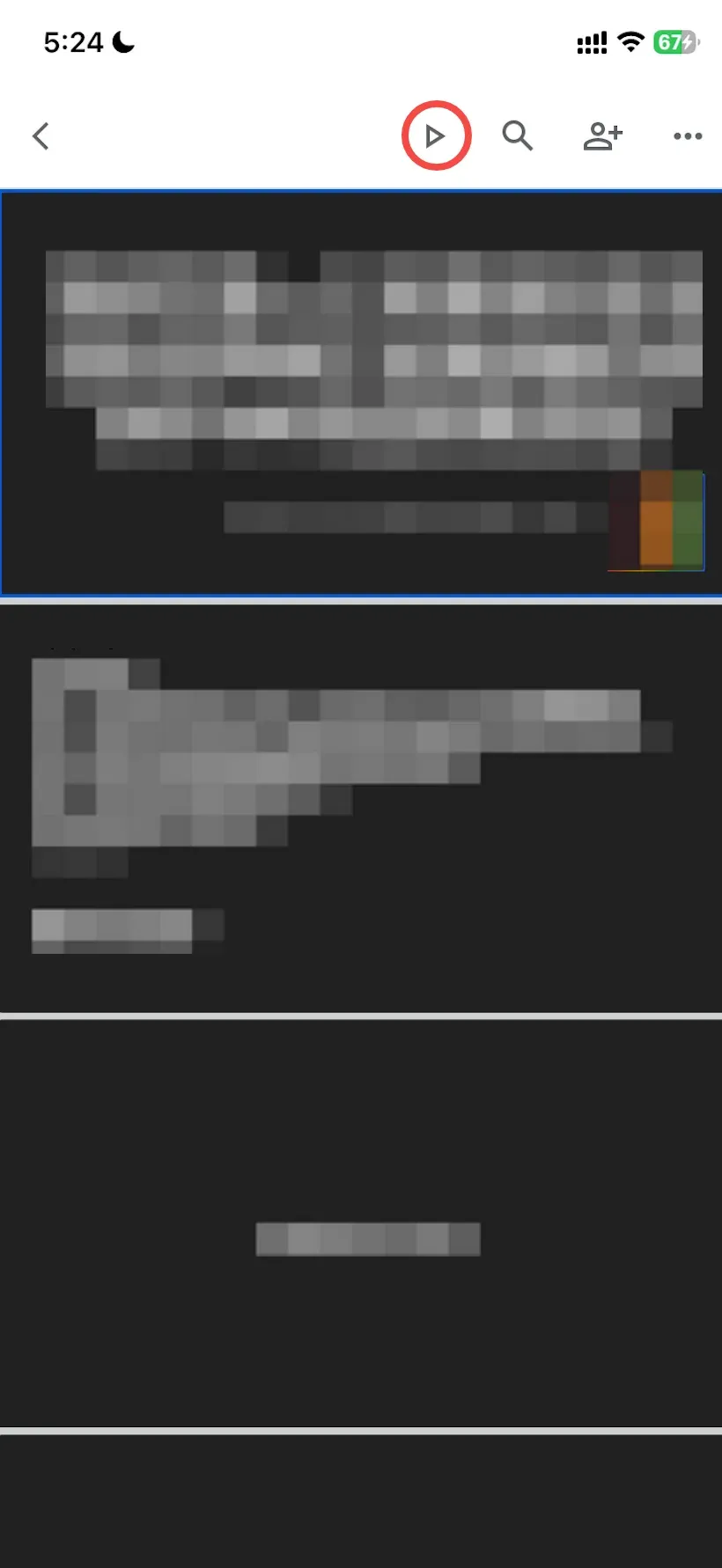
Step 4. Tap Find devices next to Present to Chromecast, and wait for connection.
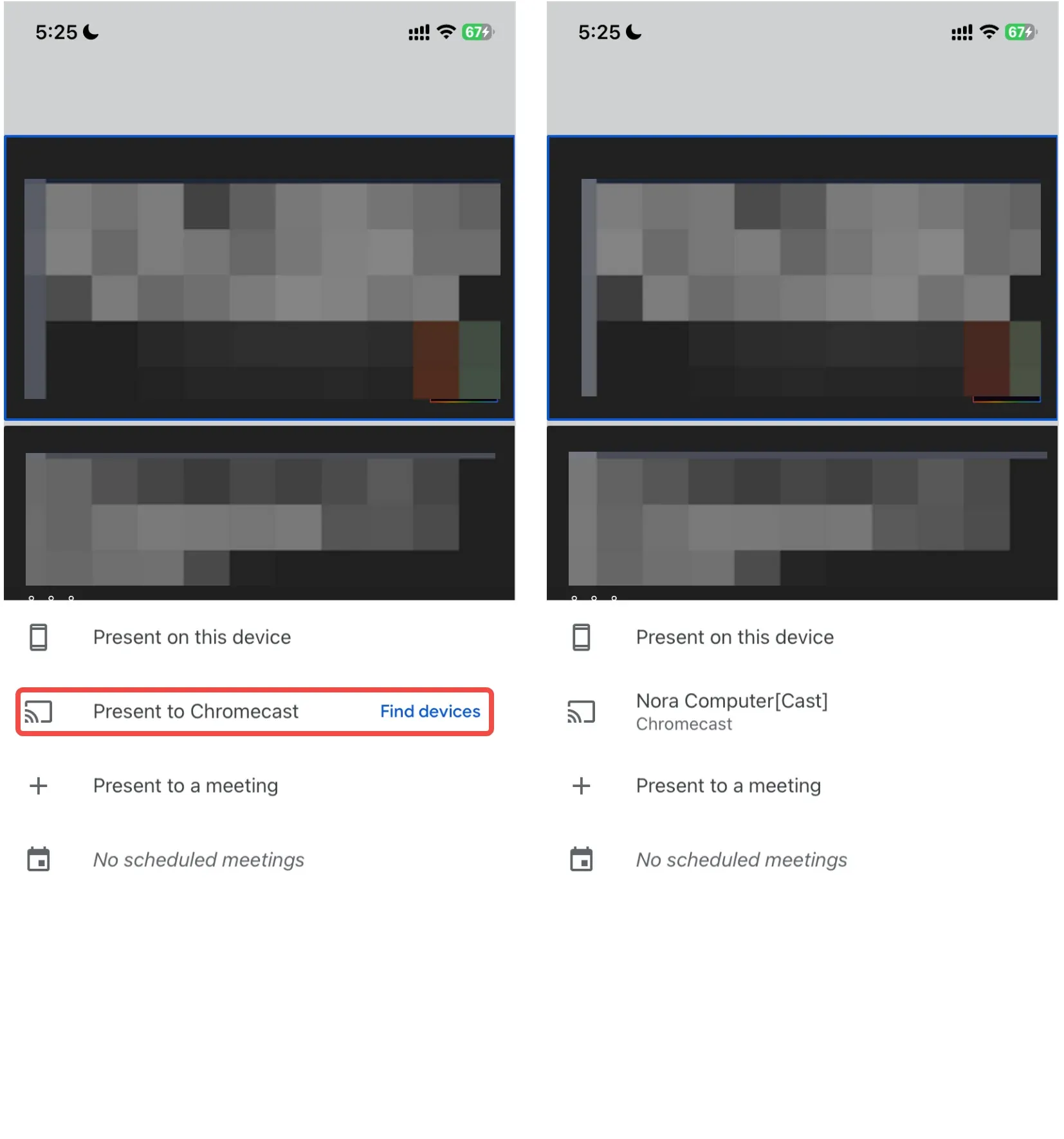
Step 4. Once the presentation appears on your TV, swipe left or right on your phone to change slides.
Step 5. Tap the stop or close control when you're finished presenting.
How to cast Google Slides from Windows or Mac:
On a computer, you can use Chrome's built-in casting feature rather than looking for a Cast button inside the Google Slides editor.
Step 1. Open your Google Slides presentation in Google Chrome.
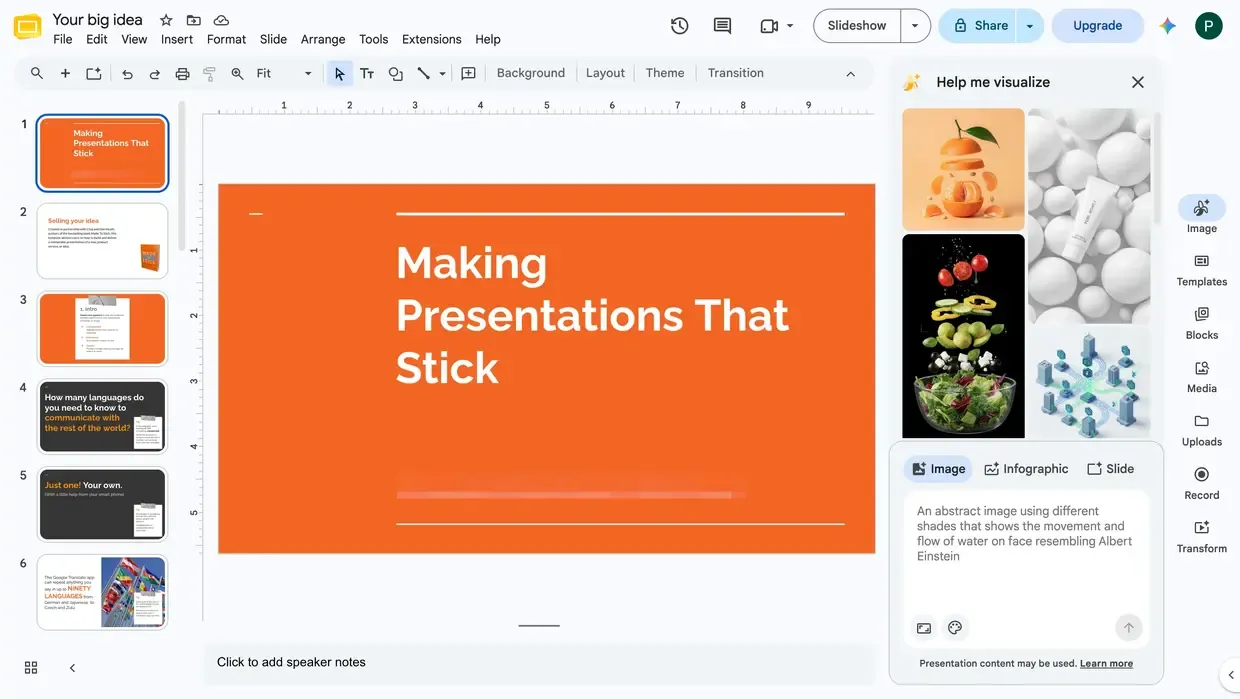
Step 2. Click the three-dot menu in the upper-right corner of Chrome and select Cast, save, and share > Cast. The menu wording may differ by Chrome version.
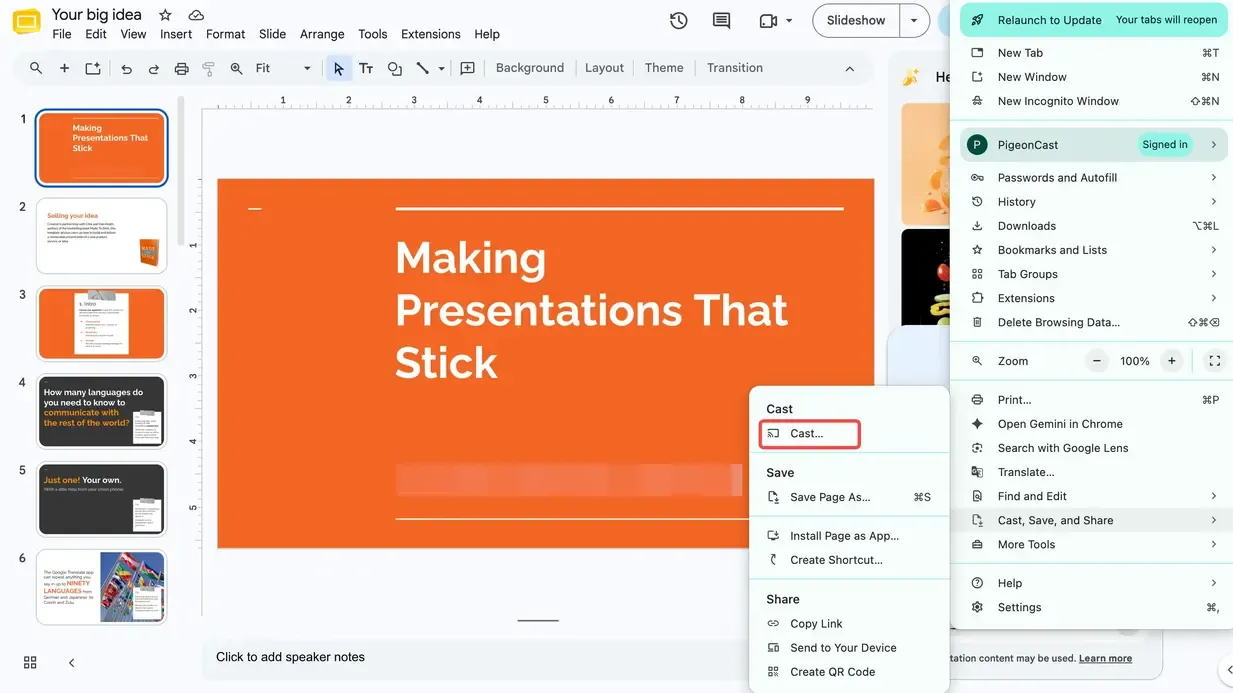
Step 3. Select your Chromecast or Google Cast-enabled TV from the available devices.
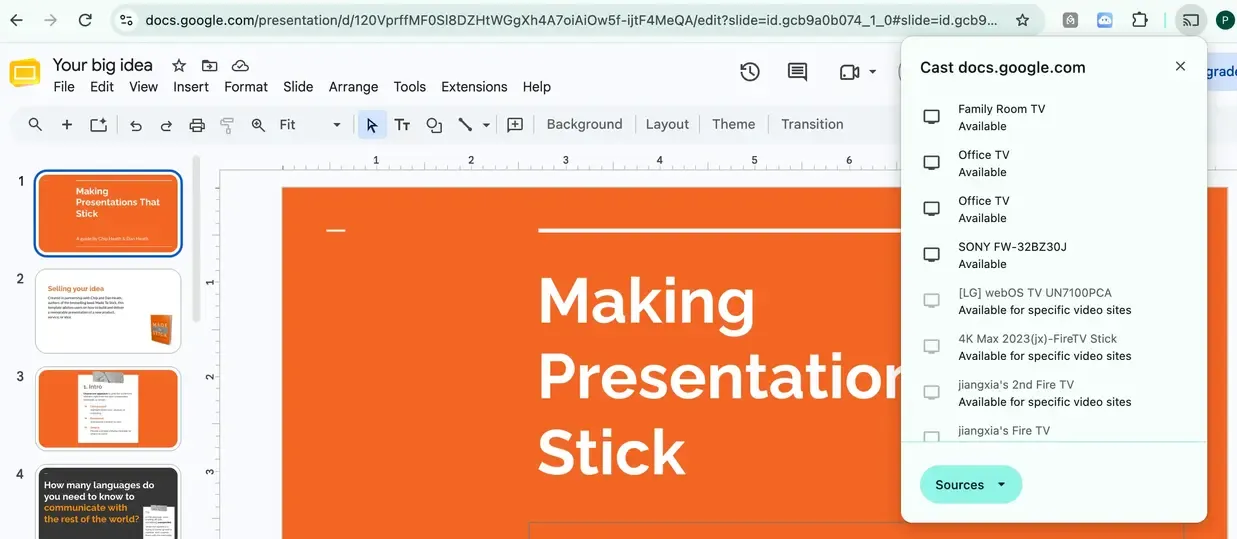
Step 4. Choose to cast the current tab, then click Slideshow in Google Slides to begin your presentation.
Step 5. Use your keyboard or the presentation controls to move between slides.
If you want to share your entire desktop instead of just the browser tab, choose the screen-casting source in Chrome before starting the connection.
Method 2. Mirror Google Slides to TV with PigeonCast
What if your TV doesn't have Chromecast built in, or you regularly switch between different phones, computers, and TVs?
PigeonCast is a cross-platform screen mirroring app that supports Windows, macOS, Android, iOS, and various TV devices. It works with multiple connection methods, including Google Cast and AirPlay, as well as compatible PigeonCast receivers.
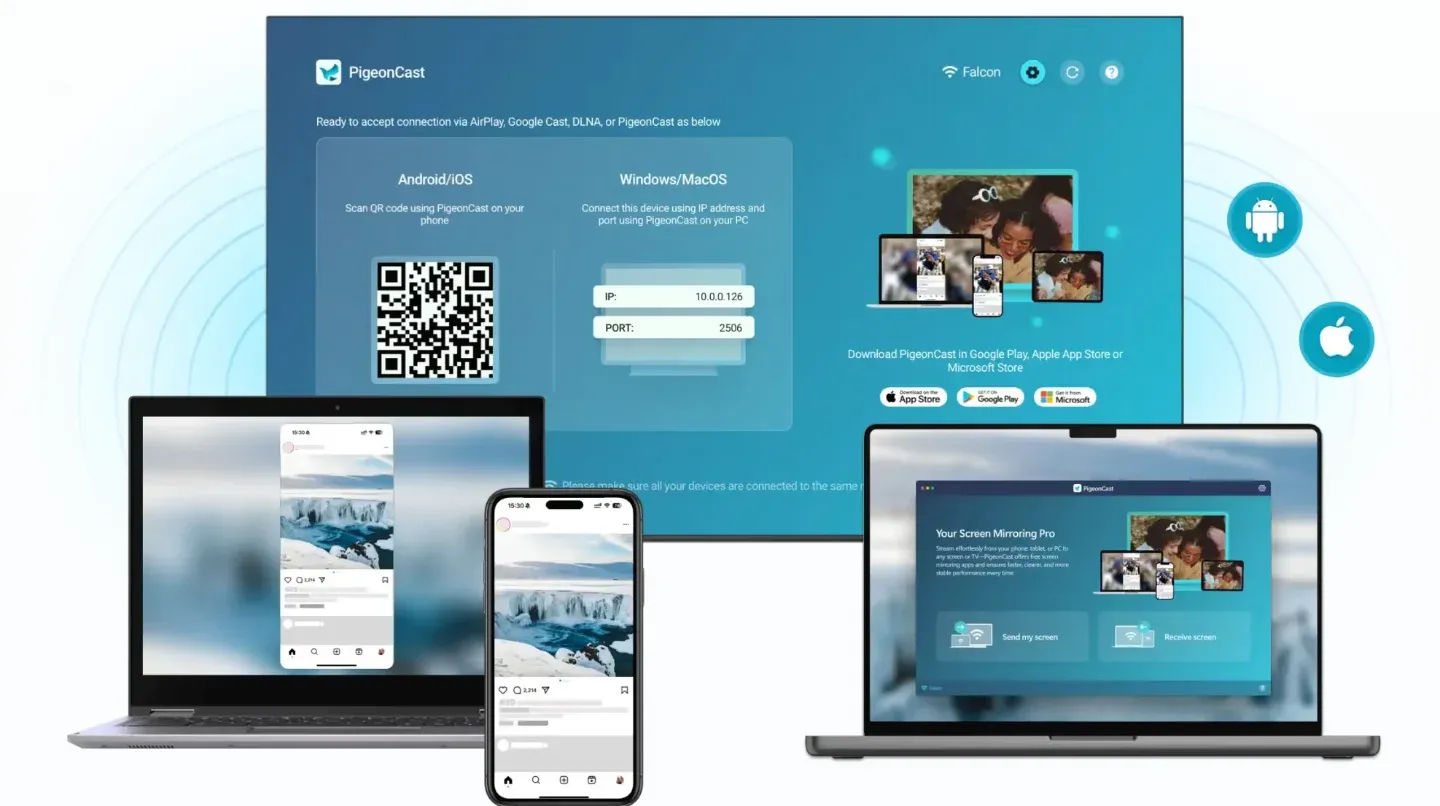
Instead of casting a Google Slides presentation directly from the app, PigeonCast mirrors the screen where your presentation is already open. This makes it useful for sharing slides, documents, browser pages, and other content during a presentation.
Here's how to mirror Google Slides with PigeonCast:
Step 1. Download and install PigeonCast on your phone or computer.


Overall Rating:



Step 2. Prepare your TV to receive the screen. Depending on the model, you can use its supported casting feature or install a compatible PigeonCast receiver.
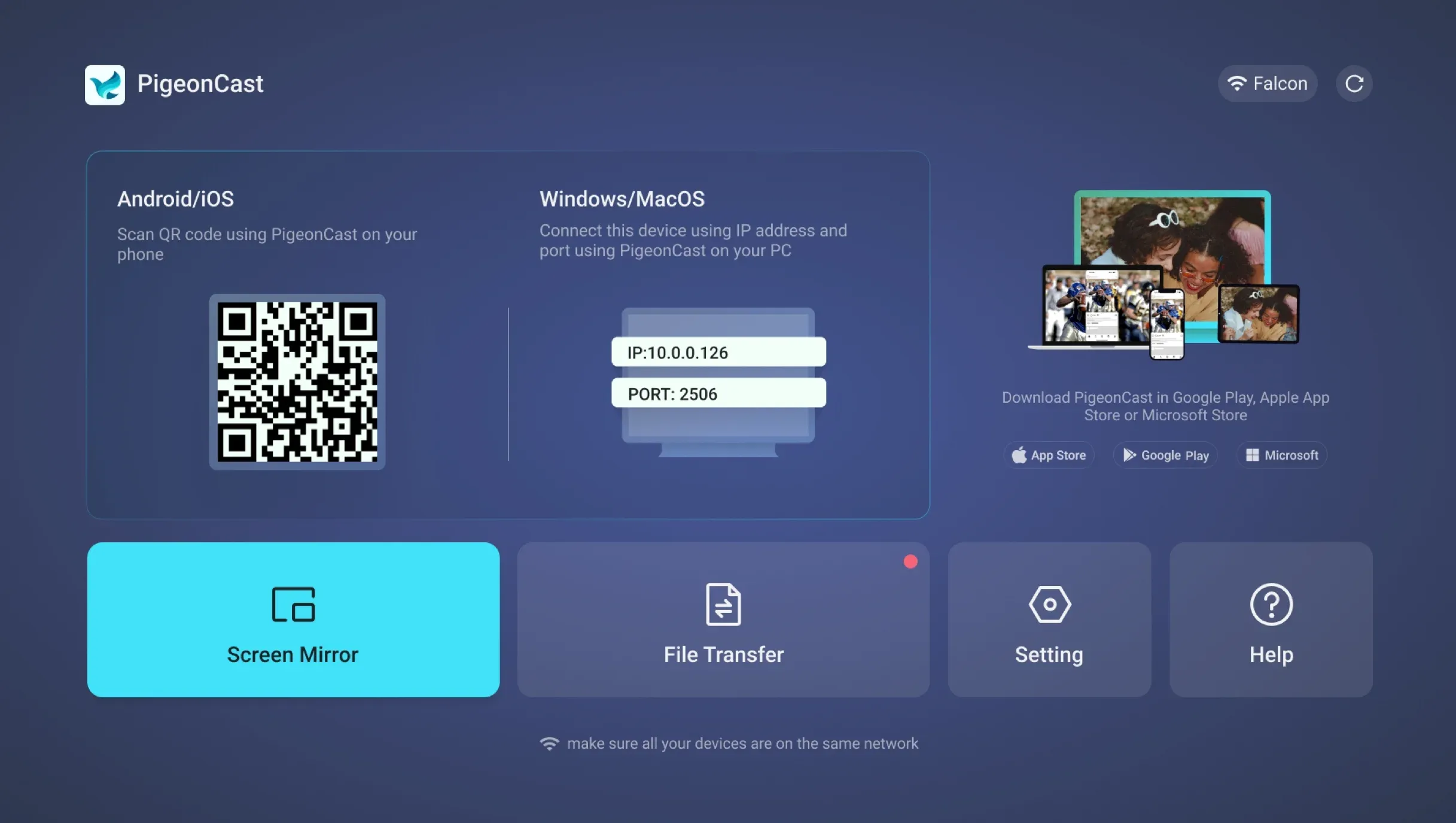
Step 3. Connect your devices to the same Wi-Fi network, then open PigeonCast on your sending device.
Step 4. Select your TV from the available devices or scan the QR code shown by the receiving device.
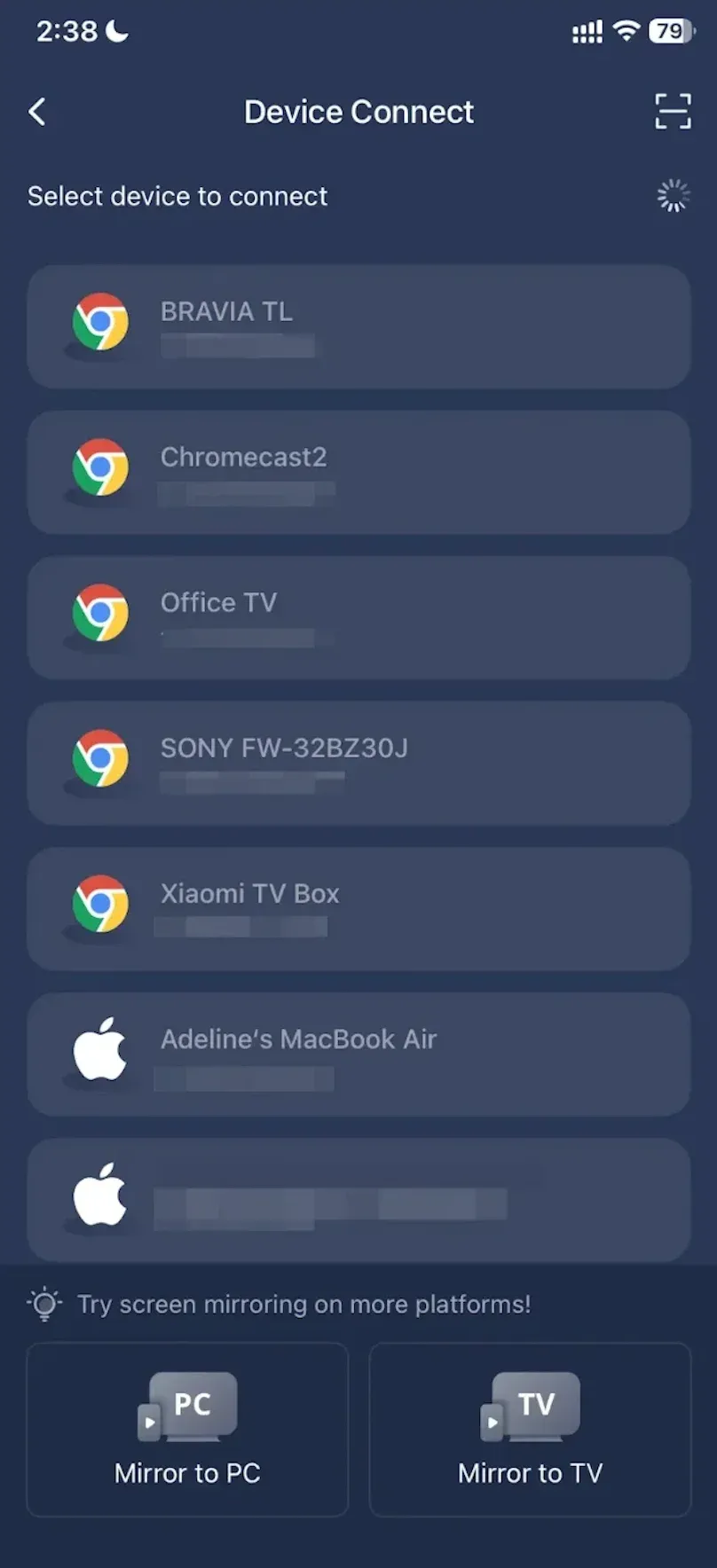
Step 5. Start screen mirroring once the connection is established.
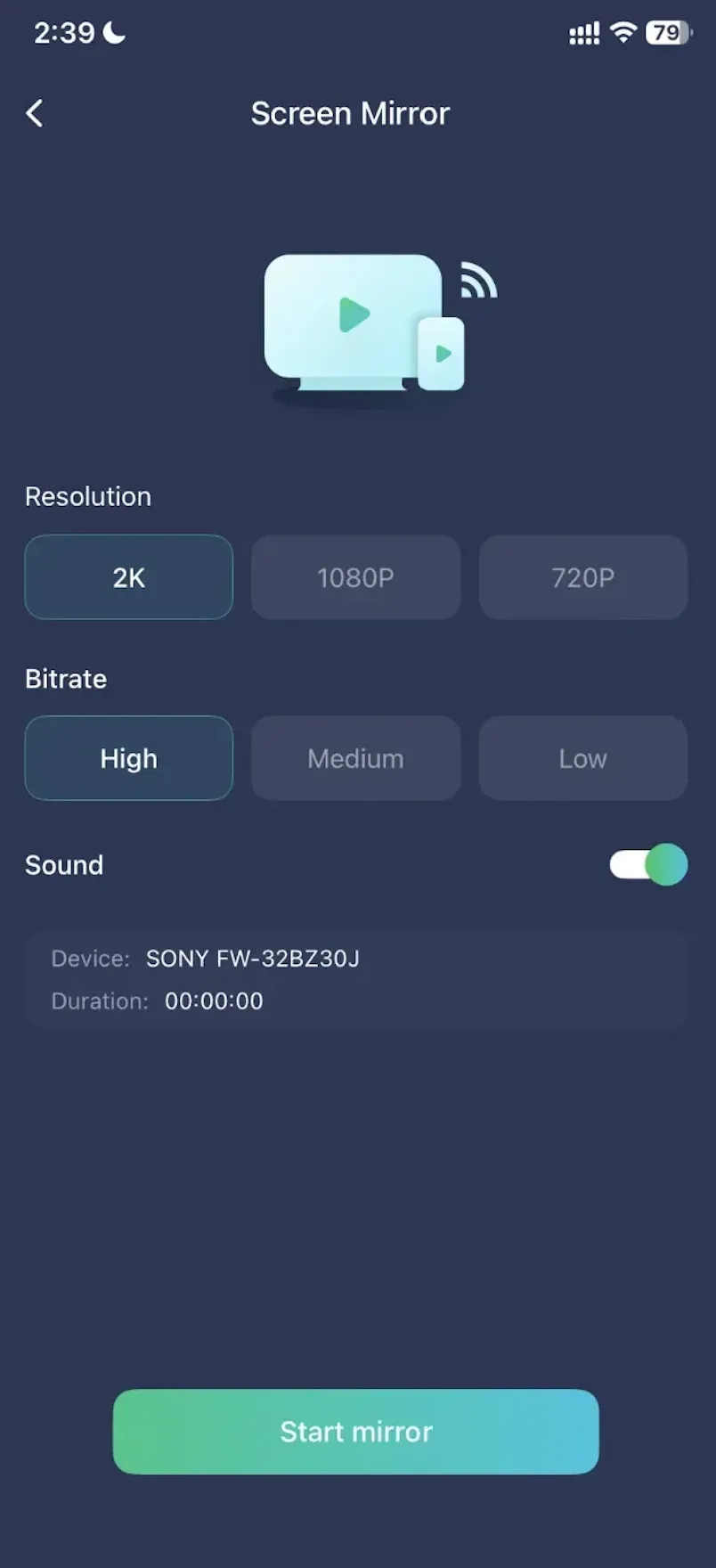
Step 6. Open your Google Slides presentation and select Slideshow to display it on the TV.
You can continue changing slides from your phone or laptop while the TV displays the mirrored presentation. On supported computer setups, you may also be able to choose between sharing an application window and your full screen.
PigeonCast is particularly useful when you need a wireless presentation setup across different device ecosystems without relying on a single casting protocol.
Method 3. AirPlay Google Slides from iPhone, iPad, or Mac
If you're using an Apple device, AirPlay is another convenient way to show Google Slides on a TV. It works with Apple TV and smart TVs that support AirPlay, including selected models from Samsung, LG, Sony, and Roku.
Step 1. Connect your iPhone, iPad, or Mac and AirPlay-compatible TV to the same Wi-Fi network.
Step 2. Open Control Center > Screen Mirroring on your Apple device and select your TV. If you're unfamiliar with the controls, see how to AirPlay from iPhone to TV or find AirPlay on Mac.
Step 3. Once connected, open Google Slides and start your presentation. Your slides will appear on the TV as you navigate through them.
AirPlay is a simple option for Apple users with compatible TVs. Before presenting, consider enabling Do Not Disturb to prevent notifications from appearing on the big screen.
Method 4. Use Built-in Screen Mirroring on a Smart TV
Some smart TVs support screen mirroring through Miracast or similar wireless display features. If your computer or Android phone supports the same technology, you can display Google Slides without installing another app.
For Windows PCs:
Step 1. Enable Screen Mirroring or Miracast on your TV, if required.
Step 2. Press Windows + K on your PC, select your TV, and follow the connection prompts. For more details, see our guide to Miracast on Windows 10.
Step 3. Once connected, open Google Slides and start your presentation.
For compatible Android phones:
Step 1. Enable screen mirroring on your TV.
Step 2. Open your phone's Quick Settings and select Smart View, Wireless Display, or a similar feature.
Step 3. Choose your TV, establish the connection, and open Google Slides to begin presenting.
Keep in mind that screen mirroring compatibility varies by device. For example, Google Pixel phones generally use Google Cast rather than Miracast, so they may not connect to a TV's Miracast receiver. If your devices use different protocols, try another casting method instead.
How to Show Google Slides on TV with an HDMI Cable
HDMI is a reliable option for presenting Google Slides on a TV, especially when Wi-Fi is unavailable or unstable. Unlike wireless casting, it doesn't require your devices to support the same casting protocol.
Step 1. Connect your laptop to the TV using an HDMI cable. If your laptop lacks an HDMI port, use a compatible adapter. For more details, see our guide to HDMI screen mirroring.
Step 2. Select the correct HDMI input on your TV, then choose your display mode: Windows + P on Windows or System Settings > Displays on Mac.
Step 3. Open Google Slides in your browser, click Slideshow, and start presenting.
For presentations with speaker notes, Extend mode can be particularly useful. It lets you keep your notes on your laptop while displaying the slides on your TV, as long as the presentation windows are arranged correctly.
Which Way Is Best for Presenting Google Slides on TV?
Each method has its advantages. The right choice depends on your devices, TV compatibility, and whether you prefer a wireless or wired connection.
| Method | Best For | Extra Hardware |
|---|---|---|
| Chromecast / Google Cast | Casting from phones or Chrome to compatible TVs | Chromecast device if TV lacks Google Cast |
| PigeonCast | Wireless mirroring across different device platforms | Depends on the TV receiver |
| AirPlay | iPhone, iPad, and Mac users | Not with an AirPlay-compatible TV |
| Built-in Screen Mirroring | Windows PCs and Android phones with compatible Miracast receivers | Not with compatible devices |
| HDMI Cable | Reliable presentations without Wi-Fi | HDMI cable or adapter |
If your TV already supports Google Cast or AirPlay, the built-in options are usually the simplest place to start. For broader device compatibility, PigeonCast provides another wireless route. And when connection stability is your main concern, HDMI is a reliable choice.
Why Won't Google Slides Cast to My TV?
If your TV isn't showing your presentation, the problem is usually related to device discovery, connection compatibility, or display settings.
Here are a few common issues and their fixes.
- TV not showing up: Make sure your devices are on the same Wi-Fi network and your TV supports the casting protocol you're using. Guest networks or router isolation settings may prevent devices from discovering each other.
- Cast button missing: The Google Slides mobile app and desktop browser use different casting controls. On a laptop, look for Cast in Chrome rather than in the Google Slides toolbar.
- Black screen or frozen presentation: Stop casting and reconnect. You can also restart the browser, casting receiver, or TV. Test with a simpler slide deck to rule out problems with embedded media.
- Slides not filling the TV screen: Start Slideshow mode and check your TV's picture settings. Differences between the slide aspect ratio and TV screen may cause black bars.
- Connection keeps dropping: Move your devices closer to the Wi-Fi router, reduce network congestion, or switch to HDMI if you need a more stable connection.
Before an important presentation, it's worth testing the connection and checking that images, animations, and embedded videos display as expected.
Final Words
Knowing how to cast Google Slides to TV makes it easier to share presentations during meetings, lessons, and everyday activities. Chromecast and AirPlay work well with compatible devices, while built-in screen mirroring and HDMI offer other practical options.
If you frequently present from different phones, computers, or TVs, PigeonCast offers a flexible way to mirror your Google Slides presentation wirelessly. Choose the method that fits your devices, test the connection, and you're ready to present on the big screen.
How to Cast Google Slides to TV FAQ
Can I Cast Google Slides to TV Without Chromecast?
Yes. Chromecast is only one way to display Google Slides on a television. If your TV supports AirPlay or Miracast, you can mirror your presentation from a compatible device. Third-party screen mirroring apps such as PigeonCast offer additional connection options across different platforms. You can also connect your laptop directly to the TV with an HDMI cable if you prefer a wired setup.
Can I Cast Google Slides to TV Without Wi-Fi?
Yes, an HDMI cable is the most straightforward option when Wi-Fi isn't available. Connect your laptop to the TV, select the correct HDMI input, and start your Google Slides presentation. Some wireless display technologies, including Miracast, can establish direct device connections without a conventional Wi-Fi router, but both devices must support the technology. For reliable presentations without network access, HDMI is generally easier to set up.
How Do I Make Google Slides Play Automatically on a TV?
Google Slides includes an auto-advance feature that lets slides change at a selected interval. While presenting, open the slideshow options and choose an auto-advance setting. For unattended displays, you can also use File > Share > Publish to web and configure automatic slide advancement and looping. Then open the published presentation on a compatible TV browser or connected device. Be careful with sensitive content, since publishing can make your presentation accessible to others through its link.
Can I Show Speaker Notes While Casting Google Slides?
Yes, but the setup matters. On a computer, Google Slides offers Presenter view, which can display speaker notes separately from the main slideshow. Using an extended display is often the best approach because you can keep notes on your laptop while the TV shows your slides. If you're simply mirroring your entire screen, anything visible on that screen, including notes, may also appear on the TV.
Can I Cast Google Slides to a Roku TV?
Yes, although the available method depends on your Roku model and sending device. Compatible Roku TVs support AirPlay from Apple devices, while some Roku devices support Miracast-based screen mirroring from Windows or Android. Roku is not generally a native Google Cast receiver, so Chrome casting may require an external Chromecast or compatible receiver app. You can also use PigeonCast with a supported Roku receiving setup to mirror your presentation.
Mia Clarke is a technology editor specializing in screen mirroring and casting solutions across multiple platforms. Mia provides clear, practical guides and in-depth insights to help users seamlessly connect their devices. Passionate about enhancing digital experiences, Mia is dedicated to keeping readers updated on the latest trends and tools in cross-platform screen sharing. Whether you’re looking to mirror your smartphone, laptop, or smart TV, Mia’s content delivers reliable, user-friendly advice to simplify your tech setup.