
Using a projector no longer means dealing with cables, adapters, and limited movement. Today, many people want to know how to connect phone to projector wirelessly so they can share videos, presentations, and photos with ease. Whether you are working from home, teaching a class, or setting up a casual movie night, wireless projection turns your phone into a powerful display source.
This guide explains how to connect projector to phone using practical wireless methods that work for both Android and iPhone users. Each option fits a different scenario, so you can choose the one that matches your device, projector model, and usage needs.
How to Connect Phone to Projector Wirelessly
Before choosing a method, check two things. First, confirm whether your projector has built-in wireless features. Second, identify your phone type, since Android and iPhone use different casting technologies. Knowing this information will eliminate any confusion about "how to connect my projector to my phone" and allow you to easily choose the most suitable connection method for your device.
Method 1: Use Wi-Fi Direct
Wi-Fi Direct is one of the simplest ways to connect a phone to a projector wirelessly, especially for Android users. It allows your phone and projector to communicate directly without a router, which makes it useful in classrooms, meeting rooms, or temporary setups.
Here's how to start connecting phone to projector without cables:
Step 1. Make sure your projector supports Wi-Fi Direct and enable it from the projector settings.
Step 2. On your phone, open wireless display or casting settings and look for the projector name.
Step 3. Once selected, your phone screen appears on the projector almost instantly.
This method works well if you want to mirror phone to projector for slides, photos, or casual videos. However, Wi-Direct performance depends on hardware quality. Older projectors may show noticeable delay, so they are better suited for presentations than gaming or fast-moving video.
Method 2: Use Apple AirPlay
If you are looking for how to connect iPhone to projector wirelessly, AirPlay is often the smoothest option. Many modern projectors now support AirPlay 2 natively, including selected Epson projector models, which removes the need for extra adapters or cables.
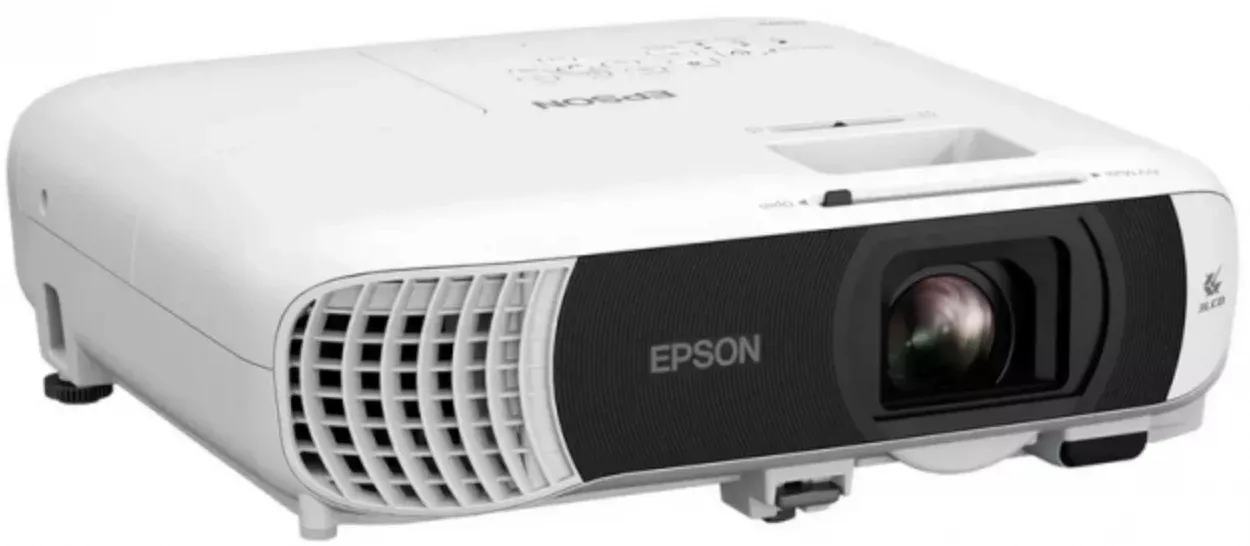
Here's how to mirror phone to projector via AirPlay:
Step 1. Connect both your iPhone and projector to the same Wi-Fi network.
Step 2. Open Control Center on your iPhone and tap Screen Mirroring.
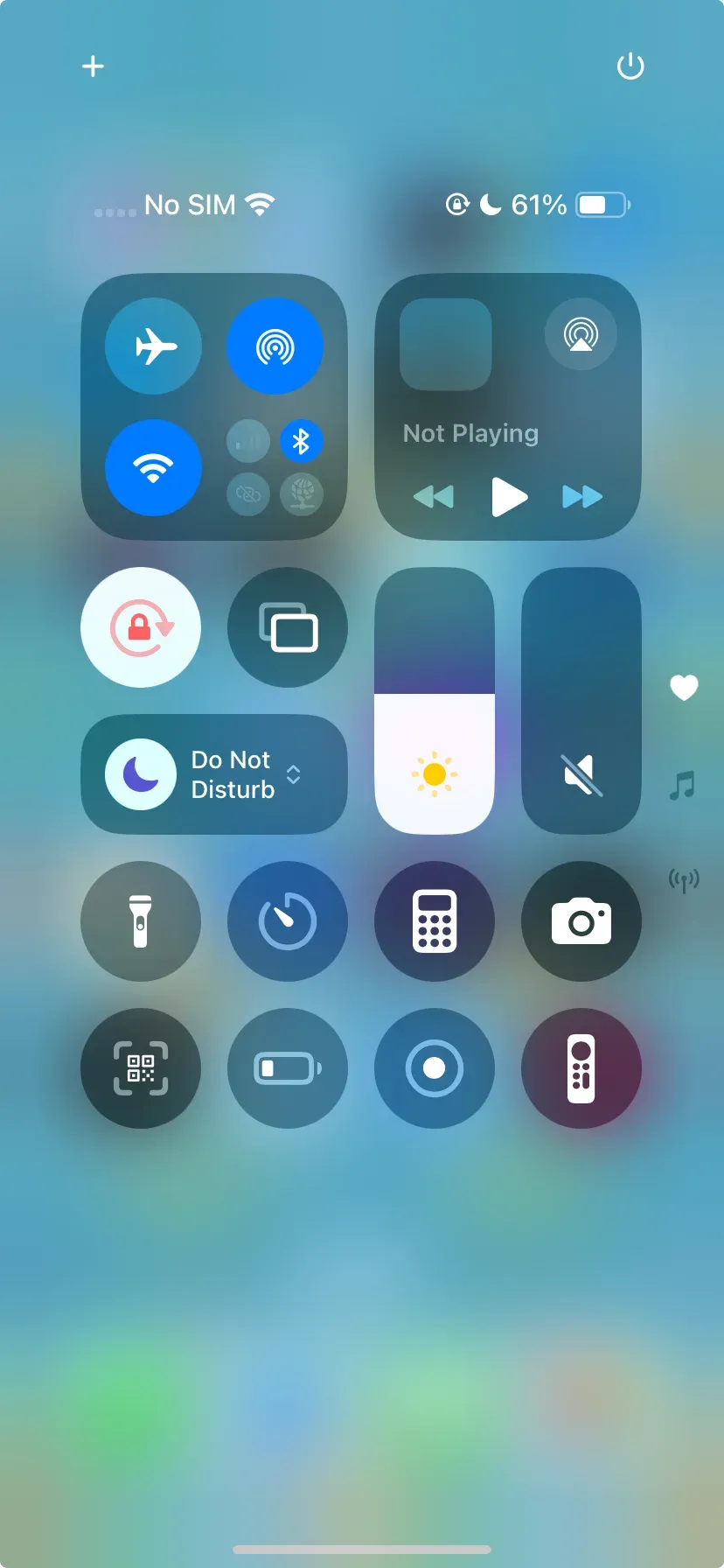
Step 3. Choose the projector from the list, and your iPhone screen will be mirrored in real time.
This is an intuitive way to connect projector to phone for videos, photos, and presentations.
AirPlay delivers stable image quality, but compatibility is limited to Apple devices. If you mainly use an iPhone, the exact steps to screen mirror from iPhone to projector depend on whether the projector supports AirPlay, Chromecast, HDMI, or a receiver app. Android phones cannot use AirPlay directly unless a third-party receiver is installed on the projector.
Method 3: Use Miracast
Miracast is a widely supported wireless display standard on Android phones and Windows devices. It is a solid answer to how to connect Android phone to projector wirelessly when both devices support the protocol.
Here's how to use projector with phone:
Step 1. Enable Miracast or Wireless Display on your projector first.
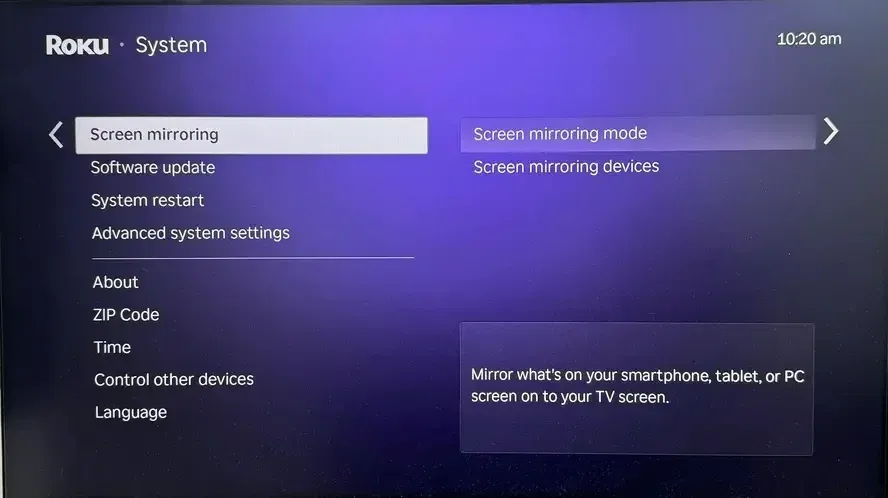
Step 2. Turn on Cast Screen or Smart View on your Android device.
Step 3. Select the projector and wait for the connection to complete.
Step 4. Once paired, you can mirror phone to projector without needing an internet connection.
Miracast works well for screen sharing, but compatibility can be inconsistent across brands. Some newer Android phones no longer include Miracast support, so always check device specifications before relying on this option.
Method 4: Use Chromecast
Chromecast is another popular way to cast phone to projector, especially for streaming content. Some smart projectors come with Chromecast built in, while older models can be upgraded by plugging in a Chromecast dongle.
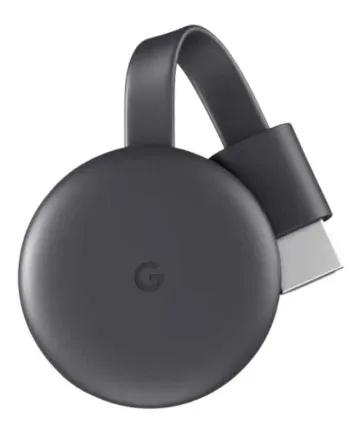
Once your projector is ready, you can connect to it with ease. See how to cast phone to projector wirelessly:
Step 1. Connect your phone to the same Wi-Fi network as your projector or Chromecast dongle.
Step 2. Open a supported app such as YouTube or Google Photos and tap the Cast icon.
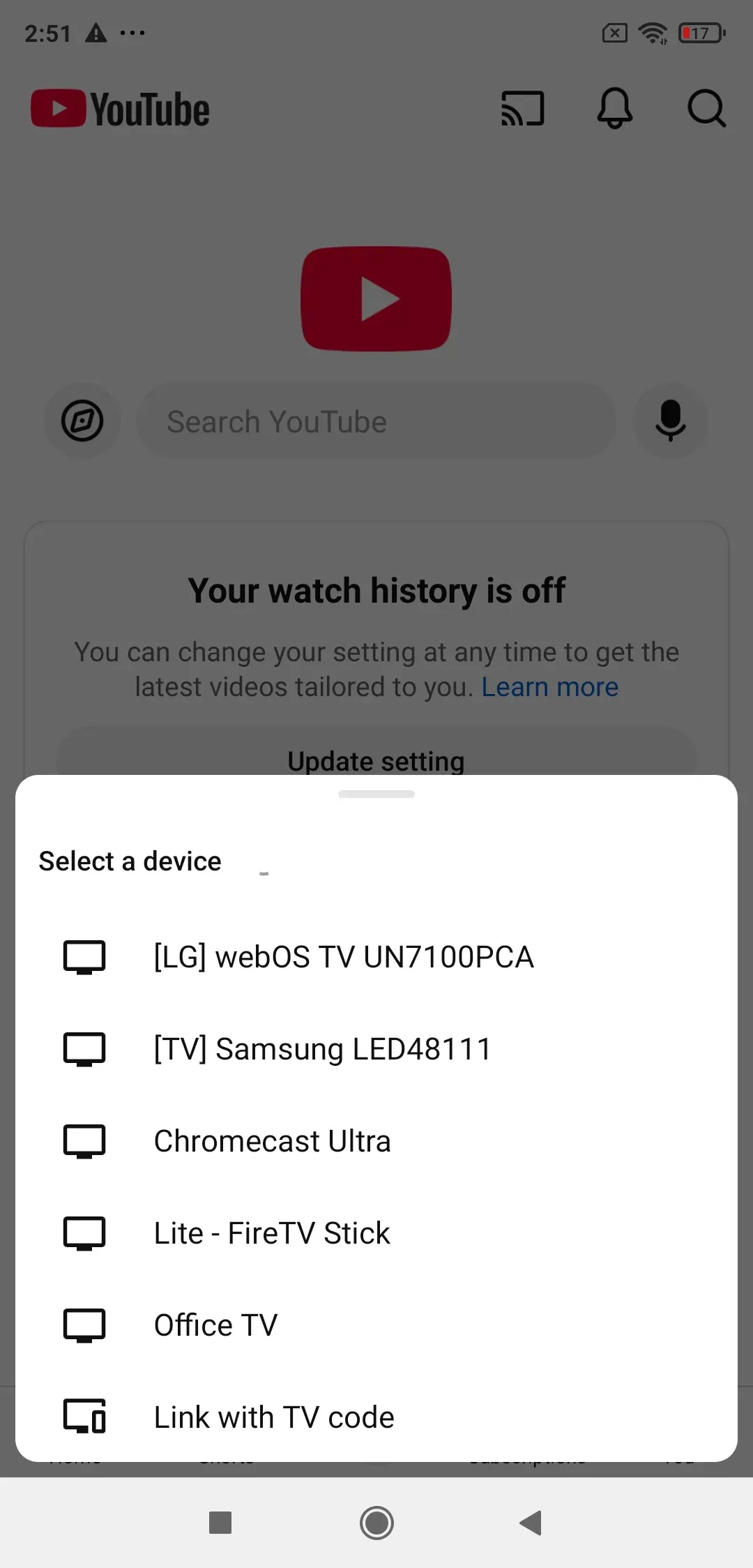
Step 3. Choose your projector from the list of available devices.
This method is ideal when you want to cast phone to projector for online videos or media playback. Keep in mind that Chromecast focuses on app-based casting rather than full-screen mirroring. If you need to show system menus or apps that do not support casting, this method may feel limited.
Method 5: Use PigeonCast
PigeonCast offers a flexible way to connect phone to projector wirelessly without worrying too much about protocol limitations. By installing the free screen mirroring app on your Android phone or iPhone, you can mirror your screen to projectors that support Chromecast or AirPlay.

Here's how to connect to projector wirelessly:
Step 1. Download and install PigeonCast on your Android phone or iPhone.


Overall Rating:



Step 2. Make sure your phone and projector are on the same network
Step 3. Launch PigeonCast, select the projector, and start mirroring.
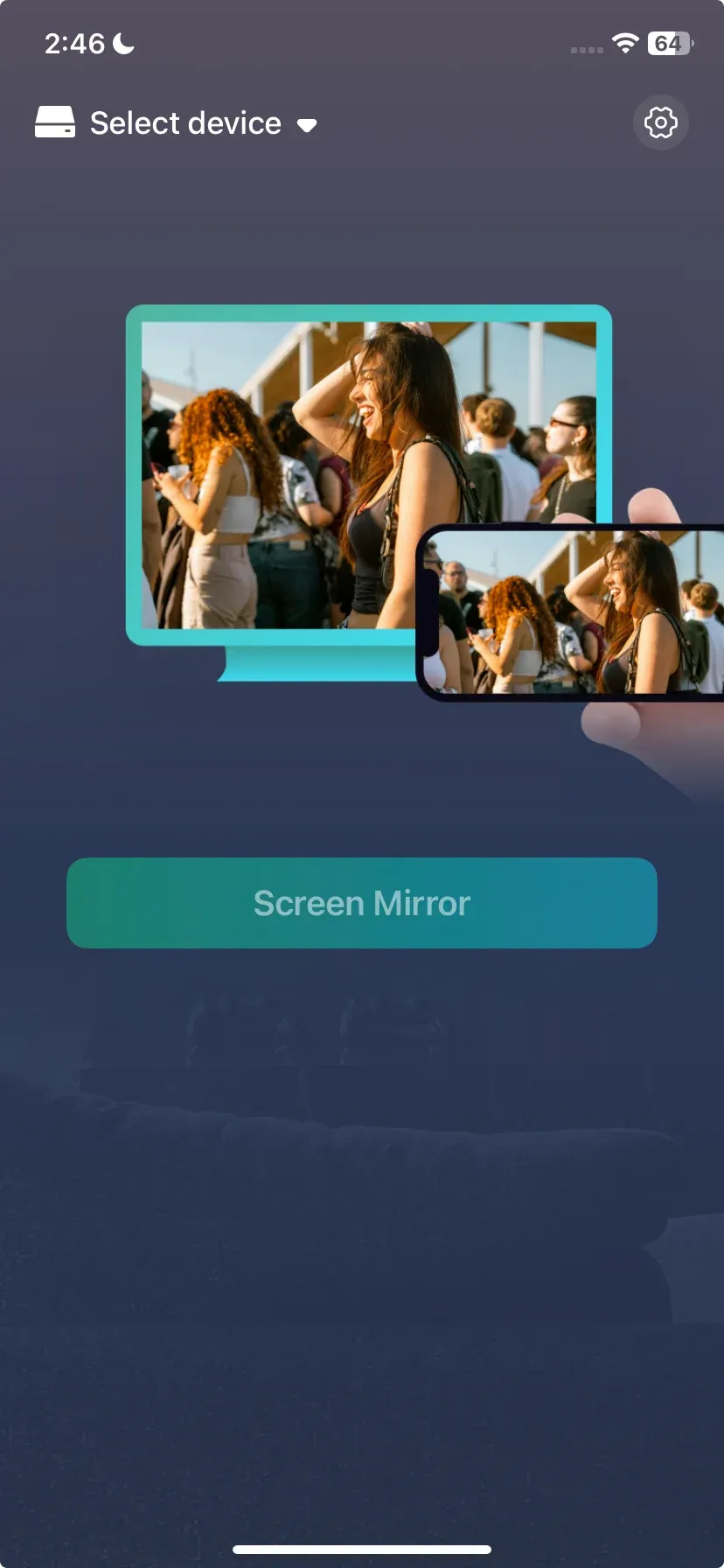
This approach works well if you frequently switch between Android and iPhone devices or use different projector brands.
PigeonCast is a reliable screen mirroring app that works seamlessly across phones, laptops, and smart TVs. It delivers smooth HD streaming up to 4K resolution, with minimal latency when connected to a stable Wi-Fi network.
There are five methods to choose from. Which one should you choose? Here is a brief comparison of them:
| Method | Works With | Network Required | Ease of Use | Stability | Best Use Case |
|---|---|---|---|---|---|
| Wi-Fi Direct | Android phones, select projectors | No router | Medium | Medium | Quick one-to-one connections without internet |
| Apple AirPlay | iPhone, iPad, AirPlay-enabled projectors | Same Wi-Fi | Easy | High | Presentations, videos, Apple ecosystem users |
| Miracast | Android phones, Windows devices | Same Wi-i or direct | Medium | Medium | Screen mirroring on compatible smart projectors |
| Chromecast | Android, iPhone via apps | Same Wi-Fi | Easy | High | Streaming apps, smart and older projectors |
| PigeonCast | Android, iPhone, Windows, Mac | Same Wi-Fi | Very ease | High | Cross-platform, stable wireless mirroring |
Phone-to-Projector Wireless Connection Issues
Wireless projection is convenient, but problems can still appear. One common issue is the phone not detecting the projector. In most cases, this happens because the devices are on different Wi-Fi networks or the projector wireless feature is turned off. So, double-check network settings and restart both devices to refresh the connection.
Lag or delayed audio is another frequent complaint when connecting phone to projector wirelessly. This is usually caused by weak Wi-Fi signals or limited projector processing power. Moving close to the router or reducing background network traffic can noticeably improve performance.
Connection drops may also occur during long sessions. Updating the projector firmware and phone system software often resolves stability problems. If native protocols continue to fail, using a third-party tool can provide a more reliable way to connect projector to phone.
Final Words
Learning how to use projector with phone wirelessly gives you more freedom and flexibility in everyday scenarios. From simple presentations to full-screen media playback, the right wireless method can make setup faster and more comfortable. Choose the solution that matches your devices and network environment, and wireless projection becomes a reliable part of your workflow.
How to Connect Phone to Projector Wirelessly FAQs
How to connect phone to RCA projector wirelessly?
RCA projectors usually lack built-in wireless features. To connect to projector wirelessly, you need an external wireless adapter such as Chromecast or a compatible screen mirroring device. Once connected, your phone can mirror content through the adapter rather than directly to the projector.
How to connect phone to Epson projector wirelessly?
Many Epson projectors support wireless projection through AirPlay, Miracast, or the Epson iProjection app. Choose the method that matches your phone type, connect both devices to the same network, and start screen mirroring from your phone settings.
How to connect phone to projector with HDMI?
This requires a physical cable and is not a wireless solution. You need an HDMI adapter that matches your phone port, then connect it directly to the projector. This method is reliable but limits mobility.
How to connect phone to projector via USB?
USB connections are mainly used for file access or charging. Most projectors do not support full-screen mirroring through USB alone, so wireless methods are usually a better choice for real-time display.
How to connect phone to RCA projector using USB?
USB ports on RCA projectors typically do not support video input from phones. To mirror phone to projector, an HDMI-based solution is required.
How to connect phone to projector without Wi-Fi?
Miracast and Wi-Fi Direct allow you to connect projector to phone without an internet connection. Both devices still create a local wireless link, making them useful in offline environments.
How to connect iPhone to projector without HDMI?
If the projector supports AirPlay, you can mirror your iPhone screen wirelessly over the same Wi-Fi network. If not, a wirelss receiver that supports AirPlay can be added to enabled screen mirroring.
Mia Clarke is a technology editor specializing in screen mirroring and casting solutions across multiple platforms. Mia provides clear, practical guides and in-depth insights to help users seamlessly connect their devices. Passionate about enhancing digital experiences, Mia is dedicated to keeping readers updated on the latest trends and tools in cross-platform screen sharing. Whether you’re looking to mirror your smartphone, laptop, or smart TV, Mia’s content delivers reliable, user-friendly advice to simplify your tech setup.