
Want to try Sony TV screen mirroring Android but are unsure which method works with your model? Whether you use a Sony Google TV, Android TV, or an older BRAVIA, there are several ways to show videos, photos, apps, presentations, and your full phone screen on a larger display. This guide will help you check compatibility, choose the right connection method, and avoid common setup problems.
Quick Answer: How to Mirror Android to Sony TV
Sony Google TV and Android TV models mainly use Google Cast to receive content from Android devices, while some older BRAVIA TVs support Miracast through a feature called Screen mirroring. Available options vary by model, so choose the method that matches your TV system and what you want to display.
| Your Setup | Recommended Method | Best For |
|---|---|---|
| Sony Google TV or Android TV | Google Cast | Playing videos, music, and photos from supported apps |
| Sony Google TV or Android TV with Google Home | Google Home | Mirroring the full Android screen |
| A mixed-device home or office using Sony Google TV or Android TV | PigeonCast | Full-screen mirroring from Android, iPhone, Windows, and Mac |
| Older Sony BRAVIA with built-in Screen mirroring | Miracast | Wireless full-screen mirroring from a compatible Android phone |
| Android phone that supports USB-C video output | USB-C to HDMI | Stable screen mirroring without relying on Wi-Fi |
Method 1. Cast Android to Sony TV with Google Cast
Google Cast is the simplest option when you want to play content from supported apps such as YouTube, Spotify, or Google Photos. It is built into Sony Google TV and Android TV models, so you do not need a separate Chromecast device. Your phone acts as a controller while the selected content plays directly on the TV.
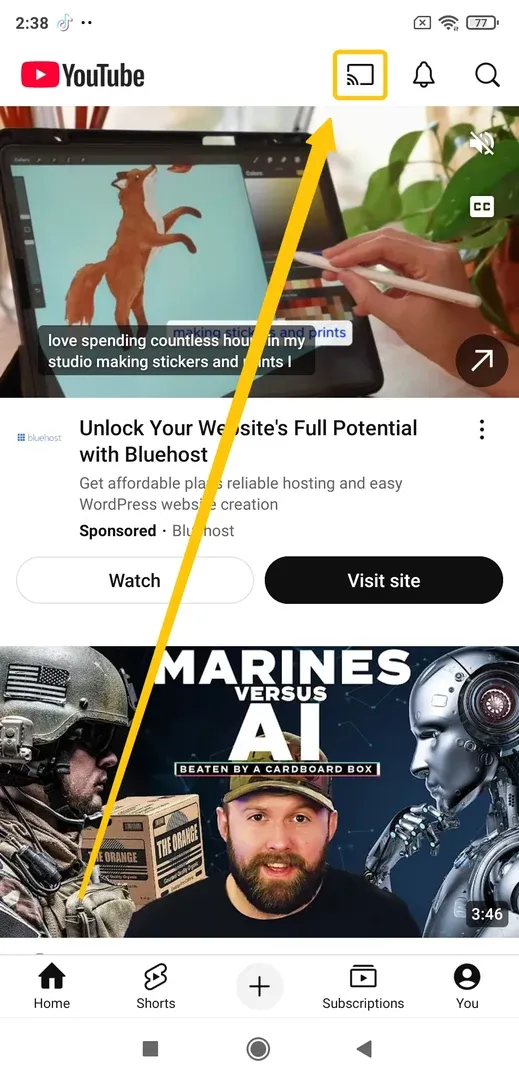
Step 1. Connect your Android phone and Sony TV to the same Wi-Fi network.
Step 2. Open a Google Cast-enabled app on your phone and select the video, photo, or music you want to play.
Step 3. Tap the Cast icon, then choose your Sony TV from the device list.
Step 4. Start the content on your phone. You can control playback and volume from the app while continuing to use your phone for other tasks.
Method 2. Mirror Android to Sony TV with Google Home
If you want to display your entire Android screen rather than content from one supported app, use the Google Home app. This method works with compatible Sony Google TV and Android TV models that support Google Cast. Your notifications, messages, and other phone activity may also appear on the TV while the full screen is being mirrored.
Step 1. Connect your Android phone and Sony TV to the same Wi-Fi network.
Step 2. Install or update the Google Home app on your Android phone, then open it and sign in to your Google account.
Step 3. In Google Home, tap Home > All devices. Find your Sony TV, then touch and hold its device tile.
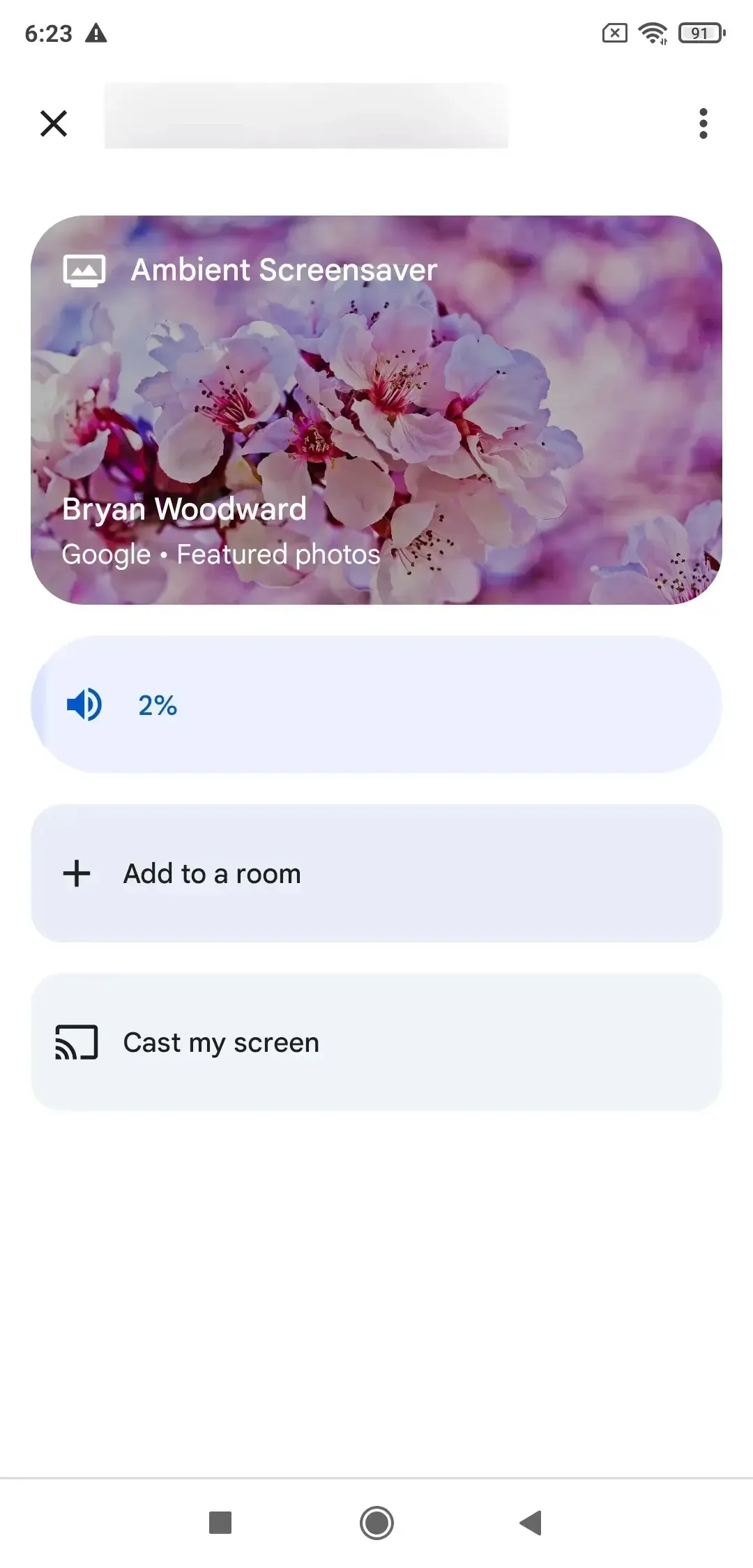
Step 4. Tap Cast my screen and select Cast screen when the confirmation window appears. After a few seconds, your Android screen should appear on the Sony TV.
Step 5. Open the photo, browser page, presentation, or app you want to show. Keep your phone in landscape mode when displaying wide content on the TV.
Method 3. Mirror Android to Sony TV with PigeonCast
If Google Home cannot find your Sony TV or you want one app for different phones, computers, and TV devices, PigeonCast provides another way to mirror the full Android screen. The app is available for Android phones and Sony TVs running Google TV or Android TV, and it supports connections through Google Cast, AirPlay, DLNA, and PigeonCast’s in-app mirroring option.
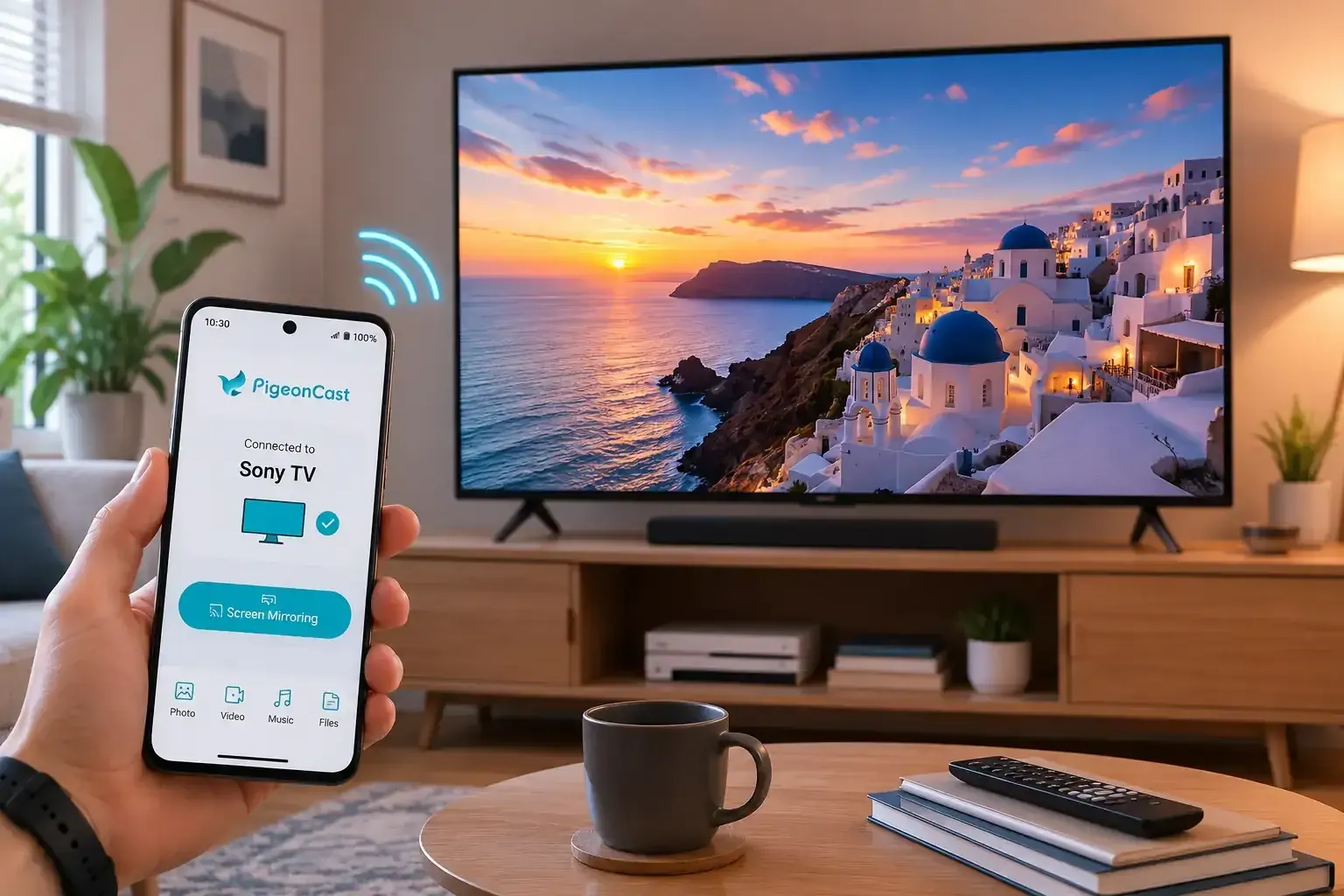
Step 1. Connect your moible device and Sony TV to the same Wi-Fi network.


Overall Rating:


Step 2. Download PigeonCast on your mobile device or on your Android phone and Sony TV from app store.
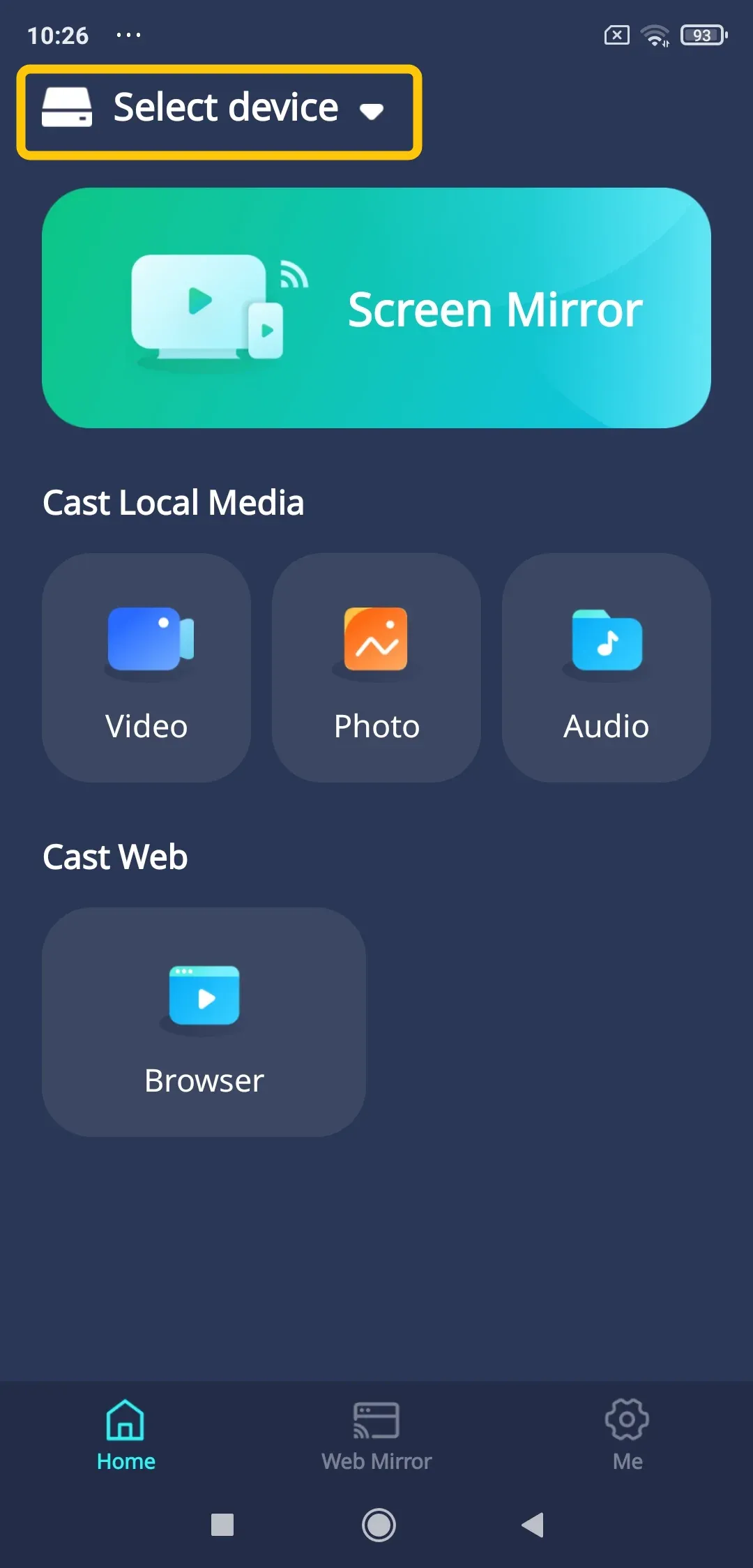
Step 3. Launch the app, tap Select device to choose your Sony TV from the available device list. You can also scan the QR code shown on the TV or enter its connection code if the TV is not detected automatically.
Step 4. Enter the onscreen PIN code to confirm the connection.
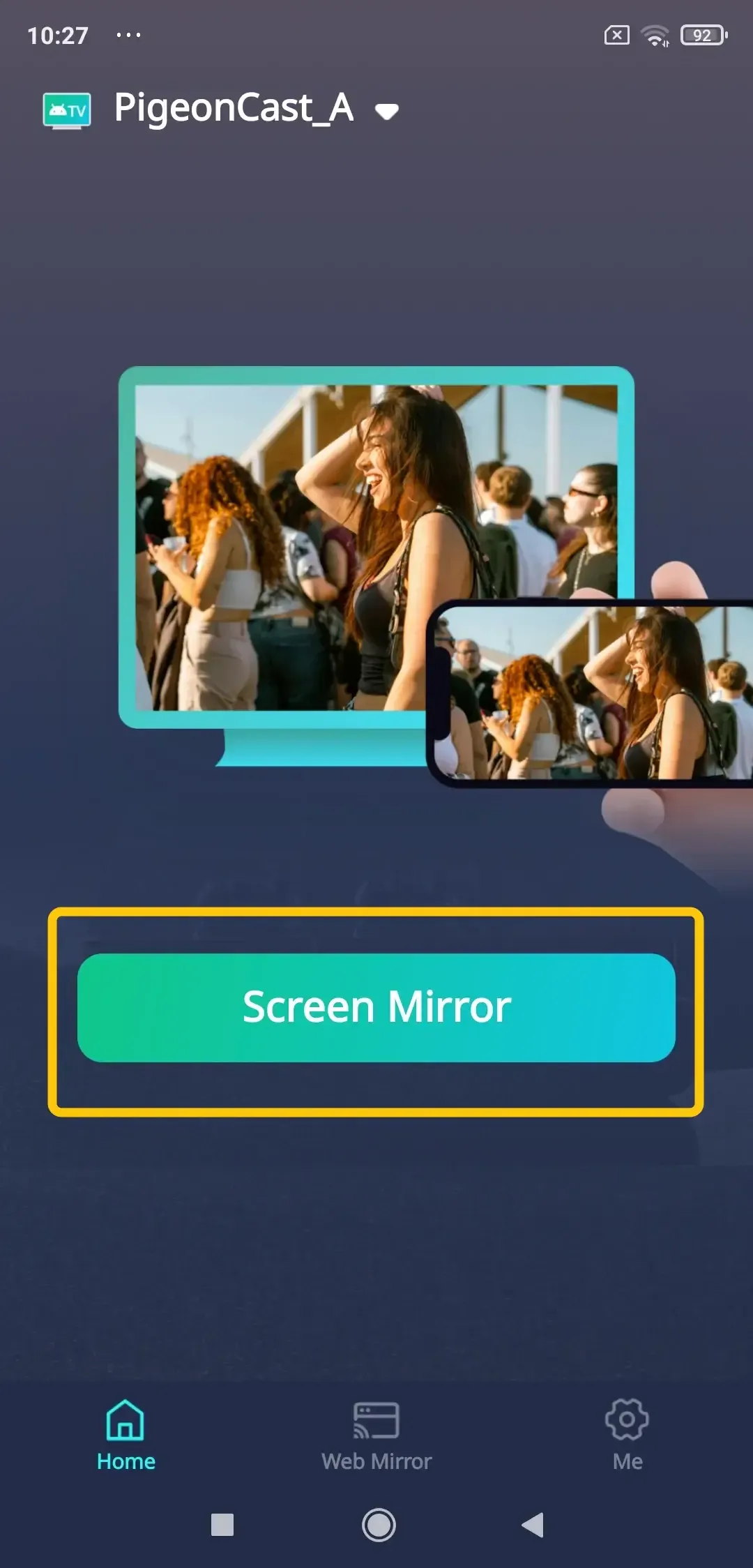
Step 5. When you finish the pairing, tap Screen Mirror to share your Android mobile on Sony television.
Method 4. Use the Built-In Screen Mirroring Feature
Some older Sony BRAVIA TVs include a Screen mirroring option based on Miracast. This method can display the full Android screen without opening Google Home, but it is not available on most newer Sony Google TV and Android TV models.
Step 1. Press the Input button on the Sony TV remote and select Screen mirroring. On some models, you may need to open Apps or Settings to find this option.
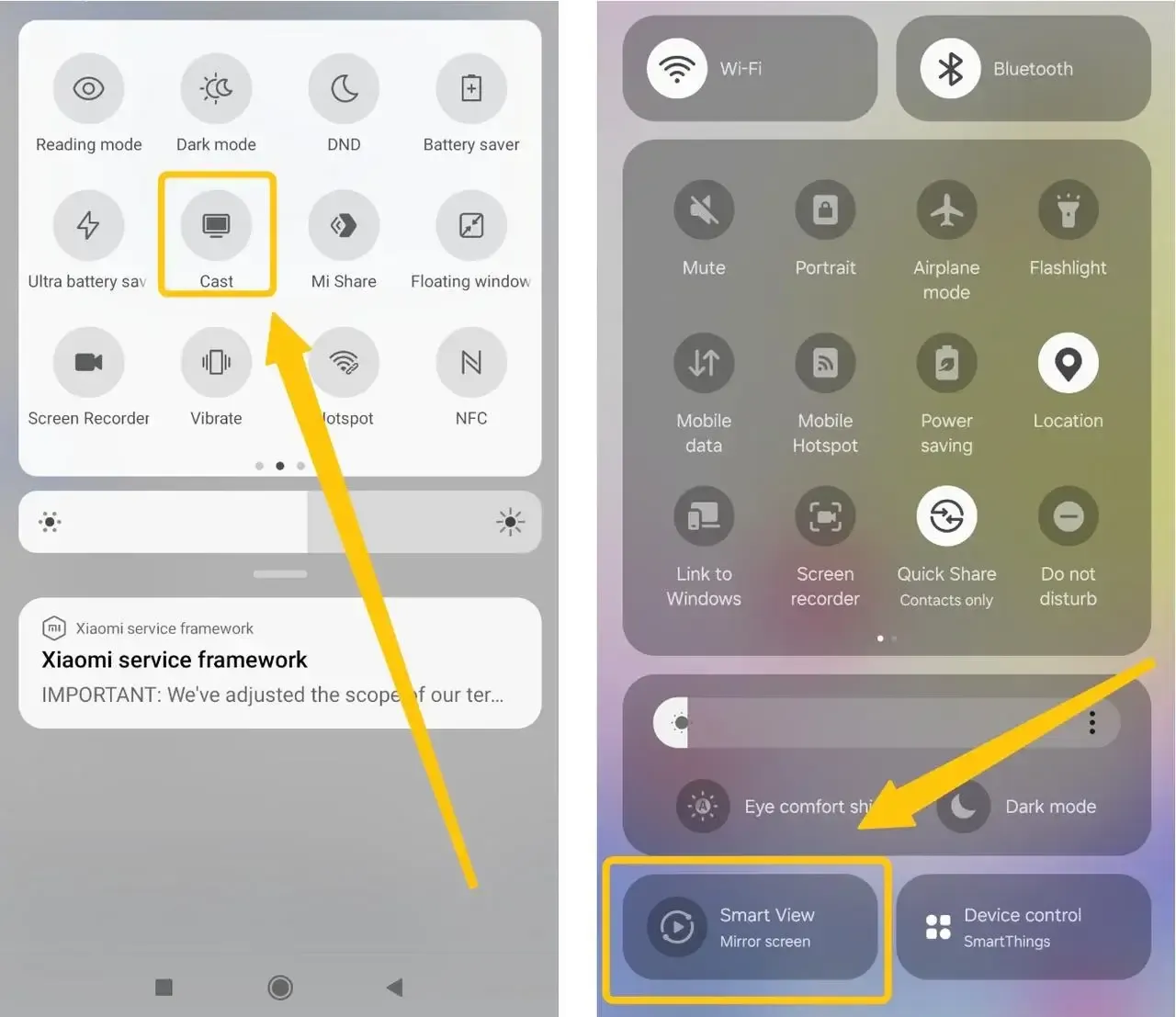
Step 2. Swipe down from the top of your Android phone to open Quick Settings. Tap the mirroring control provided by your phone, such as Smart View, Wireless Projection, Screen Share, or Cast.
Step 3. Select your Sony BRAVIA from the available device list and approve the connection request if one appears on the TV.
Step 4. Wait for the Android screen to appear, then rotate the phone or adjust the TV picture settings as needed.
Method 5. Connect Android to Sony TV with HDMI
A wired HDMI connection is a practical option when Wi-Fi is unavailable, the wireless connection keeps dropping, or you want more stable screen mirroring. The required cable or adapter depends on the video output supported by your Android phone:
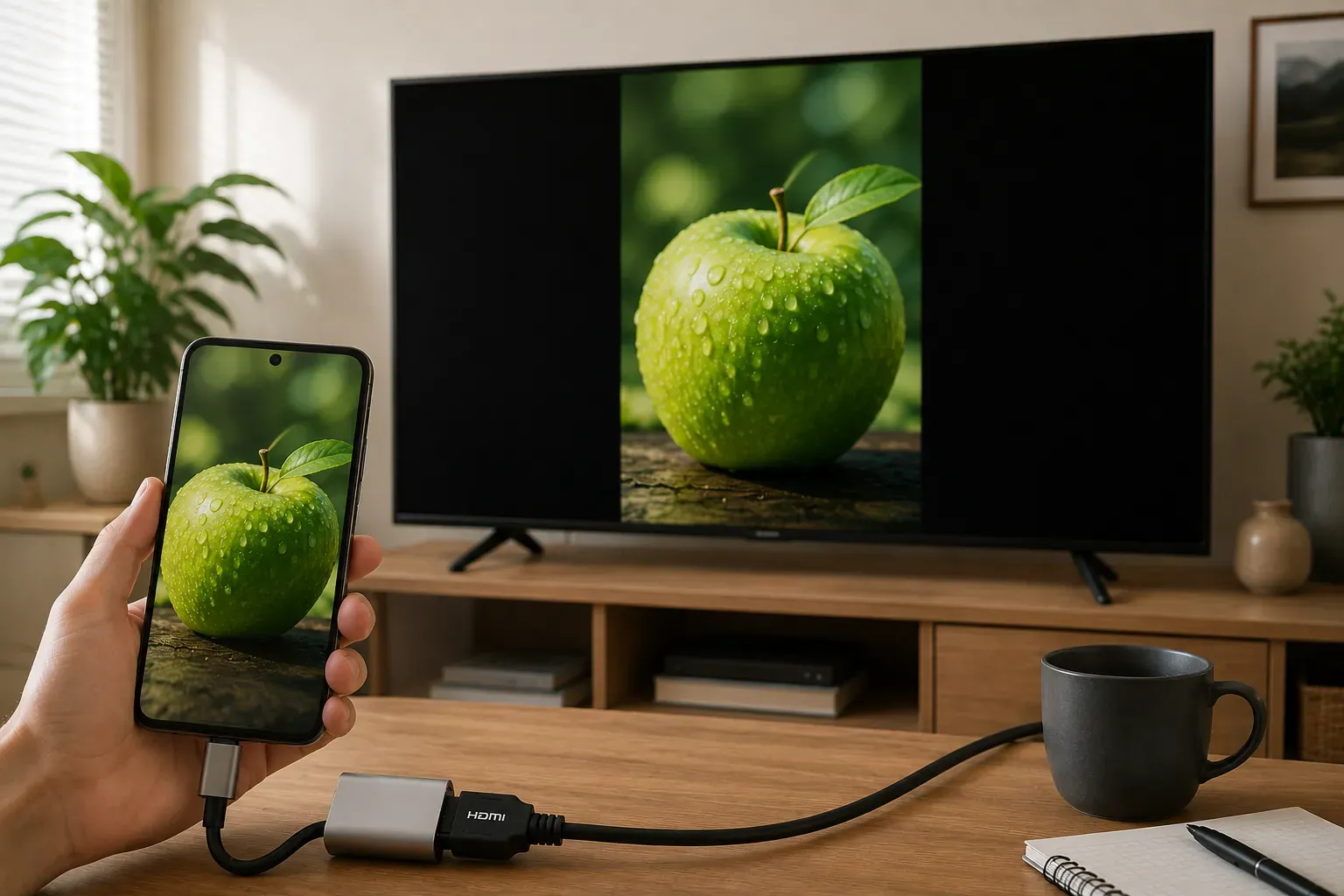
- USB-C with DisplayPort or HDMI output: Use a USB-C to HDMI cable or adapter. This is the most common wired option on compatible newer phones.
- Samsung DeX-compatible Galaxy phone: Connect through USB-C to HDMI, then choose regular screen mirroring or Samsung DeX when prompted. DeX displays a desktop-style interface rather than simply copying the phone screen.
- Older Micro-USB phone with MHL support: Use an MHL-to-HDMI adapter. Both the phone and adapter must support MHL, and some older Samsung models require a specific 5-pin or 11-pin adapter.
- Phone without native video output: A standard USB-C to HDMI adapter will not work. Check the phone specifications before purchasing a cable.
Step 1. Check your phone manufacturer’s specifications for terms such as DisplayPort Alt Mode, HDMI output, Samsung DeX, or MHL. Do not judge compatibility from the USB-C connector alone.
Step 2. Prepare the matching adapter:
- For compatible USB-C phones, use a USB-C to HDMI cable or hub.
- For a DeX-compatible Samsung phone, use a supported USB-C to HDMI adapter or DeX cable.
- For an older MHL phone, use an MHL-to-HDMI adapter and connect external power if the adapter requires it.
Step 3. Connect the adapter to your Android phone, then run an HDMI cable from the adapter to an available HDMI port on the Sony TV.
Step 4. Press Input or Source on the Sony TV remote and select the HDMI port you connected.
Step 5. Unlock the phone and follow the prompt that appears. Depending on the model, you may need to select Mirror display, Start, or choose between screen mirroring and a desktop mode such as Samsung DeX.
Sony TV Screen Mirroring Android Not Working
If your Android phone cannot find the Sony TV or the connection fails after you select it, check the following settings before changing to another method.
-
Confirm that both devices use the same Wi-Fi network: Open Settings > Network & Internet on the Sony TV and compare the network name with the one shown on your Android phone. Avoid guest networks, mobile hotspots, and Wi-Fi isolation, since they may prevent nearby devices from detecting each other.
-
Use the correct mirroring option for your TV: Sony Google TV and Android TV mainly use Google Cast, while some older BRAVIA models use Miracast through Screen mirroring. A phone feature such as Samsung Smart View may not find a newer Sony TV that only accepts Google Cast. In that case, use Google Home, an app with a Cast button, or PigeonCast.
-
Restart the phone, TV, and router: Turn off the Sony TV completely instead of leaving it in standby, restart the Android phone, and unplug the router for about 30 seconds. Reconnect the devices after the network is available again.
-
Check whether Google Cast is enabled: On the Sony TV, open Settings > Apps > See all apps > Show system apps and locate the Google Cast service. Enable it if it is disabled, then restart the TV. The exact menu name may vary by TV model and software version.
-
Update the TV and related apps: Install available system updates on the Sony TV, then update Google Home and the app you are trying to cast from. An outdated Cast service or app version may stop the TV from appearing in the device list.
-
Turn off VPN and battery restrictions: Disable any VPN on the phone and allow Google Home or the mirroring app to run without battery-saving restrictions. These settings can interrupt device discovery or disconnect the session after it starts.
-
Test with a photo or browser page: Mirror a local photo or an ordinary webpage first. If these display normally but a streaming app shows a black screen, the issue may come from content protection. Use the streaming app’s built-in Cast button instead of full-screen mirroring.
-
Reduce lag and unstable playback: Move the phone and TV closer to the router, pause large downloads, and use a less congested Wi-Fi band when available. For games or long presentations that require a steadier connection, consider HDMI.
Final Verdict
The right way to mirror Android to a Sony TV depends on the TV system and the content you want to display. Google Cast works well for supported video and media apps, while Google Home and PigeonCast are better suited to full-screen mirroring. Older BRAVIA models may still offer Miracast through Screen mirroring, and HDMI remains a stable option when wireless casting is unavailable. Check the available features on your Sony TV first, then choose the method that matches both your phone and viewing needs.
Sony TV Screen Mirroring Android FAQ
Can I mirror Android to a Sony TV without installing an app?
Yes, as long as both devices support the same wireless standard. Sony Google TV and Android TV models can receive content through Google Cast, while some older BRAVIA TVs support Miracast through Screen mirroring. An additional app is mainly needed when the phone and TV use different connection methods or when you want broader cross-platform support.
Can I screen mirror Android to Sony TV without the internet?
A working internet connection is not always required, but most wireless methods still need both devices connected to the same local Wi-Fi network. Older Miracast-compatible BRAVIA TVs can create a direct wireless connection without a router. HDMI also works without Wi-Fi or internet, provided the Android phone supports wired video output.
Can I turn off my Android screen while mirroring to Sony TV?
Usually not during full-screen mirroring. Turning off or locking the phone often pauses the connection or causes the TV to show a black screen. When you cast from a supported media app, the TV receives the content separately, so you can normally lock the phone while playback continues.
Can several Android phones connect to the Sony TV at the same time?
The TV normally displays one active sender at a time. Another phone may be able to discover the receiver, but starting a new connection usually ends or replaces the current session. Disconnect the first device before switching presenters to avoid failed connection requests or unexpected interruptions.
Do I need a Google account to mirror Android to a Sony TV?
It depends on the method. Google Home usually requires you to sign in with a Google account before you can manage and mirror to the TV. Casting directly from apps such as YouTube may work without using Google Home, while Miracast, PigeonCast, and HDMI do not rely on a Google Home account for the basic connection.
Why does screen mirroring disconnect when my phone switches apps?
Android may restrict the mirroring service when an app moves into the background, battery saver is enabled, or available memory is low. Remove battery restrictions for Google Home or the mirroring app, close unused apps, and keep the phone unlocked during the session. Some banking, payment, and protected media apps may also block their content when screen capture is active.
Clara Rossi is an experienced technology editor and a seasoned expert in screen mirroring and casting technologies. With a keen eye for detail and a deep understanding of how to seamlessly connect devices, Clara excels at optimizing user experiences for effortless sharing and streaming. Whether you're seeking quick fixes or advanced tips, her expertise and responsiveness ensure that every query is met with a well-informed and efficient solution.