
Your Canva slides are ready, but the best way to display them on a TV depends on the device you're presenting from. To cast Canva to TV, you may need to share a browser tab, mirror your phone, or use a wired connection. Check the table below to find the right setup, then follow the matching steps to display your Canva content on a larger screen.
What You Need to Cast Canva to TV
Before you start, prepare the device where your Canva design is open and check how your TV can receive the content. The setup you need depends on whether you are using a laptop, Android phone, iPhone, or iPad.
Which Method Should You Use
The best option depends on the device running Canva and the casting features available on your TV. Find your setup in the table below, then follow the matching method in the next sections.
| Your setup | Recommended method |
|---|---|
| Windows, Mac, or Chromebook | Chromecast |
| Android phone | Cast, Smart View, or screen mirroring |
| iPhone or iPad | AirPlay or screen mirroring |
| TV without AirPlay or Chromecast | PigeonCast |
| Wireless casting is unavailable or unstable | HDMI |
For wireless casting, connect the sending device and TV to the same Wi-Fi network. If you use HDMI, prepare a compatible cable and adapter when your device does not have an HDMI port.
How to Cast Canva to TV
Use a laptop to advance slides while consulting notes. HDMI is an alternative when the room's network is unsuitable.
Method 1. Cast Canva from a Laptop with Chromecast
This method works when your TV has Chromecast built in or is connected to a Chromecast device. It lets you cast the Canva tab from Google Chrome without mirroring every window on your laptop.
Step 1. Connect your laptop and TV to the same Wi-Fi network.
Step 2. Open Google Chrome on your laptop and visit Canva. Sign in, then open the design or presentation you want to display.
Step 3. Select Present in Canva and choose a presentation mode. Keep the Canva design open in the Chrome tab.
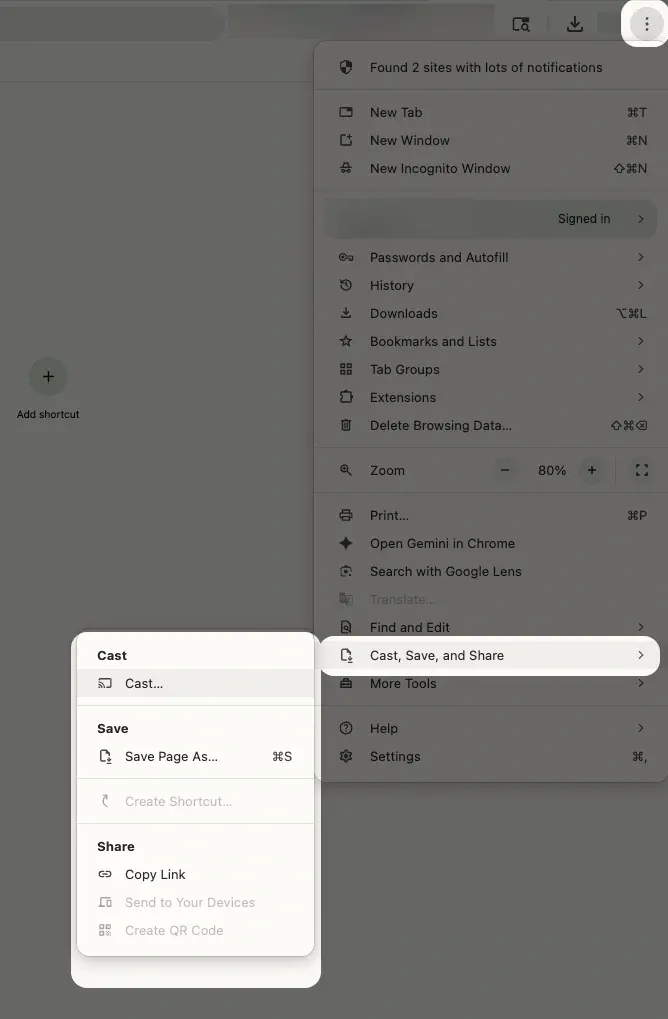
Step 4. Open the Chrome menu in the top-right corner and select Cast, save, and share, then choose Cast.
Step 5. Select your Chromecast or compatible TV from the device list. If prompted, choose the Chrome tab that contains your Canva presentation.
Method 2. Mirror Canva from an Android Phone
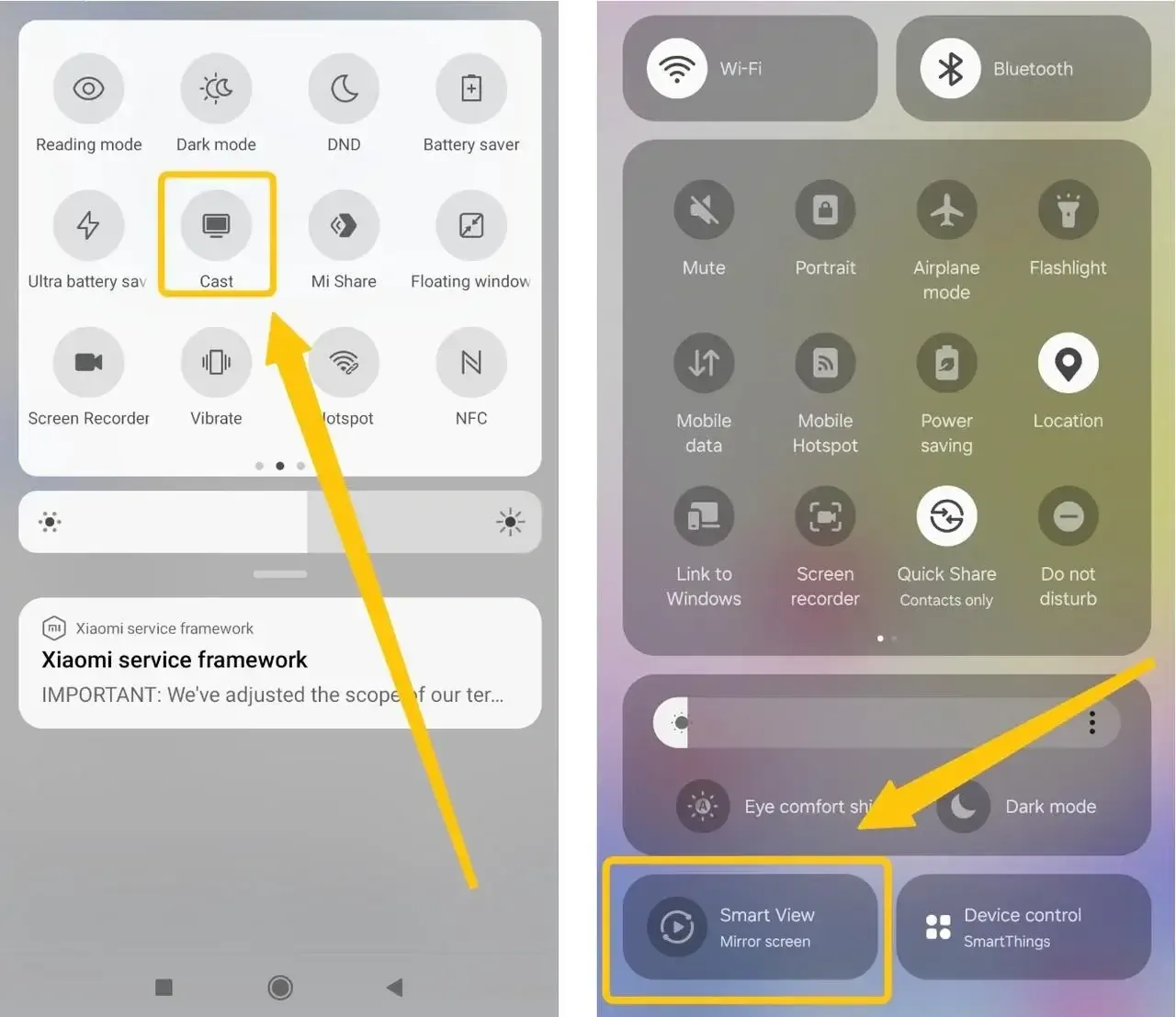
Android phones may use different names for screen mirroring, including Cast, Screen Cast, Smart View, or Wireless Display. The exact option depends on the phone manufacturer and Android version.
Step 1. Connect your Android phone and TV to the same Wi-Fi network.
Step 2. Open the Canva app on your phone and select the design or presentation you want to display.
Step 3. Swipe down from the top of the screen to open Quick Settings. Tap Cast, Screen Cast, or Smart View.
Step 4. Select your TV from the available devices and allow the connection on the TV if prompted.
Step 5. Return to Canva and tap Present if you want to display the design as a presentation.
If your TV does not appear, make sure it supports the casting method used by your Android phone and that screen mirroring is enabled on the TV.
Method 3. AirPlay Canva from an iPhone or iPad
Use this method when you have an Apple TV or a smart TV with built-in AirPlay support. AirPlay mirrors the full iPhone or iPad screen, so it can display Canva designs, presentations, and videos from the Canva app.
Step 1. Connect your iPhone or iPad and TV to the same Wi-Fi network.
Step 2. Open the Canva app and select the design or presentation you want to show.
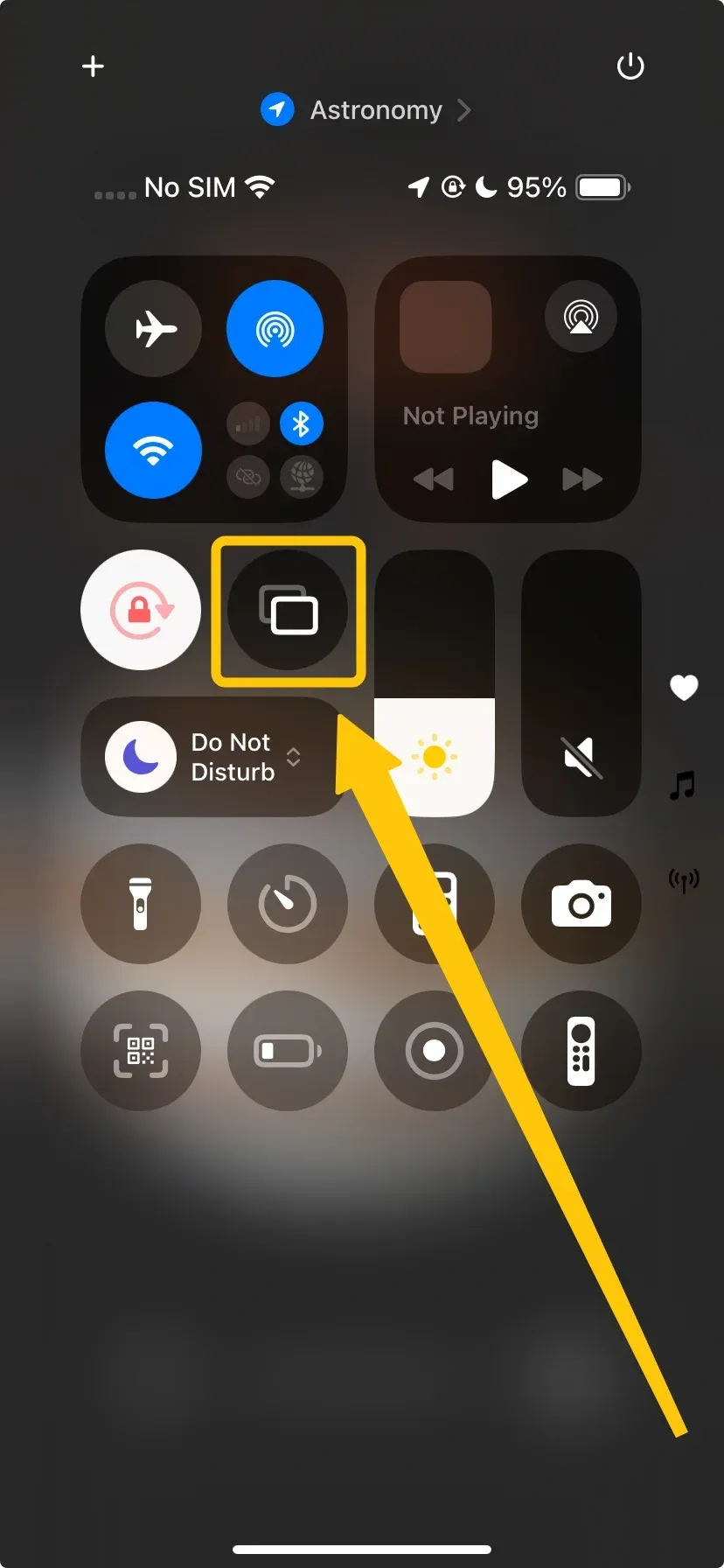
Step 3. Open Control Center. On Face ID devices, swipe down from the top-right corner. On devices with a Home button, swipe up from the bottom of the screen.
Step 4. Tap Screen Mirroring, then select your Apple TV or AirPlay-compatible TV.
Step 5. Enter the AirPlay passcode on your iPhone or iPad if the TV displays one.
Open the Canva design again and tap Present if you want to use presentation mode.
Method 4. Use PigeonCast to Mirror Canva to TV
PigeonCast can mirror the full screen of an Android phone, iPhone, Windows laptop, or Mac to a compatible TV or receiving device. This lets you display Canva even when the TV does not support AirPlay.
Step 1. Connect both devices to the same Wi-Fi network.


Overall Rating:



Step 2. Install PigeonCast on both the sending device and the receiving device from the official app store.
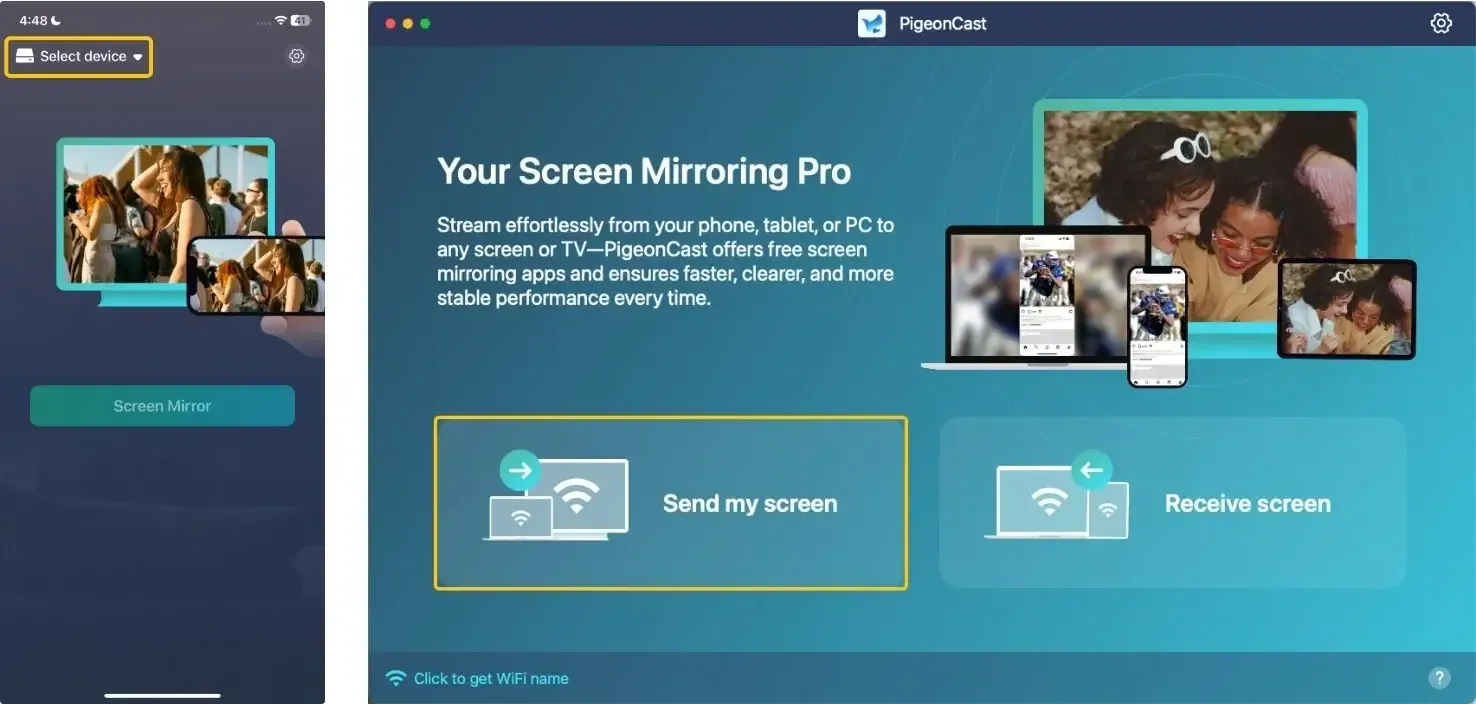
Step 3. Open PigeonCast. Tap Select device or Send my screen to Choose your TV or receiving device from the list.
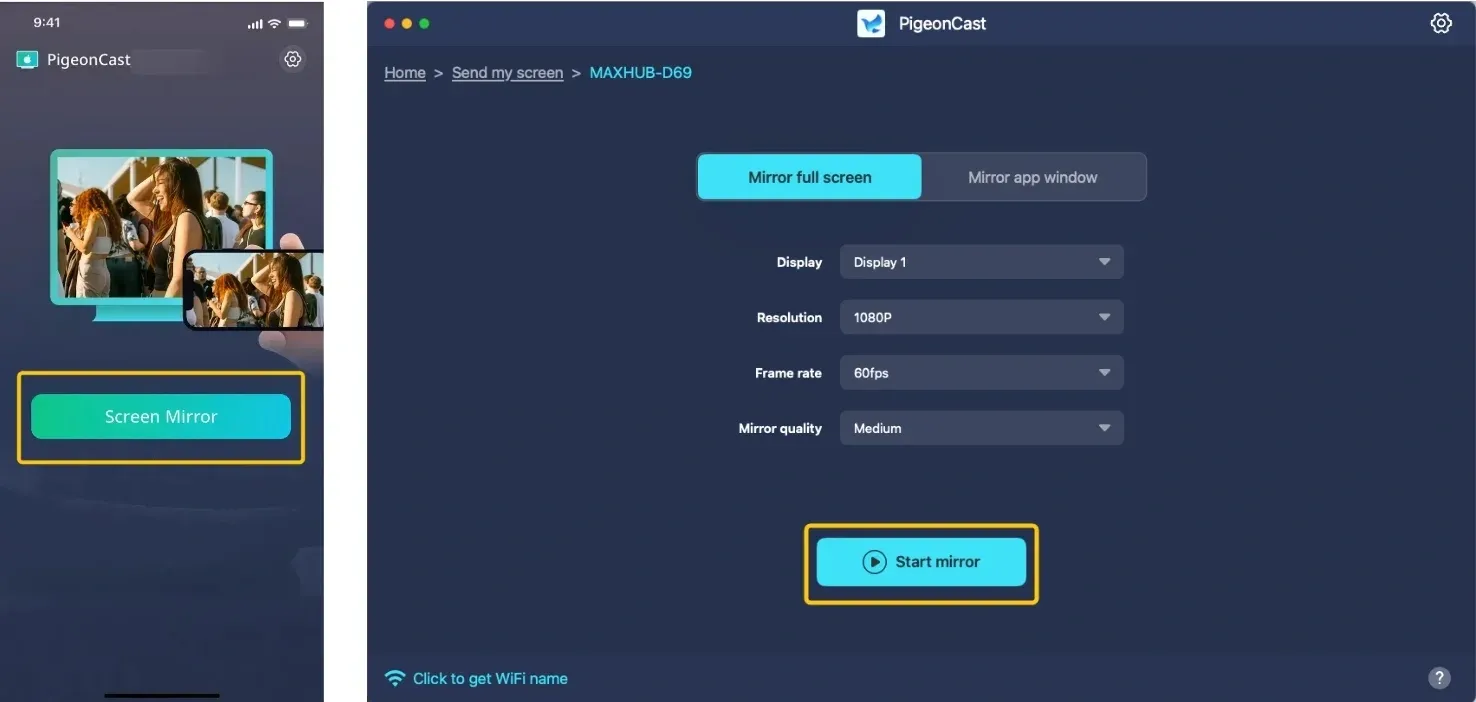
Step 4. Enter the PIN code to confirm the connection. When you finish, you can tap Start Mirror to begin mirroring activities.
Step 5. Open Canva on the sending device and select the design or presentation you want to display.
Step 6. Tap Present in Canva if you want to show the design as a presentation.
Method 5. Connect Your Device to the TV with HDMI
Wireless casting depends on the features available on both devices. If you cannot use Chromecast, AirPlay, or a screen mirroring app, an HDMI connection provides a direct way to display Canva on your TV. HDMI does not require Wi-Fi, but the correct cable, adapter, and device compatibility are required.
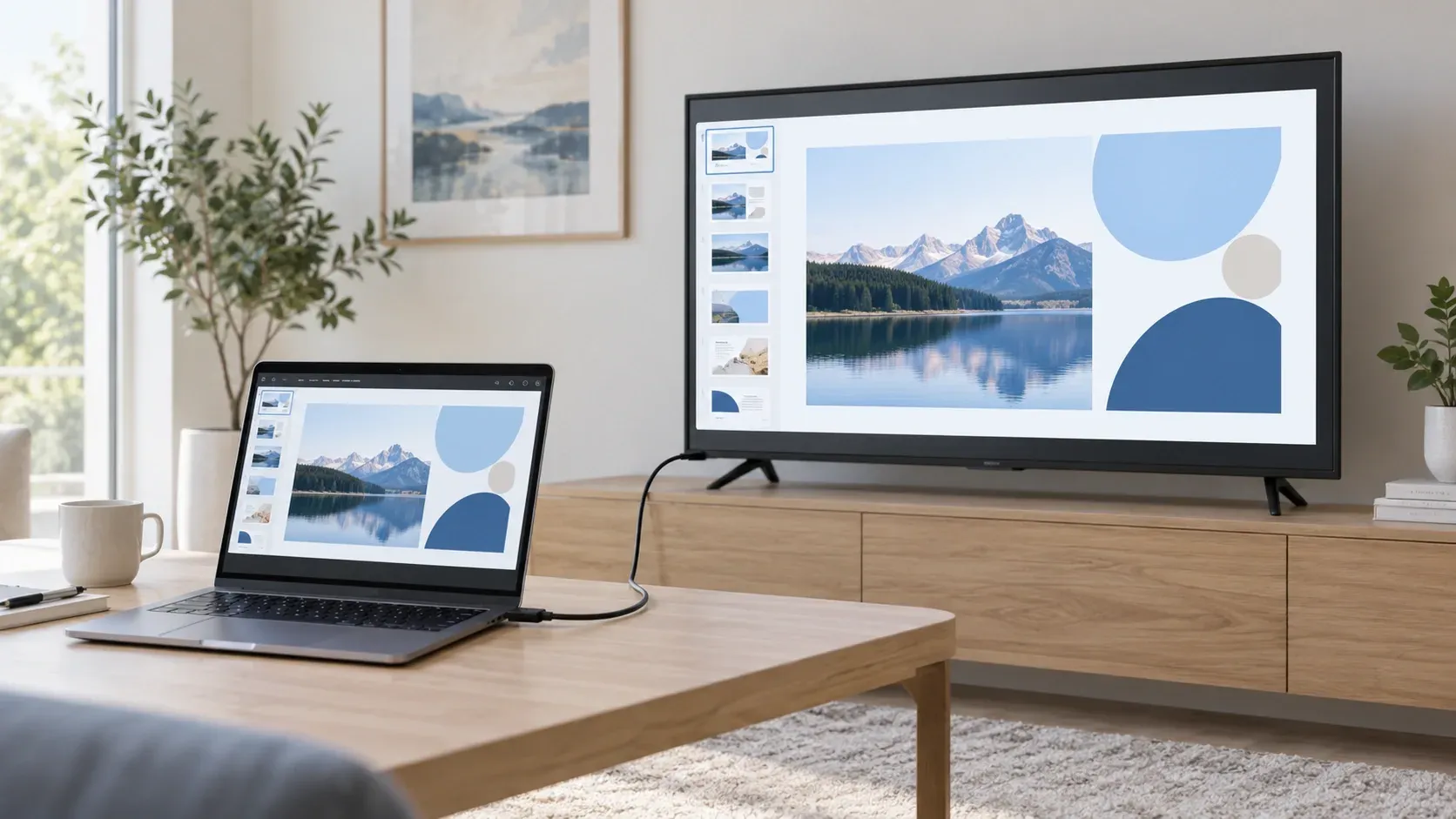
Step 1. Connect your laptop or phone to the TV with an HDMI cable. If your device does not have an HDMI port, use a compatible USB-C, Lightning, or other video adapter.
Step 2. Use the TV remote to select the HDMI input connected to your device.
Step 3. Open Canva on your laptop or phone and select the design or presentation you want to display.
Step 4. Tap or select Present in Canva if you want to use presentation mode.
Step 5. If the display does not appear, check your device's display settings and confirm that the phone supports wired video output.
Canva Not Showing on Your TV? Try These Fixes
Casting problems usually come from the connection between the sending device and the TV, rather than from the Canva design itself. Try the fix that matches the problem you are experiencing.
The TV Does Not Appear
- Make sure the TV and sending device use the same Wi-Fi network.
- Confirm that the TV supports the casting method selected on your phone or computer.
- Restart Canva, the TV, and the casting feature.
- If you are using PigeonCast, check that the receiving device is open and ready to receive the screen.
The TV Shows a Black Screen
- Exit and reopen Canva's presentation mode.
- Stop casting and connect again.
- Try mirroring the full screen instead of casting only the browser tab.
- Check whether the design includes content that cannot be displayed through the selected casting method.
The Sound Does Not Play
- Turn up the volume on both the sending device and the TV.
- Check that the TV is selected as the audio output.
- Reconnect the casting session if the image appears but the sound does not.
- If you are using HDMI, confirm that the cable and adapter support audio output.
The Design Looks Cropped or Stretched
- Use Canva's presentation mode instead of the editing view.
- Check whether the design's aspect ratio matches the TV screen.
- Adjust the TV's picture size or display mode.
- For a laptop, try changing the display settings to Duplicate instead of Extend.
The Screen Keeps Disconnecting
- Move the sending device closer to the Wi-Fi router or TV.
- Close apps that may be using a large amount of bandwidth.
- Restart the router if other wireless devices are also disconnecting.
- Use HDMI if you need a more stable connection for a long presentation.
The End
Canva does not use one universal casting option, so the best choice depends on the connection supported by your TV. Use Chromecast for Canva in a laptop browser, AirPlay for Apple devices, and your phone's built-in casting feature for Android. When the TV is not compatible with these options, PigeonCast can mirror the Canva screen, while HDMI remains a practical wired alternative.
Cast Canva to TV FAQ
Can I Edit Canva While It Is Displayed on the TV?
Yes. When you mirror the screen or cast a Canva browser tab, you can continue editing the design on your phone or computer. The changes may appear on the TV after Canva refreshes the displayed content.
Does Canva Work on Google TV Without Installing the App?
Yes. Google TV can receive Canva from another device, so you do not usually need to install Canva on the TV itself. Open Canva on your phone or computer, then use a compatible casting or screen mirroring feature to display the design on Google TV. The available option depends on the sending device and the Google TV model.
Can I Use Canva on a Hisense Canvas TV?
You usually do not need to install Canva directly on the TV. Open Canva on a compatible phone or computer, then display the design through the Hisense TV's supported screen-sharing feature. Hisense Canvas TV models use VIDAA, and supported casting features may vary by model.
Why Does My Canva Design Look Blurry on the TV?
- The original Canva design uses low-resolution images or graphics.
- The design is being enlarged to fit a higher-resolution TV screen.
- The casting method compresses the screen image during transmission.
- The sending device is outputting the Canva content at a lower resolution.
- The design's aspect ratio does not match the TV screen, causing additional scaling.
- The TV's picture settings or sharpening effect reduce image clarity.
What Canva Design Size Works Best on a TV?
A 16:9 landscape design usually fits a TV screen best. For most presentations, use 1920 × 1080 pixels. If you are creating content for a 4K TV, you can use 3840 × 2160 pixels for a sharper display. Avoid portrait layouts or designs with important text close to the edges, as they may appear cropped or leave empty space on the screen.
Can I Open a Canva Design Directly in a TV Browser?
Sometimes, but the experience depends on the TV's browser and the Canva link settings. A shared design may open for viewing, but TV browsers can have limited support for Canva's editor, animations, and presentation controls. This option is better for viewing a simple design than for creating or managing a presentation.
Clara Rossi is an experienced technology editor and a seasoned expert in screen mirroring and casting technologies. With a keen eye for detail and a deep understanding of how to seamlessly connect devices, Clara excels at optimizing user experiences for effortless sharing and streaming. Whether you're seeking quick fixes or advanced tips, her expertise and responsiveness ensure that every query is met with a well-informed and efficient solution.