
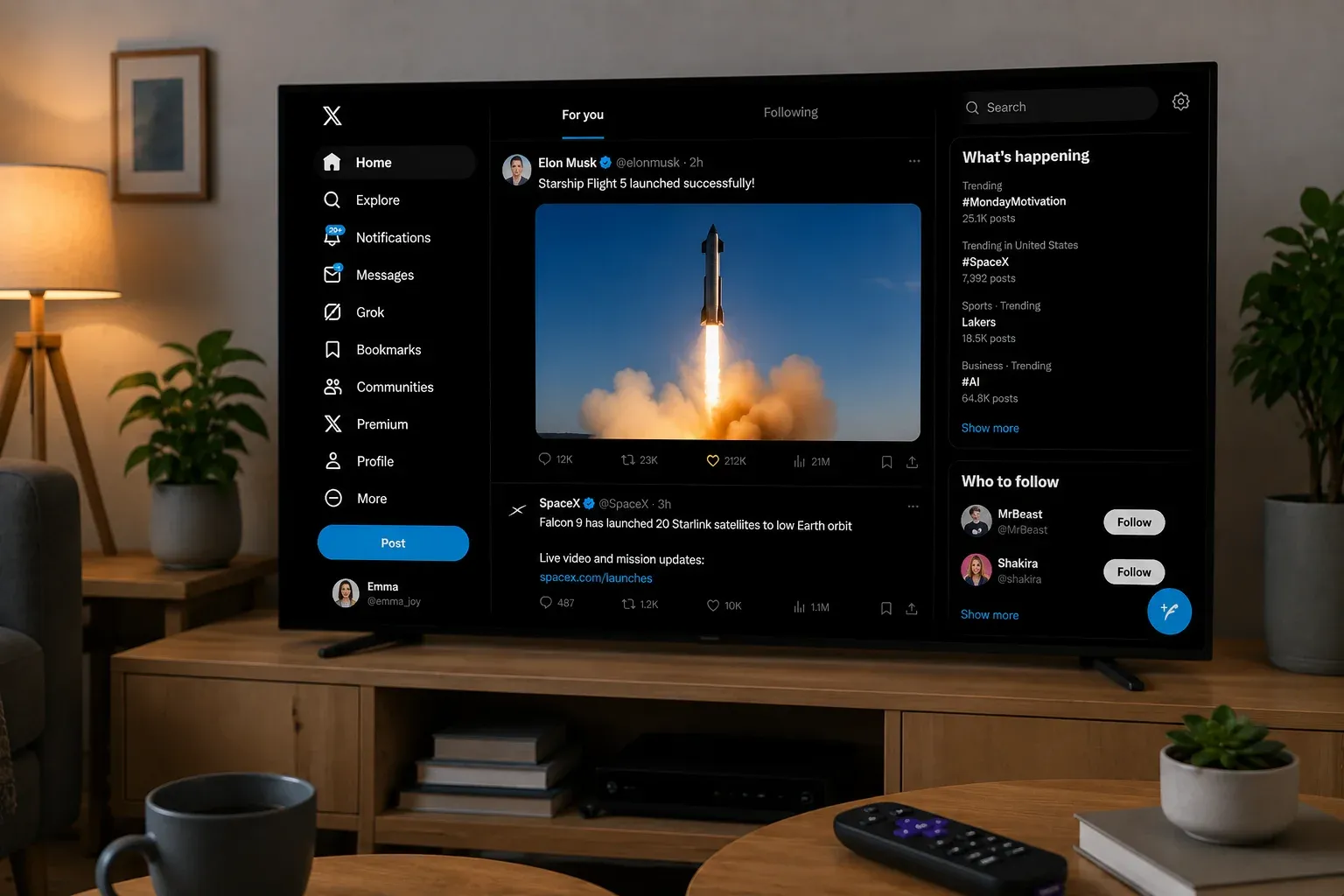
You can watch Twitter on Roku by mirroring X from an iPhone, iPad, Android phone, Windows PC, or Mac. Apple devices connect through AirPlay, while compatible Android phones and Windows PCs use Roku screen mirroring.
Can You Get Twitter on Roku
Yes, but Roku does not have an official app for Twitter, now called X. You can still view your X timeline, profiles, images, and videos by mirroring the app or website from a compatible phone, tablet, or computer.
| Your Device | How It Connects to Roku | What to Check |
|---|---|---|
| iPhone, iPad, or Mac | AirPlay | Roku must support AirPlay |
| Android phone or tablet | Built-in screen mirroring, such as Smart View or Wireless Display | Phones that only support Google Cast may not find Roku |
| Windows PC | Miracast | The PC must support Miracast, and screen mirroring must be enabled on Roku |
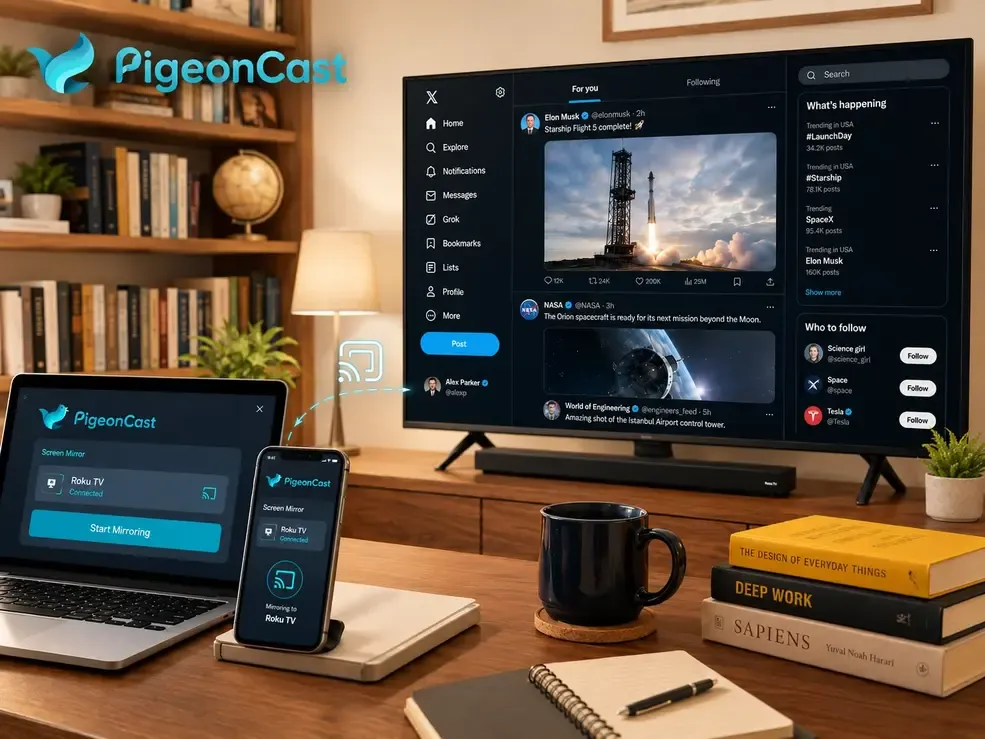
Tip: If you use different phones and computers or are unsure which mirroring protocol each device supports, PigeonCast offers a cross-platform option for iPhone, Android, Windows, and Mac. It supports AirPlay, Google Cast, and DLNA, so you can manage screen mirroring from one app across compatible devices and TVs.


Overall Rating:



How to Mirror Twitter from iPhone, iPad, or Mac
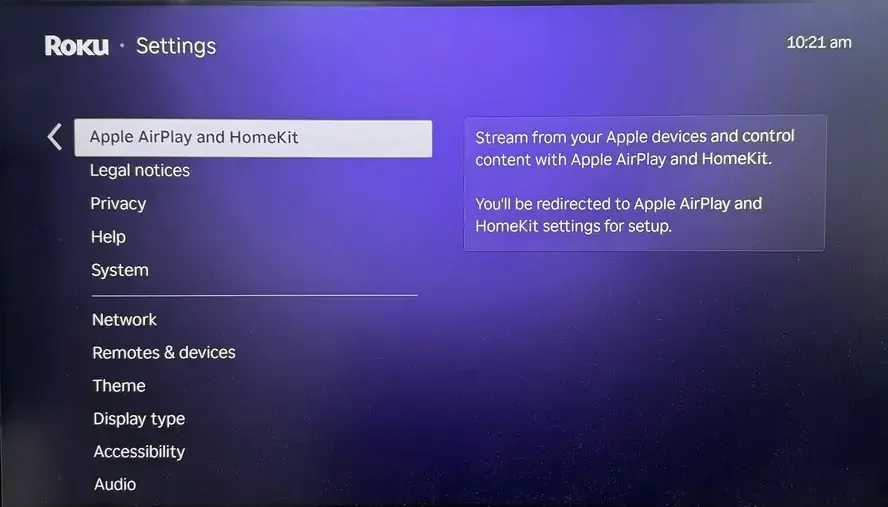
AirPlay can mirror X from an iPhone, iPad, or Mac to a Roku TV or streaming device that supports AirPlay 2. On your Roku, open Settings and confirm that Apple AirPlay and HomeKit appears before following the steps below.
Step 1. Connect your Apple device and Roku to the same Wi-Fi network.
Step 2. On Roku, go to Settings > Apple AirPlay and HomeKit, then set AirPlay to On.
Step 3. Open the X app on your iPhone or iPad, or open X in a browser on your Mac.
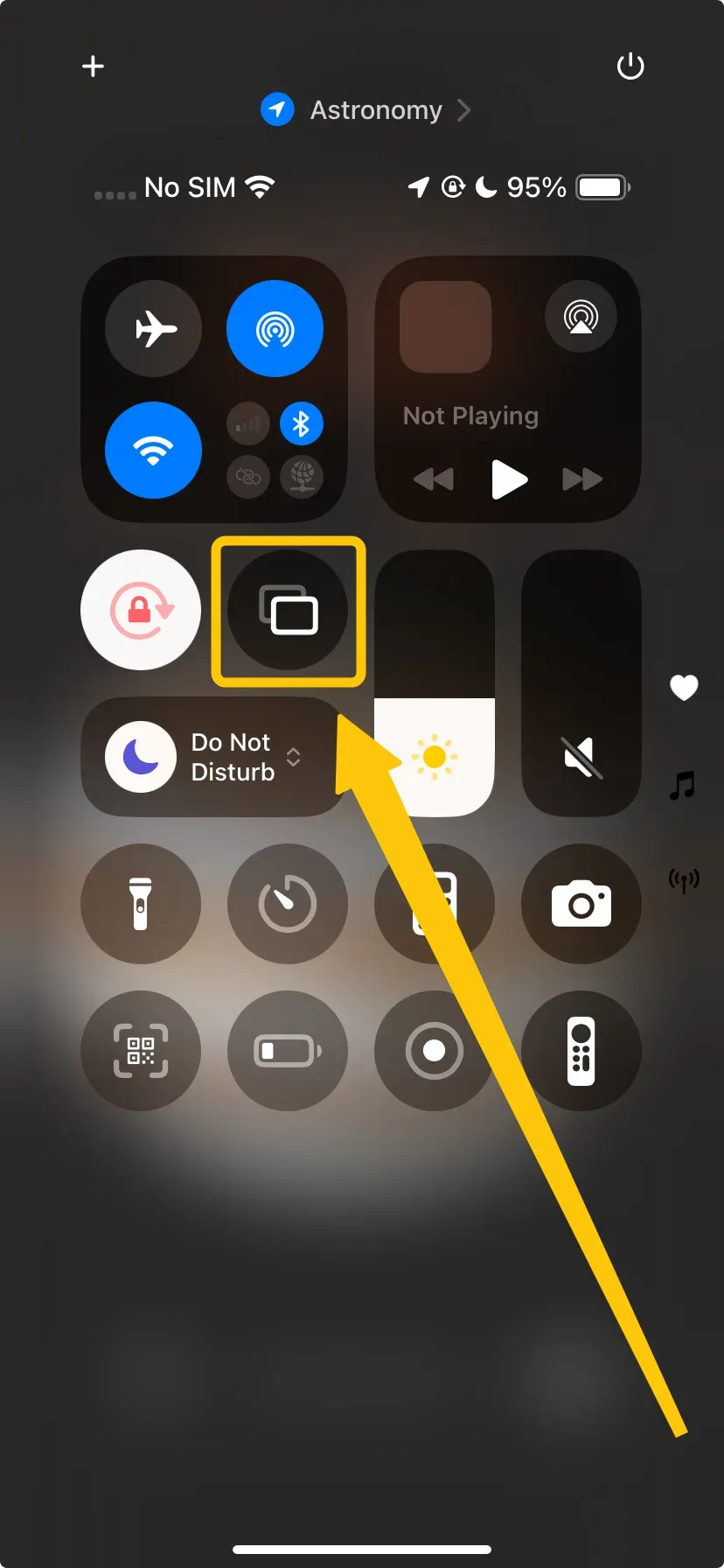
Step 4. On iPhone or iPad, swipe down from the top-right corner of the screen. On Mac, click Control Center in the menu bar. Select Screen Mirroring, then choose your Roku device.
Step 5. Enter the AirPlay code shown on the TV if prompted.
Step 6. Return to X and open the post, profile, image, or video you want to display.
How to Mirror Twitter from an Android Phone
Roku screen mirroring works with Android phones that support a compatible wireless display feature. Samsung usually calls it Smart View, while other brands may use names such as Screen Cast, Wireless Display, Smart Share, or Cast Screen. Some Android phones that only support Google Cast may not find Roku through the built-in casting menu.
Step 1. Connect your Android phone and Roku to the same Wi-Fi network.
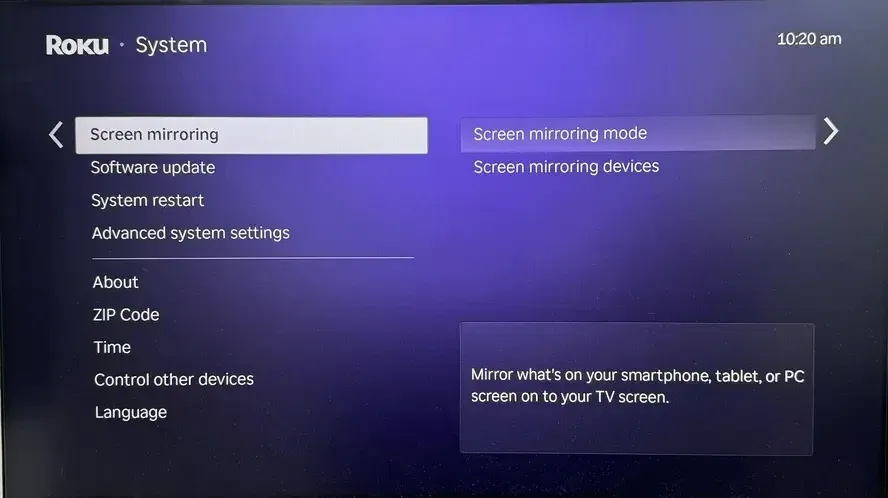
Step 2. On Roku, go to Settings > System > Screen mirroring > Screen mirroring mode, then select Prompt.
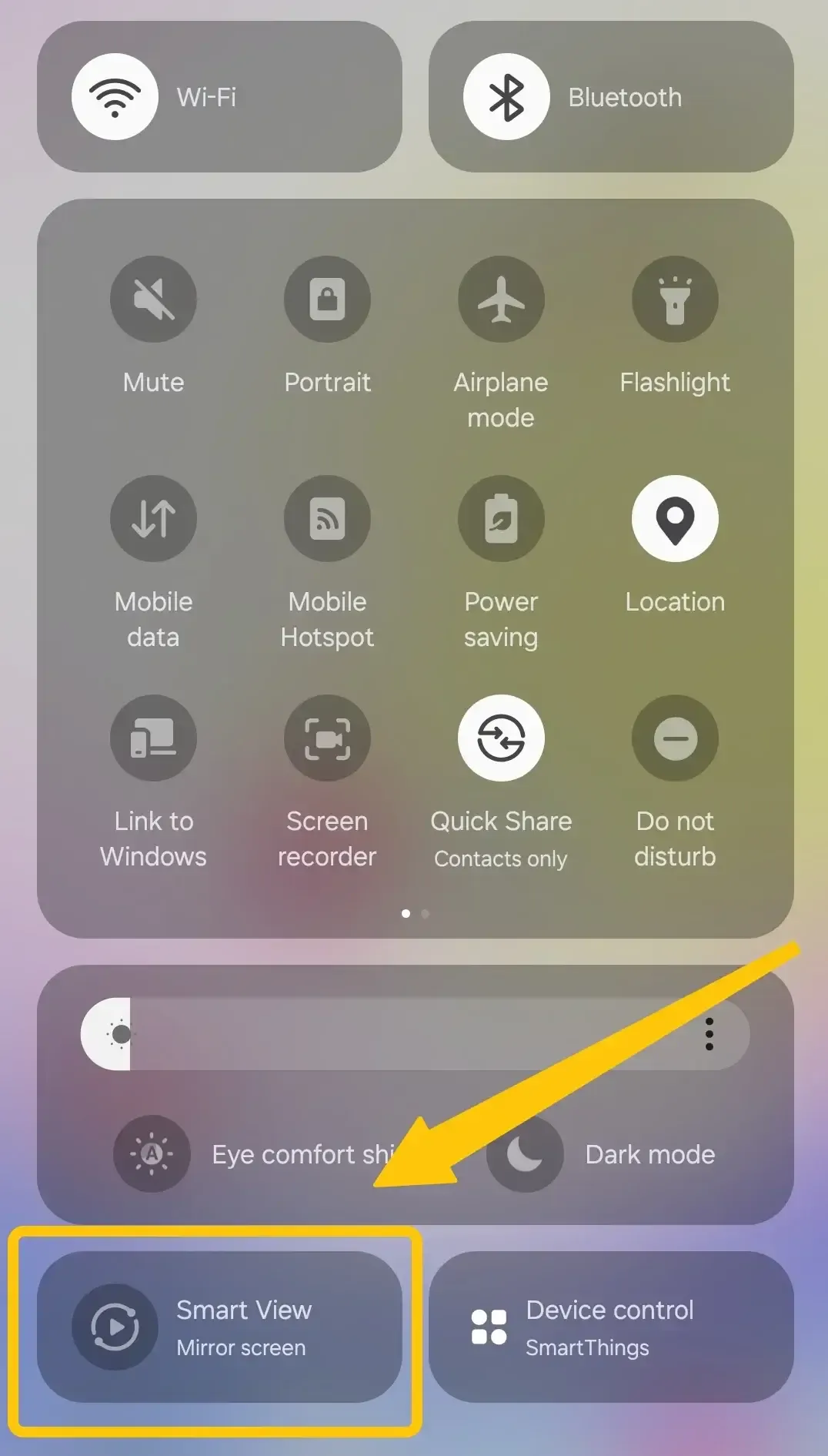
Step 3. Open the screen mirroring feature on your Android phone. On a Samsung phone, swipe down from the top of the screen and tap Smart View to choose your device from the available device list.
Step 4. When a request appears on the TV, select Allow with the Roku remote.
Step 5. Open the X app and display the post, profile, image, or video you want to view.
How to Mirror Twitter from Windows
Windows uses Miracast to project the PC screen wirelessly. A Roku device with screen mirroring enabled can act as the Miracast receiver, so selecting it from the Windows Cast panel displays the full X website on the TV. Your PC and Roku must both support Miracast for this method to work.
Step 1. Connect your Windows PC and Roku to the same Wi-Fi network.
Step 2. On Roku, go to Settings > System > Screen mirroring > Screen mirroring mode, then select Prompt.
Step 3. Open X in a browser on your Windows PC.
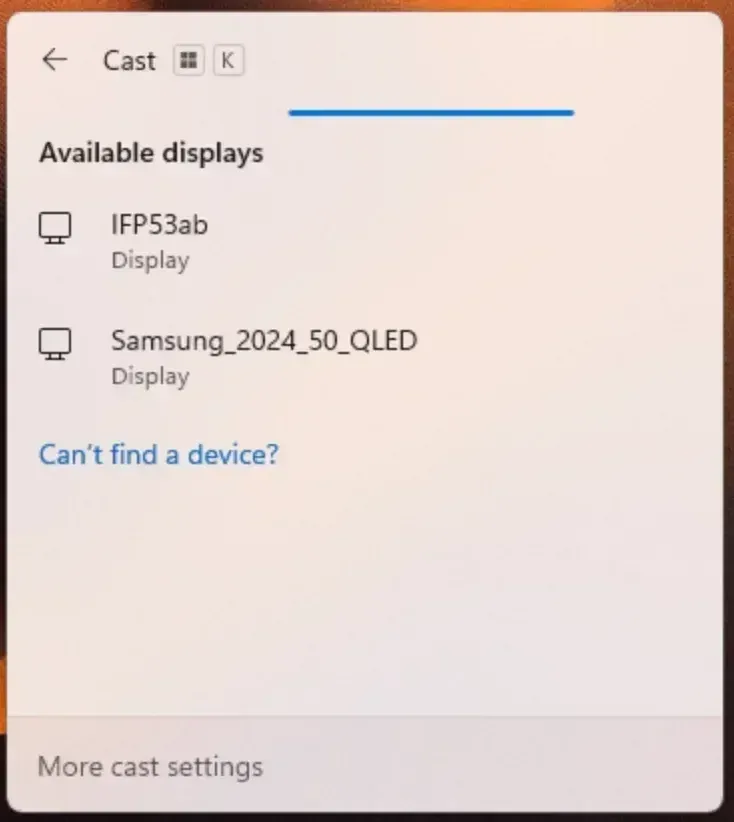
Step 4. Press Windows + K to open the Cast panel to select your Roku device from the available display list.
Step 5. When the connection request appears on the TV, select Allow with the Roku remote.
Step 6. Maximize the browser window, then open the post, profile, image, or video you want to display.
Twitter on Roku Not Working
If Twitter does not appear on Roku through AirPlay or screen mirroring, identify whether the issue comes from device support, network settings, or the mirrored content itself.
- The TV shows a black screen: Exit full-screen playback, reopen the post or video, and test another X page. If other content appears normally, the issue may affect only that video.
- The video plays without sound: Raise the media volume on the source device and disconnect Bluetooth headphones or speakers. Reconnect the mirror after confirming that audio plays through the device speakers.
- Twitter videos lag or disconnect: Move both devices closer to the router, stop large downloads, and restart the connection. An unstable Wi-Fi connection can reduce video quality or interrupt mirroring.
- The mirrored X screen is too small: Turn off orientation lock and rotate your phone or tablet to landscape mode. On Windows or Mac, maximize the browser or open the video in full-screen mode.
To Sum Up
Watching Twitter on Roku works best when you mirror X from the device you already use. AirPlay gives iPhone, iPad, and Mac users access to the full app or website, while compatible Android phones and Windows PCs can connect through Roku screen mirroring. Once connected, you can browse posts, open profiles, and play videos on the TV without depending on an unofficial Roku app.
Twitter on Roku FAQ
Can I like, repost, reply, or send messages while watching Twitter on Roku?
Yes. Screen mirroring does not change how X works on the source device, so you can still like posts, repost, reply, search, open profiles, and send messages from your phone or computer. Every action appears on the TV in real time, including text you type and pages you open. For privacy, avoid opening direct messages or account settings when other people are watching the screen.
Does watching Twitter on Roku use mobile data?
The connection between your device and Roku usually travels through the local Wi-Fi network, but X still uses internet data to load posts and stream videos. A phone may switch to cellular data when the Wi-Fi connection has no internet access or when a mobile-data fallback setting is enabled. Before watching long videos, confirm that the Wi-Fi symbol remains active and disable automatic cellular switching if your data allowance is limited.
How do I get the secret channels on Roku?
Twitch discontinued its official Roku app in 2017, but neither Twitch nor Roku published a detailed public explanation for the decision. Claims that it was removed due to competition between Amazon and Roku are speculation, not a confirmed reason. The old app remained usable for some existing users for a time, but official support ended and later workarounds also stopped functioning. Roku users now generally need screen mirroring or an unofficial third-party app to watch Twitch.
How do I get the secret channels on Roku?
You can no longer add traditional “secret” or non-certified Roku channels with an access code. Roku discontinued that system in 2022 and replaced it with limited beta channels intended for developer testing, not general public use. To add an app now, search the Streaming Store on Roku or install it from the official Roku Channel Store; if it is not listed, it is generally unavailable for regular installation.
Can You Download Twitter on Roku?
There is no official Twitter or X app for Roku. A third-party app called Twitter X on TV is currently listed in the Roku Channel Store, but it is not developed by X and may offer limited features or regional availability. For full access to your timeline, profiles, and videos, screen mirroring from a phone or computer is the more reliable option.
Will X videos display in full quality on Roku?
The TV can only show the quality supplied by X and preserved by the mirroring connection. Video resolution may drop when the original upload is compressed, X automatically selects a lower quality, or Wi-Fi bandwidth is limited. For the clearest result, allow the video to load before entering full-screen mode, keep the source device near the router, and avoid downloading large files on the same network.
Clara Rossi is an experienced technology editor and a seasoned expert in screen mirroring and casting technologies. With a keen eye for detail and a deep understanding of how to seamlessly connect devices, Clara excels at optimizing user experiences for effortless sharing and streaming. Whether you're seeking quick fixes or advanced tips, her expertise and responsiveness ensure that every query is met with a well-informed and efficient solution.