

If you want an Apple TV alternative, you probably are not trying to build a whole new entertainment setup. In most cases, you just want to cast to a TV, watch streaming apps, share your screen wirelessly, show photos and videos on a bigger display, or put a presentation on a meeting-room screen. The good news is that you do not need to buy Apple TV just to do those things. For many people, a screen mirroring app is the easier answer because it handles the task directly without adding another box under the TV.
That matters because Apple TV is only one way to get media and screen sharing onto a television. If your home uses only Apple devices, it can feel convenient. But if your goal is simply to mirror an iPhone, cast a video, or share a laptop display, there are cheaper and more flexible choices.
What Is Apple TV
Apple TV is a streaming device that connects to your television. The current hardware line is Apple TV 4K, which gives you access to streaming apps, Apple services, and a polished Apple-style TV interface.
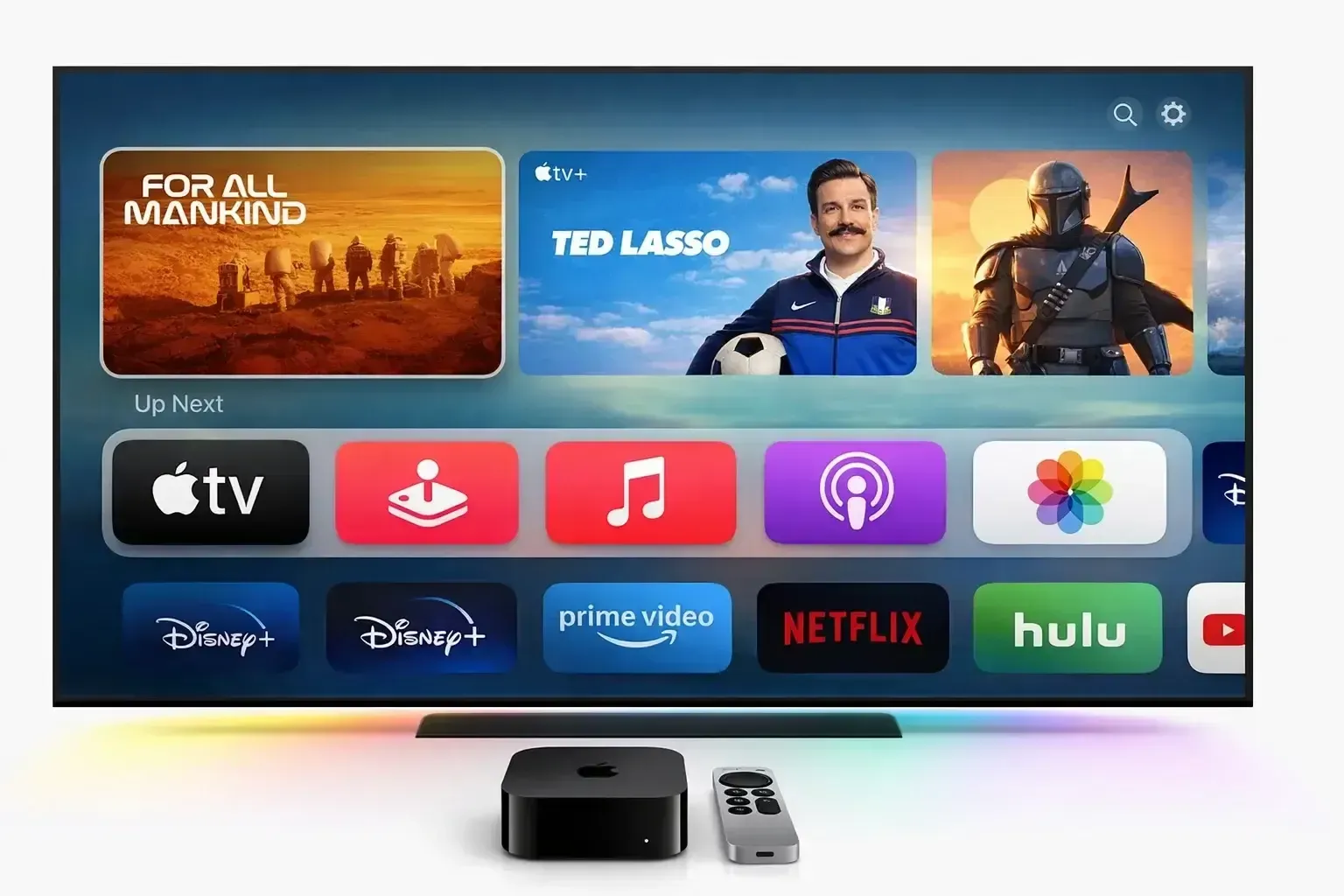
There are three pieces people often mix together:
- Apple TV 4K is the physical box.
- AirPlay is Apple's wireless sharing feature for sending video, audio, or your screen from an iPhone, iPad, or Mac.
- tvOS is the software system that runs the apps and menus on Apple TV.
That distinction matters because many people want the result Apple TV gives them, not necessarily the hardware itself. If all you want is to get content from your phone or computer onto a TV, the box may be more than you need.
Why People Look for Apple TV Alternatives
Apple TV is not a bad product. The issue is that it can feel like a bigger purchase than the situation calls for. You may only want to put vacation photos on the TV, mirror an iPhone during family time, cast a short clip from a phone, or show a presentation from a Windows laptop in a meeting room.
In those moments, Apple TV can feel like more product than the task requires. The feeling is not “this device is broken.” It is “why am I buying a full streaming box for one sharing need?”
That feeling becomes stronger in mixed-device homes. Apple TV feels smooth when the home already runs on iPhone, iPad, Mac, iCloud, and other Apple services. But real households are often messier than that.
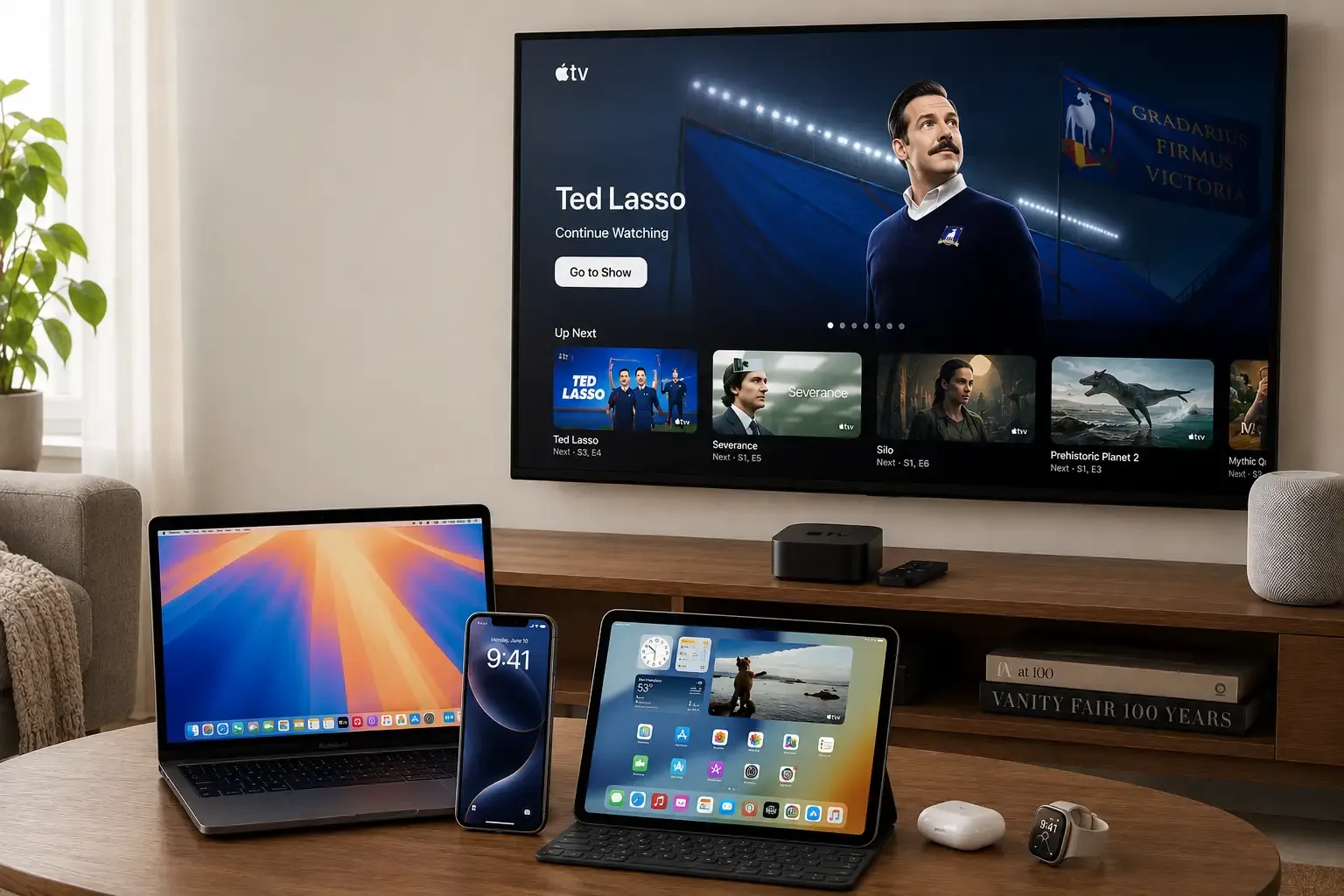
One person uses iPhone, another uses Android, a child uses a Windows laptop, and the TV brand is not part of the Apple ecosystem at all. In that situation, what matters most is simply getting the screen in front of you to work for everyone. That is why the best option is often the one with the least friction across devices, not the one that feels most Apple-like.
Cost also shapes the experience in a very ordinary way. People are happy to spend money when the value is obvious, but Apple TV can feel expensive if the daily habit is simple screen sharing rather than full-time streaming.
Someone who mainly wants to mirror an iPhone to a TV, show a browser tab, or send a local video to the living-room screen may look at Apple TV and feel that the purchase solves too many extra problems they do not actually have. That is why cheaper streaming sticks, built-in smart TV features, and screen mirroring apps start to feel more reasonable.
What Is the Best Apple TV Alternative
The best Apple TV alternative depends on what you want your TV to do most often. If your routine starts with opening Netflix, YouTube, or Prime Video on the television every night, then a streaming-first device may be the smartest option. If your real habit is sharing screens from a phone or laptop, the answer changes immediately. That is why the product category matters less than the way you actually use the screen. Many people start out thinking they need another TV box, then realize they really need something simpler, cheaper, or easier to share across devices.
| Apple TV Alternative | Lowest Price | Best For |
|---|---|---|
| Chromecast | $49.99 | Android users |
| Roku | $25 | Streaming |
| Fire TV Stick | $15.99 | Budget users |
| Screen Mirroring Apps | Free | Wireless casting |
| Smart TV Built-in Casting | Free | Everyday use |
Chromecast: Best for Android-Native Casting and Google Ecosystems
Chromecast still makes the most sense when your home already revolves around Android phones, Google Photos, YouTube, and Google accounts.
On Google's current official product pages, the older Chromecast with Google TV (4K) is listed at $49.99 with 8 GB storage and 2 GB memory, while the newer Google TV Streamer (4K) is listed at $99.99 with 32 GB storage and 4 GB memory. Google also says the Streamer supports up to 4K HDR with Dolby Vision and includes a built-in Ethernet port, which matters if Wi-Fi quality is inconsistent.
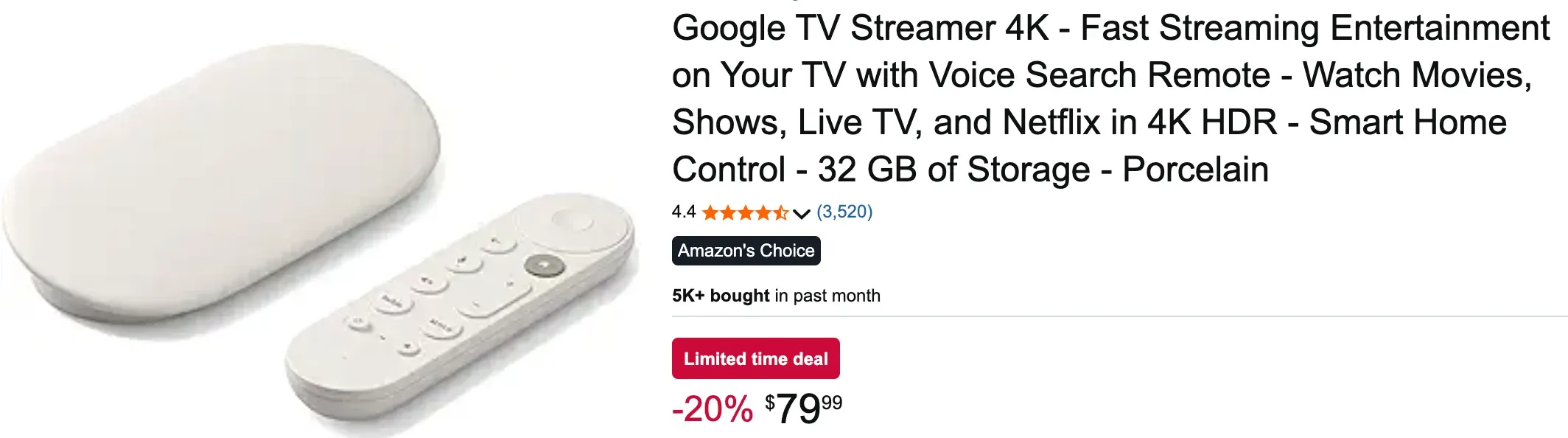
In day-to-day use, Chromecast is strongest when you want app-based casting from Android and a TV interface that already feels familiar if you live inside Google's ecosystem.
If your home mixes iPhone and Google TV devices, it also helps to know how to screen mirror iPhone to Google TV, because that is often the first place where Apple TV starts to feel unnecessary.
Roku: Best for Simplicity, Shared TVs, and Low Setup Friction
Roku is often the easiest recommendation for people who want the TV itself to feel calm and uncomplicated. Its biggest strength is not raw specs. It is the fact that the interface is easy to learn, the remote logic is straightforward, and the whole product tends to stay focused on watching instead of layering on too many side features.
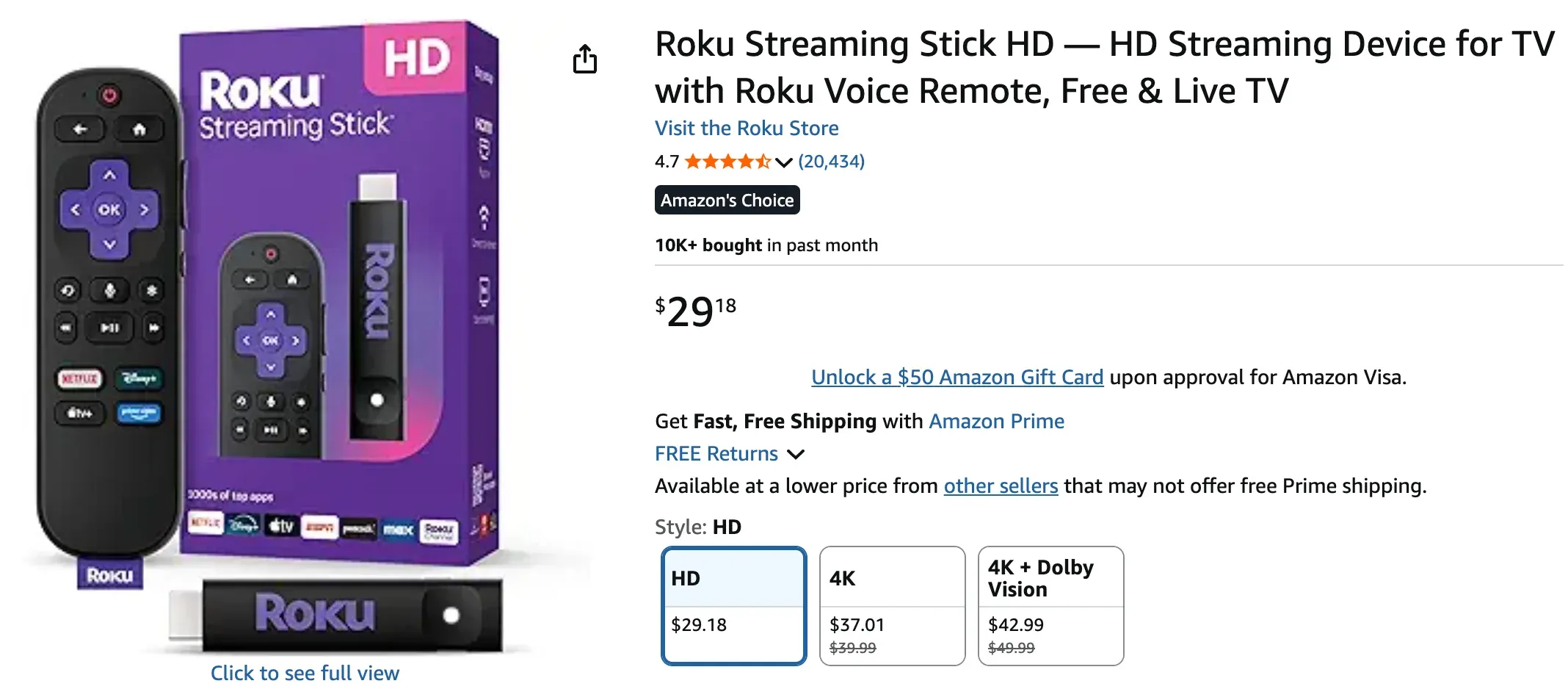
Roku's 2025 streaming stick refresh also moved to USB-C and was designed so the new sticks can draw power from a TV USB port in many setups, which reduces cable clutter behind the screen. That sounds minor, but in guest rooms, family living rooms, and older TVs, less clutter and less setup friction can matter more than advanced smart-home extras.
Roku also becomes more interesting if you care about sharing from Apple devices, because Roku screen mirroring from iPhone is a common real-world use case for people who want simple streaming and occasional casting on the same screen.
Fire TV Stick: Best for Budget Streaming and Fast App Access
Fire TV Stick is the most obvious pick when cost matters and the main goal is straightforward streaming.
Amazon's 2025 Fire TV Stick 4K Select launched at $39.99, positioning it as a lower-cost 4K option for viewers who mainly care about opening popular apps quickly and getting decent picture quality without paying Apple TV prices.
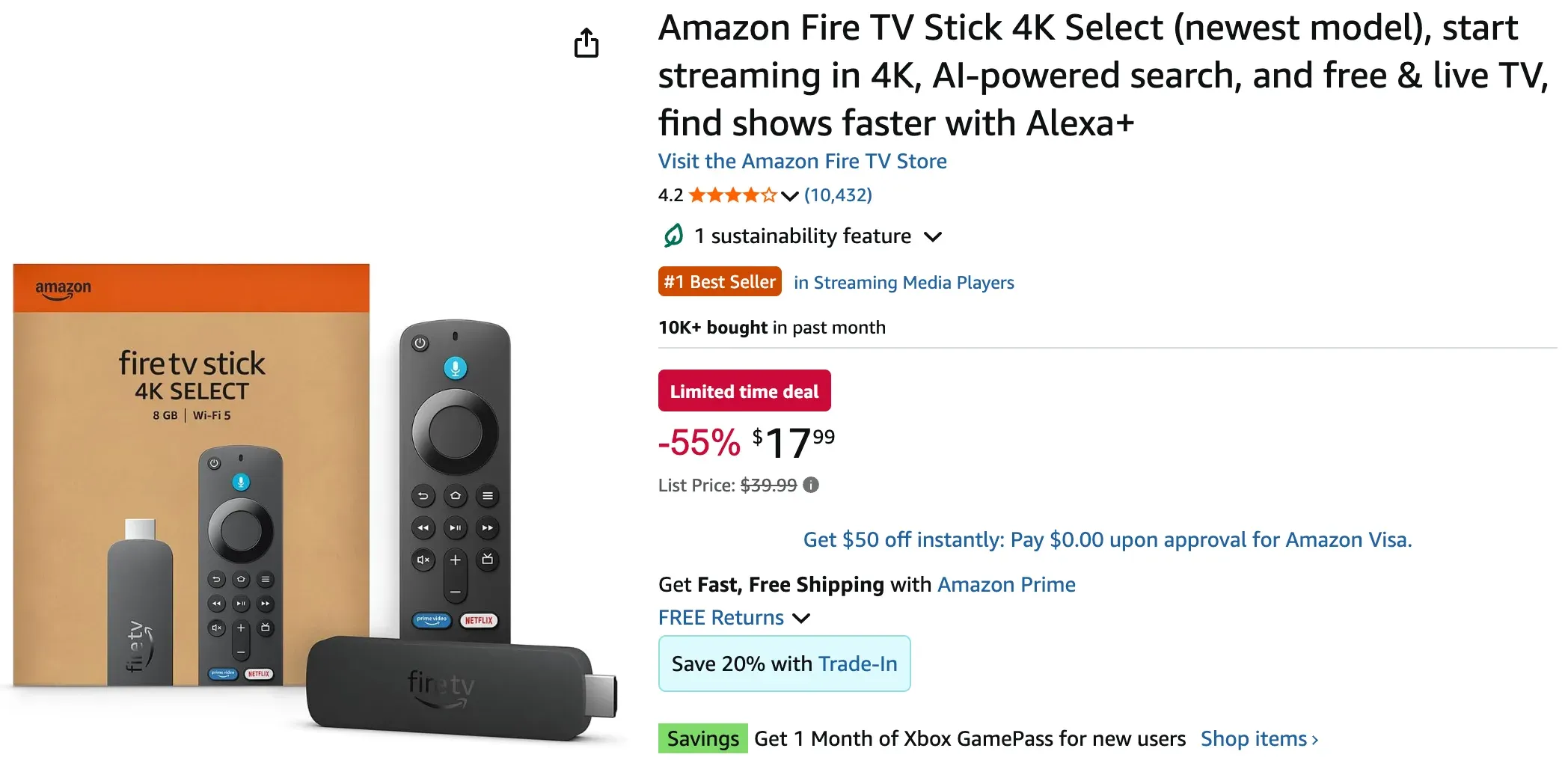
Recent Fire TV models have leaned into fast launch times, Alexa voice control, and broad support for mainstream streaming services. That makes them attractive for bedrooms, apartments, dorm rooms, and secondary TVs.
The tradeoff is that Fire TV is still a streaming-first tool. It is good for watching. It is less compelling when your routine is centered on presentations, screen sharing, and moving between iPhone, Mac, Windows, and Android devices.
If you already own a Fire TV device and mainly want to share a phone screen instead of buying new hardware, screen mirroring iPhone to Fire Stick is usually the more useful route to explore.
Screen Mirroring Apps: Best for Cross-Device Sharing and Real-World Flexibility
This is the category that often solves the actual problem better than any streaming stick. If what you really want is to put an iPhone, Mac, Windows PC, or Android screen on the TV, then a screen mirroring app is often the stronger Apple TV alternative for iPhone and the stronger Apple TV alternative for screen mirroring.
PigeonCast stands out because it is built around direct sharing tasks instead of around a TV home screen. It works well for family photo sharing, quick video playback, classroom demos, office presentations, and casual screen casting without asking everyone in the room to use the same ecosystem.
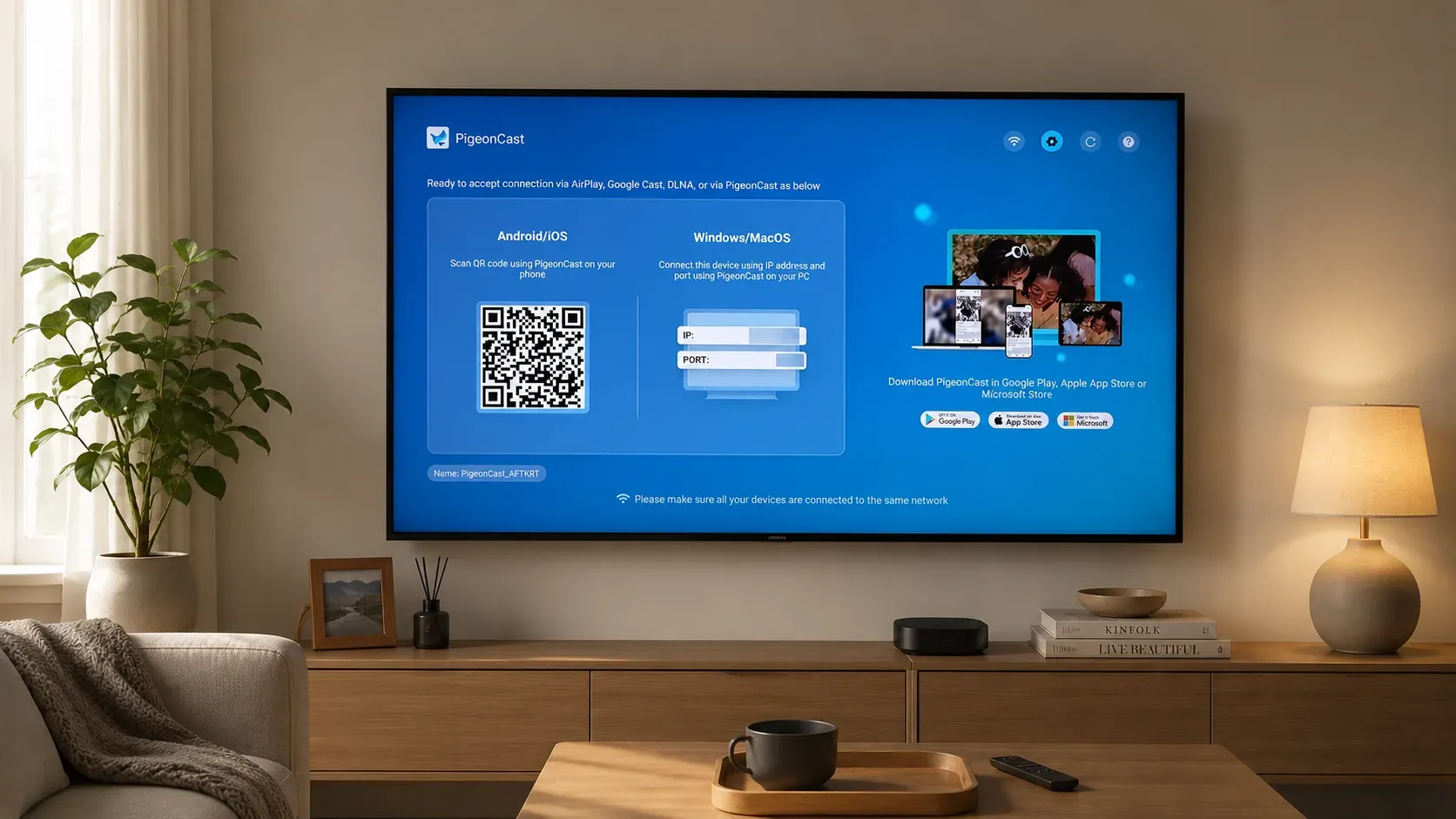
It is also easier to recommend in mixed-TV households because it can fit TVs running Android TV as well as common smart TV environments such as Roku TV, LG TV, and Fire TV. If you want to see how that looks in practice, screen mirroring to Android TV is a good example of the kind of simple, device-to-TV use case this category handles well.
The basic setup is also fairly easy:
- Install PigeonCast on your phone and TV
- Confirm that both devices are on the same local network
- Open PigeonCast on the sending device
- Choose the TV you want to use
- Start mirroring your screen or sending media almost immediately.


Overall Rating:



In real use, that kind of quick setup matters more than people expect. It makes a big difference when you are trying to share photos with family, start a meeting without delays, or put a video on the TV without stopping to explain the setup to everyone else in the room.
Smart TV Built-in Casting: Best Free Apple TV Alternative if Your TV Already Does Enough
Built-in casting is the easiest free Apple TV alternative when your current TV already supports the apps and wireless sharing tools you need. Apple now documents AirPlay not only with Apple TV, but also with compatible smart TVs, which is a meaningful shift for iPhone users who only want to mirror photos, send a clip, or share a screen occasionally.
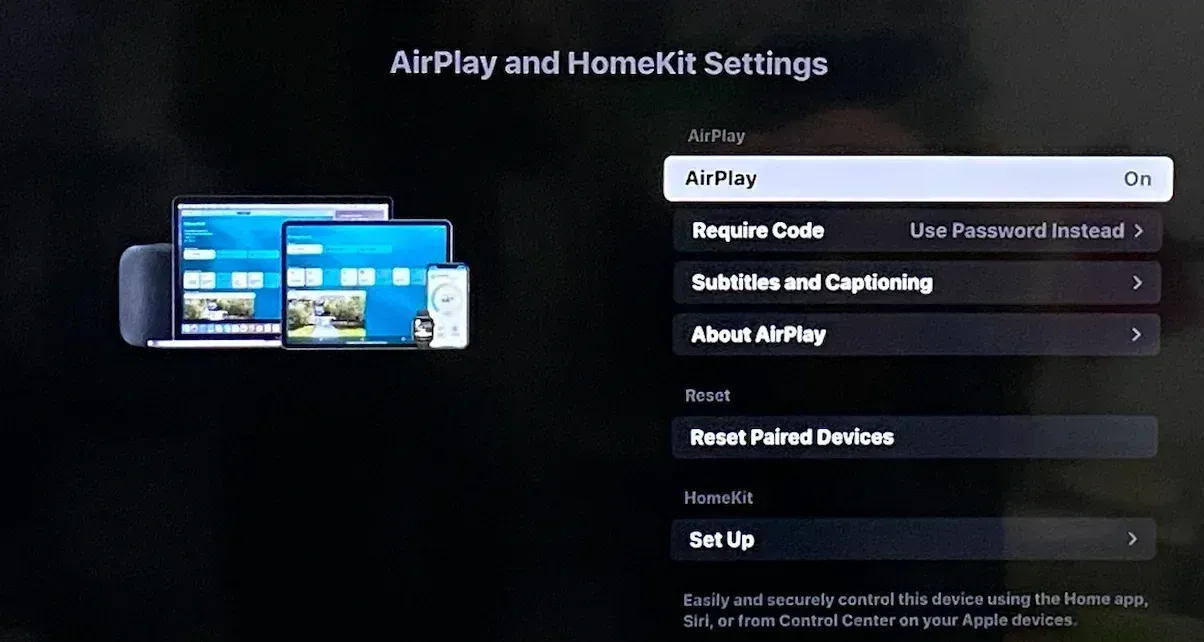
In the best case, this is the most efficient answer because there is nothing extra to buy, no HDMI port to give up, and no second home screen to manage. The weakness is consistency. Built-in support varies by TV brand, software version, and device pairing. If your TV already works well, this option is great. If it only works sometimes, the convenience disappears quickly.
Streaming Device vs Screen Mirroring App vs Built-in TV Feature
This is the comparison that usually makes the decision clear. A streaming device, a screen mirroring app, and a built-in TV feature can all help you get content onto a bigger screen, but they do not create the same kind of experience. People often treat them as interchangeable because they all point toward the same TV. In real use, though, they solve different problems. If you pick the wrong category, the setup can feel clumsy even when the product itself is good.
A streaming device such as Apple TV, Roku, Chromecast, or Fire TV Stick is best when the television is the center of the experience. You sit down, pick up a remote, open apps, and watch content directly on the TV.
- Best when your main habit is watching streaming apps every day
- Better for households that want a remote-led TV experience
- Less useful when you mainly want fast, occasional sharing from a phone or laptop
A screen mirroring app like PigeonCast is different because it usually works as a paired setup between the device you are sharing from and the TV you are sharing to. That approach can feel more stable in real use, especially when both sides are designed to work together instead of relying on one built-in TV feature alone.
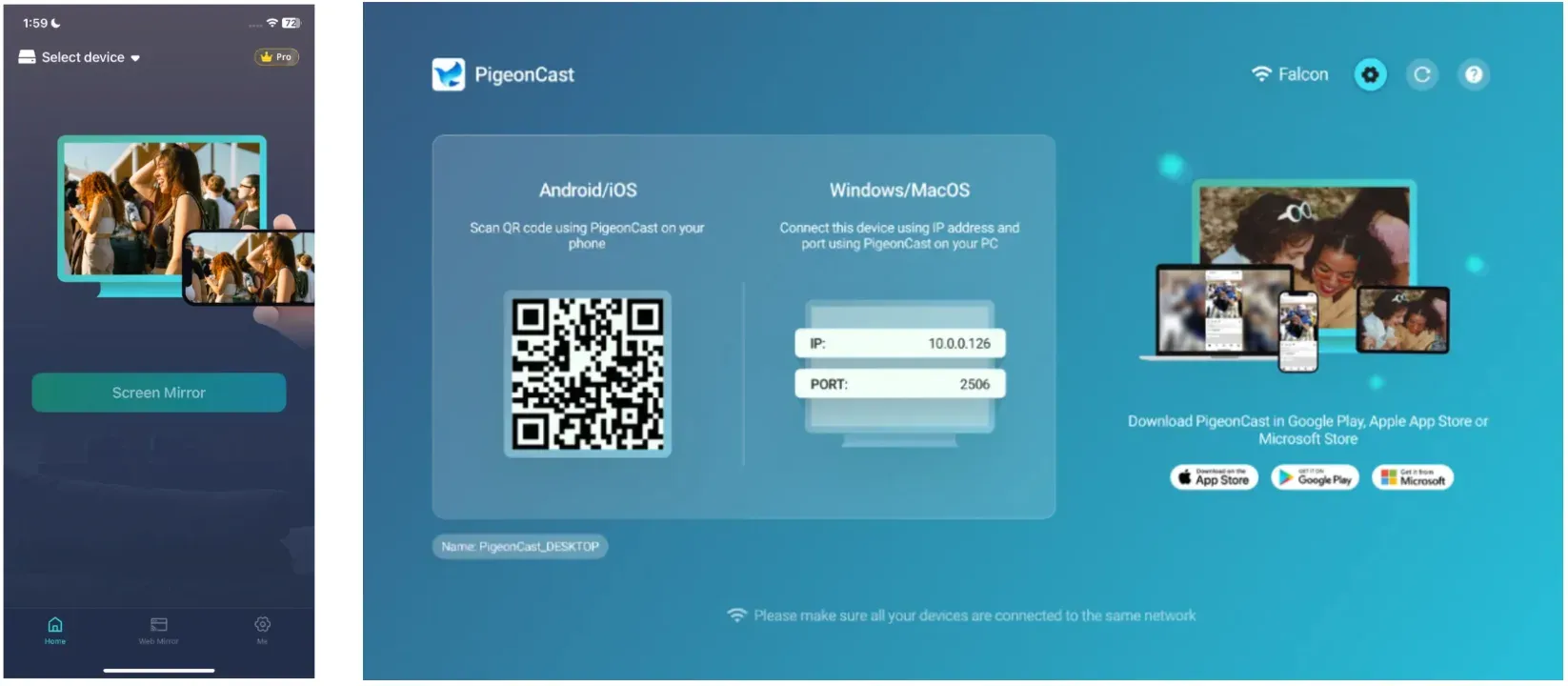
That is why it is such a strong Apple TV alternative for screen mirroring. You already have the content open on your iPhone, Mac, Windows PC, or Android device, and you want the TV to display it.
- Best when you want to share screens, photos, videos, slides, or demos
- Better for mixed-device homes, classrooms, and meeting rooms
- The clearest answer to “Do I need Apple TV to mirror iPhone?” is often no
A built-in TV feature sits in the middle. It can be the easiest option when the TV already supports the app or casting method you need. There is no extra device to buy and no new box to hide. When it works well, it feels effortless.
- Best when your current TV already supports the exact sharing feature you need
- Great for occasional use when everything works out of the box
- Less dependable when different phones, laptops, and TV brands are involved
The limitation is consistency. Some TVs handle iPhone sharing well, some are better with Android, and some only feel smooth with a narrow set of use cases. Built-in features are convenient, but they are not always universal. That is why many people move from “maybe my TV already does this” to “I need one simple tool that works no matter who is sharing.”
Final Words
If I were choosing for my own home, I would not start with Apple TV unless I knew I wanted a full Apple-centered streaming setup and planned to use it every day.
For a lot of people, that is simply more hardware than the situation calls for. If you mostly watch streaming apps, a Roku or Fire TV Stick is usually enough. If your TV already handles casting well, it makes sense to use what is already there. But if your real routine involves sharing an iPhone screen, showing photos, starting a quick presentation, or moving between different devices without turning the room into a troubleshooting session, a screen mirroring app is the more practical choice.
Apple TV Alternative FAQ
What is the best Apple TV alternative for most people?
The best Apple TV alternative for most people is the one that matches the job they need done. If you mainly want streaming apps, Roku or Fire TV Stick can make sense. If you want screen sharing, casting, and mirroring from different devices, PigeonCast is usually the more practical choice.
Do I need Apple TV to mirror iPhone?
No. You do not need Apple TV just to mirror an iPhone. If your TV already supports wireless sharing or if you use a screen mirroring app such as PigeonCast, you can still get your iPhone screen, photos, videos, and apps onto the TV without buying Apple's box.
Is there a free Apple TV alternative?
Yes. A smart TV with built-in casting support can be a free Apple TV alternative if it already handles the sharing feature you need. Screen mirroring apps can also be a low-cost or free starting point, depending on the device and the version you use.
What is the best Apple TV alternative for iPhone users?
For iPhone users, the best alternative is often the simplest way to get the phone onto the TV. If you do not want to buy Apple TV, PigeonCast is a strong choice because it keeps the focus on mirroring and casting instead of requiring another streaming device.
Is Chromecast a better Apple TV 4K alternative than Roku?
It depends on your setup. Chromecast is usually a better Apple TV 4K alternative for Android and Google-heavy homes, while Roku is often the easier choice for people who mainly care about streaming apps and a clean TV menu. Neither is automatically better for screen mirroring than a dedicated mirroring app.
Can I use screen mirroring instead of Apple TV for presentations?
Yes. For many meetings, screen mirroring is the more sensible choice because it lets you show slides, browser tabs, images, and demos without buying a separate Apple box. This is especially useful if presenters may use iPhone, Mac, Windows, or Android instead of one Apple-only device mix.
Is a smart TV enough instead of Apple TV?
Sometimes, yes. If your smart TV already runs the streaming apps you watch and supports the sharing feature you need, it may be enough on its own. Apple TV becomes less necessary when the TV already covers everyday entertainment and a mirroring app handles the screen-sharing side.
Mia Clarke is a technology editor specializing in screen mirroring and casting solutions across multiple platforms. Mia provides clear, practical guides and in-depth insights to help users seamlessly connect their devices. Passionate about enhancing digital experiences, Mia is dedicated to keeping readers updated on the latest trends and tools in cross-platform screen sharing. Whether you’re looking to mirror your smartphone, laptop, or smart TV, Mia’s content delivers reliable, user-friendly advice to simplify your tech setup.