

Casting Dropbox photos, videos, or work files to a TV is useful for sharing family media, reviewing documents, or watching content on a larger screen. This Dropbox Chromecast guide covers the best methods for iPhone, Android, Windows PC, and Mac, including browser casting, screen mirroring, desktop casting, and practical fixes when the Dropbox app does not offer a reliable Cast option.
Can You Cast Dropbox to Chromecast
Yes, but the available method depends on your device and the file you want to watch. Dropbox does not always show a built-in Cast button, so you may need to use Chrome, screen mirroring, or desktop casting instead. Before choosing a method, check whether Chromecast can detect your device and whether the Dropbox file plays normally.
Check Your Network and Chromecast
Start with the connection between Chromecast and your sending device. If Chromecast cannot discover your phone, tablet, or computer, Dropbox will not be able to send content to the TV. Check the following:
- Chromecast or Google TV is connected to the TV and powered on.
- Your sending device and Chromecast are connected to the same Wi-Fi network.
- You are not using a guest network that isolates connected devices.
- Any VPN or proxy is turned off during the initial connection.
- Chromecast and the sending device have a stable connection to the router.
If Chromecast does not appear, restart Chromecast, the router, and the sending device before trying again. A shared Wi-Fi network only allows the devices to find each other. It does not guarantee that every Dropbox file can be played, so check the file before choosing a casting method.
Check the Dropbox File
Open the file in Dropbox and confirm that it plays or previews correctly on your sending device. If Dropbox cannot open the file locally, casting it to Chromecast will usually fail as well. Playback may be affected by:
- An unsupported video format
- Limited viewing or sharing permissions
- The file owner's Dropbox plan
- Slow internet speed
- The video's original resolution
Once Chromecast appears on the network and the file plays normally in Dropbox, you can choose the method that best fits your device and casting needs.
Which Method Should You Use
The best way to cast Dropbox depends on where you open your files and whether you want to send one browser tab or mirror your entire screen. Chrome is a practical choice for Dropbox on a computer, while a universal screen mirroring app can help when the Dropbox app does not show a Cast button. For the most stable connection, especially when wireless casting is unreliable, an HDMI cable is a simple fallback.
| Method | Best for | Main limitation |
|---|---|---|
| Chrome casting | Casting Dropbox from a browser | Mainly casts a browser tab or desktop |
| Universal screen mirroring app | Mirroring Dropbox from an iPhone, Android phone, Windows PC, or Mac | Requires installing an app on the sending and receiving devices |
| HDMI connection | A stable fallback when wireless casting fails | Requires a cable and does not use Chromecast |
The following methods explain how to cast Dropbox from a browser, mirror it from a phone or computer with a universal screen mirroring app, and use HDMI when you need a wired connection.
Method 1. Cast Dropbox from Chrome Browser
If you use Dropbox on a Windows PC, Mac, or Chromebook, Chrome can send the Dropbox webpage to Chromecast without requiring a Cast button inside Dropbox. This method is useful for viewing a video, photo folder, or document in a browser, but it mirrors the browser content rather than sending the file directly from Dropbox to the TV.
Step 1. Connect your computer and Chromecast or Google TV to the same Wi-Fi network.
Step 2. Open Google Chrome and go to Dropbox. Sign in to your account, then open the photo, video, or document you want to display.
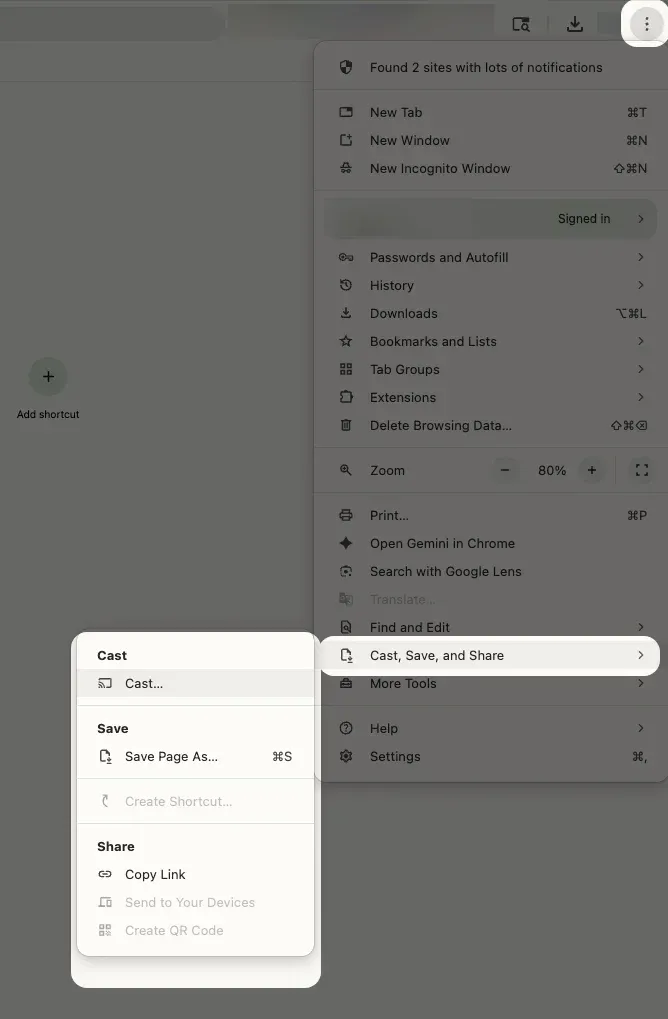
Step 3. Click the three-dot menu in the upper-right corner of Chrome and select Cast, save, and share > Cast.
Step 4. Select your Chromecast or Google TV from the device list. To cast only the Dropbox page, keep Cast tab selected. To show everything on your computer, open Sources and choose Cast screen.
Step 5. Return to Dropbox and open or play the file. The selected browser tab or desktop screen should now appear on your TV.
Chrome casting works best for browser-based content. If the video shows a black screen, the page does not respond properly, or you need to mirror Dropbox from a phone, try a universal screen mirroring app instead.
Method 2. Use PigeonCast, a Universal Screen Mirroring App
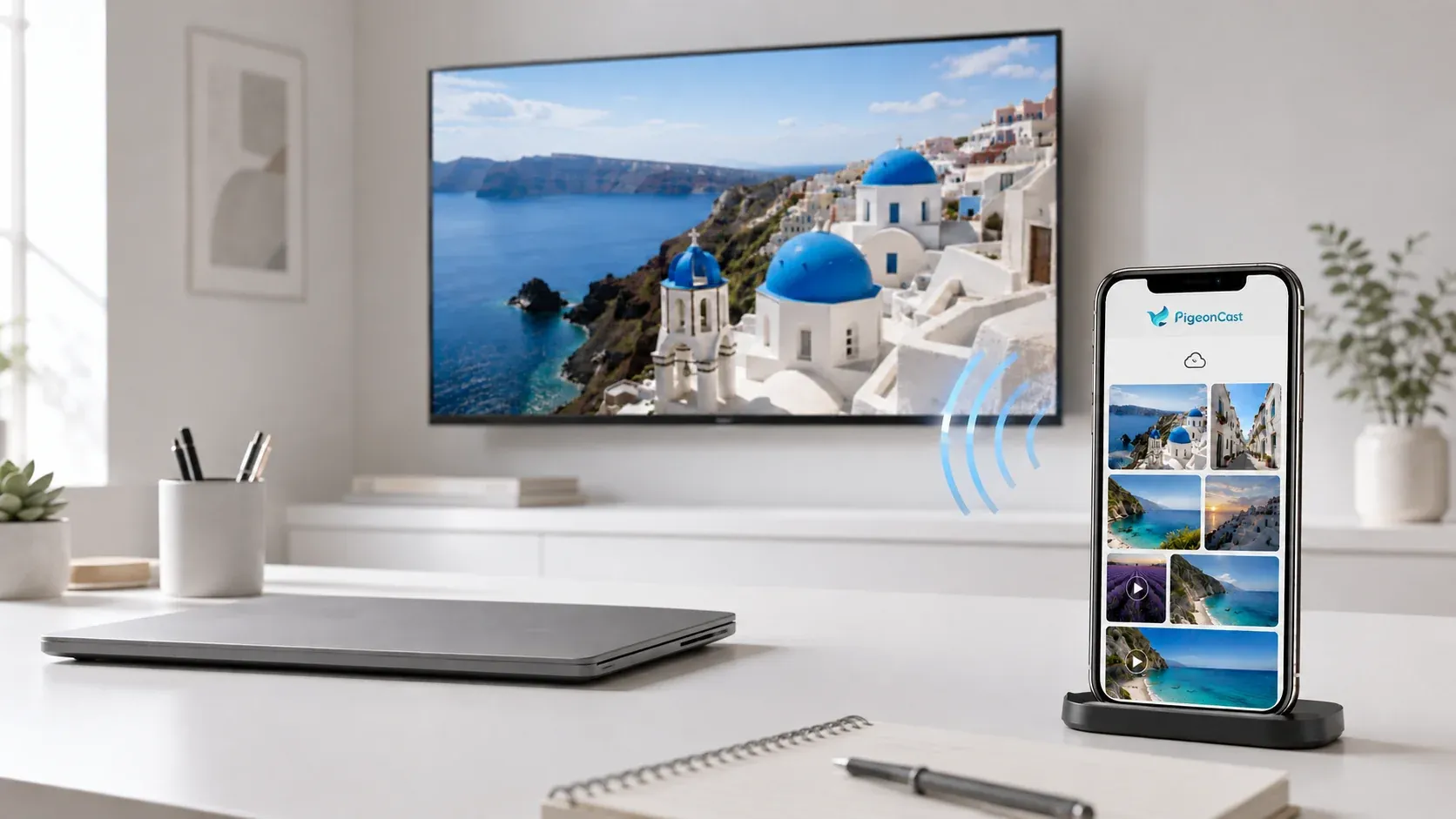
When Dropbox does not show a Cast button, you can mirror the screen instead of relying on Dropbox’s built-in casting support. PigeonCast is a universal screen mirroring app for iPhone, Android, Windows, and Mac. It supports screen mirroring through compatible protocols, including Google Cast, and can display your Dropbox app, browser, or desktop on a larger screen.
Mirror Dropbox from a Phone
This option is useful when the Dropbox mobile app opens the file correctly but does not provide a direct way to send it to Chromecast.
Step 1. Connect your iPhone or Android phone and your Chromecast or Google TV to the same Wi-Fi network.


Overall Rating:



Step 2. Download and open PigeonCast on your phone. Prepare the receiving TV or streaming device according to the available setup.
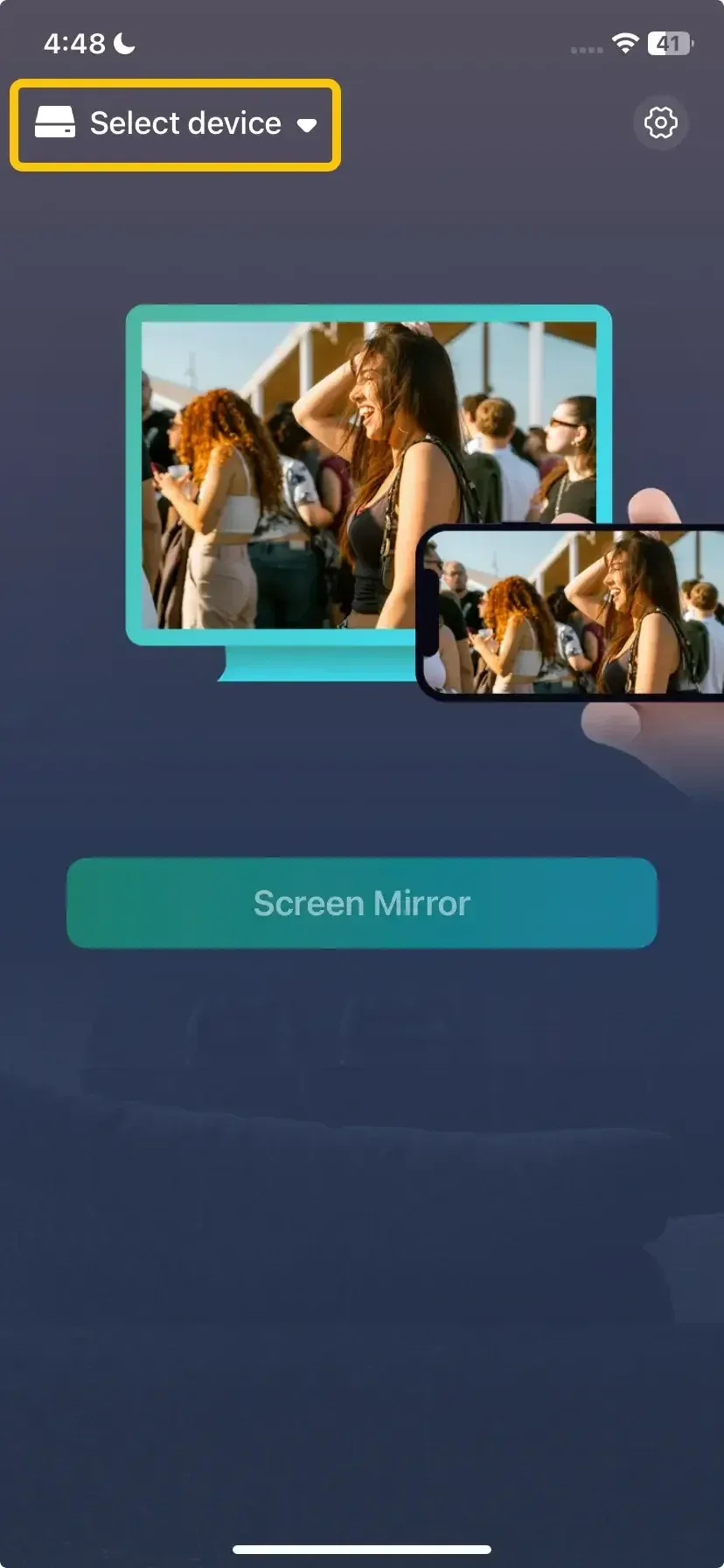
Step 3. Select your Chromecast, Google TV, or other compatible receiving screen from the device list.
Step 4. Start screen mirroring and allow any permissions requested by your phone.
Step 5. Open Dropbox on your phone, then select the photo, video, or document you want to display.
Mirror Dropbox from a Windows PC or Mac
Use this option when you want to display the Dropbox website, a desktop folder, or a specific application window on the TV.
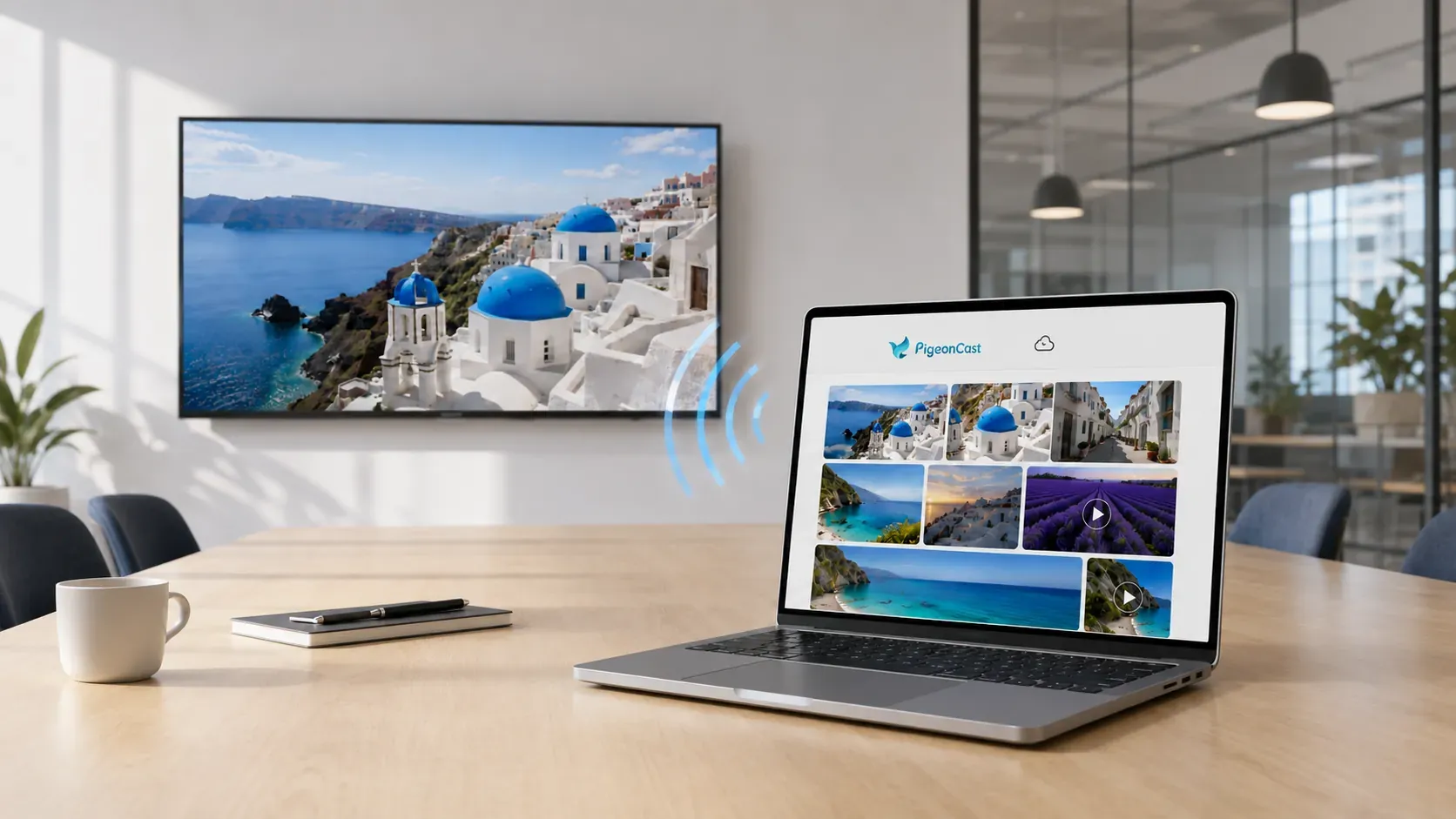
Step 1. Connect your Windows PC or Mac and your Chromecast or Google TV to the same Wi-Fi network.
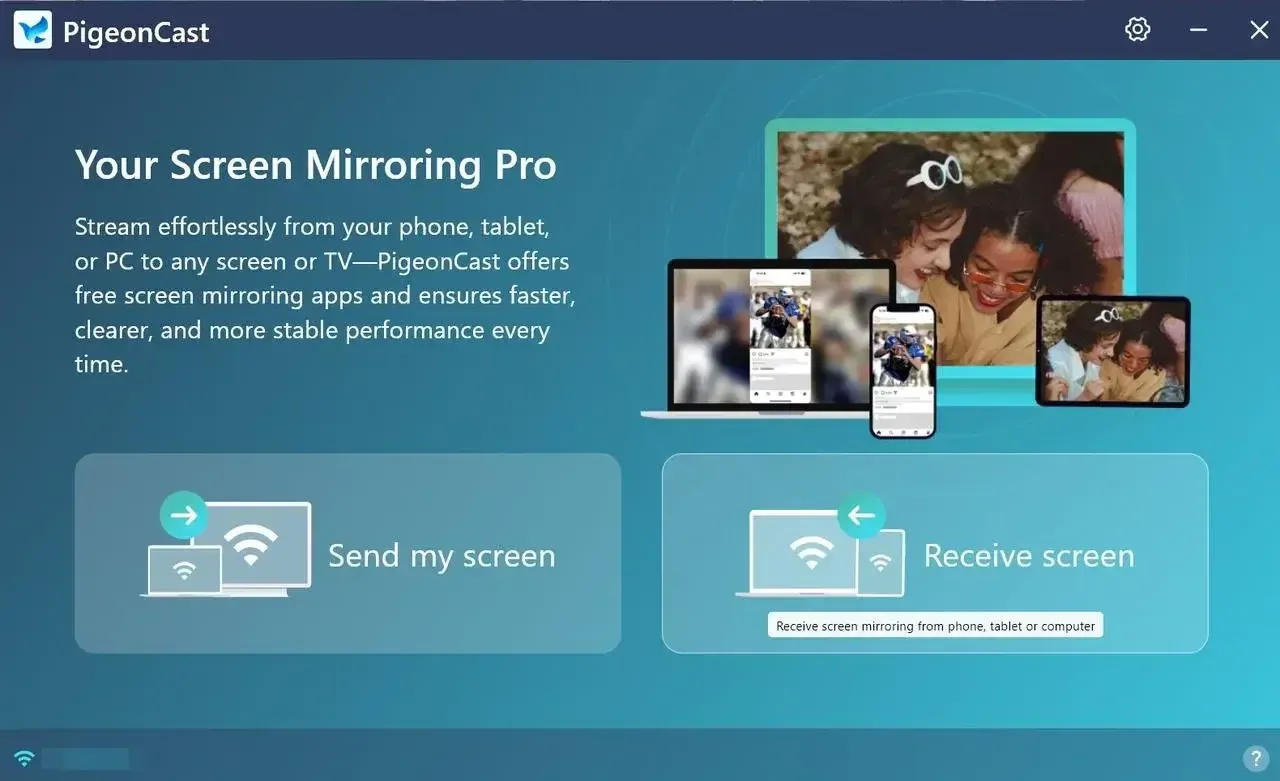
Step 2. Download and open PigeonCast on the computer, then prepare the receiving device.
Overall Rating:

Step 3. Choose your Chromecast, Google TV, or other compatible receiving screen.
Step 4. Select whether to mirror the entire desktop or a specific Dropbox browser window.
Step 5. Open Dropbox and play the video or display the file you want to share.
Method 3. Use an HDMI Cable
Wireless casting is convenient, but it can be affected by Wi-Fi congestion, device discovery problems, or playback limitations. If Chromecast does not connect reliably, an HDMI cable provides a direct connection between your computer and TV.
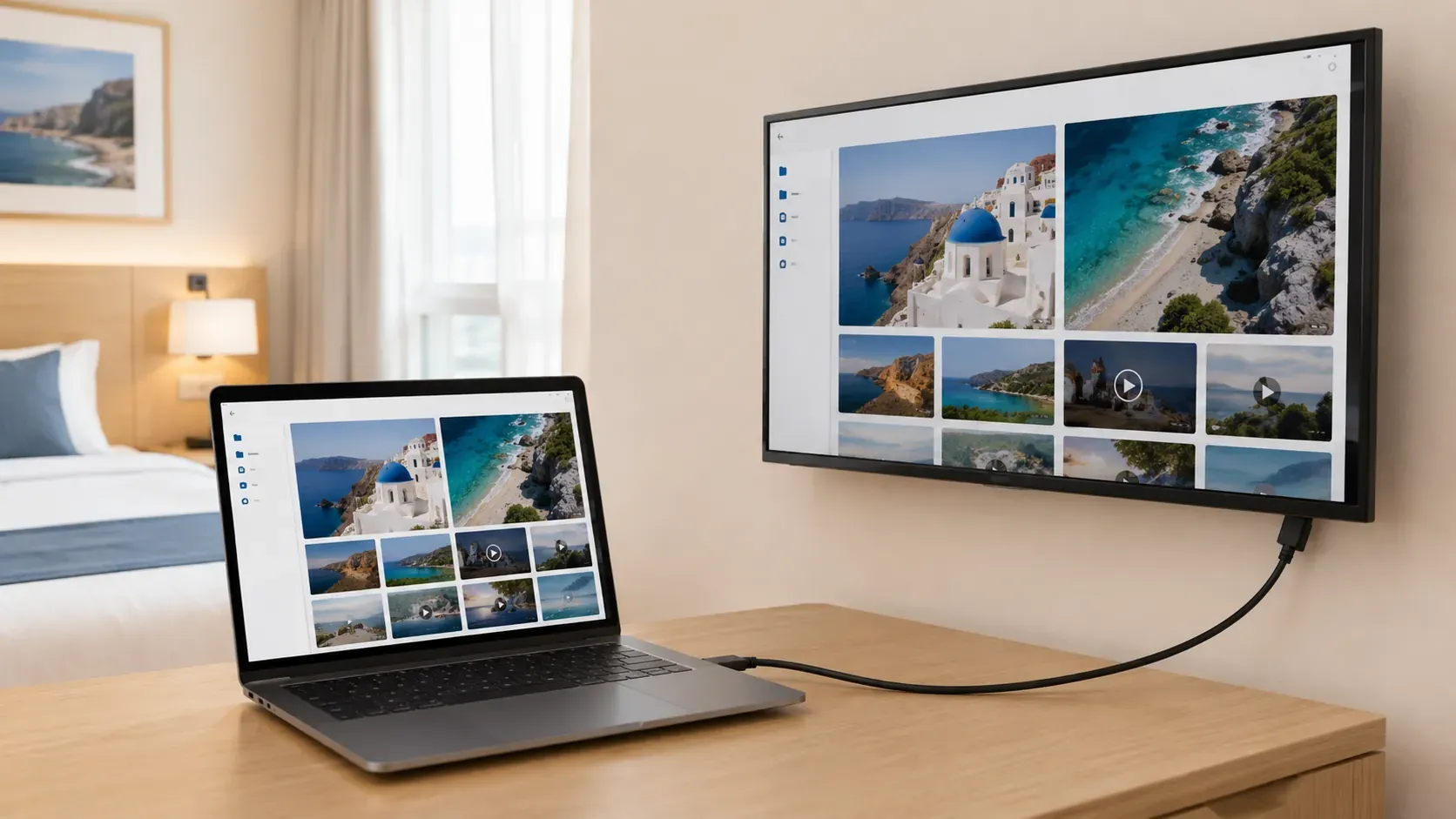
Step 1. Connect one end of an HDMI cable to your Windows PC or Mac. If your computer only has USB-C or Thunderbolt ports, use a compatible adapter that supports video output.
Step 2. Connect the other end of the cable to an HDMI input on your TV.
Step 3. Turn on the TV and select the HDMI input that matches the port you used.
Step 4. Open Dropbox on your computer and sign in to your account.
Step 5. Open the photo, video, or document you want to display. Your computer screen should now appear on the TV.
Dropbox Chromecast Not Working? Try These Fixes
If you have followed one of the methods above but Dropbox still does not appear correctly on your TV, the problem may not be the casting method itself. Chromecast discovery, file playback, and network quality can each cause a different symptom, so match the fix to what you see on the screen.
Chromecast Does Not Appear
When Chromecast is missing from the device list, start with the network connection. Your phone or computer and Chromecast must be connected to the same Wi-Fi network. Also check that:
- Chromecast or Google TV is powered on and connected to the TV.
- Your sending device is not using mobile data or a guest network.
- Any VPN or proxy is temporarily turned off.
- The router is not isolating connected devices.
- The casting app, browser, and Chromecast firmware are up to date.
If Chromecast still does not appear, restart the sending device, Chromecast, and router, then try the connection again.
Dropbox Video Shows a Black Screen
A black screen usually means the file is not being rendered correctly through the selected casting method. First, open the video directly in Dropbox to confirm that it plays on the sending device. If it does, try these alternatives:
- Cast the Dropbox webpage from Chrome instead of using an in-app player.
- Use a universal screen mirroring app to mirror the device screen.
- Check whether the video format can be previewed by Dropbox.
- Confirm that you have permission to view the entire file.
- Use HDMI from a computer if wireless playback continues to fail.
The Video Lags or Looks Blurry
Casting quality depends on the Wi-Fi connection, the original video resolution, and the way the content is being sent to Chromecast. To reduce lag or improve image quality:
- Move the sending device and Chromecast closer to the router.
- Reduce other high-bandwidth activity on the network.
- Use the same Wi-Fi band for both devices when possible.
- Close unused apps and browser tabs.
- Try direct browser casting or a wired HDMI connection.
If only one Dropbox video looks blurry while other files play normally, check the original file resolution before changing the casting setup.
Conclusion
There is no single casting method that works equally well for every Dropbox setup. Start with Chrome if you are using Dropbox on a computer, switch to a universal screen mirroring app when the Cast option is unavailable, and use HDMI when you need a direct connection. If a method fails, check the network and file playback first before changing the entire setup.
Dropbox Chromecast FAQ
How Do I Cast from Dropbox?
To cast from Dropbox, open the file in the Dropbox app or on Dropbox.com, then use a supported casting method. From a Windows PC, Mac, or Chromebook, you can cast the Dropbox tab through Chrome. If Dropbox does not show a Cast button on your phone, use a universal screen mirroring app to display the Dropbox app on Chromecast or Google TV. For a more stable wired connection, open Dropbox on a computer and connect it to the TV with an HDMI cable.
Why Can't I Cast to Chromecast?
Common reasons include:
- Dropbox does not provide a Cast button for the app or file.
- Your phone or computer and Chromecast are connected to different Wi-Fi networks.
- A guest network, VPN, proxy, or router setting is blocking device discovery.
- The Dropbox file format is not supported for casting.
- You do not have full permission to view or play the file.
- The browser or casting app cannot render the Dropbox content correctly.
- The Wi-Fi connection is too weak or unstable for screen mirroring.
Does Google Have a Dropbox Feature?
Google does not have a built-in Dropbox feature, but Google Drive provides a similar cloud storage service. You can upload and organize photos, videos, and other files in Google Drive, then access or share them from different devices. If you want to cast Google Drive content to a TV, use a supported Google Cast app, Chrome, or a screen mirroring method.
Does Casting Dropbox Use Chromecast Storage?
No. Casting does not permanently save the Dropbox file on Chromecast. The content remains in Dropbox, while Chromecast receives the browser tab or mirrored screen during the active session. When you stop casting, the TV no longer displays the file.
Why Does My Dropbox Video Stop When I Switch Apps?
This usually happens when you are using screen mirroring. The TV is showing what is currently active on your phone, so switching apps can interrupt or replace the Dropbox playback. To keep the video running while using the sending device for other tasks, try desktop Chrome casting or a direct Cast option when one is available.
Can I Cast Dropbox Videos in 4K?
You can cast a Dropbox video in 4K only when the original file, Dropbox preview settings, casting method, Chromecast or Google TV, and network connection all support that resolution. Casting does not upgrade a lower-resolution video, and screen mirroring may reduce clarity compared with direct playback. If 4K quality is important, use a compatible computer and a stable Wi-Fi connection.
Clara Rossi is an experienced technology editor and a seasoned expert in screen mirroring and casting technologies. With a keen eye for detail and a deep understanding of how to seamlessly connect devices, Clara excels at optimizing user experiences for effortless sharing and streaming. Whether you're seeking quick fixes or advanced tips, her expertise and responsiveness ensure that every query is met with a well-informed and efficient solution.