
Screen mirroring from an iPhone should feel almost instant: tap Screen Mirroring, choose a TV or Mac, and your screen appears on the larger display.
When it does not work smoothly, though, the problem can show up in several ways. The picture may look soft, animations may lag behind your finger, video may stutter, audio may fall out of sync, or the connection may become unstable after a few minutes.
The important thing to know is that screen mirroring quality does not depend on the iPhone alone. Your Wi-Fi connection, network traffic, receiving device, display processing, and the type of content you are sharing can all affect the experience.
If you wonder how to improve screen mirroring quality on iPhone, start with the basic connection first. Make sure both devices are on the same reliable Wi-Fi network, reduce wireless interference, and check whether the TV or receiver is struggling to keep up. If those quick fixes do not solve the problem, you can then narrow down whether the bottleneck is the network, the receiver, or the mirroring method itself.
What Affects iPhone Screen Mirroring Quality?
Screen mirroring works by continuously sending what is happening on your iPhone display to another device. Unlike sending a single photo or playing a locally stored file, the connection has to keep updating the receiving screen as you scroll, open apps, rotate the phone, or play video.
That means several parts of the setup need to work well at the same time.
Why Does iPhone Screen Mirroring Get Laggy or Blurry?
The most common causes of poor mirroring quality include:
- a weak or unstable Wi-Fi connection
- the iPhone and receiving device being on different local networks
- heavy network traffic from downloads, backups, cameras, or other streaming devices
- too much distance between the router, iPhone, and receiver
- wireless interference from nearby networks or devices
- an older or overloaded TV, streaming device, or Mac
- extra picture processing on the TV
- mirroring the entire iPhone screen when direct video playback would be more efficient
Some of these problems look very similar from the user's point of view.
For example, a weak Wi-Fi connection and an overloaded TV can both make scrolling look choppy. Audio processing on a soundbar can make it seem as if AirPlay itself is delayed. A busy home network can also cause a setup that worked perfectly yesterday to suddenly feel unstable today.
For that reason, it is more useful to diagnose the setup step by step than to assume the iPhone itself is causing the problem.
How to Tell Whether the Problem Is Your iPhone, Network, or TV
The symptoms can give you a useful starting point.
If the receiving device sometimes appears in the Screen Mirroring list and sometimes disappears, check the network first. Discovery problems usually point to the connection between the devices rather than image quality settings.
If the connection is easy to establish but the mirrored screen constantly freezes or stutters, look at Wi-Fi quality, network congestion, and the performance of the receiving device.
If the picture looks fine but the audio is noticeably late, test the TV speakers before changing the mirroring setup. A soundbar, Bluetooth speaker, or TV audio processing mode may be adding the delay.
If one TV performs badly but another AirPlay receiver works smoothly with the same iPhone and Wi-Fi network, the first receiver is probably the bottleneck.
This kind of comparison is much more useful than repeatedly reconnecting the iPhone without knowing which part of the setup is failing.
5 Quick Ways to Improve Screen Mirroring Quality on iPhone
Before changing advanced settings, work through these five fixes. They address the most common causes of blurry, laggy, or unstable iPhone screen mirroring.
1. Make Sure Both Devices Are on the Same Wi-Fi Network
Start by confirming that your iPhone and receiving device are connected to the same local Wi-Fi network.
This sounds basic, but modern home networks can make it surprisingly easy to get this wrong. You may have:
- a main Wi-Fi network and a guest network
- separate router and mesh network names
- a phone connected to a personal hotspot
- multiple access points configured differently
- network isolation enabled for guest devices
Two devices can both have internet access without necessarily being able to communicate properly with each other.
Open the Wi-Fi settings on your iPhone and check the network name. Then verify the network used by your Apple TV, smart TV, Mac, or other receiver.
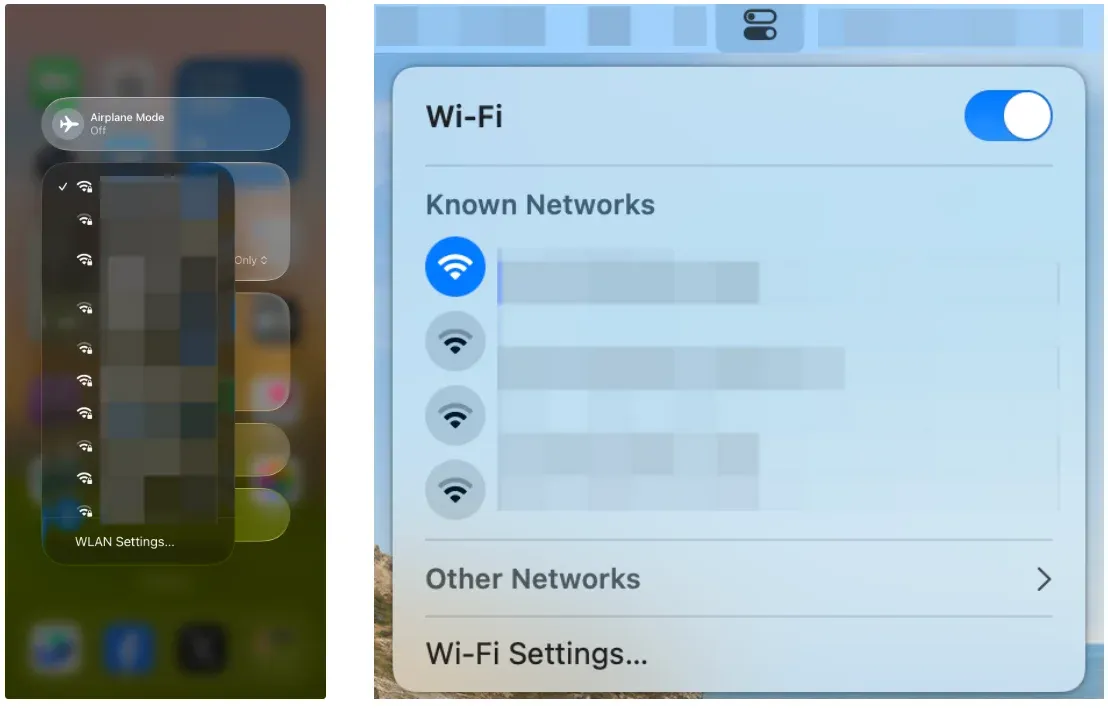
If the receiver frequently disappears from the AirPlay or Screen Mirroring list, this should be one of the first things you check.
2. Use 5 GHz or the Cleanest Wi-Fi Band Available
If your router provides both 2.4 GHz and 5 GHz Wi-Fi, a stable 5 GHz connection can often provide a smoother experience for screen mirroring at normal household distances.
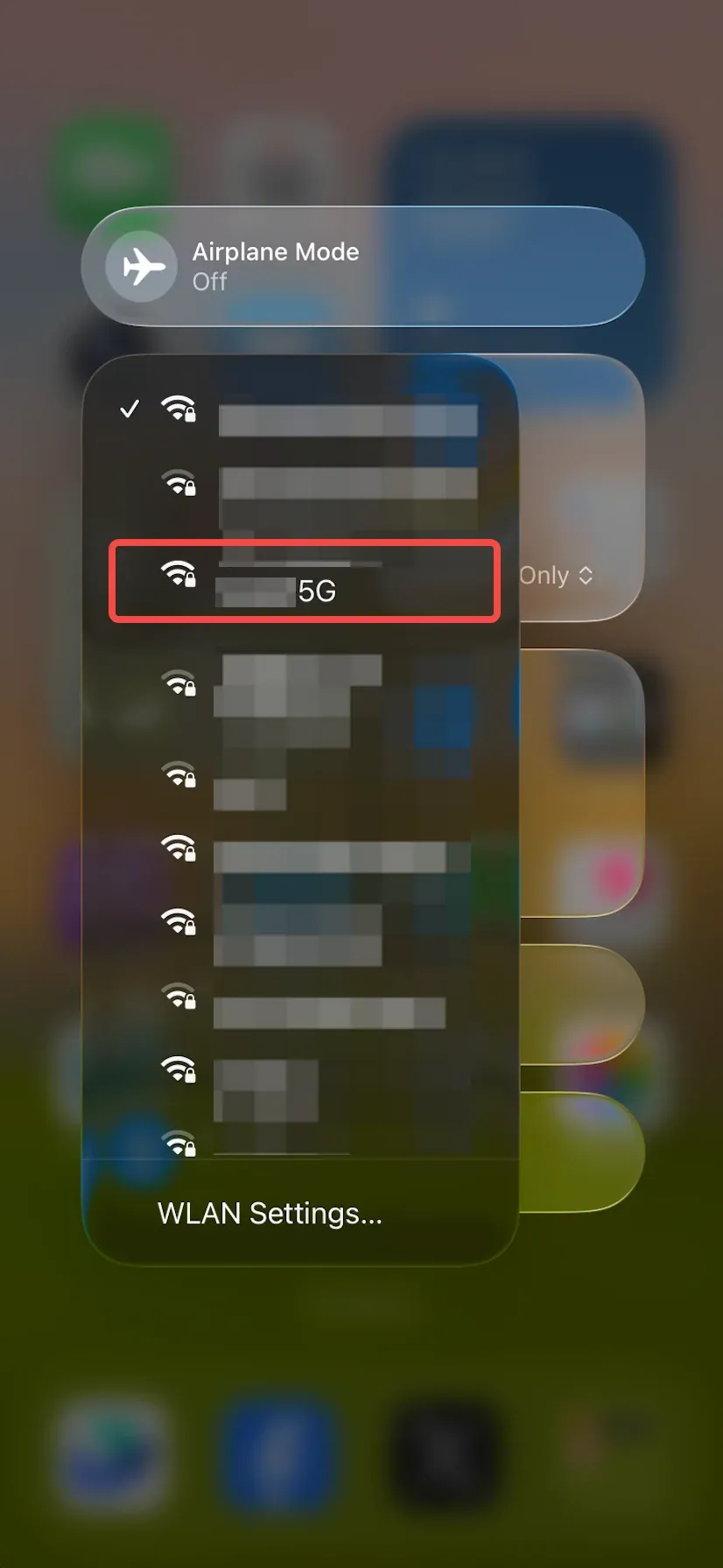
The 5 GHz band generally offers more usable bandwidth and is often less crowded than 2.4 GHz. That can help reduce stuttering, delayed screen updates, temporary quality drops, and inconsistent responsiveness.
However, 5 GHz is not automatically better in every room.
Its signal usually weakens faster through walls and over longer distances. If your TV is several rooms away from the router, a weak 5 GHz connection may perform worse than a strong 2.4 GHz signal.
So do not choose a Wi-Fi band based on the name alone. What matters is having a strong, stable connection between the iPhone, router, and receiving device.
If your router uses a single network name for multiple bands, you may not need to select one manually. In that case, focus on signal strength and placement instead.
3. Reduce Distance and Wireless Interference
A screen mirroring session can remain connected even when the wireless signal is not good enough to provide smooth performance.
If possible, test the iPhone closer to the router or receiving device. You do not need to rearrange your room permanently. The goal is simply to see whether reducing the distance produces an immediate improvement.
If it does, signal quality is probably contributing to the problem.
You should also pay attention to the wireless environment around the devices. Congested apartment Wi-Fi, multiple nearby routers, and large numbers of connected wireless devices can all affect real-time streaming.
For troubleshooting, keep the test simple:
- move the iPhone closer to the router or receiver
- avoid testing from another room behind several walls
- temporarily disconnect wireless devices you do not need
- avoid public or heavily shared Wi-Fi networks
- compare performance from different positions in the room
Even moving one device a short distance can make a noticeable difference if its original position has poor reception.
4. Reduce Background Network Traffic
Screen mirroring competes with everything else using your network.
A fast internet plan does not necessarily mean your local wireless network has unlimited capacity. Large amounts of traffic can still create congestion between devices in your home.
Common sources of background traffic include, cloud photo or file backups, game downloads, operating system updates, another TV streaming 4K video, security cameras uploading footage, computers syncing large folders, and several people using the same Wi-Fi network at once.
If mirroring quality becomes worse at certain times of day, network load may be the reason.
As a quick test, pause large downloads and other high-bandwidth activity for a few minutes, then try screen mirroring again.
If performance improves, you have identified a network capacity problem rather than an iPhone-specific issue.
5. Use Direct Video Playback Instead of Full-Screen Mirroring When Possible
Not every large-screen task requires full-screen mirroring.
If you only want to watch a movie, online video, or other supported media on a TV, sending the video directly to an AirPlay-compatible receiver can be more efficient than duplicating the entire iPhone screen.
Full-screen mirroring has to keep updating everything that appears on your phone, including interface animations, notifications, scrolling, orientation changes, app transitions, and video playback. Direct video playback can use a more streamlined path because the receiver is mainly dealing with the media stream instead of reproducing the complete iPhone interface in real time. Screen mirroring and casting are two differnt processes.
This is especially useful when you notice a pattern such as:
Video plays smoothly when sent directly, but becomes choppy when you mirror the entire screen.
In that situation, there may be nothing wrong with the video itself. Full-screen mirroring is simply placing more demand on the connection and receiver.
If your main goal is watching videos rather than demonstrating the iPhone interface, direct playback is usually the better option.
Still Lagging? Try These Advanced Troubleshooting Steps
If the five quick fixes above do not solve the problem, move on to deeper troubleshooting.
At this stage, the goal is not simply to "try more fixes". You want to isolate which part of the mirroring chain is creating the delay.
Reconnect the AirPlay or Screen Mirroring Session
Start with the least disruptive option.
Disconnect the current Screen Mirroring or AirPlay session completely. Wait a few seconds, then reconnect from Control Center.
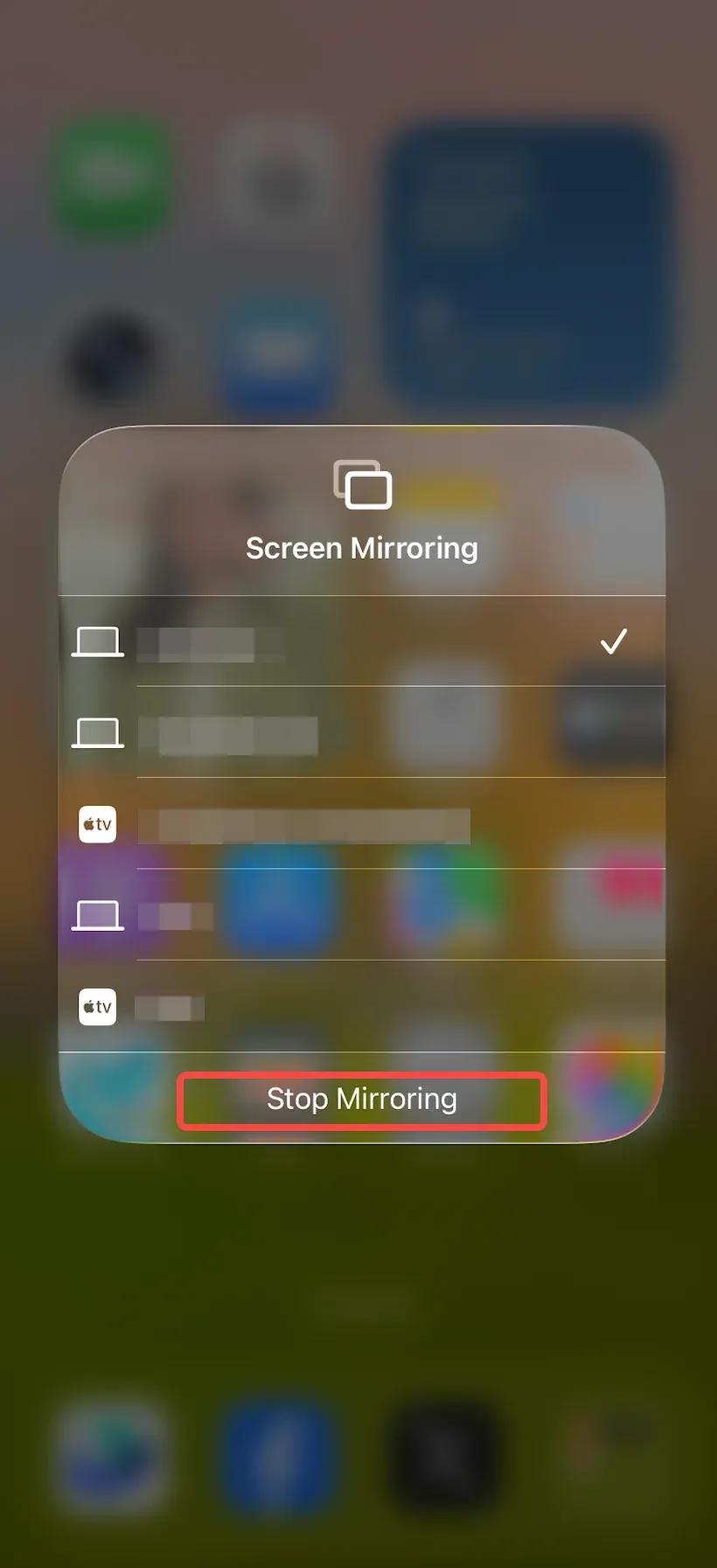
A fresh connection can clear temporary discovery or communication problems that developed during the previous session.
After reconnecting, test the same activity that was causing trouble. For example, scroll quickly through a page, play the same short video, or open the same presentation.
Keeping the test consistent makes it easier to tell whether the change actually helped.
If the receiving device does not appear at all after disconnecting, return to the network checks before moving further down the list.
Update Your iPhone and Receiving Device
Software compatibility can affect connection stability.
Check whether updates are available for the devices involved in the mirroring session, including your iPhone, Apple TV, smart TV system software, Mac, streaming receiver, and AirPlay receiver application if you use one.
An outdated receiver can sometimes connect successfully but behave poorly once the stream begins. You may see intermittent freezing, reconnection problems, or inconsistent playback.
Updates are not a guaranteed way to improve picture sharpness, but they can resolve compatibility and stability issues that make the overall mirroring experience feel poor.
After updating, reconnect the devices and test again before changing several other settings at once.
Reduce the Load on the Receiving Device
The iPhone can send a perfectly usable stream while the device on the other end struggles to display it smoothly.
This can happen with older smart TVs, entry-level streaming hardware, Macs running several demanding applications, TVs performing heavy image processing, or receiver apps competing for limited system resources.
If you are mirroring to a Mac, close applications that are consuming significant CPU or memory.
If you are mirroring to a TV or streaming device, close other running apps where possible and stop any background media playback.
On a TV, also check whether a low-latency or Game Mode is available. Despite the name, Game Mode can be useful for screen mirroring because it typically reduces some of the image processing that would otherwise add extra display delay.
You do not necessarily need to keep that mode enabled for everything. Use it as a test first.
If screen movement suddenly feels much more responsive, TV-side processing was contributing to the delay.
Check Audio Delay Separately
Do not assume that delayed audio means the entire screen mirroring connection is slow.
Audio may travel through an additional chain after the video reaches the TV. For example, iPhone → TV → soundbar or iPhone → TV → Bluetooth speaker.
Each additional processing step can introduce latency.
If the picture looks responsive but speech is noticeably behind the person's mouth, switch temporarily to the TV's built-in speakers.
Then play the same content again.
If the audio comes back into sync, the problem is probably in the external audio path rather than the iPhone mirroring connection.
You can then investigate settings such as soundbar audio delay, AV sync controls, Bluetooth audio, surround processing, and TV sound enhancement modes.
This avoids changing Wi-Fi settings for a problem that is actually happening after the stream reaches the display.
Test With a Different AirPlay Receiver
One of the most useful troubleshooting steps is also one of the simplest: change the receiving device.
If possible, mirror the same iPhone using another AirPlay-compatible TV, an Apple TV, another Mac, or another compatible receiver.
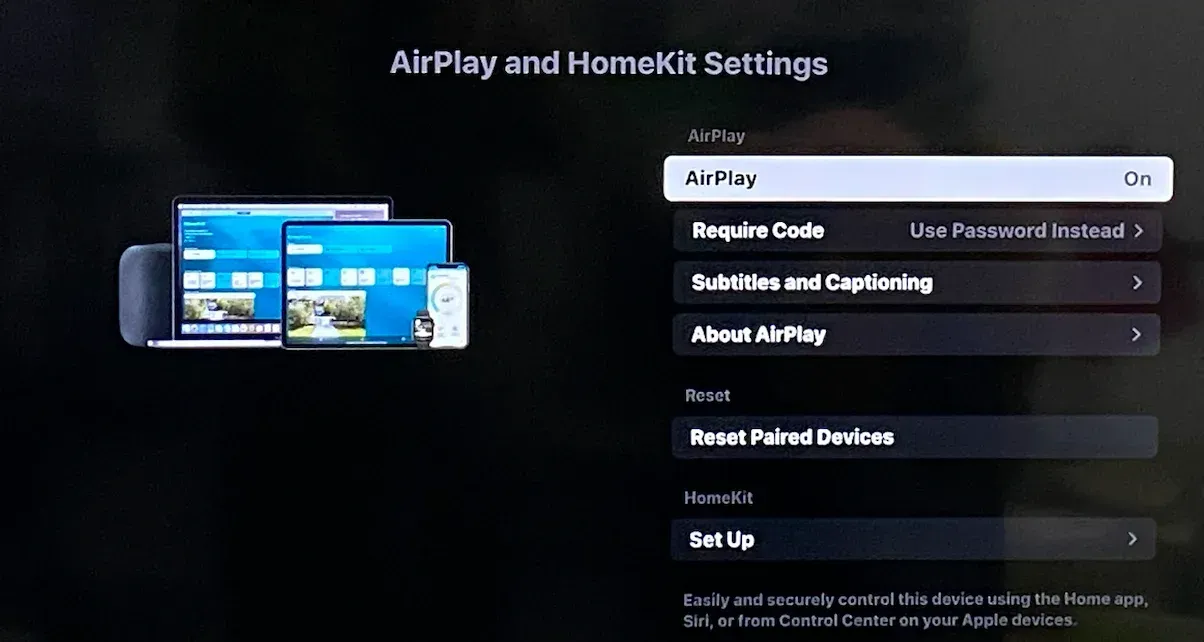
Keep everything else as similar as possible.
If the second receiver works smoothly on the same Wi-Fi network, that strongly suggests the original TV, dongle, or receiver software is the problem. If both receivers show the same lag, look again at the iPhone, router, and network conditions.
Testing a second receiver gives you a much stronger signal than repeatedly restarting the same setup.
What to Do If Your TV or Receiver Is the Bottleneck
Once you have established that the receiving device is causing the problem, continuing to adjust the iPhone is unlikely to help much.
At that point, focus on reducing receiver-side delay or changing the receiving method.
Try a Low-Latency or Game Mode
Modern TVs often process incoming video before showing it on the screen.
Depending on the TV, that processing may include motion smoothing, noise reduction, dynamic contrast, sharpening, frame interpolation, and cinematic image processing.
These features can make normal TV or movie content look different, but they can also introduce extra delay.
That delay becomes much easier to notice when you are mirroring a phone because you expect the TV to react immediately when you swipe or tap.
Look through the TV's picture settings for options such as Game Mode, Low Latency Mode, PC Mode, and reduced image processing. Turn one on temporarily and compare responsiveness.
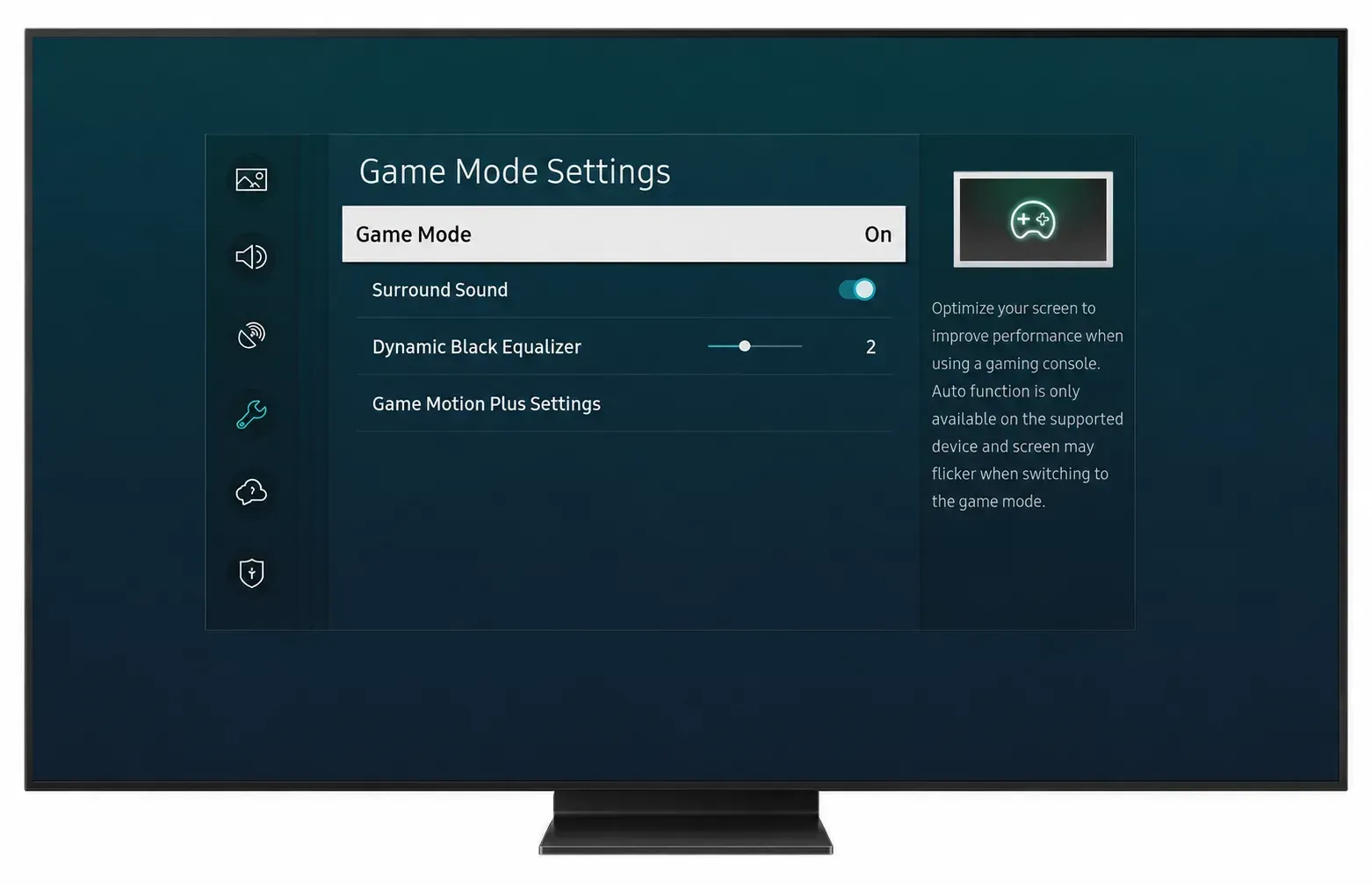
If mirroring feels noticeably faster, you can decide whether the improvement is worth using that display mode whenever you mirror your iPhone.
Consider a Different Receiver or Mirroring Setup
A device can technically support AirPlay and still provide an inconsistent real-world experience.
This is especially noticeable when a TV:
- takes a long time to appear as an available receiver
- disconnects during longer sessions
- works well for photos but poorly for motion-heavy content
- becomes less responsive after several minutes
- performs much worse than another receiver on the same network
If you have already verified the network and tested the iPhone with another receiver, there is little value in repeatedly adjusting settings on the phone.
A more reliable solution may be to use another receiving device or switch to a mirroring setup that is less dependent on the TV's built-in AirPlay implementation.
When a Dedicated Screen Mirroring App Makes More Sense
AirPlay is usually the easiest place to start because it is built into the iPhone and works well when the receiving device supports it reliably. But the experience can vary from one TV or receiver to another.
If you have already checked the Wi-Fi, reduced network traffic, and confirmed that the iPhone itself is not the problem, a dedicated screen mirroring app can be another option.
PigeonCast is a screen mirroring app for iPhone and other devices that creates a direct mirroring workflow between the sending device and a computer, TV, or streaming device. Instead of relying entirely on the AirPlay implementation built into a particular TV, you can install PigeonCast on both sides and use the same connection process across supported devices.
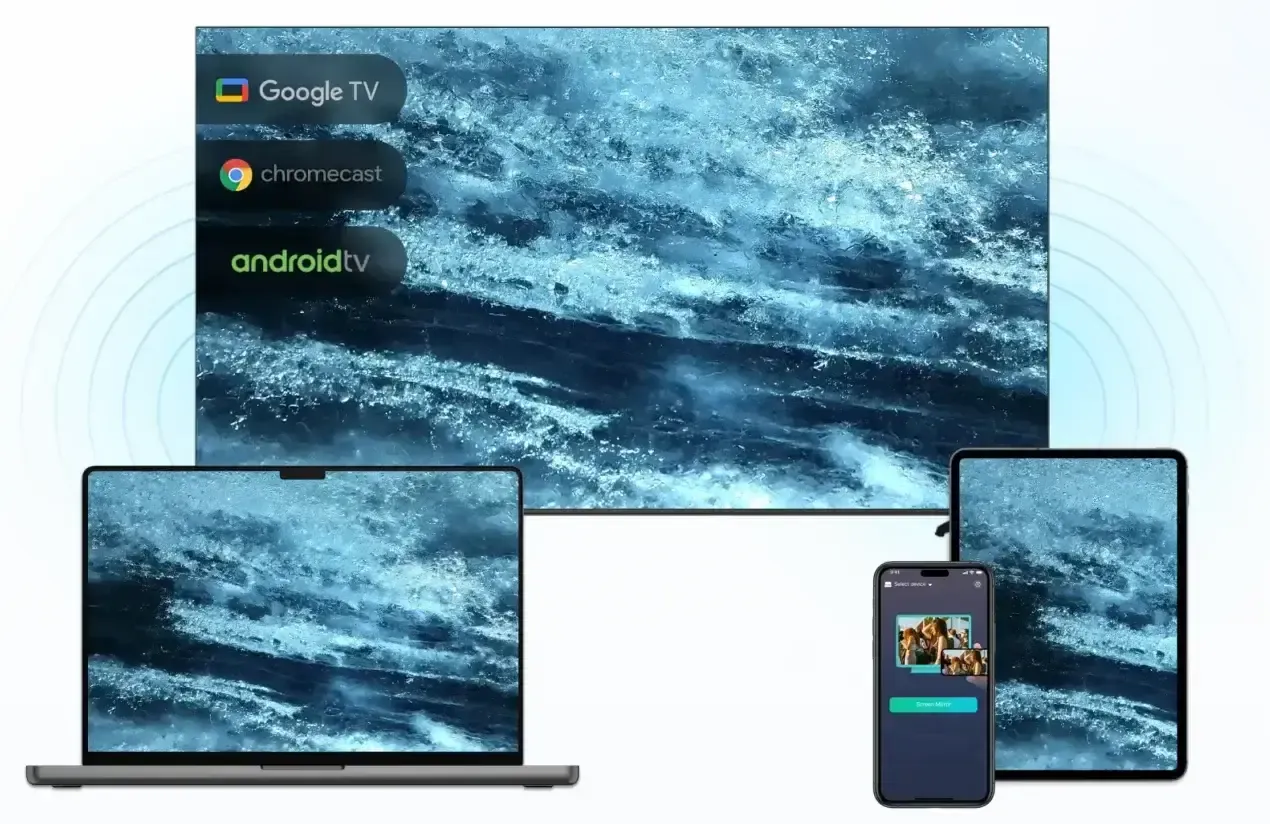
That can be useful when:
- your TV's built-in AirPlay connection is inconsistent
- you regularly mirror between iPhone and different TVs or computers
- you want a more predictable way to discover and connect to receiving devices
- you want more control over mirroring quality before starting a session
For iPhone screen mirroring, PigeonCast supports quality settings up to 2K at 60 FPS. Actual resolution and smoothness still depend on your network conditions and the performance of both devices, so a higher quality setting will not compensate for weak Wi-Fi or an overloaded receiver.
How to set up PigeonCast for iPhone screen mirroring:
Step 1. Install PigeonCast on your iPhone and open it.


Overall Rating:


Step 2. Install and open PigeonCast on the receiving device, such as a supported TV or computer.
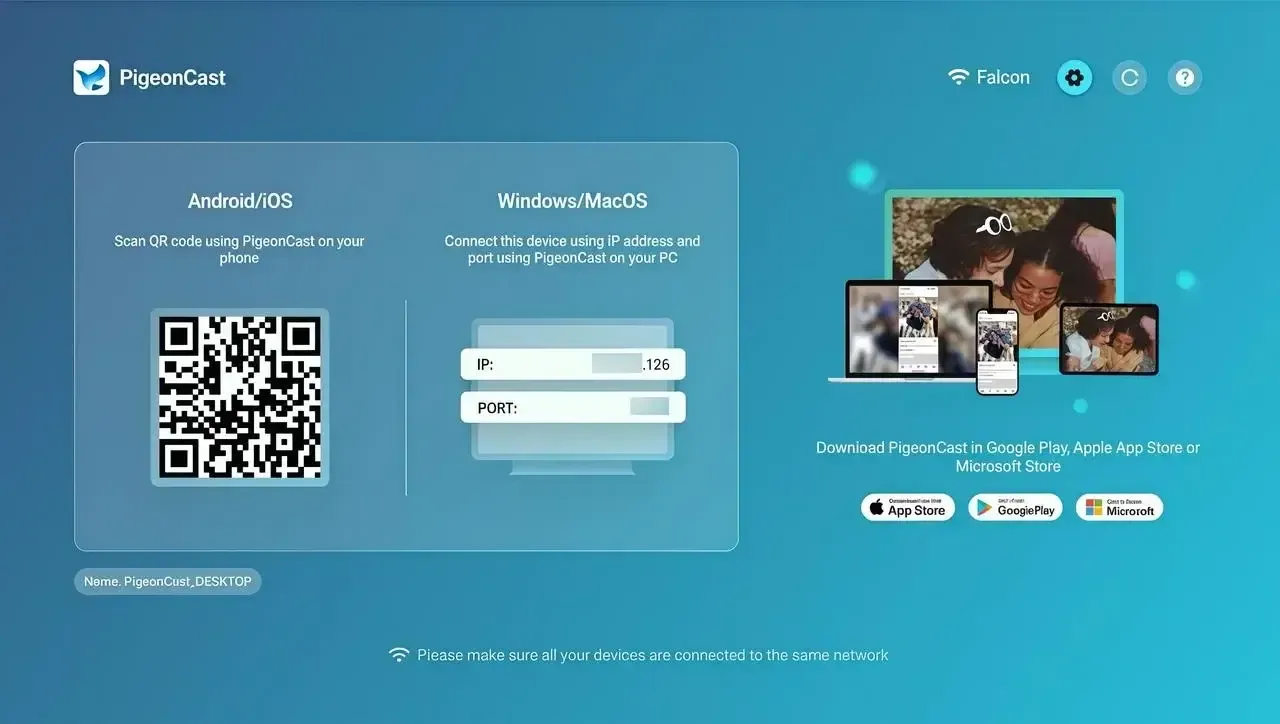
Step 3. Connect both devices to the same Wi-Fi network for a stable local connection.
Step 4. Find the receiver in PigeonCast or scan the QR code shown on the receiving device to connect.
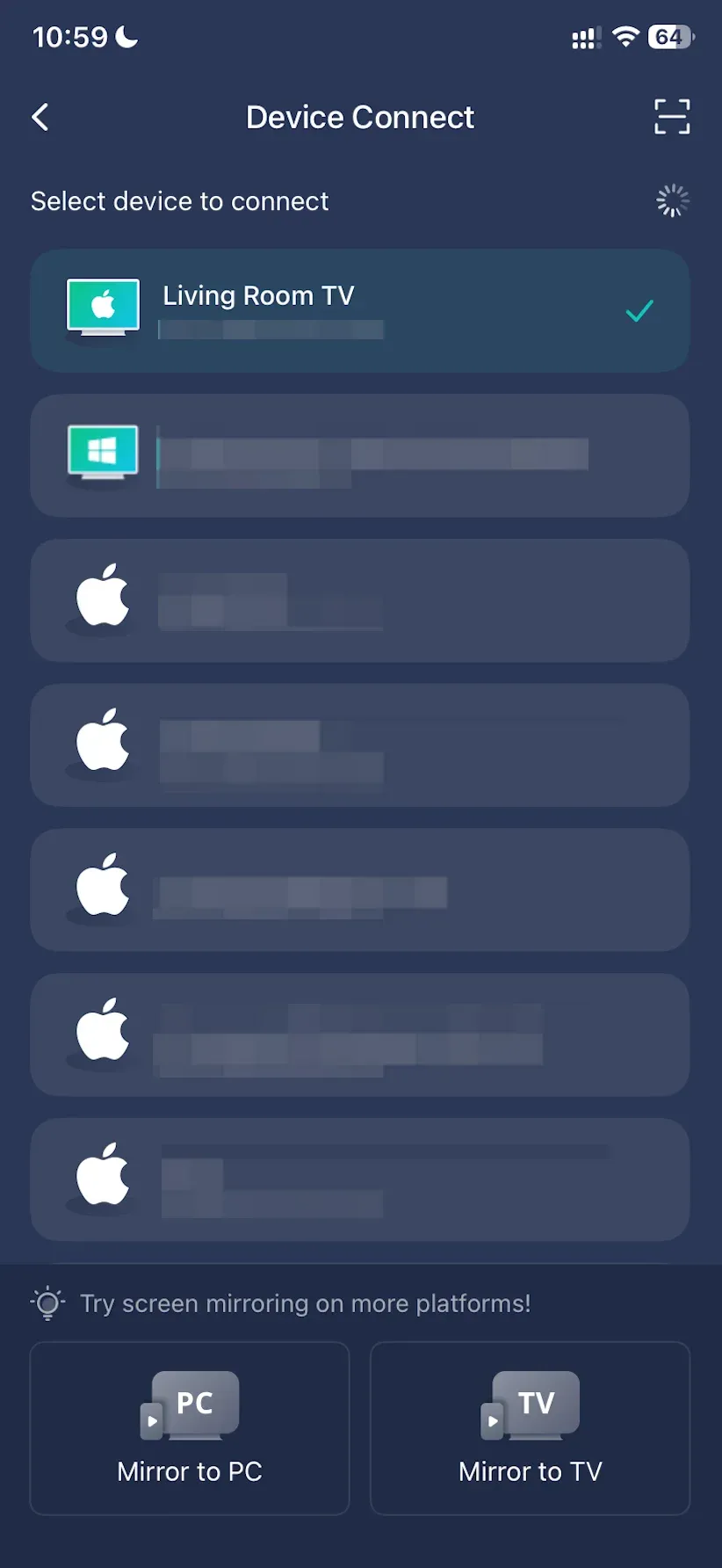
Step 5. Tap Screen Mirror and select your preferred quality, with support for up to 2K/60 FPS on compatible setups, and enable audio if needed.
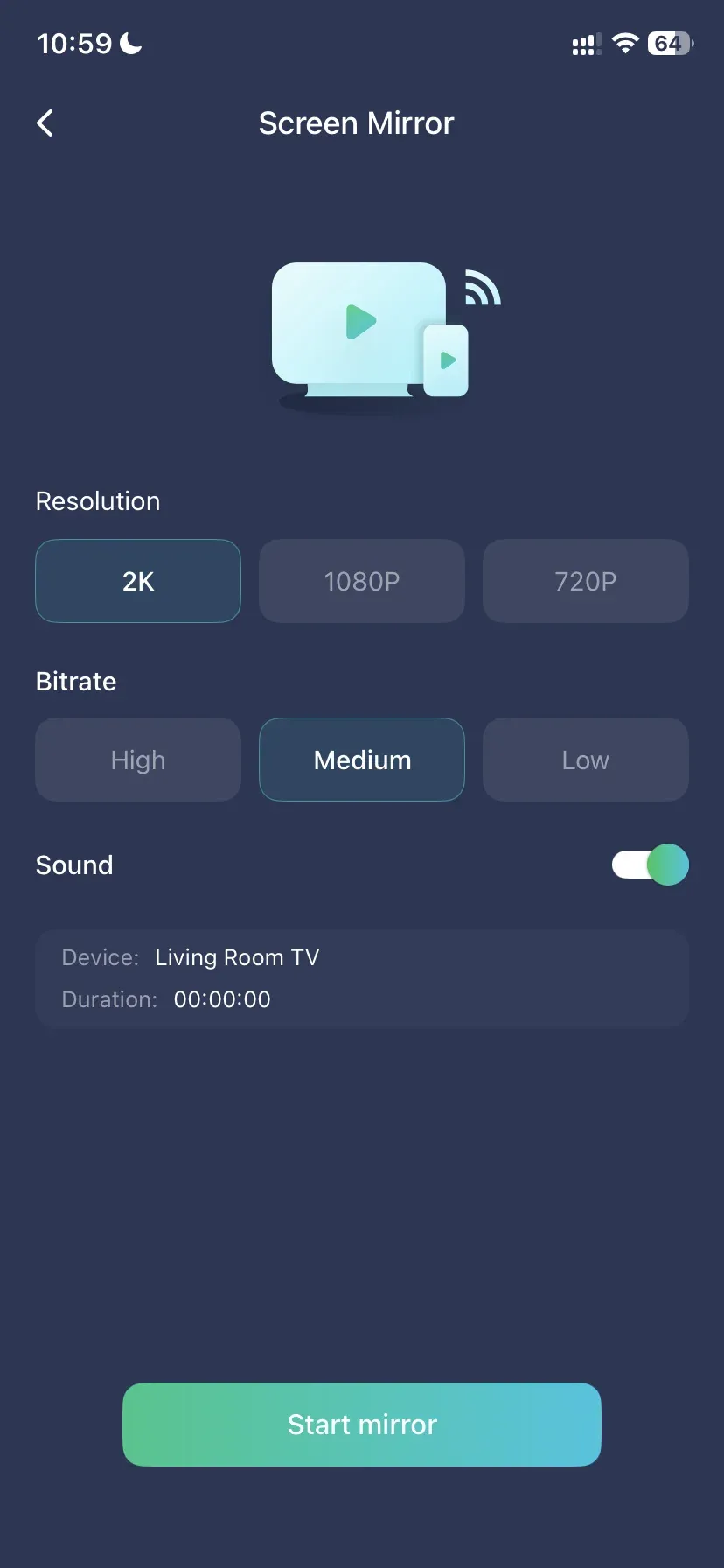 Step 6. Start screen mirroring from your iPhone.
If 2K feels less stable on your network, try a lower quality setting before changing anything else. A stable lower-resolution session is usually more useful than pushing the highest setting over a connection that cannot maintain it. The main reason to try a screen mirroring app such as PigeonCast is therefore not that it automatically makes every iPhone mirroring session look better. It gives you another receiving workflow when native AirPlay is the inconsistent part of the setup, while also giving you more control over how the mirroring session starts and the quality it uses.
If AirPlay already works smoothly with your TV, there may be little reason to change. But if you keep running into receiver-specific issues, testing PigeonCast is a practical way to find out whether a different mirroring path produces a more consistent result.
Conclusion
Improving iPhone screen mirroring quality is easier when you troubleshoot the connection in the right order. Start with the network. Make sure both devices can communicate over the same stable Wi-Fi connection, reduce interference and unnecessary network traffic, and use direct video playback when full-screen mirroring is not necessary.
If the problem remains, test the receiving side. Reduce its processing load, check for audio-specific delay, and compare performance with another AirPlay receiver.
The key is to identify the bottleneck instead of repeatedly changing settings on the iPhone. Once you know whether the problem is the network, the display, or the receiving method, the right fix becomes much easier to choose.
How to Improve Screen Mirroring Quality on iPhone FAQ
Why Is My iPhone Screen Mirroring Blurry?
Blurry iPhone screen mirroring is often related to an unstable wireless connection, heavy network traffic, or a receiving device that cannot process the stream smoothly. Start by confirming that both devices are on the same Wi-Fi network, move closer to the router, and reduce background network activity. If another receiver produces a sharper picture on the same network, the original receiver may be limiting quality.
Does 5 GHz Improve AirPlay Quality on iPhone?
It often can. A strong 5 GHz connection typically provides good bandwidth for screen mirroring over short to moderate distances and may perform better than a crowded 2.4 GHz network. However, signal strength matters more than the band name. If 5 GHz becomes weak through walls or at longer distances, a stronger connection on another band may perform better.
Why Is Screen Mirroring Lagging but Video Playback Looks Fine?
Full-screen mirroring and direct video playback do not place the same demands on the connection. Screen mirroring continuously duplicates the entire iPhone interface, while direct playback can send the media in a more efficient way to a supported receiver. If you only need to watch a video, use direct AirPlay playback instead of mirroring the complete iPhone screen whenever possible.
Can My TV Reduce iPhone Mirroring Quality Even If AirPlay Works?
Yes. AirPlay support only means the TV can receive the connection. It does not guarantee that every TV processes live screen mirroring with the same speed or stability. If the same iPhone works noticeably better with another receiver, the original TV or its image processing is likely contributing to the problem.
Should I Restart My iPhone and TV?
Restarting can help clear temporary connection problems, but it should not be your first troubleshooting step. A restart cannot fix weak Wi-Fi, network congestion, or an overloaded receiver. Check those underlying conditions first, then restart the devices if the connection still behaves unexpectedly.
Is AirPlay Better Than a Dedicated Screen Mirroring App?
AirPlay is usually the most convenient first choice when your receiving device supports it reliably. A dedicated screen mirroring app becomes more useful when you need a consistent setup across different devices or when the receiving device's built-in AirPlay implementation is unreliable. Neither option can compensate for a poor wireless network, so connection quality should still be checked first.
Mia Clarke is a technology editor specializing in screen mirroring and casting solutions across multiple platforms. Mia provides clear, practical guides and in-depth insights to help users seamlessly connect their devices. Passionate about enhancing digital experiences, Mia is dedicated to keeping readers updated on the latest trends and tools in cross-platform screen sharing. Whether you’re looking to mirror your smartphone, laptop, or smart TV, Mia’s content delivers reliable, user-friendly advice to simplify your tech setup.